

We have all been in that situation. You are talking to your favorite AI assistant and asking it to get the most up-to-date pricing information from a competitor’s website or put together a list of real estate listings.
And then it gives you the dreaded answer: “I am sorry, I do not have access to real-time internet data.” Or worse, it imagines old numbers from its training data.
For a long time, the workaround was hard. You had to scrape the data yourself, deal with messy CSV files, clean the data, and then carefully paste it back into your AI prompt piece by piece. You had to start over if the site changed. The old way of getting data out did not work.
But things are different now, in 2026. The time when you had to copy and paste by hand is over.
MCP is the bridge that finally connects your AI’s brain to the internet in real time. By the time you finish reading this guide, you will know exactly how to use MCP to scrape web data (the most recent 2026 no-code guide). No writing scripts in Python. No more dealing with CAPTCHA. You, your AI assistant, and a steady stream of live data.
What is MCP for Web Scraping?
MCP web scraping is a protocol that allows AI agents to call web scraping tools on demand, effectively connecting the AI to real-time internet data. This integration eliminates the need for manual copy-pasting or prompt stuffing by providing a direct, automated bridge between the AI and live web sources.
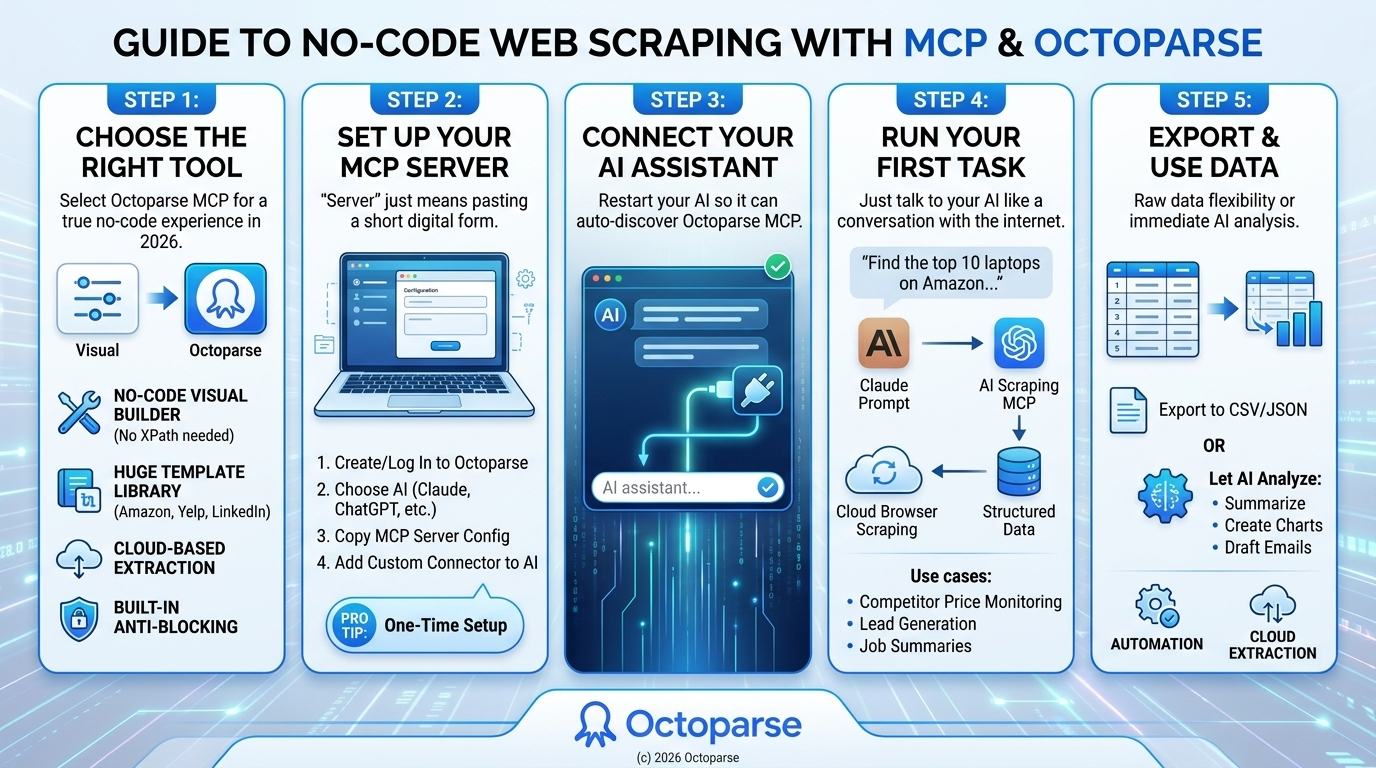
Step 1: Choose the Right Scraping Tool That Works with MCP
Not every web scraper on the market has caught up with MCP yet because it is still a new standard. You can not just plug any old scraper into Claude and hope it works. You need a tool that has an MCP server that is always on.
Firecrawl and Browserbase both offer MCP-compatible scraping, but they require API key configuration, JSON schema definitions, or JavaScript selectors to extract structured data.
Octoparse MCP is the clear winner for the “no code” experience in 2026. If you are evaluating Octoparse against other major tools like Apify, you can find a complete comparison to help you choose the best fit for your workflow: Octoparse MCP vs. Apify MCP.
Tool Comparison: MCP Scraping Platforms
| Tool | Coding Required? | Anti-blocking Built-in? | Cloud Execution? | Template Library? |
|---|---|---|---|---|
| Octoparse | No (Visual Builder) | Yes | Yes | Yes (Huge) |
| Firecrawl | Yes (Selectors/API) | Yes | Yes | Limited |
| Browserbase | Yes (Selectors/API) | Yes | Yes | Limited |
| Apify | Yes (Code-first) | Yes | Yes | Yes (Actors) |
To help you decide which MCP-compatible tool best suits your technical skills and workflow, here is a quick comparison of the most popular options.
Why? Octoparse was made for people who are not tech-savvy, and their MCP integration shows that. If you want to scrape websites with MCP without going to a coding bootcamp, Octoparse MCP is the best choice for you.
- No-Code Visual Builder: Octoparse handles the complex logic of web structures with its No-Code Visual Builder. You do not have to know what an XPath or CSS selector is.
- Huge Template Library: Octoparse offers ready-made templates for thousands of the most popular websites worldwide, including Amazon, Yelp, LinkedIn, and more. Your AI can just turn these templates on right away.
- Cloud-Based Extraction: Your computer’s RAM isn’t being fried. Scraping occurs on Octoparse’s powerful cloud servers.
Built-in anti-blocking: Sites do not like scrapers. Octoparse automatically handles IP rotation, browser fingerprinting, and CAPTCHA solving in the background, so your AI doesn’t get blocked.The Octoparse Templates Library is a great place to go if you want to see how many sites are ready to be scraped right away. Picking the right tool is half the battle; once you have Octoparse, the rest is very simple.
Step 2: Set Up Your MCP Server
I know the word “server” sounds intimidating. You might be picturing a dark room full of blinking server racks. But in the context of MCP, “setting up a server” simply means pasting a few lines of text into a settings file on your computer.
Think of it like filling out a quick digital form. Here is exactly how to set up Octoparse MCP (see the official documentation).
1. Create or Log In to Your Octoparse Account
First, head over to Octoparse and log in. If you don’t have an account, setting one up takes about thirty seconds. You will need this account to send requests and manage the data you scrape. While the free tier is sufficient for standard template scrapes and initial setup, Octoparse also offers tiered premium plans for heavy-duty cloud extraction and advanced MCP features.
2. Pick your AI client and follow the setup guide for it: Claude, ChatGPT, Cursor, etc.
3. Copy the MCP Server Config. Octoparse will provide you with a short JSON snippet or MCP Server URL.
4. Add a custom connector. If you are using Claude Desktop (the most popular MCP client right now), you just need to drop that configuration into a specific field.
Follow the link above for specific instructions on this setup.
Pro Tip: This is a one-time setup. You will never have to touch this configuration file again. After this, everything runs entirely from your chat window.
Step 3: Connect Your AI Assistant to MCP
You’ve got the tool, and you’ve pasted the code. Now it’s time to bring your AI to life.
If you currently have Claude Desktop open, go ahead and close it completely, then restart the application. This is the equivalent of “turning it off and on again” so Claude can read the new configuration file you just saved.
Here is the beautiful part about MCP: Claude auto-discovers the Octoparse MCP server. There is no manual linking, no complex authentications to run inside the chat, and no hidden buttons to click.
When you open Claude, look near your text input box. You should now see a small “plug” or “tool” icon indicating that external MCP tools are active. If you click it, you will see Octoparse listed right there, ready to go.
It is also worth mentioning that this is an open standard. While I am using Claude as the primary example, this same pattern works flawlessly with other MCP-compatible AI tools and IDEs, such as Cursor or Windsurf.
If you followed the steps above, you are likely done in under 5 minutes. Your AI is now officially connected to the live web.
Step 4: Run Your First Web Scraping Task with MCP
This is where the magic happens.
Before MCP, you had to log into a scraping dashboard, define parameters, run the task, download the file, and then feed it to an AI. Now? You just talk to it.
For a local business example, try the Google Maps MCP Server with a prompt like “Find coffee shops in Seattle with phone numbers and websites.”
Let us look at a real-life example that is easy for beginners to understand. Type in your AI chat:
“Using Octoparse, find me the top 10 laptops on Amazon that cost less than $800 and have a rating of 4.5 or higher.”
This is what goes on behind the scenes:
- Claude knows what you want and knows that it needs real-time data.
- Claude uses AI scraping MCP to send a ping to the Octoparse server.
- Octoparse compares your request to the Amazon template it has already created.
- Octoparse opens a cloud browser, searches for items on Amazon, applies your filters, and retrieves the data.
- In just a few seconds, the data is sent straight back to Claude.
Claude will then output a beautifully formatted, structured table right in your chat window—no CSV wrangling required. You ask a question, and you get a structured, data-backed answer.
To really grasp the power of this, consider these real-world use cases:
- Competitor Price Monitoring: “Check Best Buy’s current price for the iPhone 16 Pro every morning and alert me if it drops below Apple’s MSRP.”
- Lead Generation: “Scrape the first 3 pages of plumbing businesses on Yelp in Chicago, and give me a table with their names, phone numbers, and website URLs.”
- Job Listing Aggregation: “Go to LinkedIn Jobs, search for ‘Remote Marketing Manager’, and summarize the top 5 most frequent skills required in the job descriptions.”
You are not running code. You are having a conversation with the internet. For more examples, check out this article.
Step 5: Export and Use Your Scraped Data
Extracting the data is only the first half of the battle; using it effectively is the second.
Because the data is flowing directly into your AI via MCP, you have incredible flexibility in how you handle it. If you need the raw data for your own records, you can easily tell your AI: “Export this table as a CSV,” or “Format this output as JSON so I can feed it to my app.” But the true power of MCP lies in immediate analysis. You don’t have to export the data to Excel to make sense of it. The moment the scrape finishes, you can ask Claude:
- “Summarize the overarching sentiment of these 100 scraped reviews.”
- “Create a pricing comparison chart based on this data.”
- “Draft personalized cold outreach emails for these 20 leads based on their company descriptions.”
Furthermore, you can move from ad-hoc scraping to full automation. You can set up Octoparse tasks to run on a schedule (daily, weekly, monthly) so that your data stays perpetually fresh without you ever having to trigger a scrape manually. To learn more about pushing data directly to your own databases, check out our guide on Octoparse cloud extraction.
If you are looking for a comprehensive list of the best MCP server options for business automation, check out our latest guide.
Troubleshooting & Limitations: Common MCP Errors and Scraping Blocks
While MCP greatly simplifies the scraping process, you may still run into issues related to connectivity or site restrictions. Here are key troubleshooting tips and important limitations to keep in mind:
Troubleshooting
- AI Not Discovering the Server: If your AI client (like Claude Desktop) is not seeing the Octoparse MCP server after setup, ensure you completely restart the application. This forces the client to read the new configuration file.
- Unexpected Blocks or Failed Scrapes: If a task fails, it is often due to a website’s anti-bot measures. Octoparse MCP mitigates this by automatically handling anti-blocking features like IP rotation, browser fingerprinting, and CAPTCHA solving in the background.
Limitations
- Legal Responsibility: Scraping legality always depends on a website’s Terms of Service and local data privacy laws (like GDPR). Always check a site’s robots.txt file and scrape responsibly.
- Research vs. Structured Data: Octoparse MCP excels at extracting highly structured data (e.g., tables, listings, prices). For general, real-time open web research without a clear endpoint, a server like Perplexity MCP may be more suitable.
Conclusion
Let’s do a quick recap. To scrape web data like a pro in 2026, all you have to do is:
- Pick the right tool (Octoparse MCP).
- Set up the server by pasting a config snippet.
- Connect your AI simply by restarting your app.
- Run a task using natural language prompts.
- Analyze and export your data instantly.
The days of messy scripts and broken Python code are over. This is the 2026 standard. Octoparse is currently the most plug-and-play MCP scraping option available today, giving you enterprise-grade extraction power right inside your chat window.
The MCP ecosystem is still early, and the tools will only get faster and smarter. But you don’t have to wait for the future. You now know exactly how to Scrape Web Data Using MCP, so get out there and start turning the web into your own personal database.
FAQs about MCP Web Scraping
- What is MCP web scraping?
MCP (Model Context Protocol) web scraping is a set of rules that lets AI assistants like Claude connect to and control web scrapers directly. You can get real-time internet data with simple conversational prompts instead of having to write code.
- Do I need coding skills to scrape websites with MCP?
No. In the past, you needed to know Python or JavaScript to scrape data. Now, though, there are tools like Octoparse MCP designed for people who are not tech-savvy. You can scrape data if you can talk to an AI.
- Is Octoparse MCP free to use?
You can try out Octoparse for free to see how it works, including how to extract basic templates. They have tiered premium plans for heavy-duty cloud extraction and advanced MCP features.
- Which AI assistants support MCP scraping?
MCP is a standard that anyone can use. Claude (via Claude Desktop) and AI-powered coding environments like Cursor and Windsurf are currently providing significant support. Soon, all major AIs will use it more widely.
- Is web scraping with MCP legal?
Most of the time, it is legal to scrape public data from the web. But it always depends on the Website’s Terms of Service and the data privacy laws in your area (like GDPR). Always review the robots.txt file on a website and scrape it responsibly.