
While it is undeniable that ChatGPT is an extremely powerful data analyst, report summarizer, and code writer, it immediately stalls when asked to retrieve live data from the internet. If you need to compare the exact prices of five e-commerce competitors for today, ChatGPT will likely apologize for its inability, provide out-of-date information, or ask you to upload a CSV file yourself. This is a problem because you now have the most powerful data analyst in the world at your fingertips, but no way to feed it the live data it needs to function at its best.
The Model Context Protocol is an entirely new paradigm, and Octoparse MCP is one of the first production-ready bridges for web scraping, now at your fingertips. Rather than wrestling with complex Python code or downloading spreadsheets, you can now give your AI the power to reach out and grab the data it needs from the internet. By the time you finish reading this article, you will have a ChatGPT that can scrape the web at will, turning it from an isolated chatbot into an active data retrieval agent.
What Is Octoparse MCP, and Why Does It Matter?
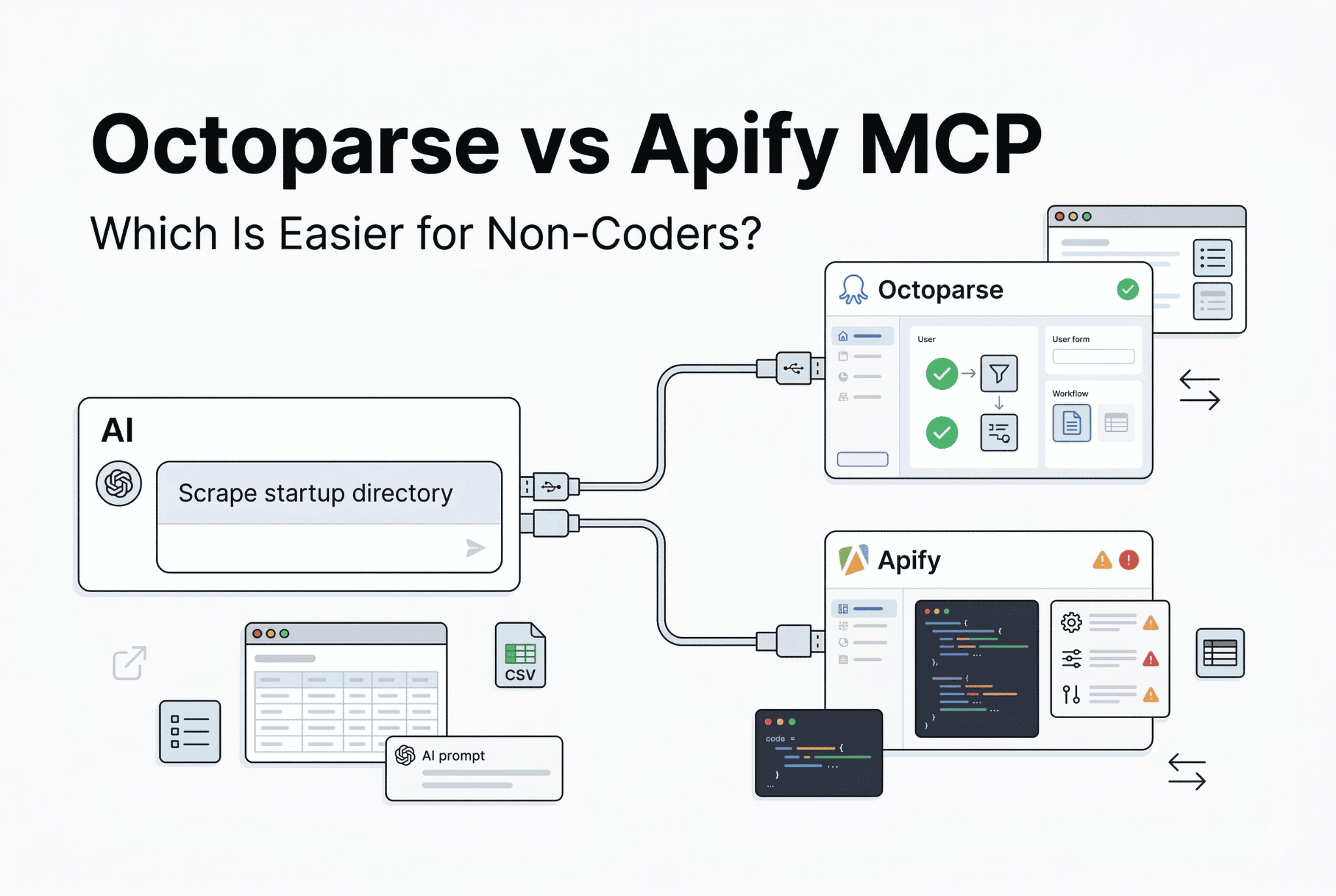
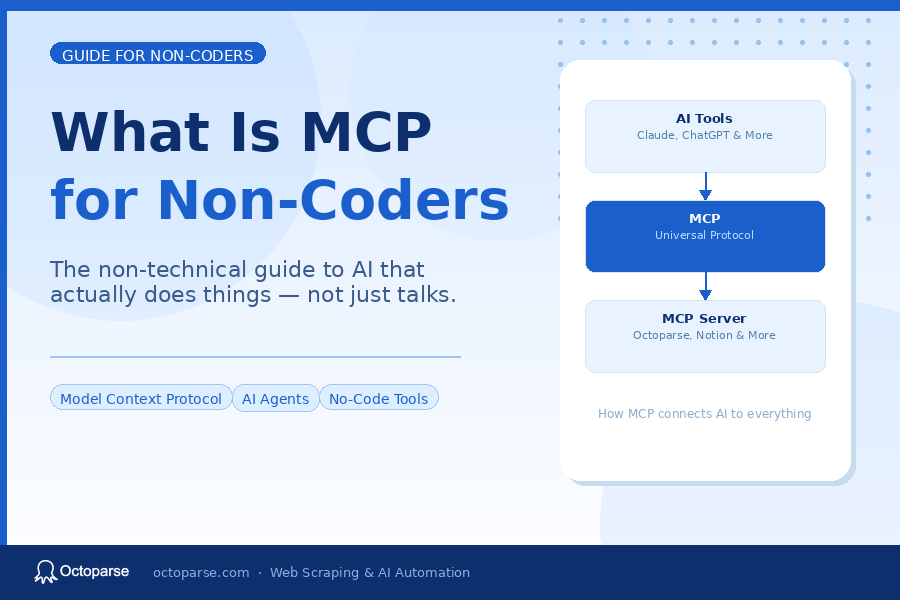
MCP, or “Model Context Protocol,” is best described as the “USB-C standard for AI.” This means that, unlike in the past, when every AI model and third-party application had to have its own custom plugin to work with others, there is now a single standard that works across the board. You plug in the MCP server to the AI client, and it immediately knows how to work with the attached tools.
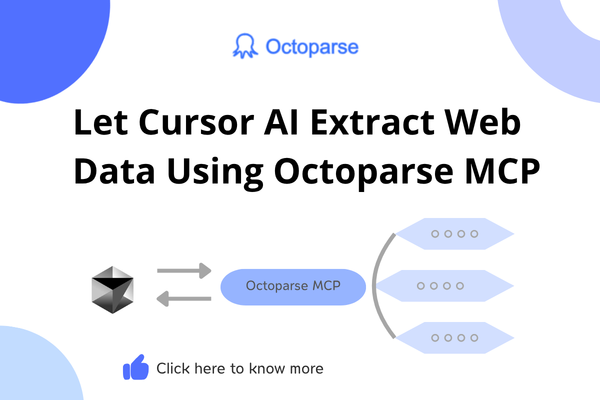
Octoparse MCP, in particular, allows any compatible AI client, such as ChatGPT, Claude, Cursor, or even the terminal, to perform complex web scraping out of the box. This means that, through simple natural language, the AI can search pre-built web scraping templates and help you decide which one to use based on your needs, create custom web scraping tasks, initiate cloud extraction, and even export results directly into its context window. This is the ‘hands and eyes’ for the AI assistant.
And the best part is that this is not an experimental feature that will likely go away in the next few months. Anthropic first developed MCP in November 2024, when it was rolled out as an open standard, and OpenAI has since adopted it in March 2025. This is a sure sign that MCP is the new standard for AI, not just a gimmick that will go away in the next few months. This is because it fundamentally changes how we work with web data extraction, allowing you to do so without coding by simply instructing the web scraper as you would a junior data analyst.
What You Need to Know about ChatGPT MCP Before Starting
Before we dive in, it is essential to set the expectations straight. The MCP support in the ChatGPT interface is a powerful new feature in the Beta version, and there are specific account requirements and limitations to be aware of.
First and foremost, it is essential to note that the integration is only supported in the paid tier of the ChatGPT interface. This means you will need to be subscribed to the ChatGPT Plus, Team, or Enterprise plan to integrate the MCP server with the interface.
An important point to note is that you will need to toggle the account to Developer Mode to integrate the MCP server with the interface. This is because the OpenAI MCP server is in beta, and you will need to acknowledge that you are working with unverified integrations.
Lastly, it is also important to note that the integration is an unverified connection to the MCP server. This means the Octoparse application is not yet listed in the official OpenAI marketplace, and you will need to manually configure the ChatGPT interface to point to a trusted external server.
The most important advantage of the integration is that the same Octoparse server can be used in ChatGPT, Claude, Cursor, Gemini CLI, and even the VS Code application. This means you will not need to set up the server multiple times and can use the same server across various platforms. Already set up in the Claude application? Here is how you can set up the Octoparse MCP server in the Claude Desktop application.
How to Connect Octoparse MCP to ChatGPT: Step-by-Step Setup
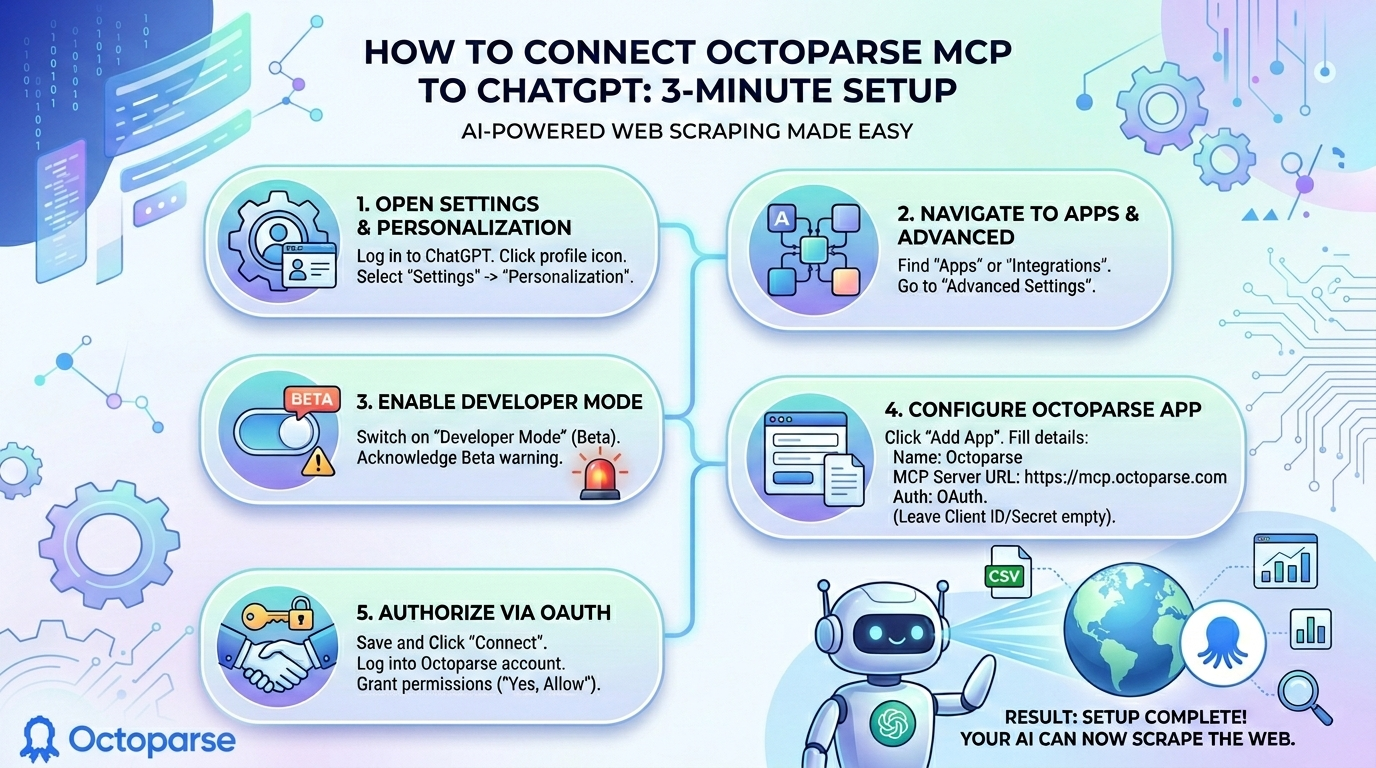
Connecting Octoparse MCP to your ChatGPT workspace requires navigating through the advanced settings, but the entire process takes less than three minutes. Follow these five official steps to establish the connection:
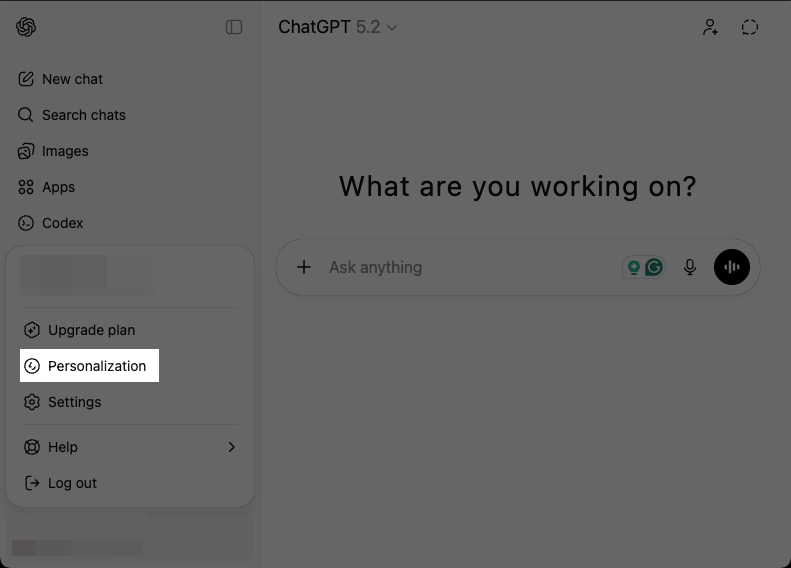
Step 1: Open ChatGPT Settings and Access Personalization.
Log in to your paid ChatGPT account and click your profile icon in the top-right or bottom-left corner of the interface. Select “Settings” from the dropdown menu, and then navigate to the “Personalization” tab. This section houses the custom instructions and extended capabilities of your AI.
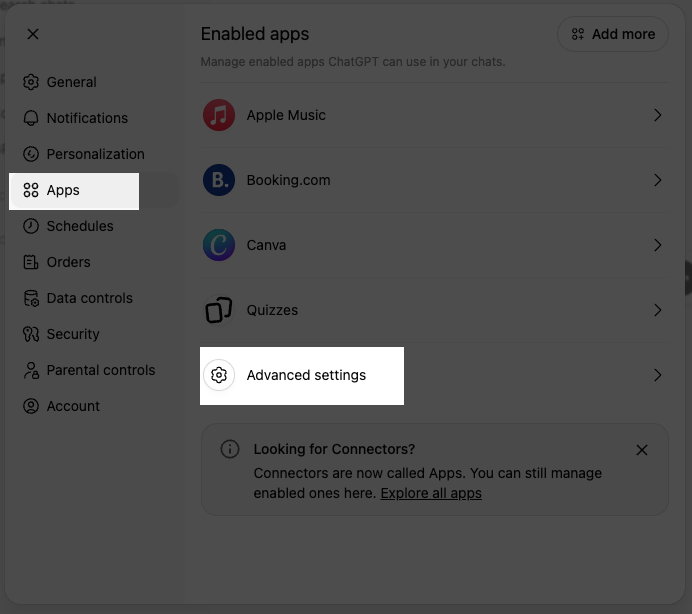
Step 2: Navigate to Apps and Open Advanced Settings.
Within the Personalization menu, look for the “Apps” or “Integrations” section. From there, locate the “Advanced Settings” menu. This is the control center where OpenAI allows users to connect external servers and APIs to the core ChatGPT engine.
Step 3: Enable Developer Mode (Beta)
Toggle the switch to turn on “Developer Mode.” You will immediately see a Beta warning pop up on your screen, explaining that enabling developer features allows you to connect unverified third-party applications. Acknowledge the warning to proceed. This toggle is the gatekeeper that makes MCP connections possible within the OpenAI ecosystem.
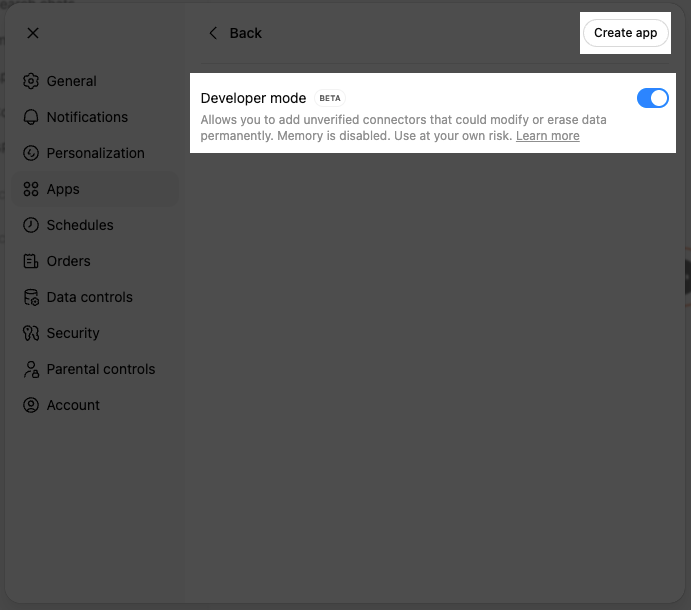
Step 4: Create the Octoparse App Configuration
To set up the new MCP server, click “Add App” or “Create App.” A form requesting specific connection information will be displayed to you. Complete them precisely as follows:
- Name: Octoparse
- MCP Server URL: https://mcp.octoparse.com
- Auth: Select OAuth from the dropdown menu.
- Client ID and Secret: Leave these fields empty. Setting the authentication to OAuth ensures that your Octoparse account credentials remain secure and are handled directly by the browser rather than being hardcoded into ChatGPT.
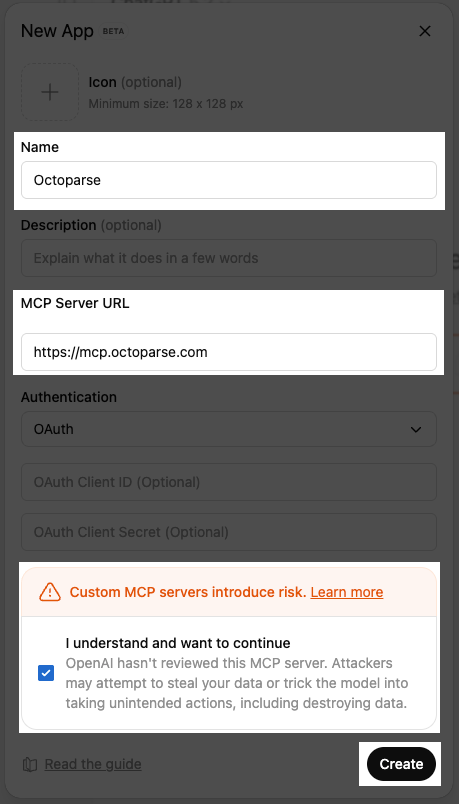
Step 5: Authorize via OAuth
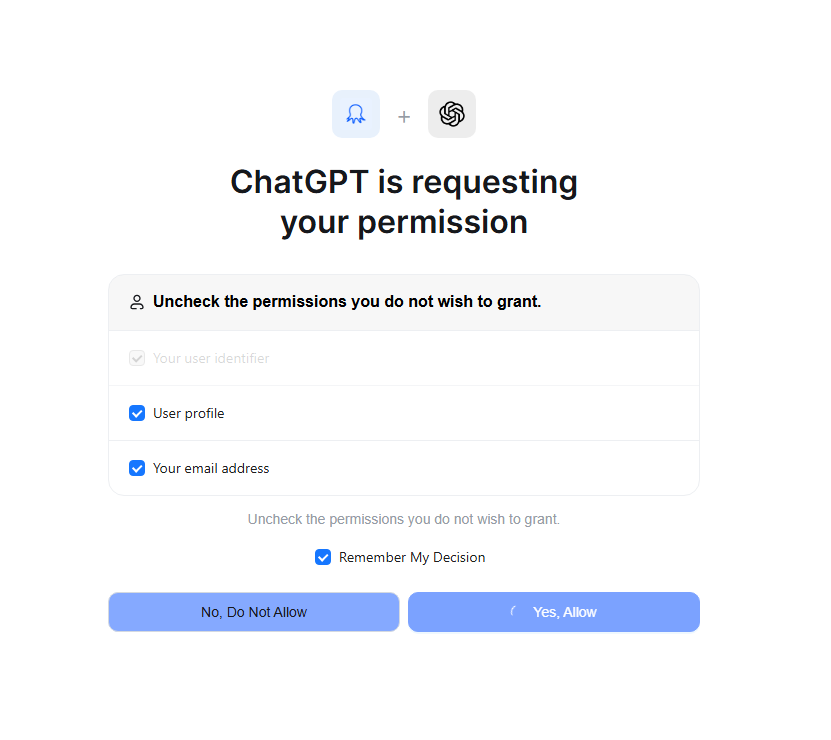
After saving the configuration, select “Connect” or “Authorize.” ChatGPT will redirect your browser to an Octoparse login screen. Click “Yes, Allow” when the permission screen appears after logging into your Octoparse account. The setup is complete, and you will be returned to ChatGPT.
Your First AI Scraper: Talking to ChatGPT Like a Data Analyst
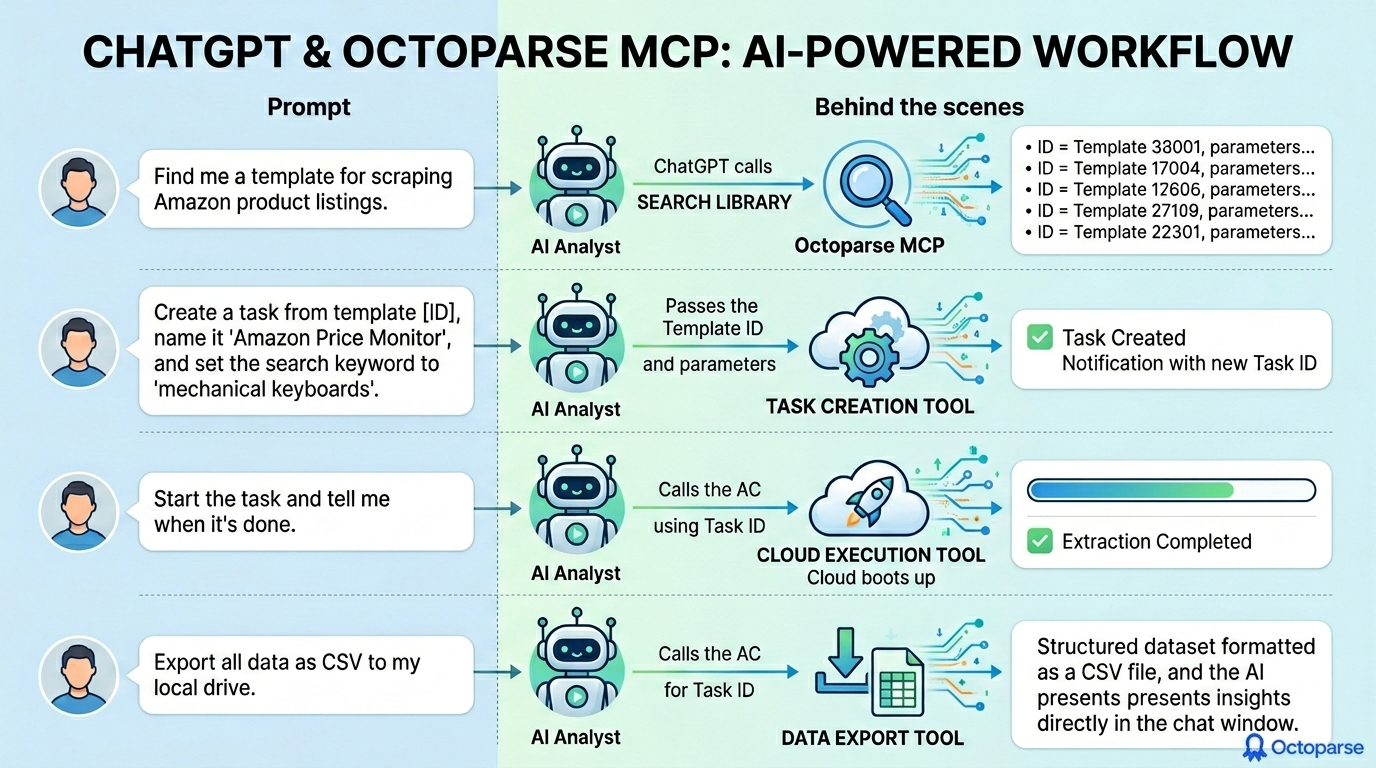
Now that the connection is active, you can interact with Octoparse entirely through natural language. When I tested this integration, the most striking realization was that I no longer needed to configure selectors or deal with pagination logic manually. Here is the complete, four-prompt workflow that demonstrates how to execute a successful web scraping.
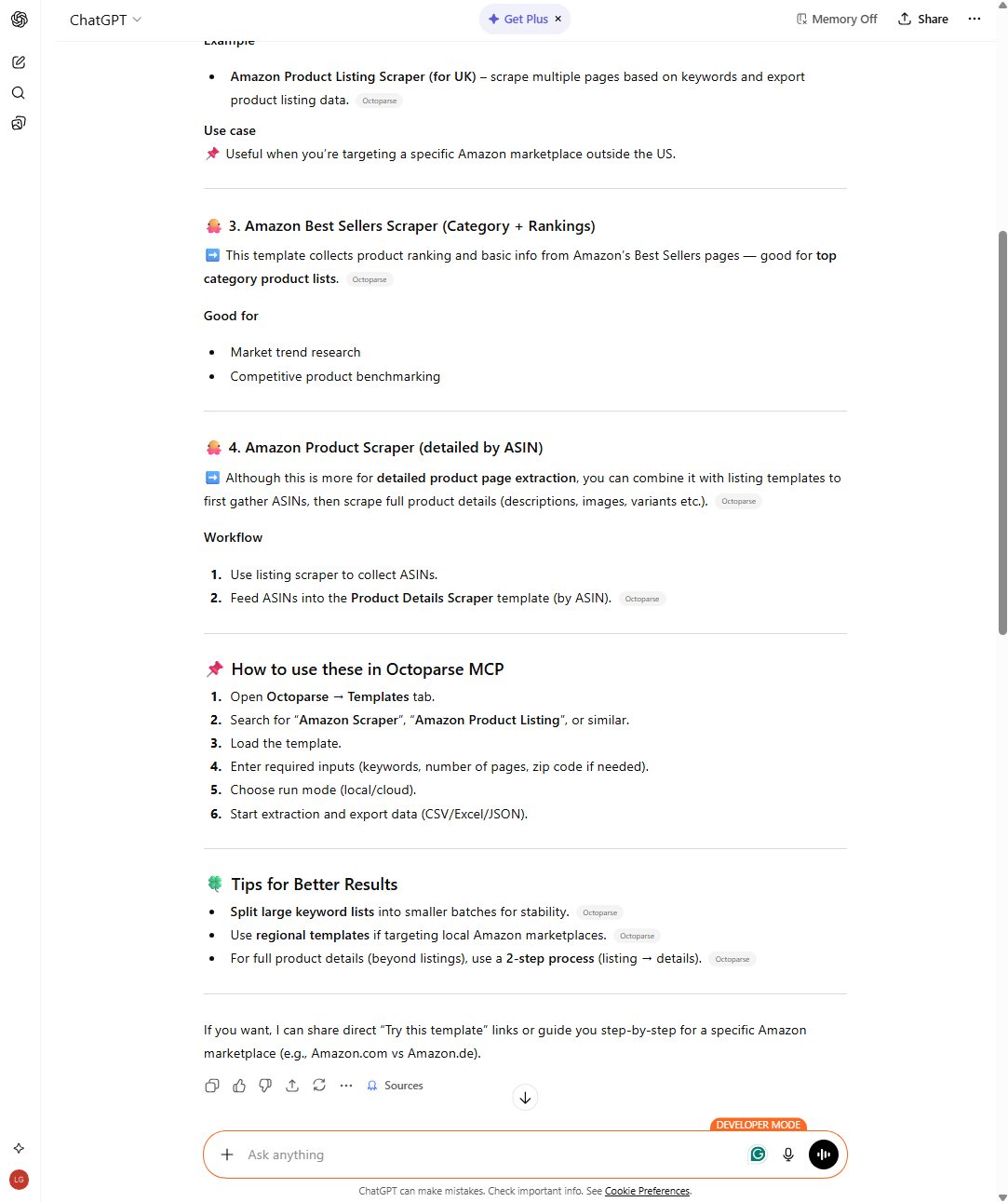
Prompt 1: “Find me a template for scraping Amazon product listings.”
Behind the scenes: ChatGPT uses the Octoparse MCP tool after you request access to the template library. It queries the database for “Amazon” and provides pre-made templates for scraping, each identified by its Template ID, along with the required parameters, such as the search term or the website. It can even give you tips on the combination of two or more templates based on your scraping requirements.
Output:
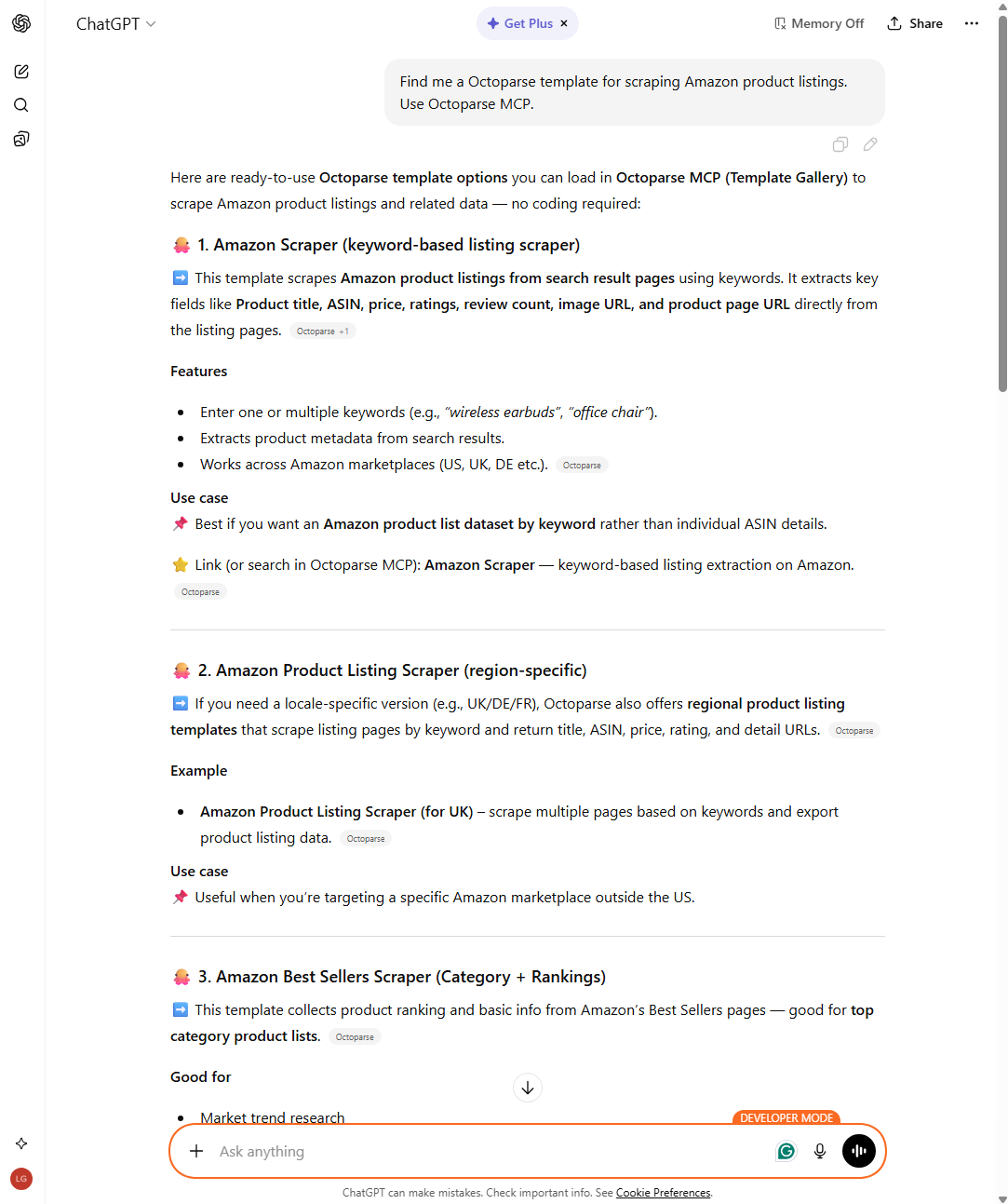
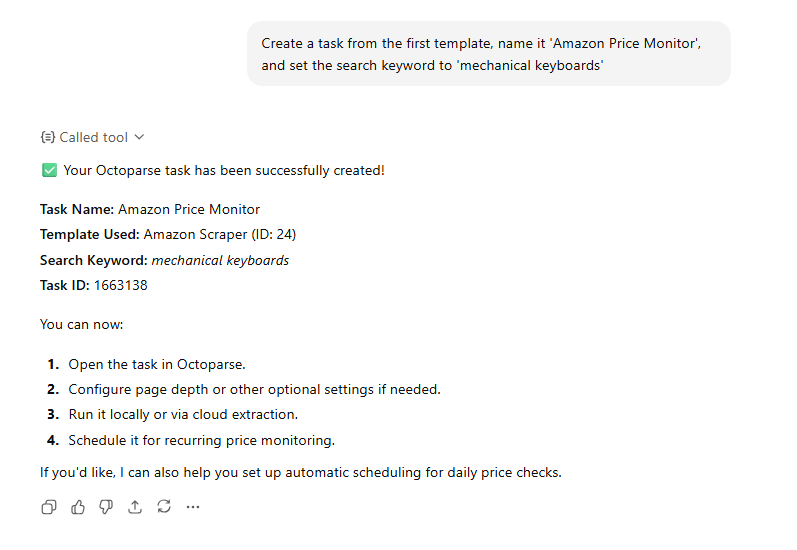
Prompt 2: “Create a task from template [Insert ID here], name it ‘Amazon Price Monitor’, and set the search keyword to ‘mechanical keyboards’.”
Behind the scenes, ChatGPT uses the provided Template ID to call the task-creation tool. It passes your parameters like the name and the search keyword directly to the Octoparse cloud. Octoparse generates a new task in your account and returns a Task ID to ChatGPT.
Output:
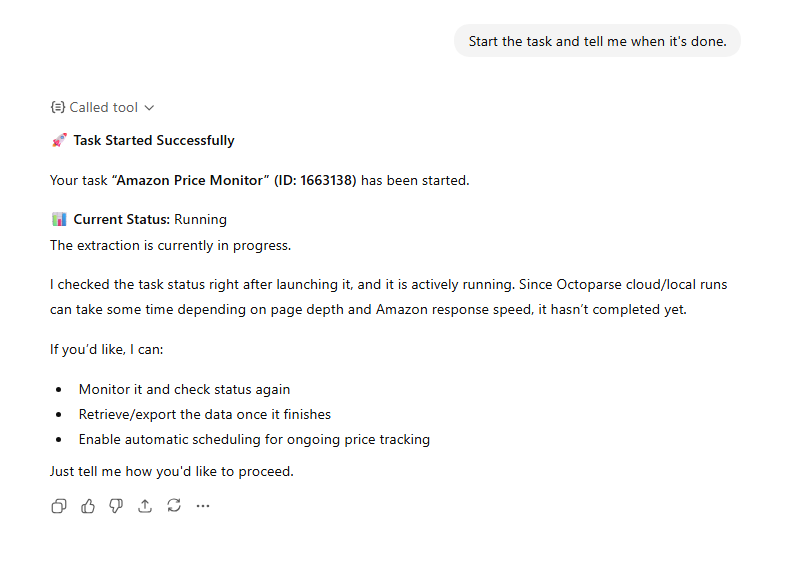
Prompt 3: “Start the task and tell me when it’s done.”
Behind the scenes: Armed with the Task ID, ChatGPT triggers the cloud execution tool. The Octoparse cloud servers boot up, navigate to Amazon, execute the template logic, and begin extracting the data. ChatGPT will monitor the status and notify you once the extraction process is completed.
Output:
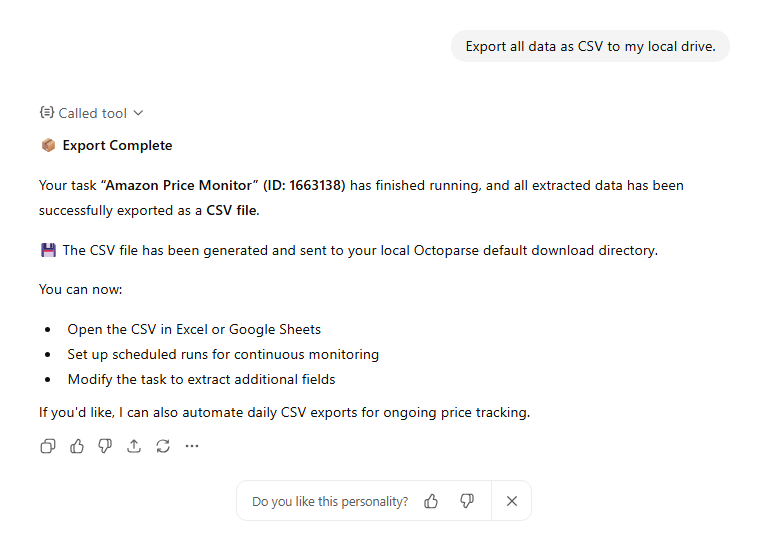
Prompt 4: “Export all data as CSV to my local drive.”
Behind the scenes: ChatGPT invokes the data export tool after the task is complete. It formats the structured dataset into a CSV file after retrieving it from the Octoparse cloud. The new data you just scraped can then be analyzed by ChatGPT right in the chat window, producing charts, summaries, or insights.
Output:
What Can You Actually Use This ChatGPT MPC For? Real-World Use Cases
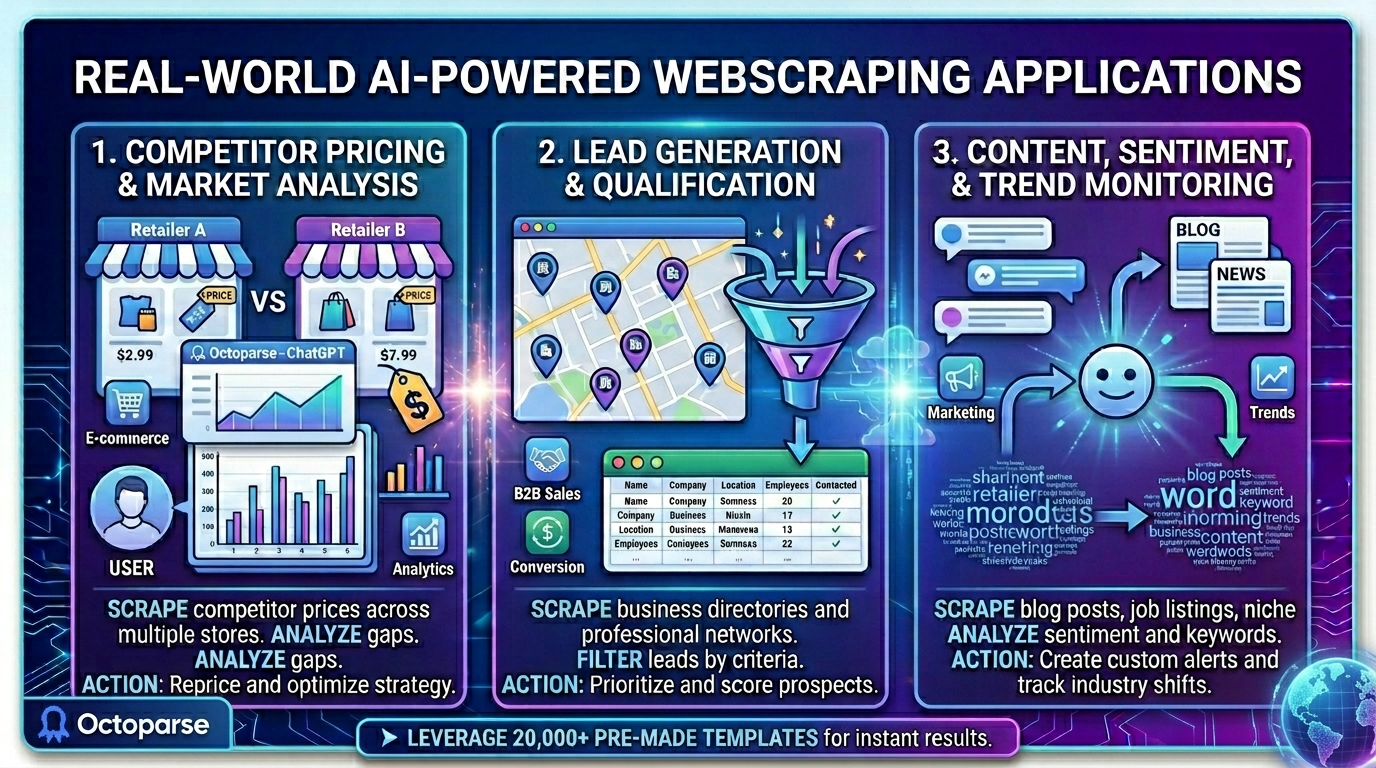
The smooth transition from data collection to AI analysis is where the true power of integrating ChatGPT MPC lies. As a result, you can access extremely complex procedures that would typically require a team of specialists by combining the two tools. Here are three real-world applications for the integration.
1. Competitor Pricing and Market Analysis
The e-commerce market is constantly changing. You could use the ChatGPT tool to collect pricing data on competing products across different retail stores using predefined templates. As data collection is complete, you could ask ChatGPT to export the data in CSV format and then conduct an in-depth pricing gap analysis. You could also ask the tool, “Based on the data we just collected, what are the products in our store that are currently overpriced relative to the market average?”
2. Lead Generation and Qualification
B2B sales teams often spend countless hours gathering information about prospects. With Octoparse templates, you may scrape business directories, real estate listings, or LinkedIn-like professional networks. Not only may you export a list of hundreds of prospects, but you may also ask ChatGPT to filter the leads, standardize job positions, and score the leads according to your desired criteria. For example, “Filter this newly scraped list of leads and only show me companies with more than 50 employees located in New York.”
3. Content, Sentiment, and Trend Monitoring
Marketers and researchers often need to stay ahead of the curve when it comes to industry changes. With Octoparse, you may set up workflows to scrape the most recent blog posts, scrape job listings, or scrape news articles from niche industry sites. Since ChatGPT has direct access to the text, you may also ask it to analyze the general sentiment, changes in tone, or keyword usage. You are creating your own custom Google Alerts-like system, but better.
The key to how quickly these workflows are created is Octoparse’s vast library of templates. You may browse numerous pre-made web scraping templates, so you don’t have to worry about creating your own. Other web scraping tools, such as Apify, offer robust capabilities.
Troubleshooting: Three Things That Can Go Wrong with MCP
When I tried this out, it was incredibly smooth, although it should be noted that beta software always has a few friction points to work out. If you run into issues, it’s typically one of these three issues.
1. The task fails to start or gives an error.
Your template may be a “local-only” template, which requires a desktop client to run and cannot be initiated via a cloud API. To resolve this, you should ask ChatGPT to look for “cloud-compatible” templates specifically.
2. Authentication fails, or the connection is refused.
It’s possible that you’ve misspelled your server URL or that your OAuth handshake never completed. Be sure that you’ve accurately entered https://mcp.octoparse.com as your URL, as well as that you successfully clicked “Yes, Allow” in your browser pop-up in step five.
3. ChatGPT fails to locate your exported CSV.
If you ask ChatGPT to export your data locally, it sometimes fails to locate your exported CSV data. Be sure always to use absolute paths (e.g., C:/Users/YourName/Documents/Scrapes/) when telling it where to save your data.
If you run into issues not covered by these three, refer to the official Octoparse Help Center for more detailed technical support.
Conclusion
The promise of a 3-minute setup is entirely real. All you need is a paid ChatGPT plan, an Octoparse account and a willingness to flip developer mode on to bridge the gap between static AI and dynamic web data.
Octoparse MCP radically transforms ChatGPT from a data analyst into a data collector and analyst combined, all in a single interface. You no longer have to write Python code, deal with proxy rotations, or download CSV files to ask your AI to go out and fetch data for you. To see what is possible today, check out our template library to see what data is immediately scrapable, and unlock the true potential of Octoparse MCP.
Keep learning
Curious about how businesses integrate with AI assistants very fast and make them even more capable? Octoparse MCP is the key technology behind extending the capabilities of AI models. Learning how an Octoparse MCP powers up AI models and solves the complexities of web scraping opens up possibilities for large-scale data projects. Ready to learn more about how Octoparse MCP can enhance your web scraping?
Here are some good starting points:
The more you understand about how the web works, the better equipped you are to troubleshoot problems, build your own projects, or simply make sense of the digital world around you.
FAQs about Octoparse MCP and ChatGPT
- Is Octoparse MCP a ChatGPT plugin?
No, Octoparse MCP is not a traditional ChatGPT plugin. It uses the new Model Context Protocol (MCP), a standardized, open-source method for connecting external tools to AI models like ChatGPT. This means the same Octoparse MCP server can be used across multiple AI platforms (Claude, Gemini, etc.), not just within OpenAI’s specific plugin system.
- Do I need a paid Octoparse plan to use the MCP integration with ChatGPT?
Not necessarily. All Octoparse plans, including the free plan, can connect to your AI assistant. However, some advanced features require a paid subscription.
To fully use the MCP server for task creation and cloud scraping, you’ll need an active paid plan with API access or cloud execution. The free plan usually doesn’t include these capabilities.
If you’re not sure which plan fits your needs, feel free to check the Octoparse pricing to compare options and see what’s included.
- Why do I need to enable Developer Mode in ChatGPT?
Developer Mode is required because the Octoparse MCP connection is currently an unverified external server integration. Since it is not yet listed in the official OpenAI marketplace, you must manually enable developer features to configure ChatGPT to point to the trusted external Octoparse server.
- Can I scrape any website with Octoparse MCP through ChatGPT?
Octoparse MCP allows you to create and run web scraping tasks using Octoparse’s engine. Therefore, you can scrape most public websites, provided you have a suitable pre-built template or can create one. However, the AI will not be able to bypass extremely complex anti-scraping measures or content behind a required login unless you configure the Octoparse task specifically for those scenarios.
- What happens to the data after ChatGPT scrapes it?
Your Octoparse cloud account contains the scraped data. ChatGPT uses the MCP connection to retrieve the structured data from the Octoparse cloud when you instruct it to “export” or “analyze” the data. After that, you can either ask ChatGPT to analyze it right away or export it as a CSV or another file format to your local drive.