

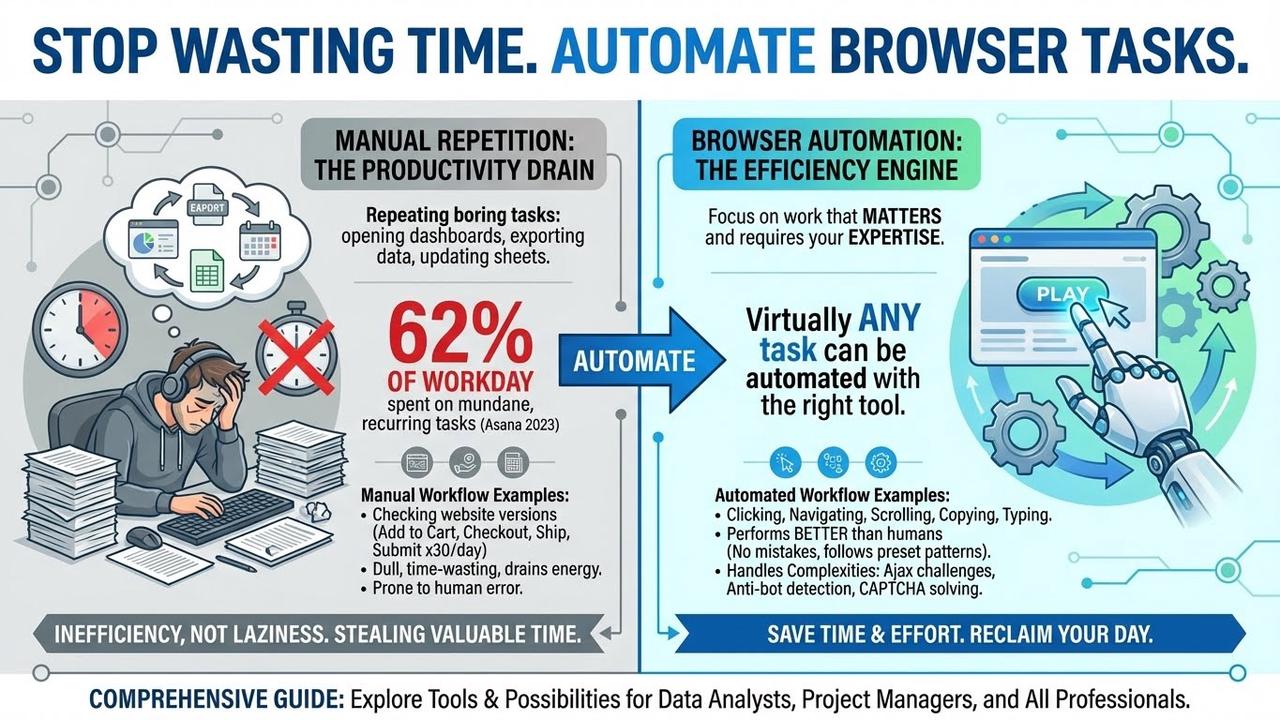
Nobody likes repeating the same boring task over and over, and the same applies to browser-automated tasks. Imagine this scenario: you are a developer who has to check a company’s performance every week by opening the dashboard, exporting it locally, and adding specific data to the main sheet. This is only one example of how people waste time in their jobs instead of automating and saving time.
People spend approximately 62% of their workday on mundane, recurring tasks, according to a 2023 study by Asana. If you also have tasks like that, just know you are not alone.
These are automatable tasks, like checking a new website version by adding an item to the cart, navigating to checkout, entering the shipping address, and submitting the order. Doing this 30+ times a day is dull and wastes a developer’s time and energy. Focus on work that requires expertise.
With browser automation, virtually any task can be automated with the right tool. Clicking, navigating, scrolling, copying, and typing are all actions that browser automation tools are capable of and can help you with daily repetitive tasks. Most of the time, these tools perform better than humans, as they make no mistakes in determining the following action, following a preset pattern.
Browser automation actions are not the only thing that makes these tools special, as many websites pose Ajax challenges, anti-bot detection and CAPTCHA challenges. This security layer introduces another dimension to what we want our browser automation tools to achieve, and addressing such challenges is one of them.
In this comprehensive guide, I aim to showcase the full range of possibilities in the browser automation industry, explore tools suitable for varying levels of technical knowledge, and demonstrate how to use them effectively. Whether you are a data analyst, project manager, or any professional who uses a browser, browser automation can save time and effort.
What Is Browser Automation?
Browser automation is software that can control a browser programmatically by mimicking preset human actions without manual input. Unlike other approaches, such as API calls, a real browser instance is started, and actions are executed directly on it. It opens the browser, renders the page, and interacts with its elements.
During browser interaction, various actions occur, including clicking buttons, typing text in boxes, submitting forms, handling CAPTCHA and other pop-ups, and extracting displayed data. Browser automation is not just about adding features to your browser; it controls the browser from outside, enabling headless execution, parallel runs, and CI/CD integration. The versatile actions of browser automation can fit almost any professional looking to automate their workflow.
Why Browser Automation Matters in 2026
Browser automation benefits go beyond saving time. It comes down to data quality as well. Here is why browser automation helps:
- Fragmented data sources: Manual data collection across multiple systems introduces copy-paste errors and formatting inconsistencies.
- Distracting context-switching: Even though you are familiar with these recurring tasks, switching between tasks takes time and mental effort. Harvard studies suggest that 15 minutes are wasted on context switching, totaling 4 hours per week. Automating and eliminating such tasks is the goal here.
- Better tooling: With the growing need for automation, many software companies in this industry are introducing features that traditional browser automation can’t deliver quickly.
What Browser Automation Handles
Browser automation doesn’t just do clicks on the browser, but in a controlled environment brings many features under the hood, like:
- Page navigation: Loading URLs, managing browser history, refreshing pages, and handling redirects are all essential components of page navigation for automated browser software.
- Element interaction: All actions involving locating specific buttons, selecting dropdown items, inputting values in fields, clicking, clearing, or typing text are considered interactions with elements.
- Session management: During the browser automation task, the software must keep the session alive, whether in the cloud or locally, with robust error handling. Handling cookies, maintaining login states, or switching between tabs.
- Behaviour simulation: Testing specific scenarios with predefined rules and combining all possible interactions in one task must be possible for a browser automation software.
- Data capturing: Extracting text from fields, parsing HTML attributes, and capturing screenshots. Web scraping is the process of automating web browsers to extract data.
Browser Automation: Code vs. No-Code
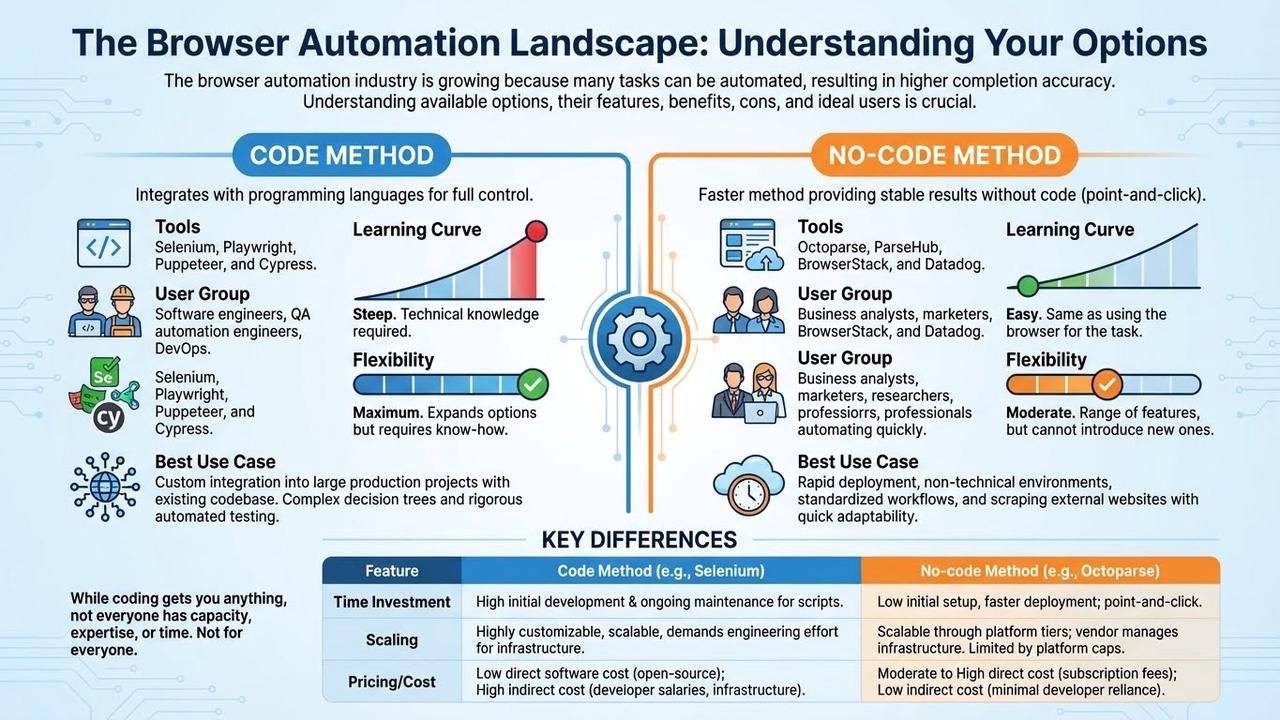
The browser automation industry is growing because many tasks can be automated, resulting in higher completion accuracy. For this exact reason, we need to understand the options available, what features they offer, their benefits and cons, and who they fit best.
There are two main approaches to browser automation. Either code a fully custom browser automation tool or use dedicated no-code browser automation tools. There are significant distinctions here, and the biggest one is how much time you want to spend developing and maintaining such a tool.
Code method
These libraries integrate with the programming languages (mostly Python) and provide functions to control the browser in an automated way:
- Tools: Selenium, Playwright, Puppeteer, and Cypress.
- User group: Software engineers, QA automation engineers, DevOps.
- Learning curve: Steep. Technical knowledge is required to use these tools.
- Flexibility: Maximum. These libraries expand your browser automation options but require some know-how to use.
- Best use case: Custom integration into large production projects with an existing codebase. These libraries can provide flexibility for complex decision trees and rigorous automated testing.
While coding can get you anything you wish for, not everyone has the capacity to do so. Some teams lack expertise, others lack time. This solution is not for everyone, so I offer an alternative.
No-code method
Most users look for a faster method that provides stable results in browser automation, and these tools will do just that without code (point-and-click) and powerful underlying features:
- Tools: Octoparse, Octoparse AI, ParseHub, BrowserStack, and Datadog.
- User group: Business analysis, marketers, researchers, and other professionals looking to automate browser tasks quickly.
- Learning curve: Easy. Same as using the browser for the task you want to automate.
- Flexibility: Moderate. Although these tools offer a range of features and are pretty flexible, you cannot introduce new features or tweak them yourself.
- Best use case: Rapid deployment, non-technical environments, standardized workflows, and scraping external websites where quick adaptability is key.
Here are the main differences between these two approaches:
Differences Between Code & No-Code Method
| Feature | Code Method (e.g., Selenium) | No-code Method (e.g., Octoparse) |
| Time Investment | High initial development time and ongoing maintenance for fixing broken scripts. | Low initial setup and faster task deployment; point-and-click configuration. |
| Scaling | Highly customizable and scalable, but demands significant engineering effort to manage infrastructure (e.g., cloud environments, parallel execution). | Scalable through platform tiers; the vendor manages infrastructure. Limited by platform-specific concurrency and feature caps. |
| Pricing/Cost | Low direct software cost (open-source libraries); High indirect cost (developer salaries and infrastructure hosting). | Moderate to High direct software cost (subscription fees); Low indirect cost (minimal reliance on specialized developer time). |
Before making any decisions for the method, you can use these quick questions to help you make a decision:
- Who will build this? Do we have spare developer capacity?
- How fast do we need it? Is this for next quarter or next Tuesday?
- Maintenance: Who fixes it when the website updates its CSS?
- Budget: Do we have a budget for software, or only for people hours?
If your answers point to: I have a lower budget and a low-capacity team to build and maintain custom browser automation scripts, but I need browser automation fast, then Octoparse is the solution for you.
Code or No-code in Action: Selenium vs. Octoparse
To get a complete understanding, let’s see how these tools perform in browser automation tasks and how easy they are to use. For this example, I will use the most popular coding-based browser automation library, Selenium, and the no-code browser automation tool Octoparse.
Selenium browser automation
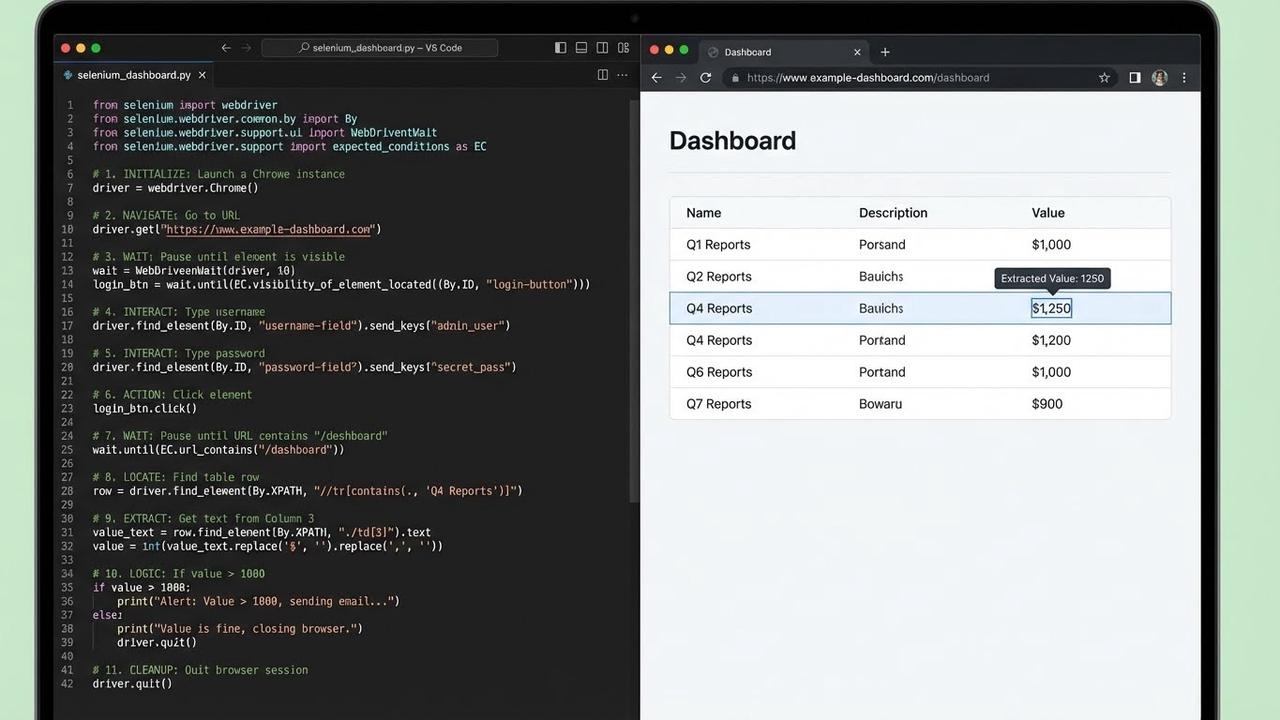
Selenium is a versatile browser automation library, and I will showcase, conceptually, how it works in practice. A complete coding example requires a separate tutorial, so today we will focus on how it works rather than its implementation.
In this example, I use Selenium to navigate to the dashboard webpage, log in, extract the valuable data, and export it. Now, this is just one example, and since Selenium is highly customizable, you can adapt it to any task. But here come the maintenance issues: dealing with CAPTCHA, dynamic websites, etc.
Octoparse browser automation
Octoparse offers many templates for browser automation tasks that can even fetch data. With the custom tasks, you can adjust the browser actions and even solve CAPTCHA. Amazon, Google, and YouTube are all part of templates that can be just configured and ready to use in seconds.
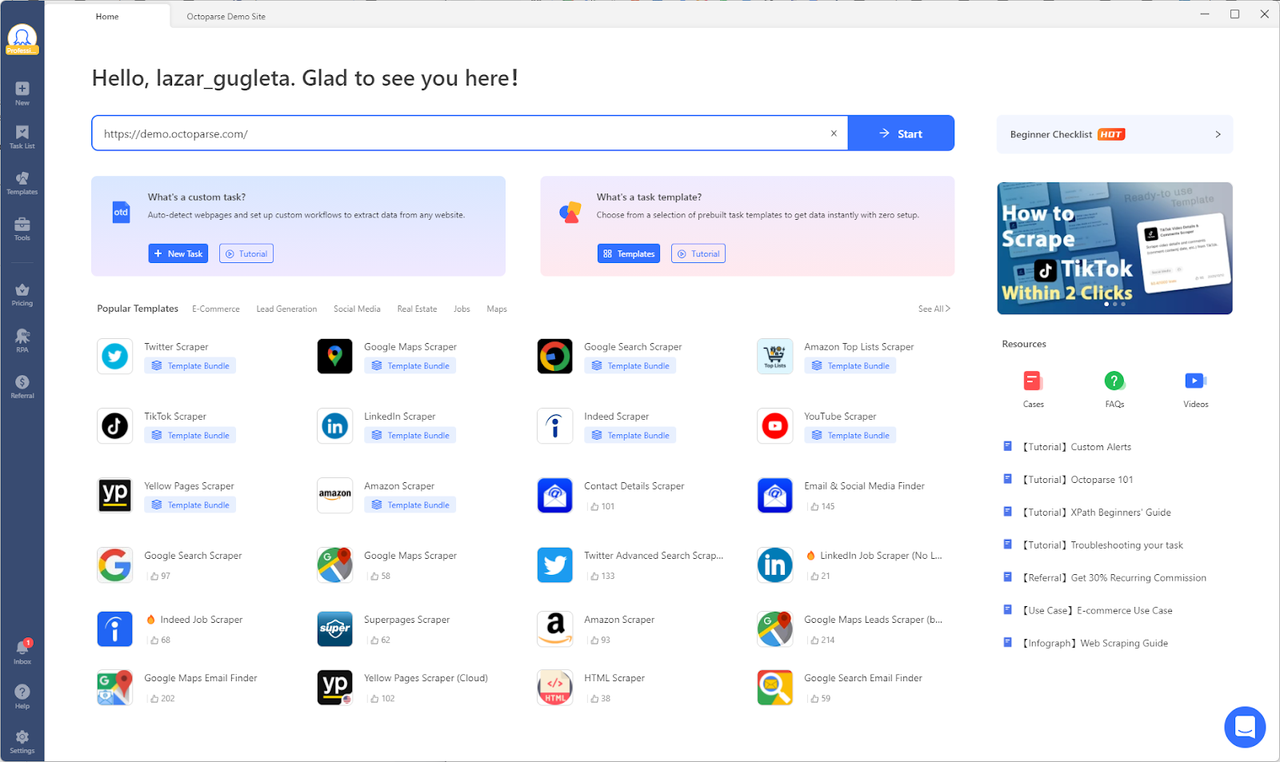
To give you an example, let’s say you are a marketer and are also always looking to expand your leads and connections. Octoparse has a powerful browser automation tool that can do just that for you. “Email scraper” and “social media finder” automatically extracts email addresses, phone numbers, and social media links. Just by entering URLs, it can do this automatically for you.
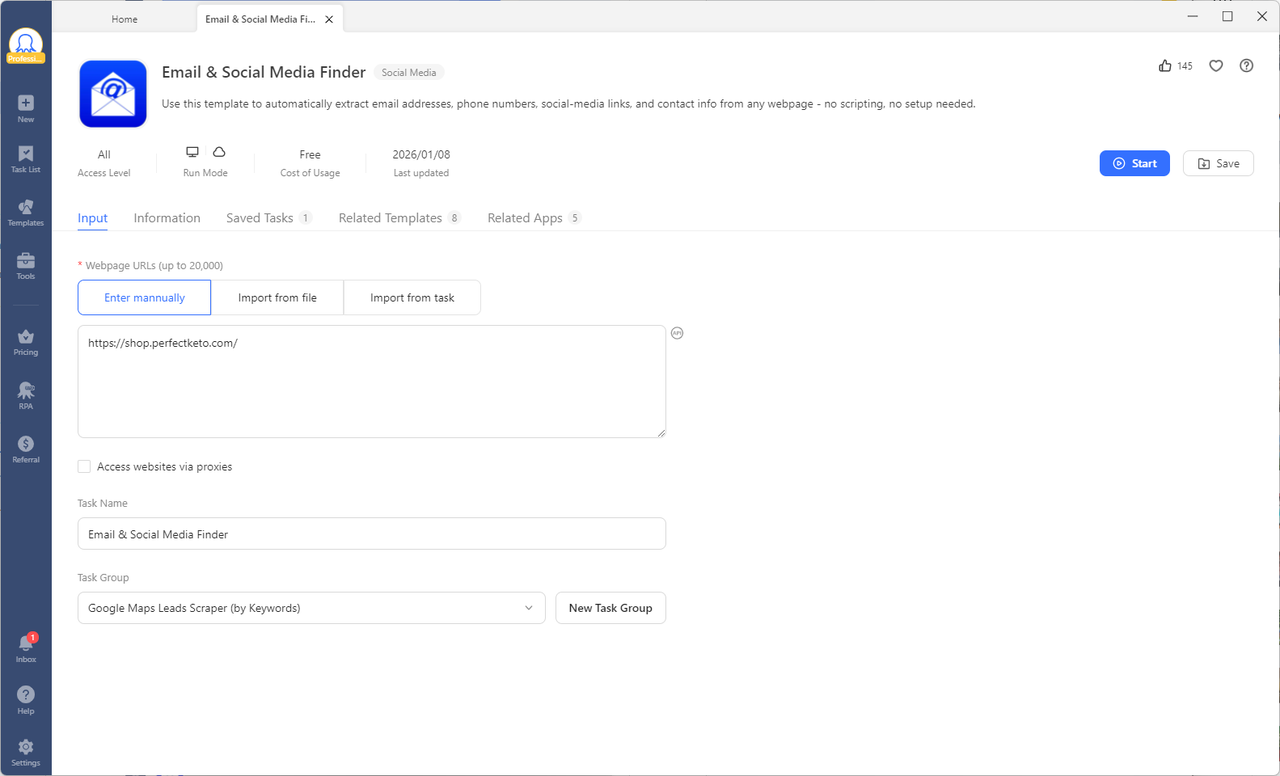
Octoparse opens the website in a dedicated browser and automatically searches for contact information.
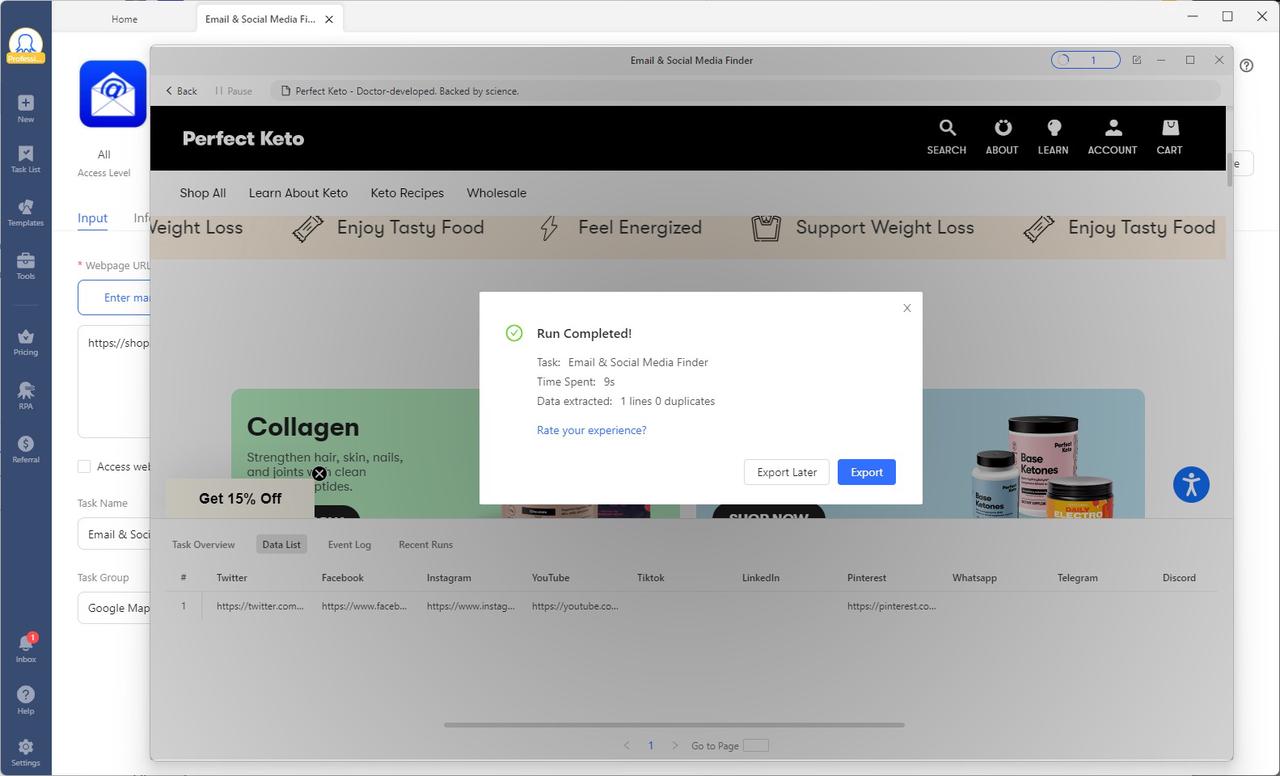
This is just one example, and you can adapt it to any task you like!
Conclusion: Your Browser Automation Strategy Starts Here
Browser automation is no longer just for developers; it’s available to anyone who doesn’t want to waste time and effort on repetitive, mindless tasks. It makes copying, pasting, and clicking a one-time setup with the browser automation tools, producing even better, more accurate results while you sleep.
In this guide, we have explored the full spectrum of solutions, so if you are looking for one, you will find it here. On one end, there is a robust, code-heavy tool, Selenium, that offers maximum control for those with an engineering background and capacity. On the other hand, no-code alternatives like Octoparse provide a full-fledged solution with robust, underlying features for automating browser operations and improving your daily workflow.
The best browser automation strategy is the one you actually implement. Whether you choose the flexibility of Selenium or the accessibility of tools like Octoparse, the competitive advantage goes to those who start today, not those who wait for perfect conditions. Start automating, and reclaim your time.
The right choice depends entirely on your context.
- Choose Code-Based if you are building long-term product testing suites, have developers available, and need deep integration with internal apps.
- Choose No-Code if you need speed, have non-technical users, need to monitor volatile external websites, or simply want to validate an idea quickly.
Want a deeper dive? Check out these articles:
- Top 29 Process Automation Tools
- How to Check if a Website Is Down
- What is Ajax Crawling? Why is My Crawler Broken?
FAQs about Browser Automation
- How to automate browser tasks effectively?
When starting with browser automation, create a detailed plan of the steps you want to automate, and do not do everything at once, as you can easily get lost in the process. Instead, automate one step and move to the next only then.
- Is it worth automating repetitive web browser actions?
If you are tired of doing it with your brain basically turned off, it is time to automate it. Do the following steps:
- Identify ONE task: Find a browser workflow you do daily that takes at least 30 minutes.
- Map it: Write down the steps.
- Choose your lane: If you are a developer, spin up a Selenium instance. If you are a business user, download a tool like Octoparse.
- Build a prototype: Spend one hour trying to automate just the first half of that task.
- How to automate browser actions in Chrome?
The coding solution with Selenium requires the chromedriver that will initiate the browser instance and let you perform actions like clicking, scrolling, waiting, etc. In the no-code method and using Octoparse, all actions are available in the visual interface and are easily accessible and configurable.
- How to automate repetitive web browser tasks?
You can calculate how much time you can save and if it is worth it for you. Let’s say your task is 5 minutes that has to be done 120 times per month (4 times per day). That comes to 10 hours per month in total for a simple recurring task.
(Minutes per task × Tasks per month) / 60 = Hours saved per month. Hours saved × Hourly Rate = Monthly Value.
If Octoparse costs $69/month but saves an analyst $50/hour for 10 hours a month ($500 value), the ROI is immediate. This simple formula does not account for the time you waste between tasks, so now your time and effort are available for more valuable work!