

If you need to learn how to scrape data from a website, you have more options in 2026 than ever before. Web scraping has moved well beyond Python scripts. This guide covers every practical method, from no-code tools to full Python automation, with step-by-step instructions for each one.
To compile this guide, we tested each method on three sites of varying complexity and recorded setup time, output quality, and common failure points. The Python examples are from our own test environment.
Quick Answer
| Category | Method | Best Use Case | Code Required | Speed |
| No-Code (Octoparse) | Pre-built template | Popular sites (Amazon, Indeed, Maps) | No | Under 5 min |
| Octoparse MCP | AI-assisted, chat-prompt extraction | No | Under 5 min | |
| Custom visual task | Any site, recurring workflows | No | Under 15 min | |
| Python | BeautifulSoup | Custom logic, static pages | Yes | 30-60 min |
| Playwright | JavaScript-rendered pages | Yes | 30-60 min | |
| Supplementary | Browser extension | One-off table/list extractions | No | Under 2 min |
Web scraping is the automated process of extracting data from websites. There are two main approaches: no-code tools (Octoparse) and Python. Browser extensions are available as a supplementary option for quick one-off grabs. The table above covers all options at a glance.
What Is Web Scraping?
Web scraping is the automated extraction of data from websites. For a full breakdown of how it works, common use cases, and legal considerations, see our dedicated guide. In short: you send a request to a page, receive its HTML, and parse out the fields you need.
No-Code Methods (Octoparse)
Octoparse is a no-code web scraping platform that lets anyone collect structured data without writing a single line of code. It offers three ways to get started depending on your target site and workflow.
Turn website data into structured Excel, CSV, Google Sheets, and your database directly.
Scrape data easily with auto-detecting functions, no coding skills are required.
Preset scraping templates for hot websites to get data in clicks.
Never get blocked with IP proxies and advanced API.
Cloud service to schedule data scraping at any time you want.
Method 1: Pre-Built Templates
For high-demand sites like Amazon, Google Maps, Indeed, LinkedIn, and Twitter/X, pre-built templates are the fastest way to start. These are ready-made scrapers configured for a specific site’s structure. You enter your search term or URL, click Run, and receive structured data within minutes. Octoparse’s template library covers 20+ popular platforms and the extraction logic is already built.
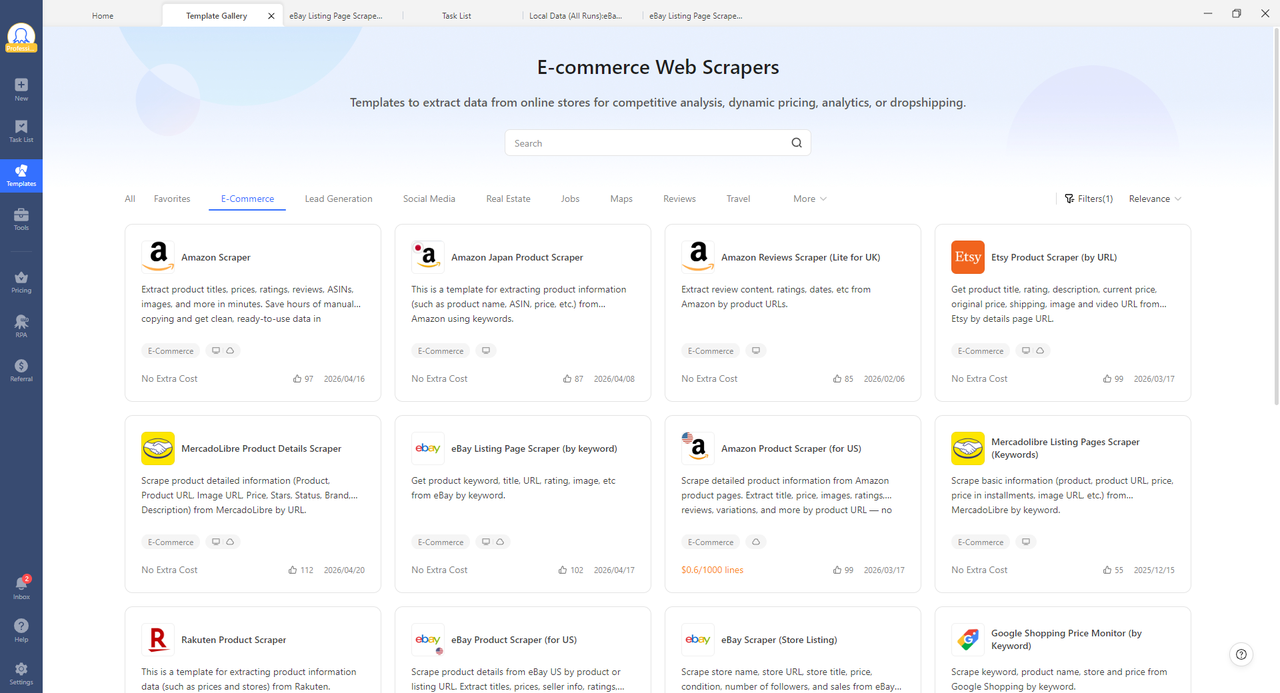
The following example uses eBay product listings to walk you through the process. The same steps apply to any template in the library.
The process takes under five minutes. Here is how it works:
Step 1: Open Octoparse, go to the Templates section, and search for “eBay Listing Page Scraper”.
Step 2: Select your target site (for example, United States), set the number of pages, and enter your keyword (for example, “headphones”).
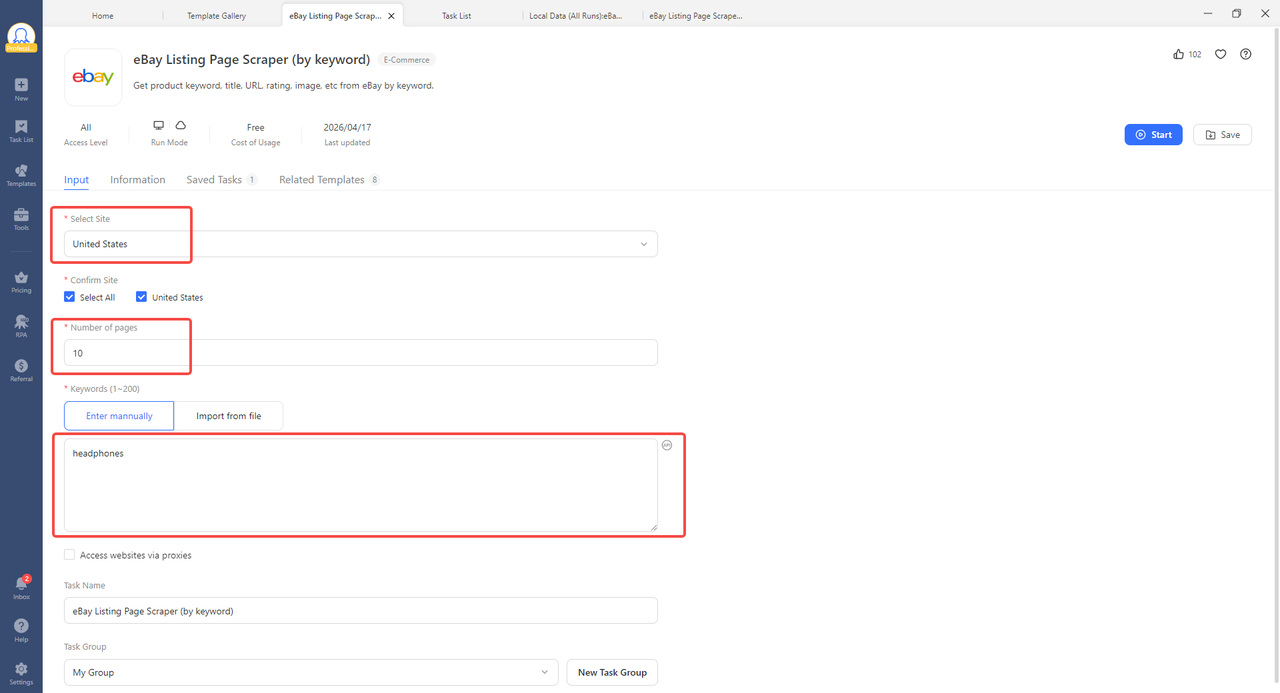
Step 3: Click Start.
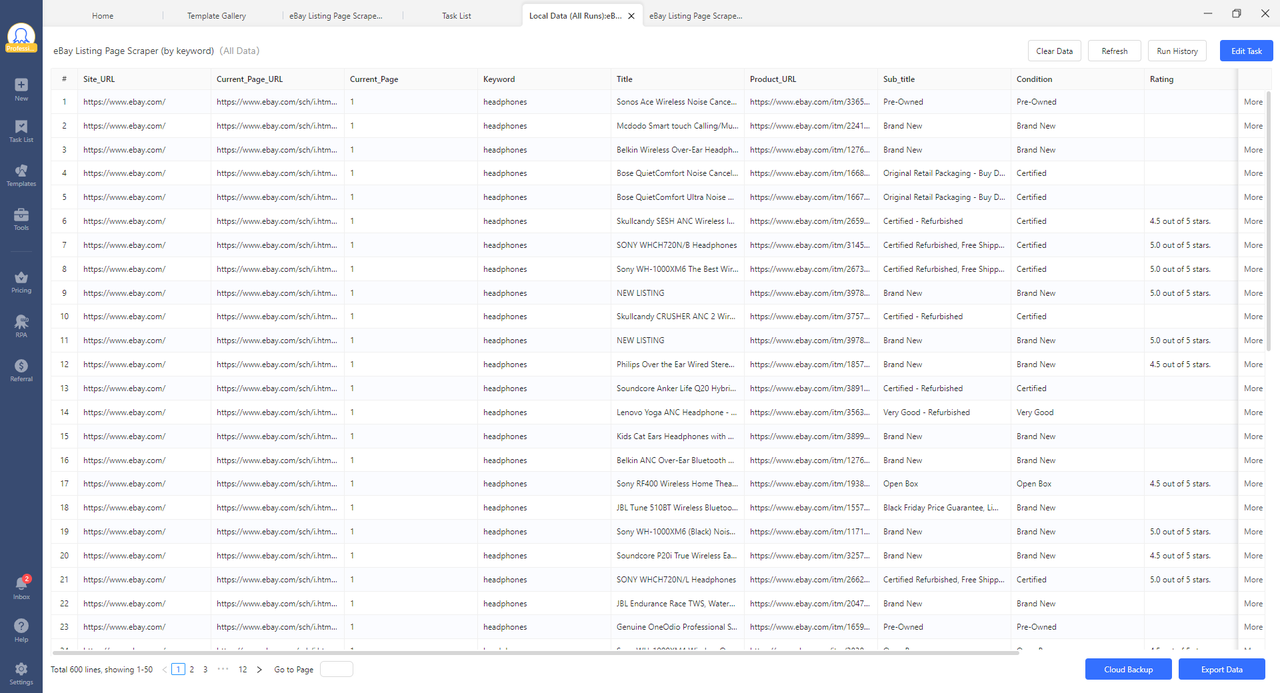
In our testing, a 10-page eBay keyword search returned 600 structured listings in a single run, each with product title, URL, condition, rating, and subtitle. All data is export-ready with no manual formatting required.
Best Templates for Common Use Cases
| Use Case | Site | Template |
| Job market research | Indeed | https://www.octoparse.com/template/indeed-job-scraper-by-url |
| Local business data | Google Maps | https://www.octoparse.com/template/google-maps-advanced-scraper |
| Product pricing | Amazon | https://www.octoparse.com/template/amazon-product-details-scraper |
| SERP monitoring | Google Search | https://www.octoparse.com/template/google-search-scraper |
| Real estate data | Zillow | https://www.octoparse.com/template/zillow-scraper |
Method 2: Octoparse MCP
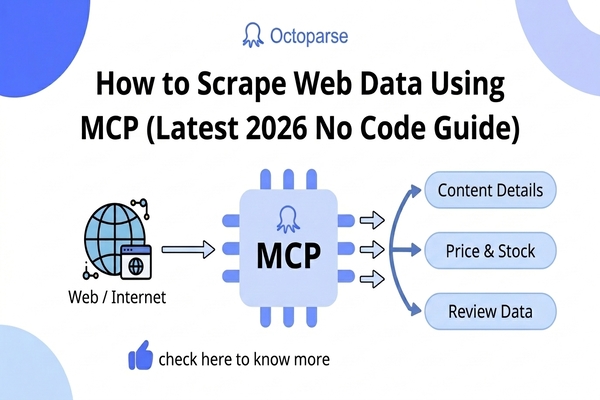
Octoparse MCP (Model Context Protocol) lets you scrape data through plain-language instructions inside an AI assistant. Instead of configuring a scraper manually, you describe what you want in a chat prompt and Octoparse handles the extraction automatically. The integration is compatible with ChatGPT, Claude, Cursor, and any other MCP-compatible AI assistant.
How to Use Octoparse MCP
The following example walks through a full Amazon scraping job in ChatGPT, from template search to exported CSV.
Step 1: Connect Octoparse MCP to ChatGPT via Settings. Full setup instructions are in the Octoparse MCP documentation.
Step 2: Ask ChatGPT to find a template by describing the site and data you need. It will return matching options from the Octoparse template library.
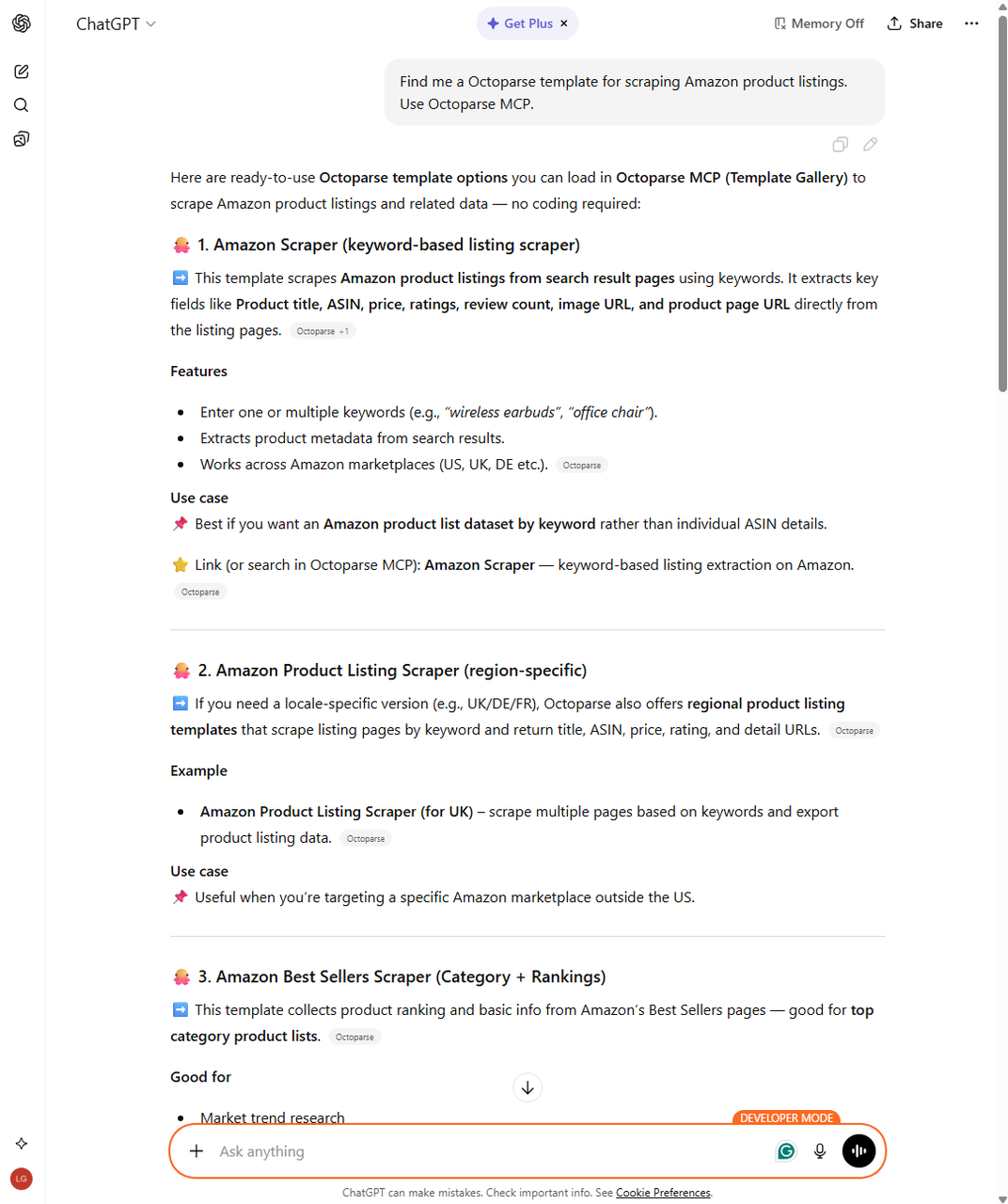
Step 3: Tell ChatGPT to create a task from your chosen template, including the task name and search keyword. Octoparse confirms the task details directly in the conversation.
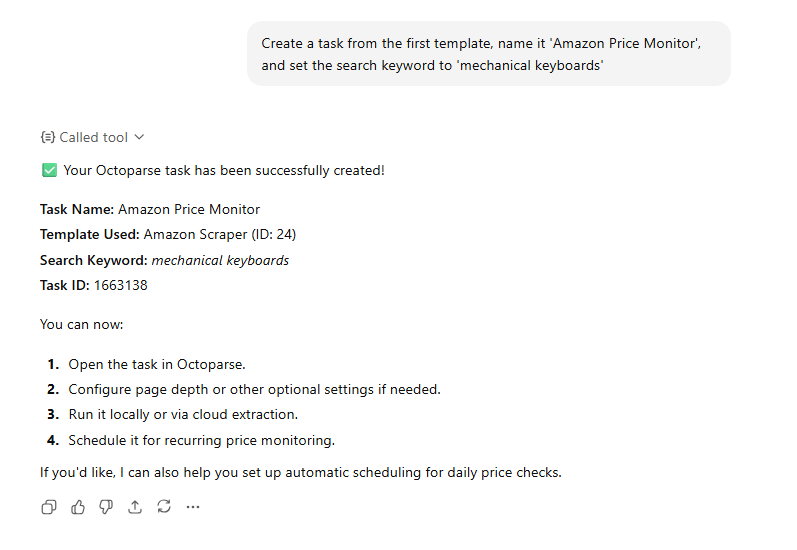
Step 4: Instruct ChatGPT to start the run. It launches the extraction and monitors progress on your behalf.
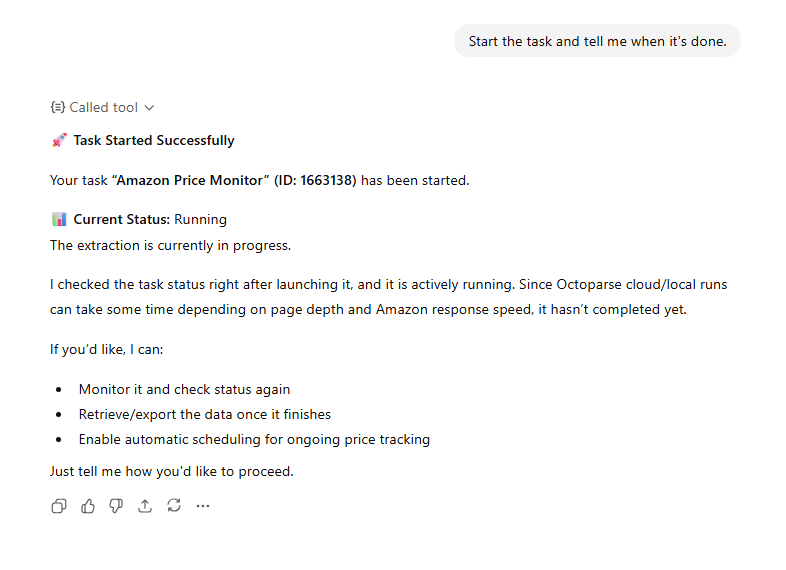
Step 5: Once complete, ask ChatGPT to export the data. The CSV file lands in your Octoparse download directory, ready to open in Excel or Google Sheets.

In our testing, the entire workflow takes under 10 minutes with no tab-switching or manual configuration. For scheduled, recurring jobs, use a custom visual task instead.
Method 3: Custom Visual Task
For sites not covered by a template, Octoparse lets you build a custom scraper visually. You open the target website inside Octoparse, click on the data fields you want to extract, and configure how the scraper navigates the site: pagination, dropdowns, infinite scroll, login flows. No code is required at any stage.
How to Scrape a Website with Octoparse Custom Task
Step 1: Download and install Octoparse from octoparse.com. It runs on Windows and Mac.
Step 2: Open Octoparse and paste the URL of the website you want to scrape. Octoparse opens the page in its built-in browser.
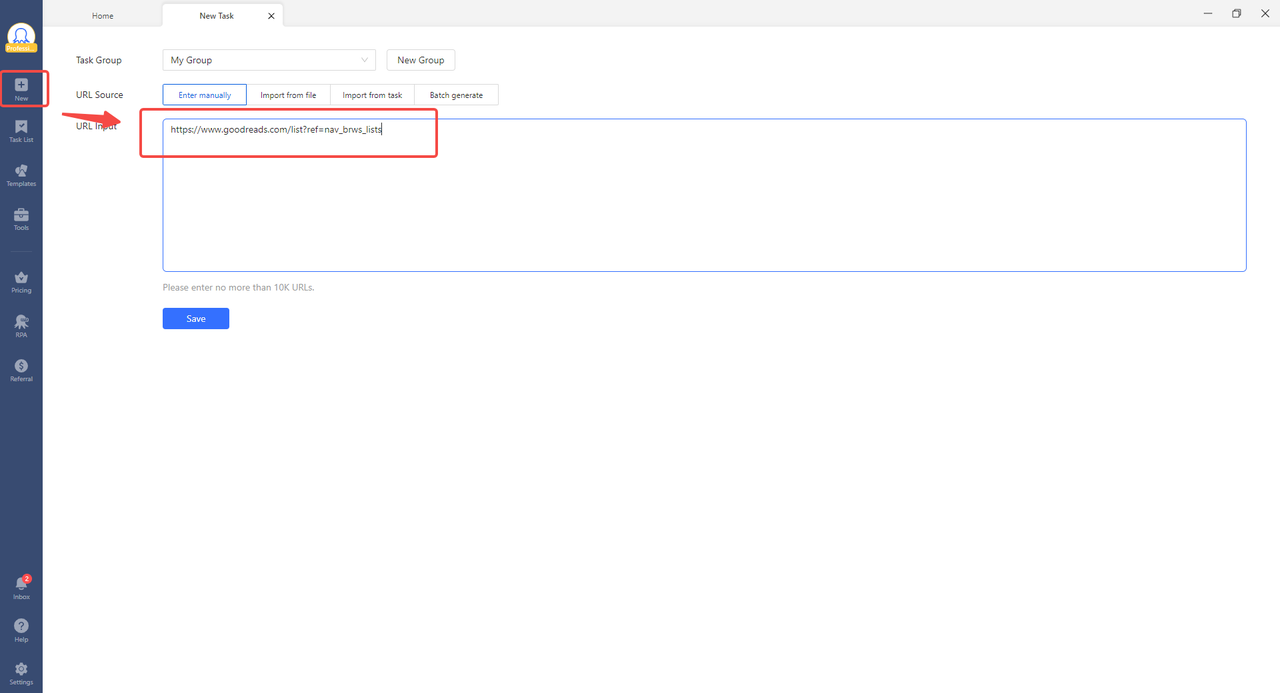
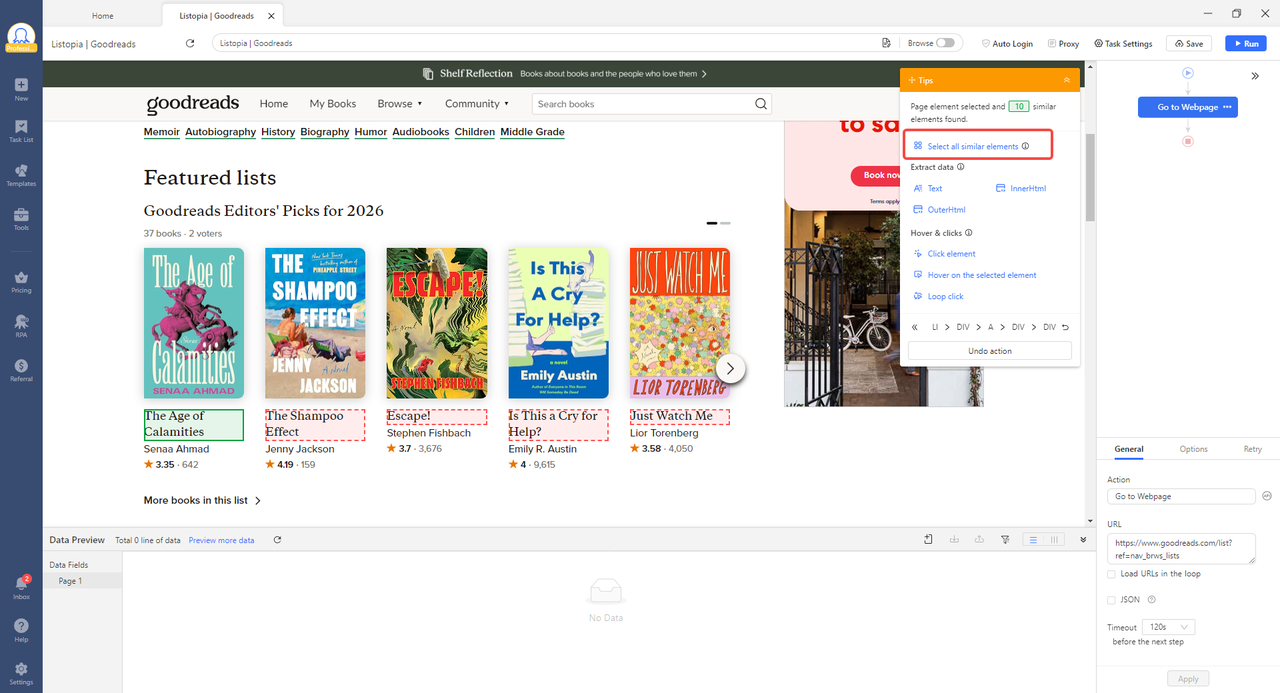
Step 3: Hover over the element you want to extract and click it. Octoparse detects similar elements on the page and asks if you want to extract them all. Click “Select all”.
Step 4: If the data spans multiple pages, click the “Next Page” button and tell Octoparse to follow it. It will loop through every page automatically.
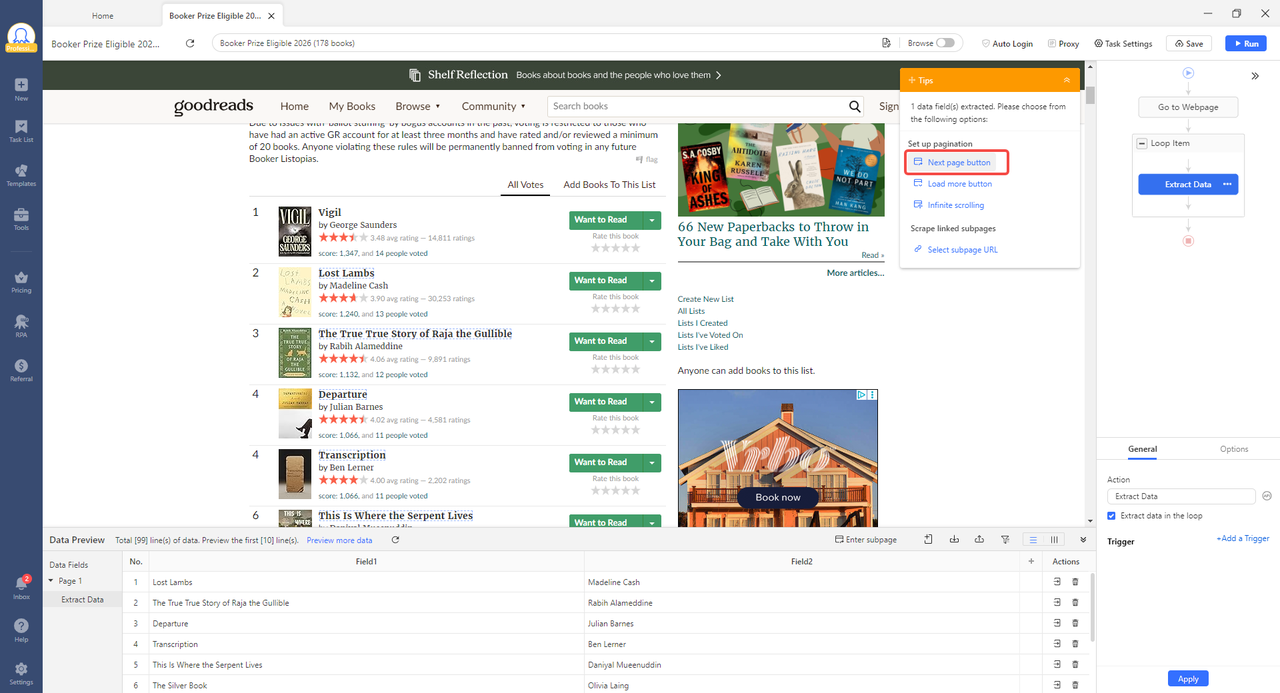
Step 5: Click “Run”. You can run locally or in Octoparse’s cloud. Cloud runs happen in the background while you work on other things.
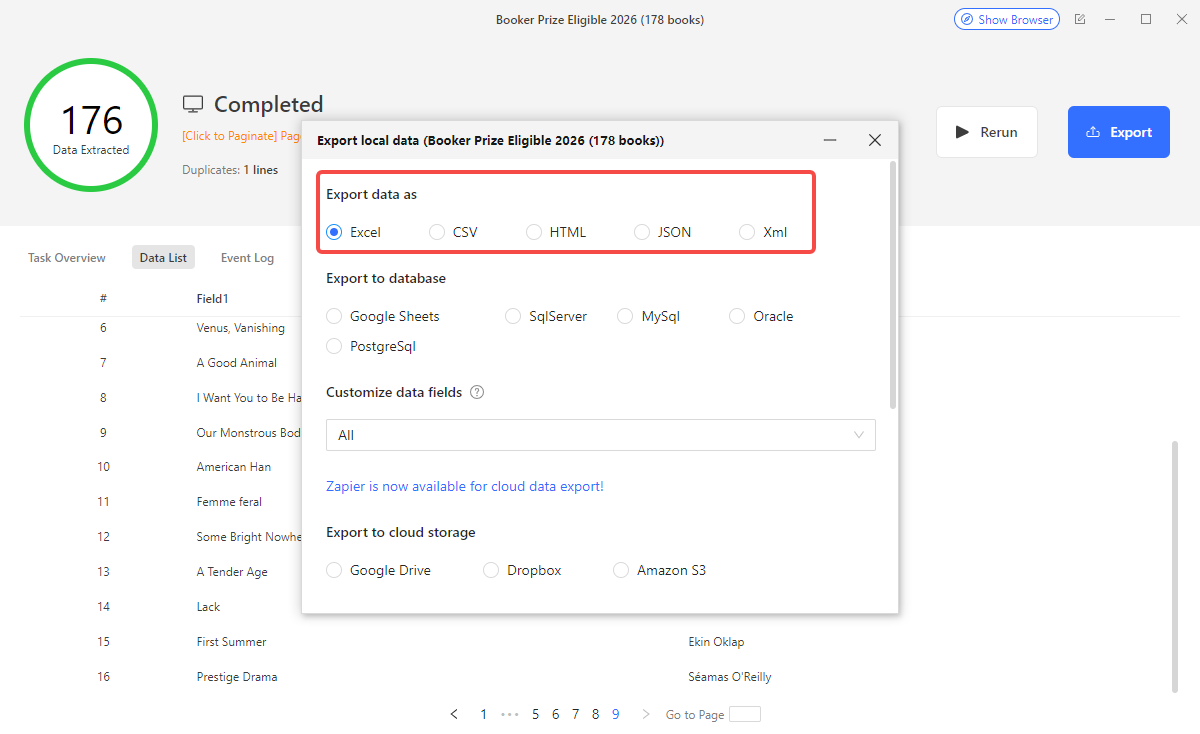
Step 6: When the run finishes, download your data as CSV, Excel, or JSON, or push it directly to Google Sheets. You can also schedule the task to run daily, weekly, or on any cadence.
When to Use a Custom Visual Task
Use a custom Octoparse task when:
- Your target site is not in the template library
- You need recurring extractions on a schedule
- The data requires navigating dropdowns, logins, or filters
- Your team includes non-developers who need to run or update the scraper
Code-Based Methods: Python
Python has ranked as the most widely used programming language in Stack Overflow’s annual Developer Survey every year since 2022, and web scraping is one of the primary reasons data professionals reach for it. It gives you full control over what you request, how you parse the response, and what you do with the output. Two libraries cover the majority of use cases:
- Requests: sends HTTP requests and retrieves the raw HTML of a page
- BeautifulSoup: parses that HTML and lets you extract elements by tag, class, or ID
For JavaScript-heavy pages that render content dynamically (React, Vue, Angular), add one of these:
- Playwright: controls a real browser so JavaScript executes before you parse (recommended over Selenium for new projects)
- Selenium: older but still widely used for browser automation
Setting Up Your Environment
Before you start, install the libraries for the method you plan to use.
For static pages:
For JavaScript-rendered pages:
The requests library alone has over 30 million weekly downloads on PyPI, making it the de facto standard for HTTP operations in Python. If you are using Playwright, the playwright install chromium command downloads the browser engine that Playwright controls during scraping.
Method 4: Python (Static Pages)
Use Requests and BeautifulSoup for any site where the content is present in the raw HTML response.
This script:
- Sends an HTTP GET request to the product listing page
- Parses the HTML with BeautifulSoup
- Finds every
<div>with the classproduct-card - Extracts the product name and price from each card
Handling Pagination
Most sites paginate their data. A simple loop handles this:
Method 5: Python (JavaScript-Rendered Pages)
If requests.get() returns an empty page or missing data, the content is rendered by JavaScript. Use Playwright instead:
When Python Makes Sense
Use a Python scraper when:
- You need custom logic that no template covers
- You are integrating scraping into an existing data pipeline
- You need to post-process or transform data programmatically on the fly
- You are comfortable maintaining selectors when the target site changes
Browser Extensions (Supplementary)
A browser extension is a lightweight add-on that runs directly in your Chrome or Firefox browser. It lets you extract data from any webpage you can see, without installing separate software or writing any code. Extensions are best for one-time grabs: a table, a list, a set of contact details from a single page.
Chat4Data is an AI-powered browser extension that lets you scrape structured data through plain-language chat prompts. Instead of selecting elements manually, you describe what you want and Chat4Data locates and extracts it automatically.
How to Use Browser Extensions
- Step 1: Install Chat4Data from the Chrome Web Store.
- Step 2: Navigate to the page containing your data.
- Step 3: Click the Chat4Data icon and describe what you want to extract.
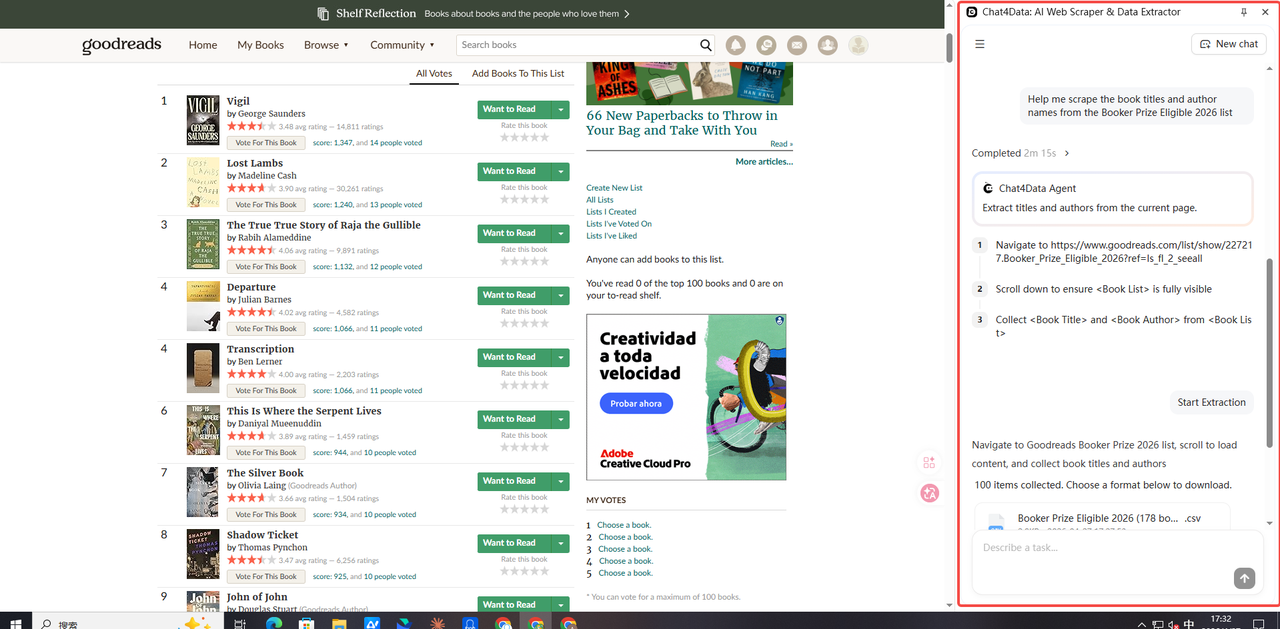
- Step 4: Export the results to CSV or copy them to clipboard.
For more extension comparisons, see our best free web scraper Chrome extensions guide.
Common Challenges and How to Handle Them
Getting Blocked or Rate-Limited
Websites use anti-bot measures to block automated traffic. Signs you are being blocked: 403 errors, CAPTCHAs, or empty pages that look fine in the browser but return nothing in your scraper.
Solutions:
- Add request delays: space out your requests (1 to 3 seconds between each)
- Rotate user-agent strings: mimic different browsers in your headers
- Use residential proxies: requests appear to come from real user IPs
- Use cloud scraping: Octoparse’s cloud infrastructure manages IP rotation automatically
Dynamic / JavaScript-Rendered Content
If requests.get() returns less data than you see in the browser, the page renders its content with JavaScript. Use Playwright or Selenium, or switch to Octoparse, which runs a full browser engine and executes JavaScript automatically.
Infinite Scroll
Pages that load more content as you scroll down do not have traditional pagination. For a full walkthrough of how to handle pagination and infinite scroll in Octoparse, see our complete pagination guide. In Python, Selenium can scroll the page with: driver.execute_script("window.scrollTo(0, document.body.scrollHeight)").
Login-Required Pages
For pages behind authentication, Octoparse can store session cookies and handle login flows visually. In Python, use requests.Session() to maintain cookies across requests, or use Selenium to automate the login form.
Exporting and Storing Scraped Data
Once your scraper runs, you have several output options depending on how you plan to use the data:
- CSV or Excel: best for one-off analysis in spreadsheet tools. All Octoparse methods and Python support this natively.
- JSON: best for feeding data into other applications or APIs.
- Google Sheets: Octoparse can push data directly to a sheet on each run, keeping your dataset automatically up to date.
- Database: for large recurring datasets, push directly to PostgreSQL, MySQL, or a cloud data warehouse using Python’s SQLAlchemy or psycopg2.
Which Web Scraping Method Is Right for You?
| Method | Best Use Case | Code Required | When to Choose This |
| No-Code Methods (Octoparse) | |||
| Pre-built template | Popular sites (Amazon, Indeed, Maps) | No | Your target site is in the template library |
| Octoparse MCP | AI-assisted chat extraction | No | You are already inside Claude, Cursor, or another MCP assistant |
| Custom visual task | Any site, recurring workflows | No | No template exists; point-and-click setup needed |
| Code-Based Methods (Python) | |||
| BeautifulSoup | Custom logic, static pages | Yes | Scraping inside a data pipeline or custom post-processing |
| Playwright | JavaScript-rendered pages | Yes | Page renders content via React, Vue, or Angular |
| Supplementary | |||
| Browser extension | One-off table/list extractions | No | Quick one-time grab with no setup or scheduling needed |
Final Words
For most users, Octoparse is the right starting point. It handles pagination, JavaScript rendering, and scheduling without requiring any code, and its template library covers the most-requested scraping targets out of the box. If your needs are highly custom or you are integrating scraping into an existing code pipeline, Python with Requests and BeautifulSoup is the standard toolkit.
Start with the method that matches your current situation. You can always move to a more sophisticated approach as your requirements grow.
FAQs about Scraping Data from a Website
- What is the easiest way to scrape data from a website without coding?
Use a no-code visual tool like Octoparse. You open the target website inside the tool, click on the fields you want to extract, configure pagination, and run. No programming knowledge required. For popular sites (Amazon, Google Maps, Indeed), Octoparse’s pre-built template library gets you structured data even faster. Comparing your options? See our breakdown of the best no-code web scraping tools.
- Can I scrape data from any website?
You can scrape most publicly accessible websites. Avoid sites that require bypassing login authentication to access the data, and always check a site’s robots.txt file and Terms of Service before scraping at scale. Scraping publicly available data is generally legal; scraping private or copyrighted data is not.
- Is Python the best language for web scraping?
Python is the most popular choice because of its Requests and BeautifulSoup libraries, large community, and clear syntax. For JavaScript-heavy sites, Playwright (available in Python and Node.js) is the standard approach. For non-developers, a visual tool like Octoparse is faster to start and requires no coding.
- How do I handle websites that block web scrapers?
Add delays between requests, rotate user-agent strings, and use residential proxies. Cloud-based tools like Octoparse manage IP rotation automatically, which significantly reduces the chance of blocks on high-volume scraping jobs. See our full guide on how to scrape websites without being blocked.
- How do I scrape data from a website that uses JavaScript?
Use Playwright or Selenium in Python to launch a real browser that executes JavaScript before you parse the HTML. Alternatively, use Octoparse, whose built-in browser engine handles JavaScript rendering automatically without any extra configuration.
- Is web scraping legal?
Web scraping publicly available data is generally legal. The hiQ Labs v. LinkedIn case (Ninth Circuit, 2022) reinforced that scraping publicly accessible data does not violate the Computer Fraud and Abuse Act. Three principles to keep you on the right side: only scrape publicly accessible data and do not bypass login walls; respect the site’s robots.txt file and its rate limits; do not scrape and resell proprietary databases or copyrighted content. When in doubt, review the site’s Terms of Service before scraping at scale.
- What is the difference between web scraping and web crawling?
Web crawling discovers and indexes URLs across the web, just as search engine bots do. Web scraping extracts specific data fields from specific pages. Most scraping projects involve some crawling to discover target URLs, followed by scraping to pull the actual data from each one. See our full explainer on web crawling vs web scraping.