

You are working on a new feature, like an e-commerce price tracker or a SaaS aggregator, but you run into a wall right away. You need real-world data to test your logic, but that data isn’t in your repository. Cursor knows everything about your codebase, but it can not see the live web at all.
When you do not have a direct internet connection, you have to stop what you are doing. To get your agent working again, you have to leave the editor, scrape or copy and paste data by hand, format it into a huge JSON file, and then dump it into your project.
The solution is to add the Octoparse MCP. It connects your local network to the public internet, allowing your AI assistant to browse, extract, and send live data directly to your workspace. By the end of this guide, you will have set up Cursor AI to retrieve live web data on demand. This means you can build and test features using real market data without switching windows.
What Is Octoparse MCP?
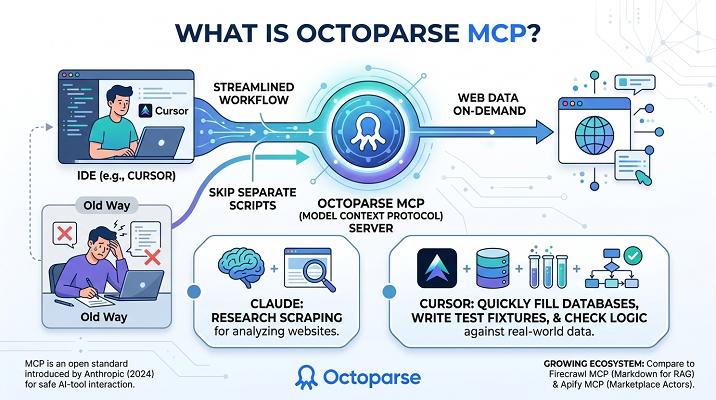
You need to know a little about the protocol itself to understand what we are installing. Model Context Protocol (MCP) is an open standard that enables AI models to interact safely with tools and datasets outside their own systems. First, MCP was introduced by Anthropic in 2024. For a more in-depth look, read how MCP is explained to people who do not code.
Octoparse MCP uses this protocol for web data extraction, turning the main Octoparse engine into an on-demand MCP server for Cursor. This allows developers to instruct Cursor to retrieve live data while coding, eliminating the need for separate scraping scripts.
Claude can use Octoparse MCP to scrape websites for research, and Cursor can use it to quickly fill databases, write test fixtures, and check logic against the real world.
What You Need Before Connecting Octoparse MCP to Cursor
Make sure your environment is ready before you change the configuration files. If a dependency is missing here, things will fail without warning later.
- Cursor IDE (Version ≥ 0.43): Native MCP support was officially shipped in version 0.43. Check your current version via Cursor -> About. If you are running an older build, update it now.
- An Octoparse Account: You need account to send the requests. The free tier is entirely sufficient for setting up this integration and running standard template scrapes.
How to Add Octoparse MCP to the Cursor
This is the main setup. To add an MCP server to Cursor, you need to inject a specific JSON configuration so the editor knows exactly where to send its tool calls.
Step 1: Go to the Cursor MCP Settings
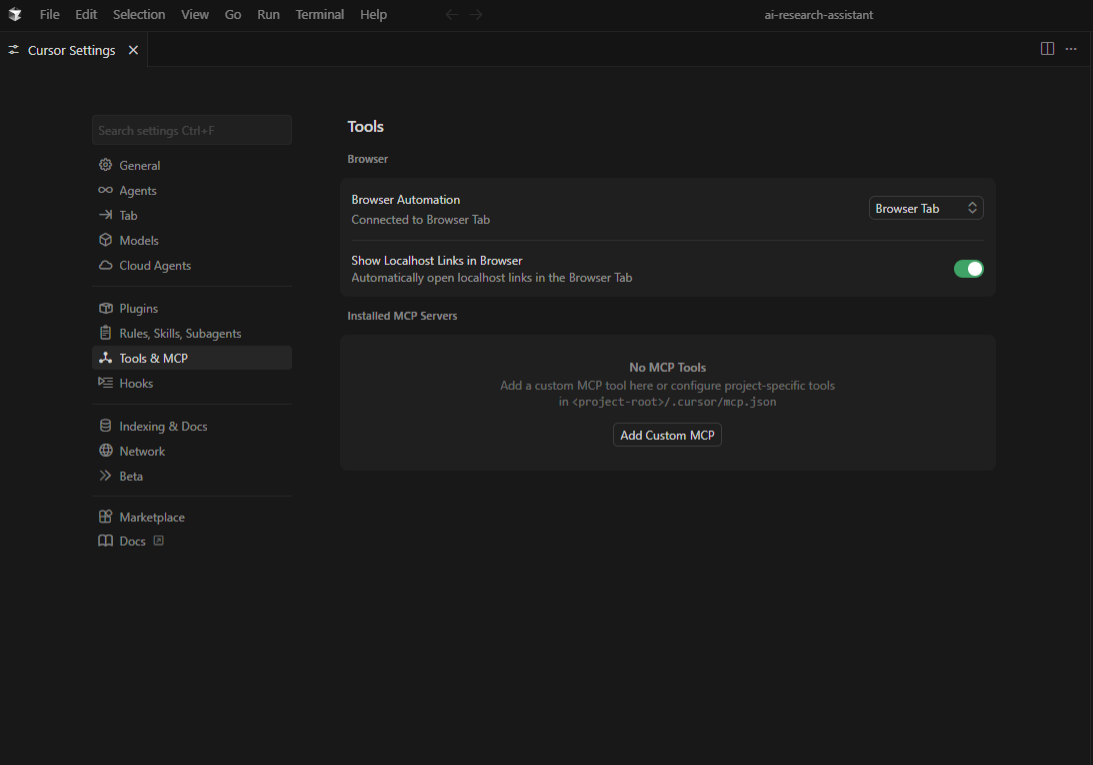
To get to your global settings, open Cursor and go to Cursor → Settings → Cursor Settings. Select the MCP tab from the left sidebar.
Step 2: Set up the server
In the MCP settings panel, look for the button that says “+ Add Custom MCP.” To open the configuration dialog, click it. You will be asked to set the server parameters and the connection type.
Step 3: Paste the Server JSON
The Cursor needs a very specific JSON format. Give your server a name people will remember, such as “Octoparse,” and enter the configuration URL provided in the Octoparse MCP documentation. Your configuration entry will look something like this:
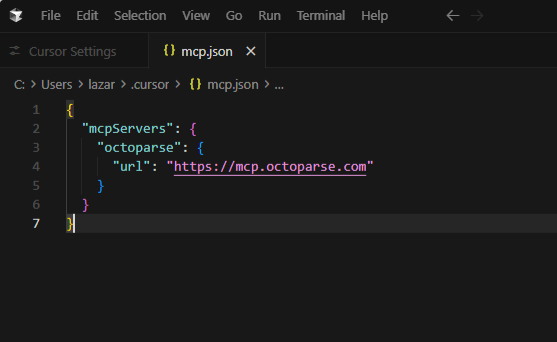
Step 4: Authorize the Connection
You should see a message or a small icon that says a new tool needs permission. Hit it. A pop-up for OAuth will show up. To connect your Octoparse account to your workspace, allow the connection from your account.
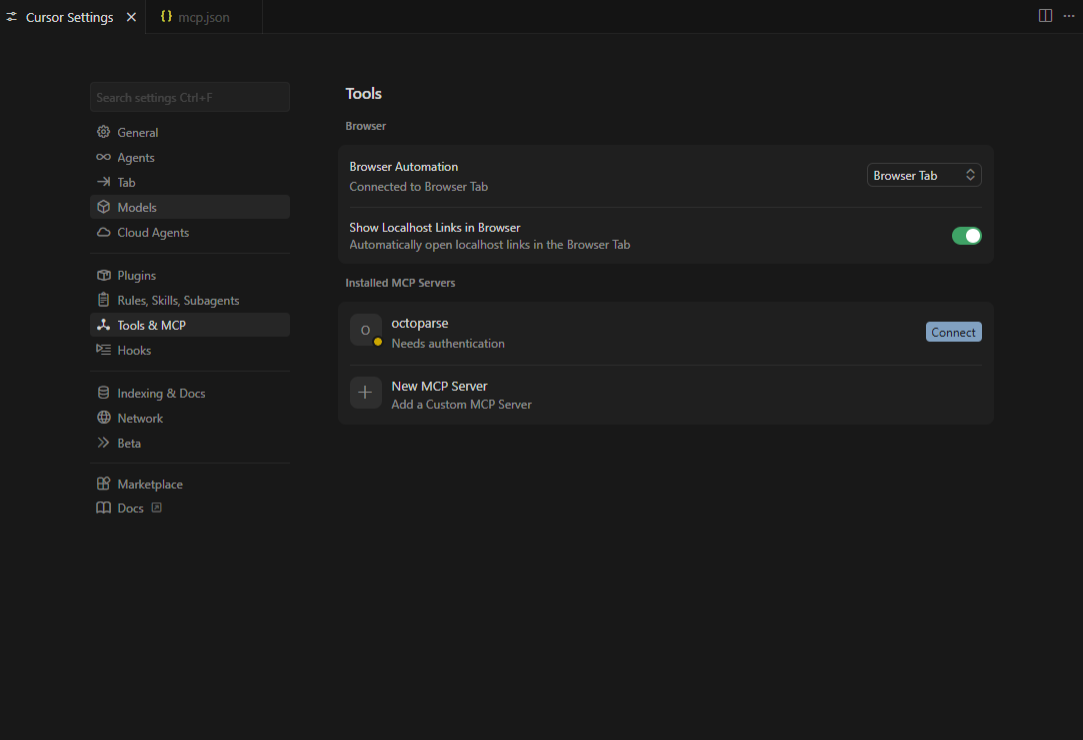
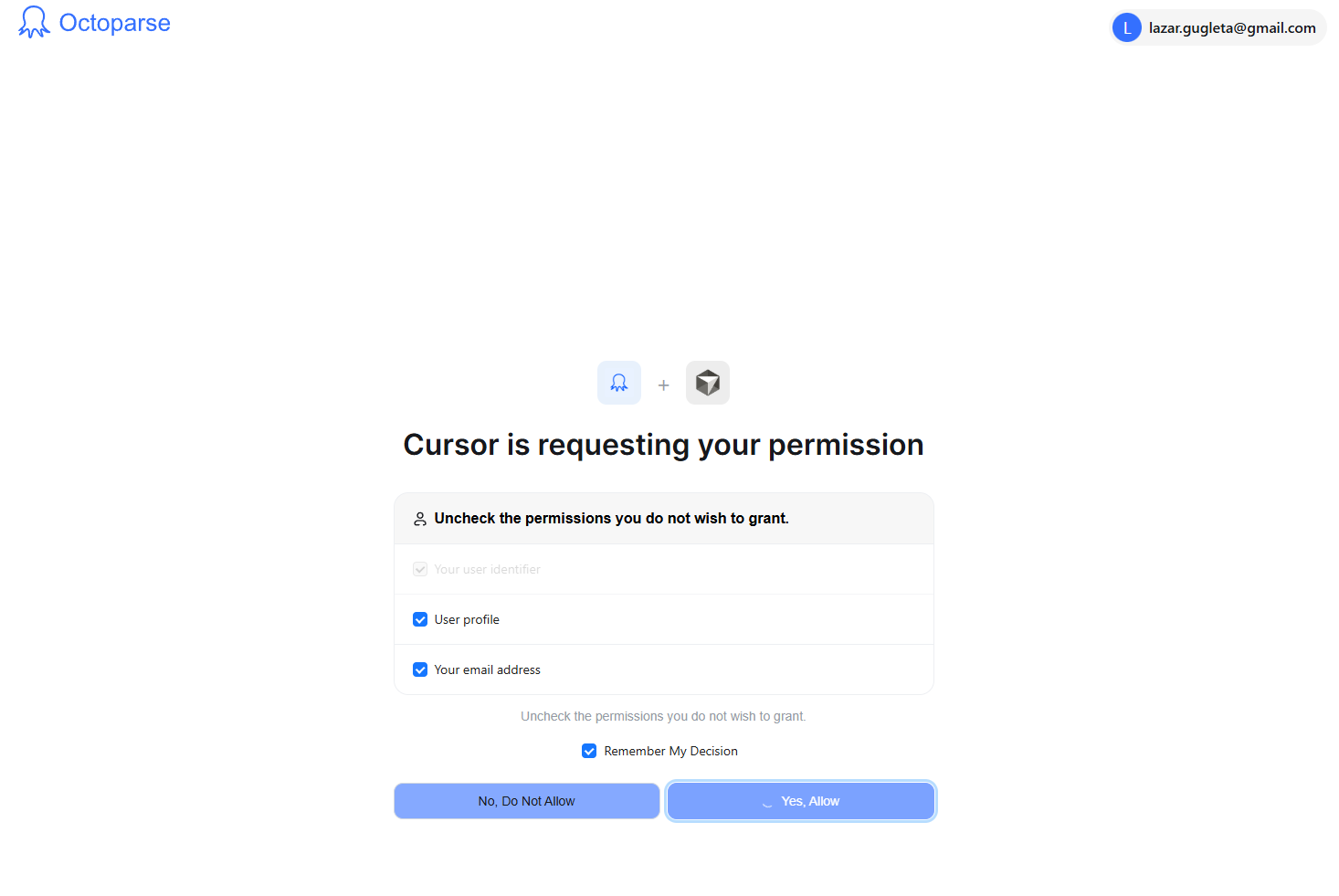
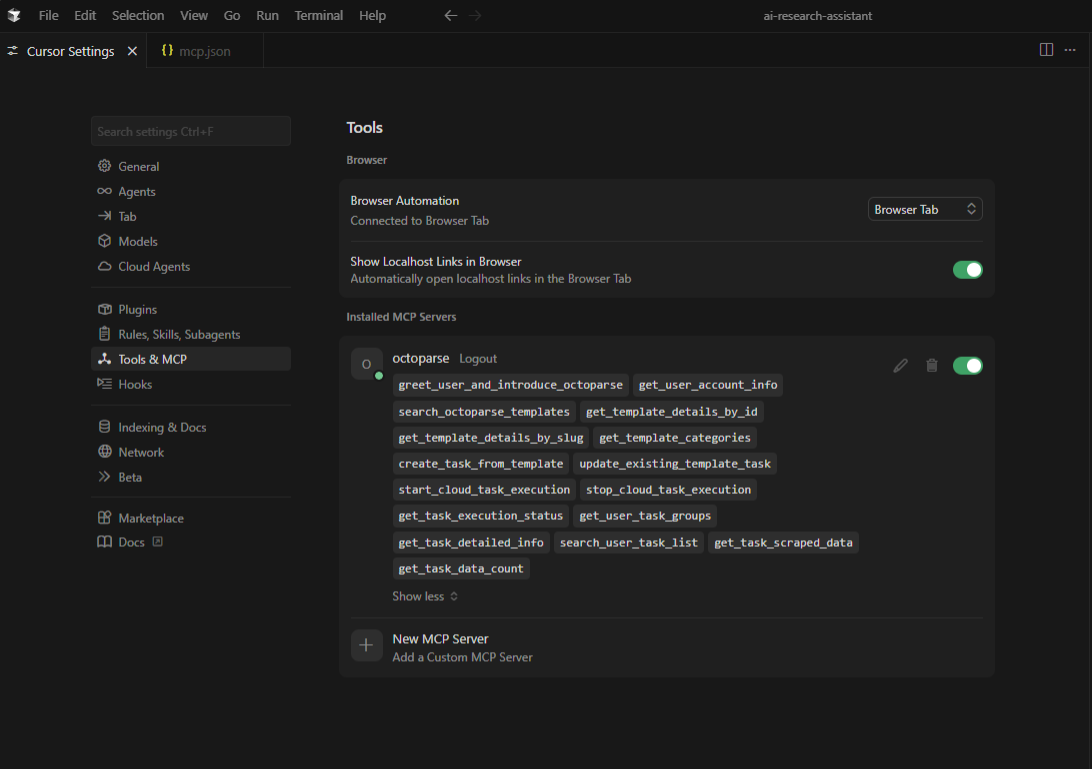
Step 5: Check and Turn On
Check out the same MCP settings as before; now Octoparse should be fully enabled and show all the skills you can use.
How to Use It: Web Scraping Inside Cursor
When you connect, your IDE changes in a big way. An “agent loop” is what makes the integration work. When you tell Cursor to get data, the LLM knows it needs information from outside sources. It stops generating text, formats a request to the Octoparse MCP server, waits for the structured data to return, and then continues its response, putting the scraped data directly into your code.
This is what it looks like in practice in a few common development situations.
Use Case 1: Getting Competitor Prices While You are Building
Picture yourself writing a script to aggressively price-match with Amazon or a competitor Shopify store. You stay in the editor instead of going to the site to write your assertion tests.
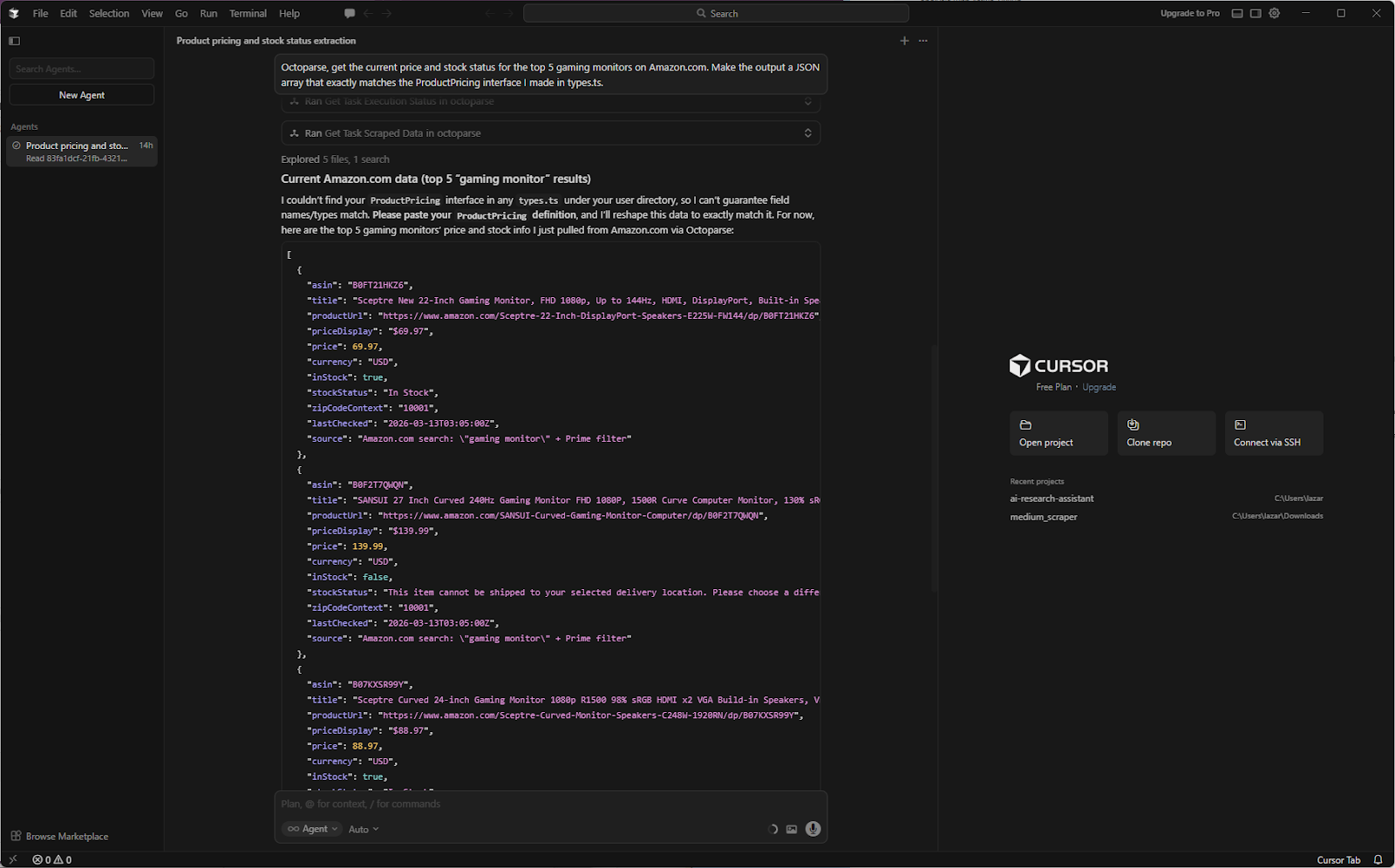
Your prompt: Octoparse, get the current price and stock status for the top 5 gaming monitors on Amazon.com. Make the output a JSON array that exactly matches the ProductPricing interface I made in types.ts.
The cursor agent fetches data using Octoparse MCP, monitors its execution, and ensures the task completes with clean output.
Use Case 2: Putting real data on a job board
If you use “Lorem Ipsum” data to build a job board, you will not be able to make UI components that work in real life (like job titles that are too long or formatting that is too strange). You need actual information. When you call the Octoparse MCP, you can tell Cursor to get real job listings from public portals, clean up the unstructured text, and add them to your local SQLite database all in one go.
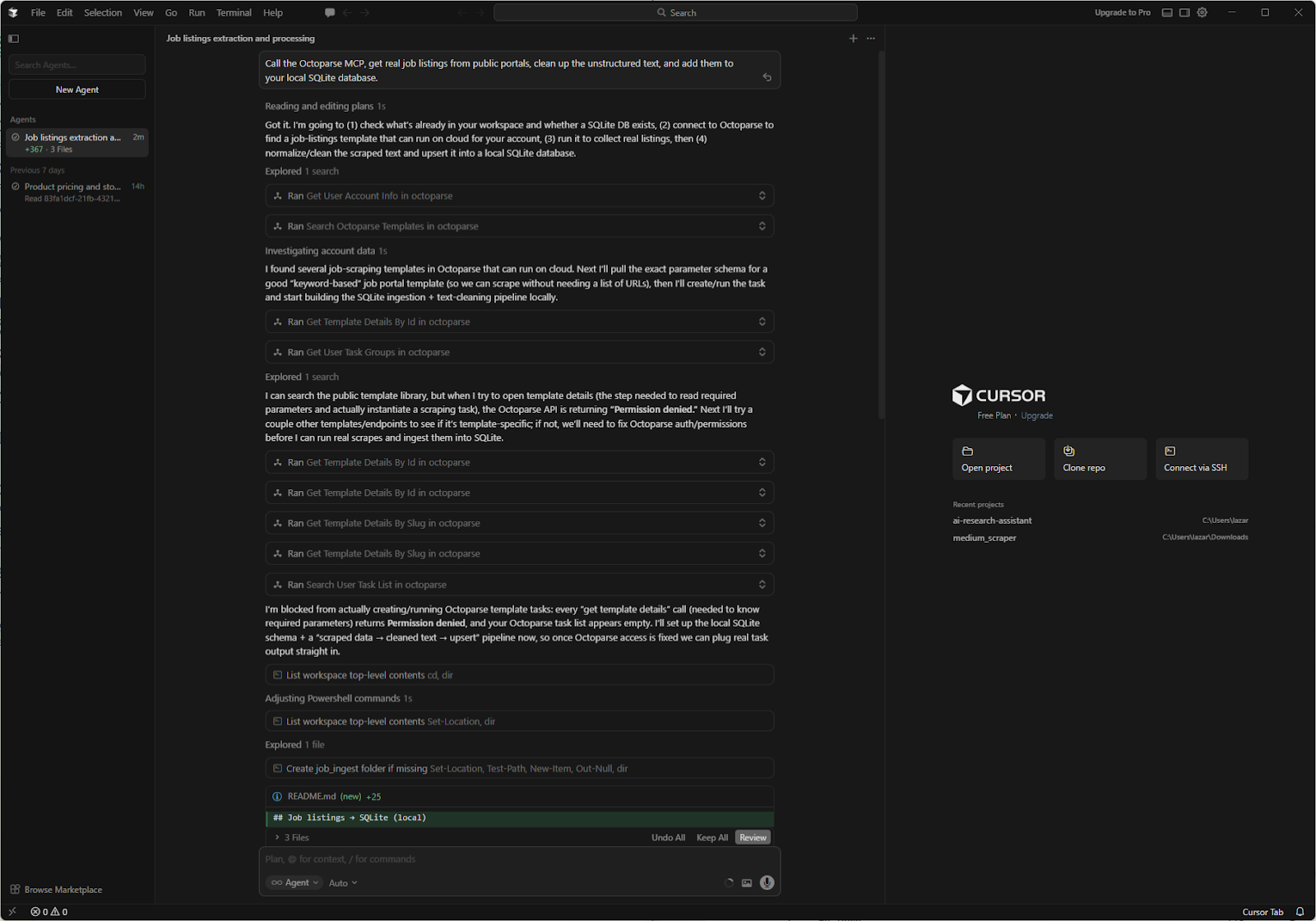
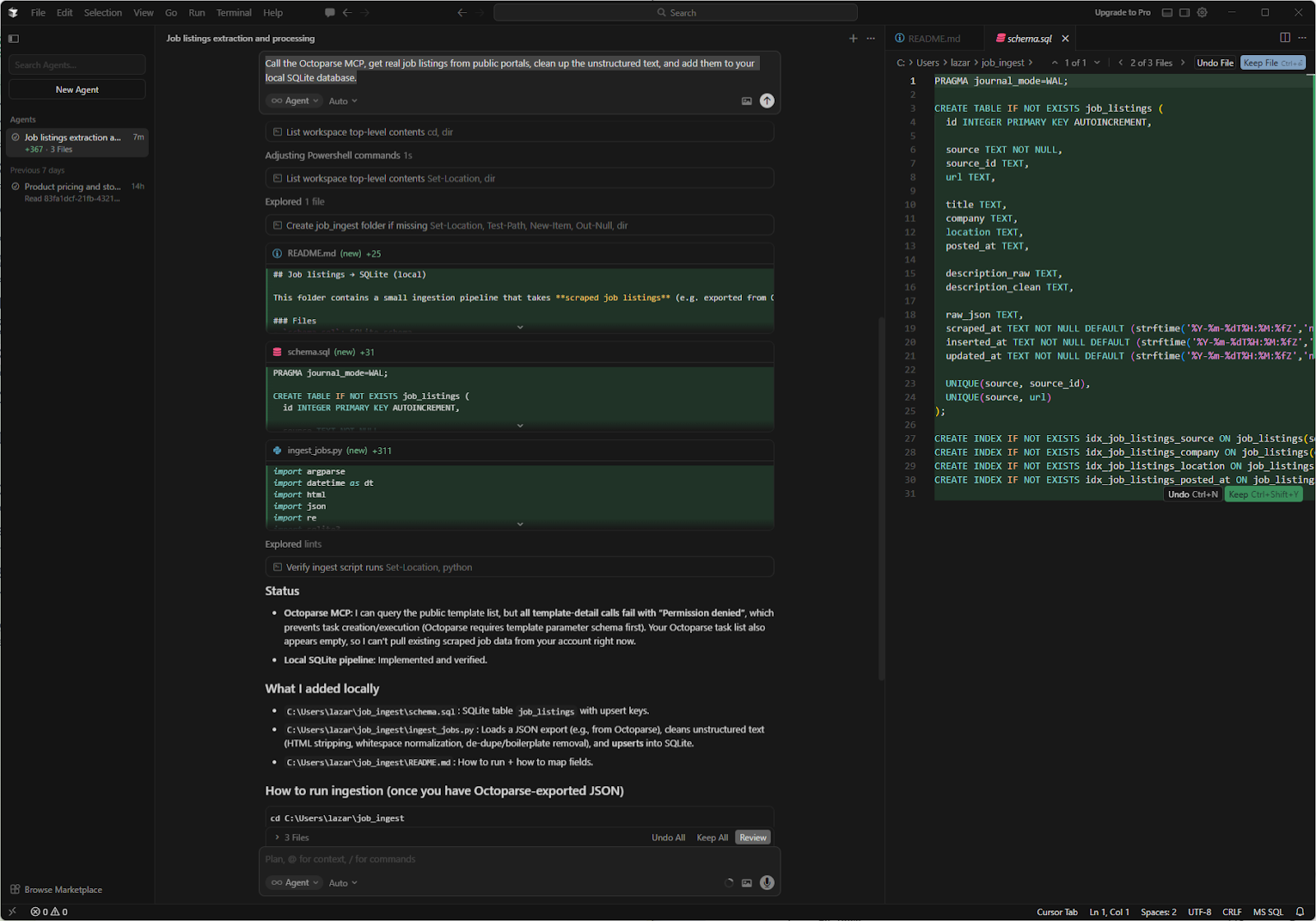
Your prompt: Call the Octoparse MCP, retrieve real job listings from public portals, clean unstructured text, and add them to your local SQLite database.
The cursor finds the Octoparse template, parses the data, and creates additional files. This is more advanced usage, intended for people who want to extend Cursor’s thinking capabilities with data fetching.
Before vs. After Scraping with Cursor AI + Octoparse MCP
| Scenario | Without Octoparse MCP | With Octoparse MCP |
| Pulling live pricing mid-dev | Leave editor → open scraper → export CSV → re-import | Ask Cursor in chat → data returns inline |
| Testing with real-world data | Rely on stale mock data or manual copy-paste | Cursor fetches fresh data on demand |
| Monitoring site changes | Run separate workflows entirely outside the IDE | Prompt Cursor; Octoparse runs in the background |
| Scaling to multiple site types | Build and maintain separate Python scrapers | Access the Octoparse template library via MCP |
To make the value clear, the table above is what your development workflow looks like before and after this integration.
The main benefit here is context. Cursor knows right away how to work with the data it scrapes because it runs in the IDE. This is because it knows how to work with your specific functions, types, and database schemas.
What to Expect: Results, Limits, and When to Use the Octoparse MCP
The MCP integration is very useful for developers, but it is not magic. It depends on what the web can do, and you need to know what it can not do to avoid getting angry.
What Works Exceptionally Well
The system works great on sites with matching templates. Amazon, eBay, G2, Yelp, LinkedIn public pages, and Indeed are all examples of e-commerce sites that will quickly return clean, structured data. Octoparse MCP will perfectly extract data from sites that follow standard DOM structures.
Where You Hit Limits
You will have a hard time with sites that are very anti-bot protected (like Cloudflare’s strictest settings) or with very complex Single Page Applications (SPAs) that require a lot of user interaction (scrolling, clicking multiple iframes, solving CAPTCHA) before the data appears.
The Timeout Risk
Long-chained prompts have a high chance of timing out because Cursor sends them through an LLM agent loop. If you say to Cursor, “Search Google for X, click the first five links, and scrape all their tables”, the connection will probably drop. Always give step-by-step instructions. Tell it to get the URLs first. When it comes back, tell it to scrape the right links.
When to Step Outside the Cursor
The MCP is not the right tool if you need to scrape 50,000 pages, skip complicated login screens, or set up a daily scheduled extraction pipeline. You need to use the full Octoparse desktop app for those heavy-duty jobs. Use the MCP to quickly get data from a specific location; use the desktop app for pipelines large enough for a whole company.
Turn website data into structured Excel, CSV, Google Sheets, and your database directly.
Scrape data easily with auto-detecting functions, no coding skills are required.
Preset scraping templates for hot websites to get data in clicks.
Never get blocked with IP proxies and advanced API.
Cloud service to schedule data scraping at any time you want.
Common Octoparse MCP Issues in Cursor and Fixes
If you are stuck searching “Octoparse MCP not working Cursor,” you are likely hitting one of these four common roadblocks.
- Server Not Loading (Silent Failure): If the cursor appears to indicate the server is not there, check your JSON. The most common mistake is not putting your config inside the mcpServers root key. Cursor will fail without a sound if the JSON structure is flat.
- Tool Authorized But Not Visible in Chat: As mentioned in the setup, Cursor has a specific UI quirk. Tools must be enabled per session. Click the tool/plugin icon at the bottom of your chat window, then ensure the Octoparse toggle is on for your current conversation.
- The OAuth Authentication Loop: If you keep being asked for permission, keep in mind that Cursor separates environments. You may need to log in to each Cursor workspace (project window) separately. Once for each project, you need to re-authenticate.
- Frequent Timeouts on Complex Prompts: If the cursor spins for a minute and then shows an error, it means you are requesting too much data at once. The LLM context window and the MCP timeout limit are not working well together. Split your request into separate, clear steps, like “Get the HTML” and “Parse the top 3 items.”
For more niche configuration errors, refer to the official help center article on Octoparse MCP Common Issues and Fixes.
Conclusion
You started with an IDE that could not access live web data. Now, with Octoparse MCP connected, Cursor can fetch, format, and inject real-world data directly into your code. You do not have to leave your code to find JSON fixtures or make weak Python scraping scripts just to test one function anymore.
When you set up the Octoparse MCP, the cursor shifts from a code-generation tool to a live web agent that fetches, formats, and adds real-world data to your local environment.
If you want to give your agent more power, check out the full Octoparse MCP page to see what else you can get. And do not forget that Cursor is not the only tool that works with this protocol. Clients like Claude Desktop and Windsurf can also use these same servers for more research and workflow automation.
Keep learning
Break free from the tangled web of web scraping and access your data now. The secret to acquiring necessary information, like useful product reviews and organized product information, lies in the Octoparse MCP. This is the must-have tool for streamlining big data projects and achieving in-depth market insights without technical hassles. Learn how the Octoparse MCP can change your business’ data strategy today.
Here are some good starting points:
- Connect Octoparse MCP to ChatGPT
- What is MCP for Non-Coders
- Claude Can’t Scrape Websites—Until Now
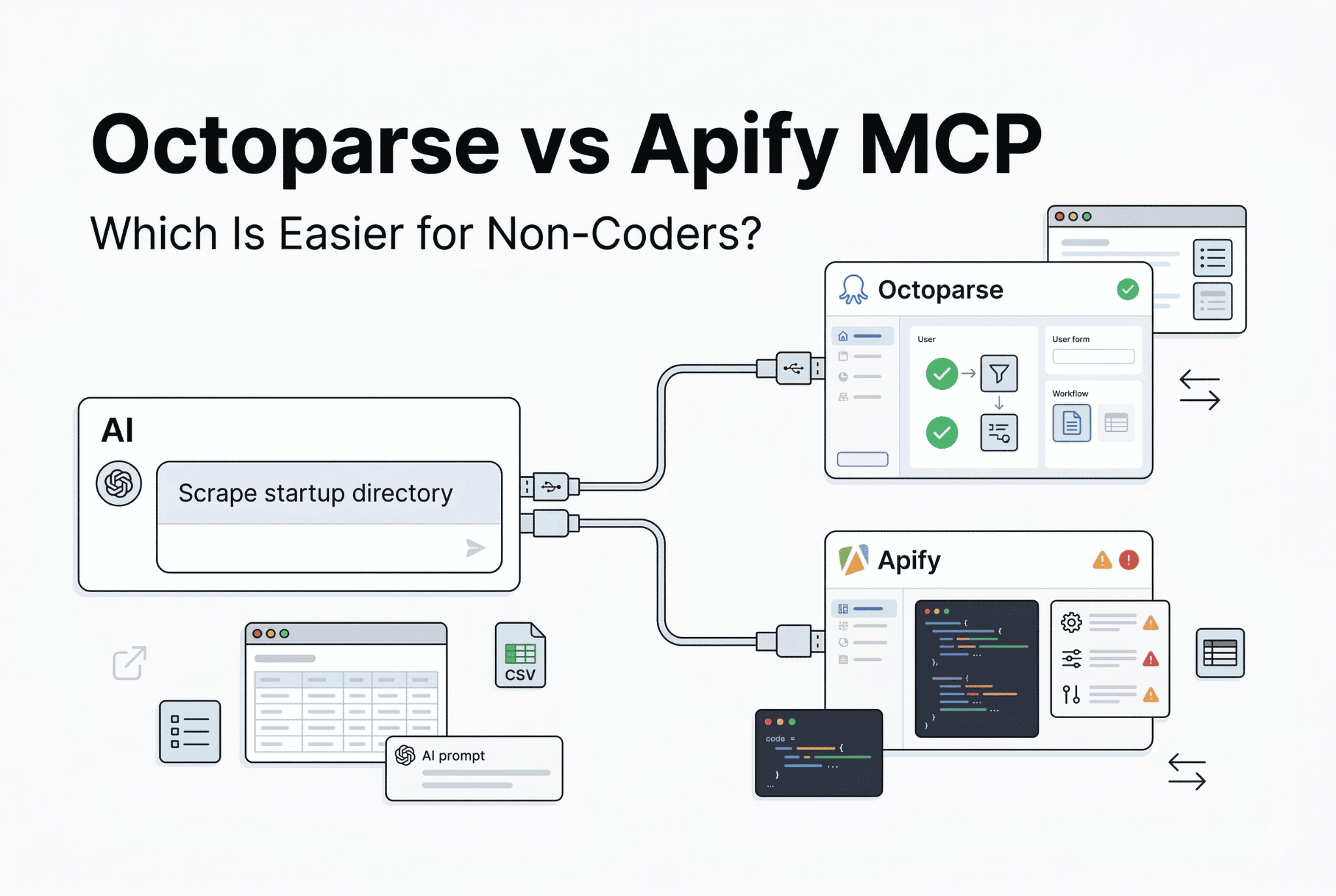
- Octoparse MCP vs Apify MCP
The more you understand about how the web works, the better equipped you are to troubleshoot problems, build your own projects, or simply make sense of the digital world around you.
FAQs about Connecting Octoparse MCP with Cursor
- What is the Model Context Protocol (MCP)?
MCP is an open standard that lets AI models, like Cursor AI, safely connect to and use external tools and live datasets, like web scraping services or specialized APIs. This gives the AI more power than just what it knows.
- How does Octoparse MCP help me as a developer using Cursor AI?
It integrates Octoparse’s web data extraction capabilities directly into the Cursor IDE. This allows you to prompt Cursor to fetch structured, live web data (like product prices or job listings) and inject it into your code, test fixtures, or database without leaving your editor or writing separate scraping scripts.
- Is Octoparse MCP a replacement for the full Octoparse desktop application?
No. Octoparse MCP is best for quick, on-demand data extraction for development and testing (e.g., getting the price of a few items). The full Octoparse desktop application is required for high-volume tasks like scraping tens of thousands of pages, bypassing complex anti-bot measures, or setting up scheduled, recurring extraction pipelines.
- Why do my complex prompts sometimes time out when using Octoparse MCP?
Requests that are complex and involve many steps, such as “Search Google for X, click the first five links, and scrape their tables,” often exceed the LLM’s context window or the default MCP timeout limit. To avoid this, make your request clear and in order. First, ask for the URLs, and then ask for the scraping action.
- Does Octoparse MCP work with sites that have anti-bot protection?
It works well on sites with a standard design and light anti-bot protection measures. Sites with more robust protection, like Cloudflare with its more restrictive settings, or complex single-page applications that require a lot of interaction from users (for example, complex login procedures or CAPTCHA solving), may cause it to fail or reach limits.