
An AI browser agent (often just called a browser agent), like Claude in Chrome or Codex, is an AI model that operates a web browser for you: it opens pages, clicks, types and reads the results to finish a task you describe in plain language. A web scraper, like Octoparse, does the same job by following a collection path someone built in advance. To compare an AI browser agent vs a web scraper, we timed both on the same Google Flights search: Octoparse’s Google Flights Scraper finished in a median of 8.2 seconds, while the AI browser agents took 29 seconds to about 11 minutes.
Speed was what we measured, but the runs showed more. Jev Ultrafast, the open-source agent whose 7-second demo started this test, finished 7 of 17 runs in our hands, and in a brand-new, signed-out Chrome profile, Google’s risk control usually blocked its searches once it began filling in the form. A faster browser connection didn’t make the slowest agent fast either.
Codex, Claude, Antigravity and the Octoparse template each ran the task three times.
The Short Answer: AI Browser Agent vs Web Scraper Speed
| Method | Median time (3 runs) | How it worked |
| https://www.octoparse.com/template/google-flights-scraper | 8.2 s | A prepared collection path; route and dates are just inputs |
| Claude (Sonnet 5.5) | 29.4 s | Built the search URL itself, then read the page text |
| Codex (GPT-6.1 Sol) | 127.4 s | Filled in the search form like a person would |
| Antigravity (Gemini 3.8 Flash) | ≈683 s | Wrote its own browser scripts and checked screenshots in a loop |
| Jev Ultrafast (Jev + DeepSeek Flash) | 12.4 s to reach the results page, in 1 of 3 runs | Picked one on-page action at a time; stops once results appear and doesn’t build the table |
The AI Browser Agents We Compared (and Octoparse)
Four AI browser agents and one web scraper ran the same Google Flights search. Here is what each one is and how it handles data collection today.
- Claude in Chrome (Anthropic): a Chrome extension that lets Claude read pages, click and type in your own browser. It returns what it collects as a reply in the chat.
- Codex (OpenAI): OpenAI’s agent, included with ChatGPT plans. It can operate Chrome through computer use or its Chrome extension and also replies with the results in the conversation.
- Antigravity (Google): Google’s agent-first coding app. It can open and drive its own Chrome window, writing scripts to work with the page.
- Jev Ultrafast (Browser Use team): an open-source browser agent built for speed. It picks one on-page action at a time and stops once results appear, so it does not turn them into a data table.
- Octoparse: a web data platform with 680+ ready-made templates in the Template Gallery, cloud runs and an MCP server. We used its Google Flights Scraper, which returns flight offers in the same columns every run.
AI Browser Agent vs Web Scraper: A Side-by-Side Comparison
| AI browser agent | Web scraper / template | |
| How it works | Looks at the page, decides the next step, then clicks, types or runs a script, and repeats | Follows a collection path built in advance for that site; the route and dates are just inputs |
| Getting started | Describe the task in plain language | Fill in a form with the inputs it expects |
| Speed in our test | 29 s to ≈11 min (median), depending on the agent | 8.2 s (median) |
| Consistency | Each run can take a different path; Antigravity varied from 5 to 15 minutes | Same path every run; same columns every time |
| Output | A table in the chat whose shape depends on how you phrased the request | The same fixed columns every run, ready to export or schedule |
| Cost per run | Depends on the plan and the model; long runs use more model capacity | Priced per row: $0.03 per 1,000 rows for the Google Flights Scraper |
| Control and safety | Acts inside your browser, sometimes with your logins and your mouse; it can take detours you didn’t ask for | Only does what it was built to do |
| Unfamiliar websites | Can work out a new site on its own | Needs a scraper built for that site first |
| Best for | One-off questions on sites you haven’t used before | Collecting the same data again and again, at volume |
There is no single winner. Agents are flexible: they handle new sites and odd one-off requests without setup. The price is speed, predictability and some control. Scrapers are fixed: fast, consistent and cheap at volume, but limited to what was built.
If you want the broader picture of goal-driven agents versus pre-scripted automation, our guide to RPA and AI agents covers it. For how browser automation works under the hood, see our browser automation guide.
All three agents finished the task. What separated them was the strategy each one chose, and that depends on the model as much as on the tool connecting it to the browser.
AI browser agent vs web scraper: which one should you use?
- One-off question on a site you don’t know yet: use an agent. It can figure out the page as it goes, and you don’t have to build anything first.
- The same data, again and again, in the same columns: use a web scraping tool. The path is already worked out, so each run is fast and the output doesn’t change shape.
- Somewhere in between: let an agent explore the site first, then turn the stable part into a repeatable scraper. Expect some work at that step. The agent may take a different path each time, the scripts it writes can break when the page layout changes, sites may start blocking repeated automated visits, and someone still has to handle retries, errors and data checks.
How We Tested 4 AI Browser Agents on Google Flights
Browser automation itself isn’t new: test engineers have scripted browsers with tools like Selenium since the mid-2000s, and web scrapers like ours drive browsers to collect data. What’s new is AI agents doing it from a plain-language request. Anthropic introduced computer use for Claude on October 22, 2024 and began piloting Claude in Chrome on August 25, 2025. Google launched Antigravity, which can drive its own Chrome window, on November 18, 2025, and OpenAI added computer use to Codex on April 16, 2026 and a Codex Chrome extension on May 7, 2026.
At Octoparse, we run a web data platform, and most of our scrapers are browser automation too. So we wanted to know: if an AI browser agent can do the same job from a one-sentence request, will people still need a scraper? Jev’s Google Flights demo made the question concrete, because Google Flights is a site we already maintain a scraper for.
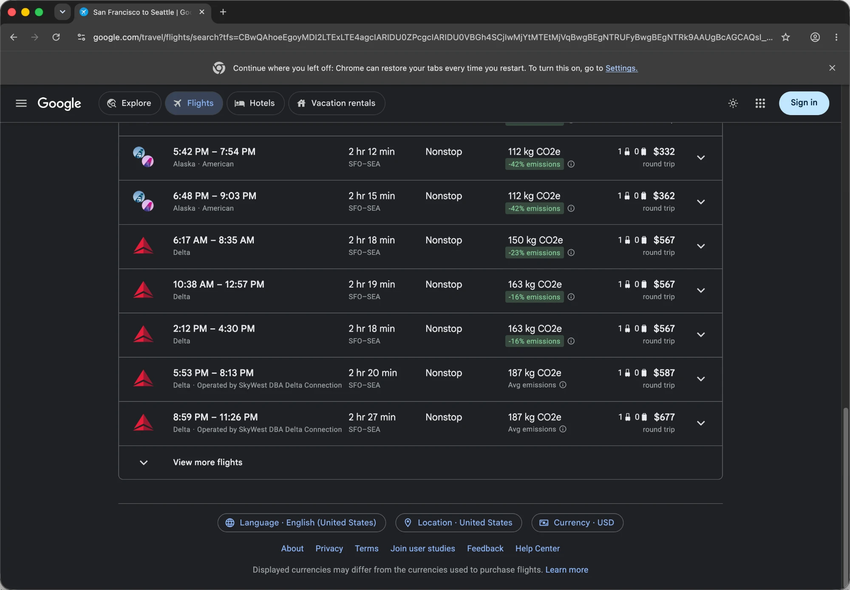
The task was an ordinary flight search: a round trip from San Francisco (SFO) to Seattle (SEA), leaving November 18, 2026 and returning November 25, for one adult in economy, priced in US dollars.
Each agent had to collect every outbound offer on the first results page, from both “Top departing flights” and “Other departing flights.” They were told not to click “View more flights” and not to book anything. The answer had to be one table with airline, departure and arrival times, duration, stops, layover airports, category and price.
Here is what we ran in October 2026.
Models, Apps and Browsers We Used
| Method | Model and reasoning level | App and browser |
| Codex | GPT-6.1 Sol, medium | Codex 26.1007.11041, signed in with our own ChatGPT Plus account; our everyday Chrome; ChatGPT Chrome extension 1.26.901.11451 |
| Claude | Sonnet 5.5, medium | Claude desktop 2.31226.1 (Code tab); Claude in Chrome 1.0.100; our everyday Chrome |
| Antigravity | Gemini 3.8 Flash, Medium | Antigravity 2.22.0; a separate Chrome window it launched itself, not signed in |
| Octoparse | https://www.octoparse.com/template/google-flights-scraper | Runs on Octoparse’s servers; sends web requests and parses the results without opening an interactive browser |
| Jev Ultrafast | Decision model: Jev (jev-1.13.0, via TypeSafe’s API). Text model: DeepSeek Flash through DeepSeek’s own API (in the first round, a free model through OpenRouter) | Public repository as of September 18, 2026; our everyday Chrome 155, plus brand-new signed-out Chrome profiles for comparison |
Why these models. We used the models and reasoning levels most people would pick for everyday work. In our experience, roughly 80% of an ordinary workday is clicking around, checking data across browser tabs and writing documents, and this setup handles that comfortably. Flagship models such as Claude Opus or GPT-6 Astra cost more and take longer, and a routine flight search doesn’t need them.
It’s also a setup most people won’t need to change: medium is the default reasoning level for all three models (Claude, GPT-6.1 Sol, Gemini 3.8 Flash). Once chosen, the settings stayed fixed: no swapping models after a slow run, and no re-running to keep the fastest result.
Each agent run started in a fresh conversation with the same task text. The only addition was a short prefix pointing each product at its browser tool: “use Claude in Chrome” for Claude and /browser for Antigravity. The full prompt is at the end of this article.
Results: All Three Runs
| Method | Run 1 | Run 2 | Run 3 | Median | Tool calls or steps per run |
| Octoparse Google Flights Scraper | 8.2 s | 15.9 s | 7.4 s | 8.2 s | — (fixed path) |
| Claude | 31.8 s | 25.6 s | 29.4 s | 29.4 s | 6 / 5 / 7 tool calls |
| Codex | 134.3 s | 127.4 s | 100.3 s | 127.4 s | 18 / 18 / 19 tool calls |
| Antigravity | ≈683 s | ≈293 s | ≈923 s | ≈683 s | 172 / 126 / 324 steps |
| Jev (stops at the results page) | stuck | stuck | 12.4 s | — | 9 / 9 / 12 Jev decisions |
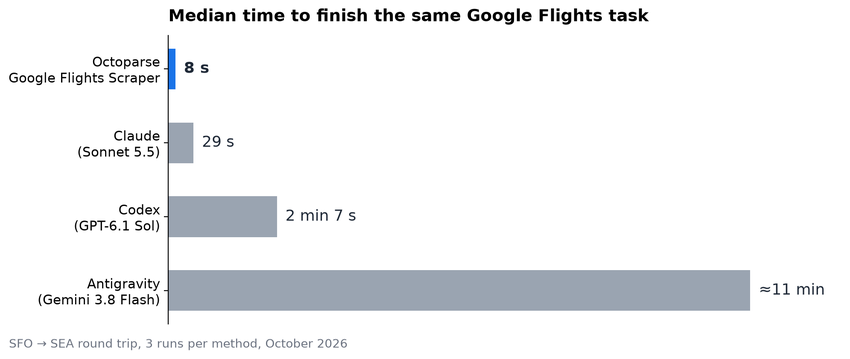
Jev’s row has a different finish line: it stops when the results appear and doesn’t build the table, so we compare it separately below. Claude was steady at 26–32 seconds and Codex at 100–134 seconds. Antigravity ranged from under 5 minutes to over 15 on the same prompt, and the number of steps it took varied in the same way. No agent needed help from us to finish.
A tool call is one action the agent asks its tool to perform, such as “open this URL” or “click this button.” Antigravity’s log counts steps instead. That number includes both its actions and its thinking rounds (each time the model reads the situation and decides what to do next). So its numbers are not directly comparable to the other two. They are still large enough to show how much more back-and-forth its approach involved.
How we timed it is explained in the How We Measured section below.
Why the Speeds Differ: Three Strategies
Claude: Build the Search URL, Then Read the Page
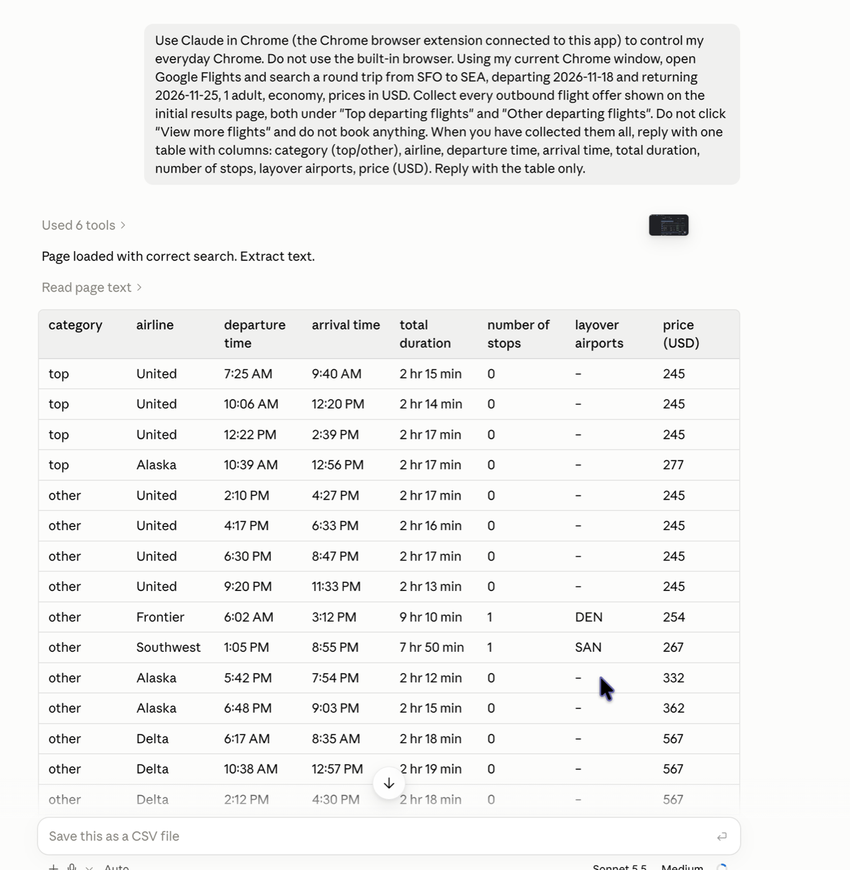
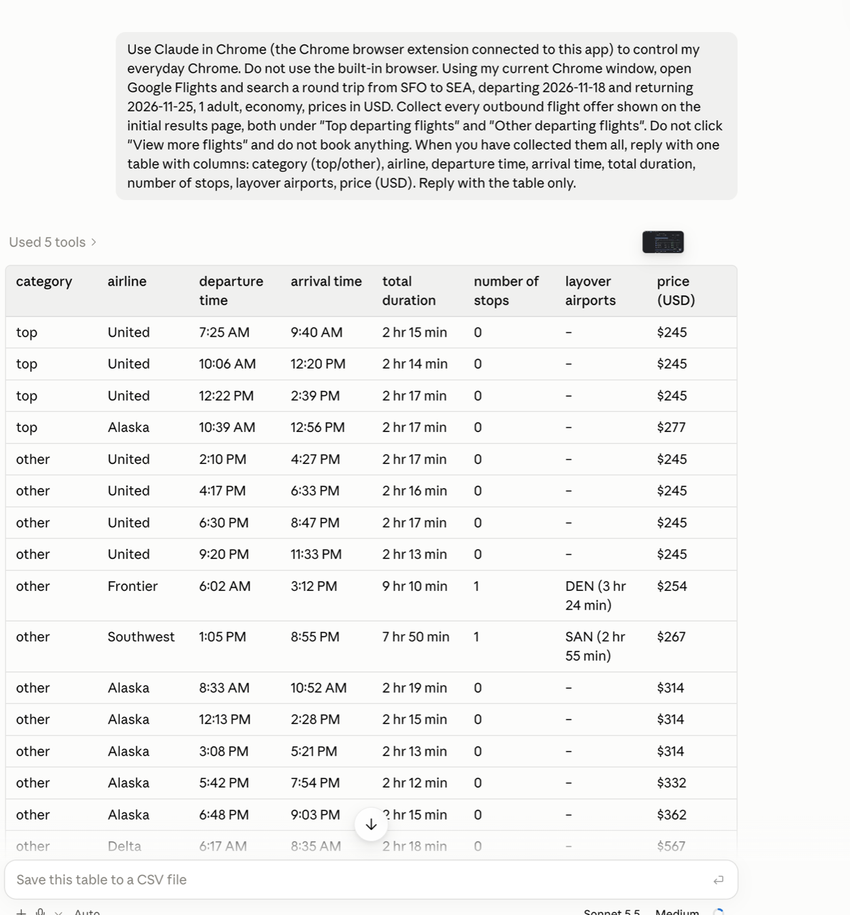
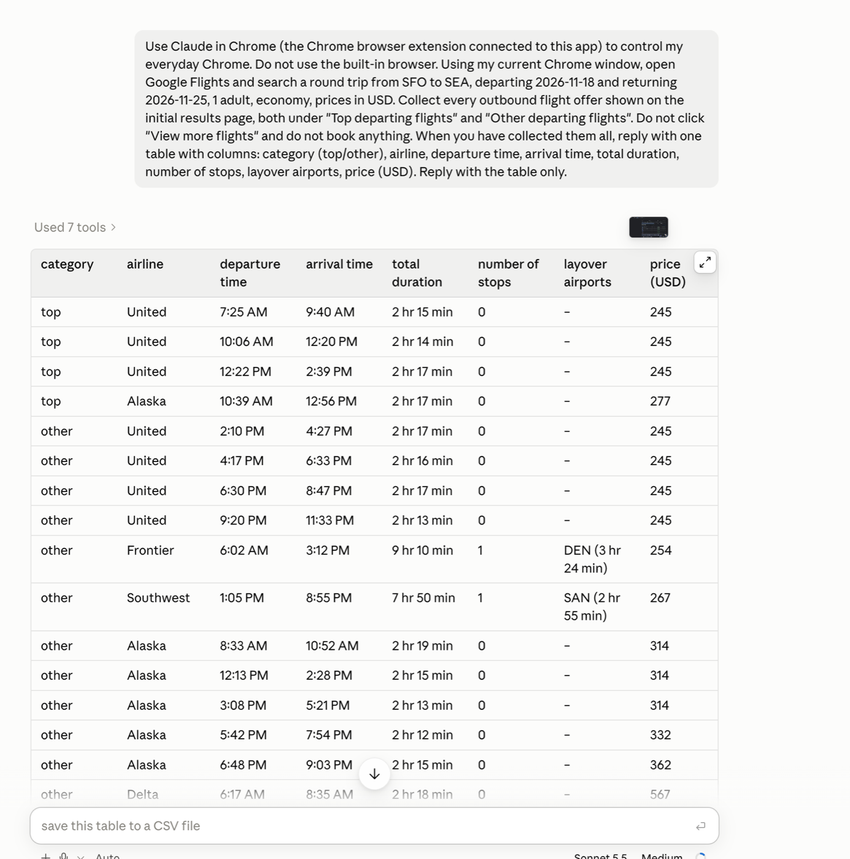
Claude took a shortcut. Instead of filling in the search form field by field, it wrote a Google Flights URL that already contained the route, dates and other conditions, opened it, read the page text and built the table. That took 5 to 7 tool calls per run.
It still used a real browser through the Claude in Chrome extension. It just skipped the clicking. The prompt didn’t forbid this, and it was the smartest strategy of the three. For a wider look at what Claude can do here, see our article on how Claude can scrape websites.
One caveat: its first run returned 17 rows, while the next 2 returned 20. Flight results can change between page loads. Without a fixed reference copy of each page, we can’t tell whether that run missed 3 offers. We kept the run as it was.
Codex: Work Through the Search Form
Codex behaved most like a person. It opened Google Flights, typed the airports and dates, ran the search and read the results, which took 18 or 19 tool calls per run.
Interestingly, it did not control the browser the same way every time. In runs 1 and 3 it used computer use, working as a computer use agent: it operated the Chrome application as a whole, finding buttons and fields through the operating system’s accessibility information (the same structured description of on-screen controls that screen readers use) and sending real clicks and keystrokes. In run 2 it attached to a Chrome tab through its browser extension instead and filled in the form with Playwright-style page commands (Playwright is a popular open-source library for controlling browsers from code).
Durations were similar either way (134 s and 100 s with computer use, 127 s through the extension). So what slowed Codex down was filling in the form one field at a time, not whether it clicked through computer use or through the extension.
Computer use has a practical side effect. Codex is sending real mouse and keyboard input, so using the computer during a run can disrupt it. It also acts on whichever Chrome window is in front. The Octoparse Google Flights Scraper runs in the Octoparse cloud instead, so it never takes over your screen, mouse or keyboard, and you can keep working while it runs.
Antigravity: Its Own Browser and a Long Inspection Loop
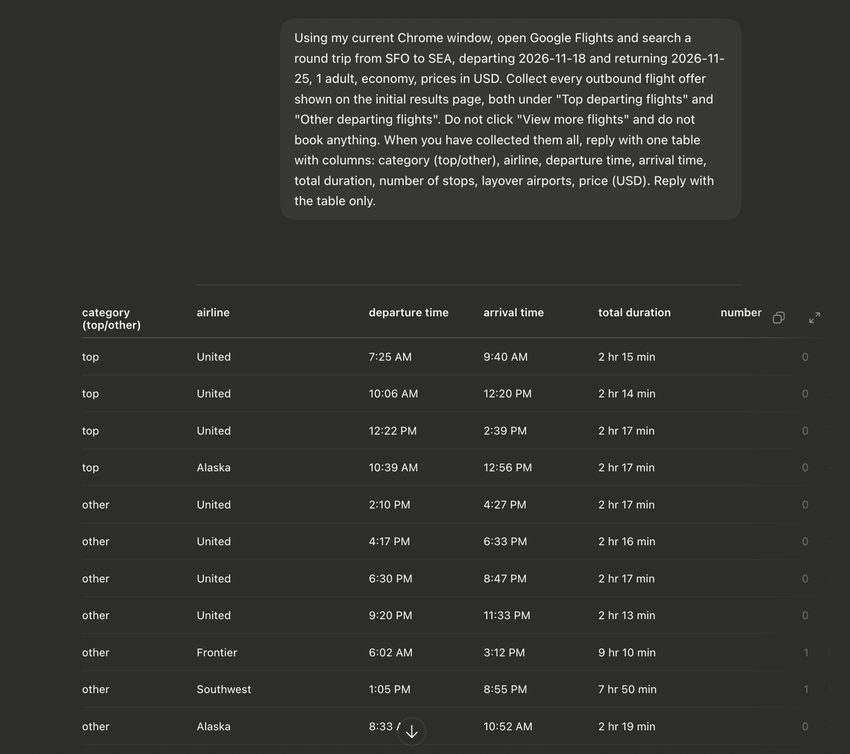
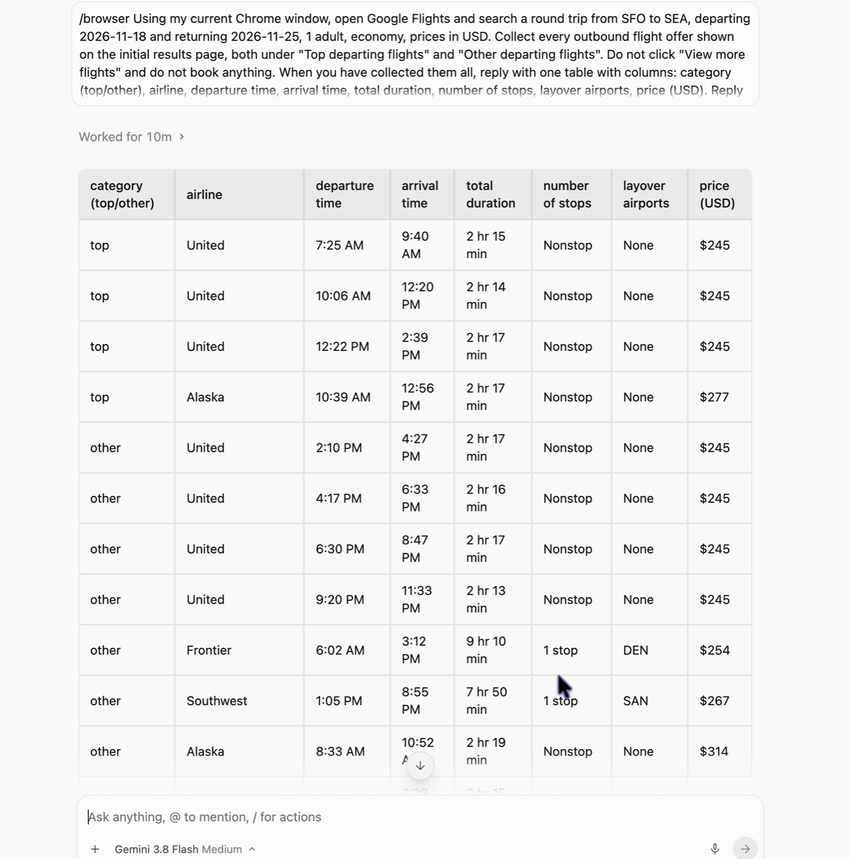
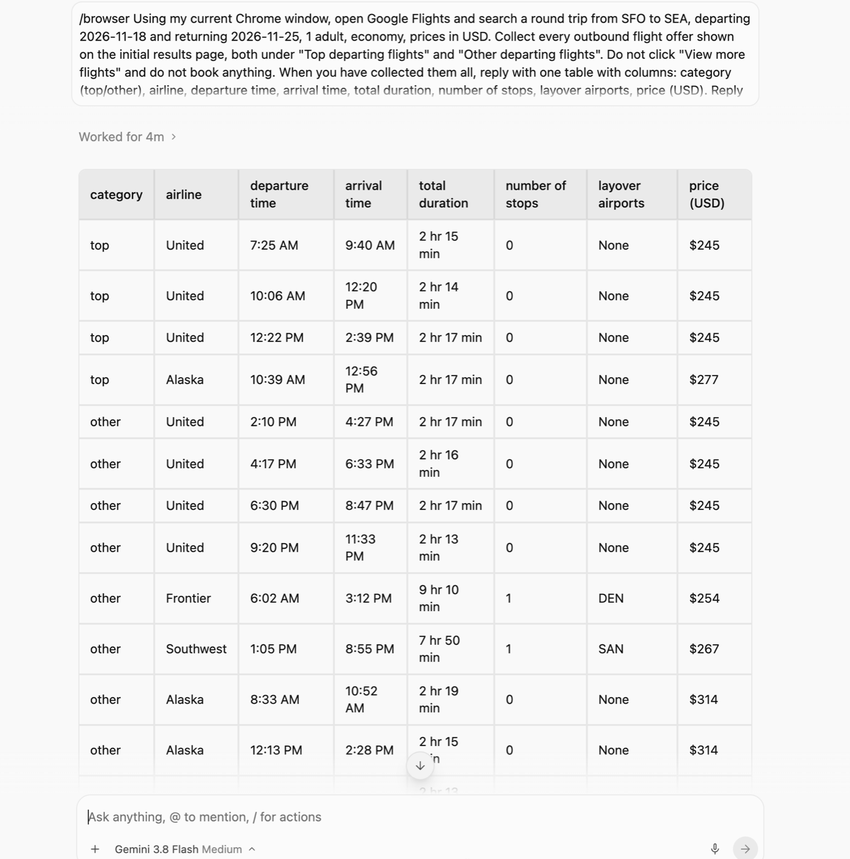
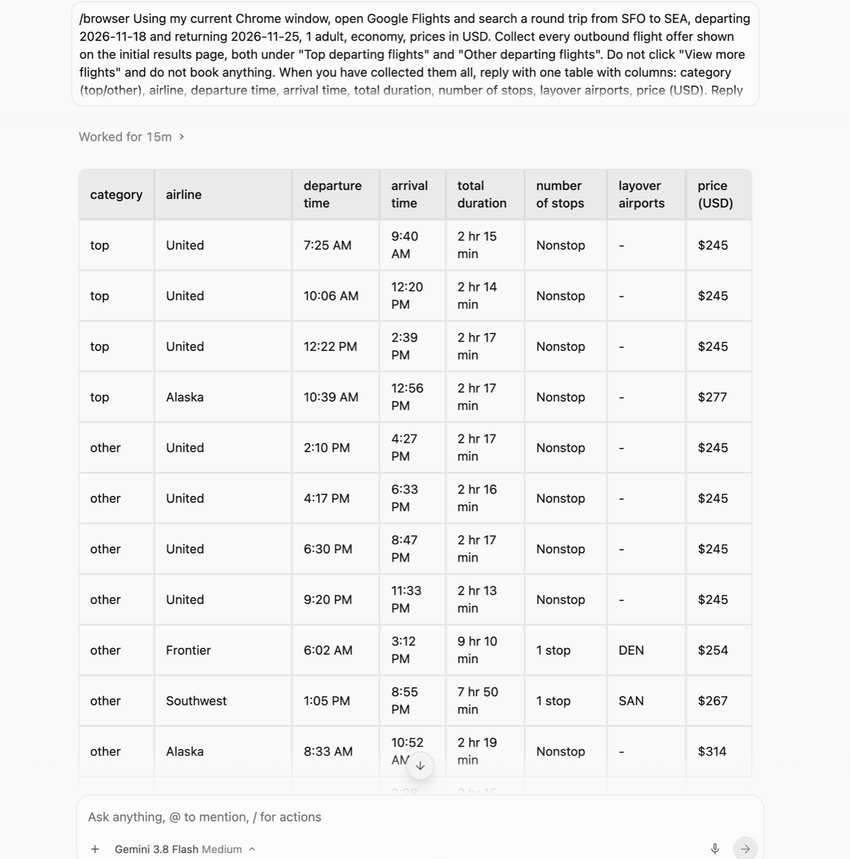
Antigravity showed the biggest gap between what we asked for and what happened. The prompt said to use the current Chrome window. Antigravity launched a separate Chrome window instead, signed out of Google.
In runs 1 and 3, it wrote small Python scripts that connected to that window with Playwright’s connect_over_cdp, which uses CDP (the Chrome DevTools Protocol, the low-level interface Chrome exposes for automation), then scrolled, reloaded and took screenshots. It looked at the screenshots, wrote another script and repeated the cycle until it could assemble the table. The first run alone took about 85 thinking rounds and 84 tool calls.
This inspect-and-retry loop is a choice the model made. Gemini 3.8 Flash could have built a search URL, as Claude did, or filled in the form, as Codex did. Instead, it kept writing scripts and checking screenshots.
So the long run times are mostly down to the model’s strategy, not to the browser connection: Antigravity talked to Chrome over CDP, a fast, low-level connection, and was still the slowest because it took so many steps (more on this in the FAQ on CDP below). We can’t split the time precisely between “model thinking” and “browser work” from the logs we have, but the step counts make the pattern clear.
Run 2, its fastest at under 5 minutes, went differently. Antigravity first tried to drive Chrome through AppleScript (macOS’s built-in app scripting) and even tried to switch on a Chrome developer setting that lets scripts run JavaScript inside web pages. That didn’t work, and the setting stayed off.
It then built a search URL, as Claude did, and pulled the results out of the page with a short Node.js script (Node.js runs JavaScript outside the browser) talking to the browser directly. The shortcut cut its time by more than half. It’s also a reminder that an agent chasing a goal may try to change your browser settings without asking.
We Also Ran Jev Ourselves
Jev’s 7-second demo is what started this article, so we ran Jev Ultrafast, an open-source browser agent from the Browser Use team, on the same Mac too.
Jev works differently from the three agents above. It doesn’t write text or plan in long replies. At every step, the Jev model picks one operation (click, type, select) and one target from a list of the elements on the page. A small text model only steps in when something has to be typed, such as a city name.
Setup and Timing
We used the public repository as of September 18, 2026, the jev-1.13.0 decision model through TypeSafe’s API, and Chrome 155. The official demo pairs Jev with the Mercury 2.5 text model. We used models we already had access to: a free model through OpenRouter in the first round, then DeepSeek Flash through DeepSeek’s own API.
Jev’s own timer starts after the first look at the page and stops when it decides it’s done. Our agent timings start when we send the message, so they include opening and loading the page. To keep that fair, we recorded both: Jev’s clock, and a clock that starts when the script opens its browser tab, which matches how we timed the agents.
We ran two tasks: Jev’s official one-way search from Zurich to London (moved to November 18, 2026, because the original date has passed), and our own SFO to SEA round trip. In both, Jev stops as soon as flight results are visible.
Round 1: A Brand-New, Signed-Out Chrome Profile
We first gave Jev a separate Chrome window with a brand-new profile, so it couldn’t touch our everyday browser. None of the eight runs finished. On the one-way task, Jev filled in the whole form correctly four times and clicked Search after about 11 to 12 seconds, but each time Google’s results area said “Oops, something went wrong.” Opening the exact same search URL directly in that window loaded 23 results, so the URL itself was fine.
Round 2: Our Everyday Chrome
Like Codex and Claude, Jev then ran in our everyday Chrome, in its own background tab, with DeepSeek Flash as the text model. Google’s error never appeared.
Jev’s Results in Our Everyday Chrome
| Task | Finished | Jev’s clock | From opening the tab |
| Official task: one-way Zurich to London | 3 of 3 | 12.1 s median (11.6–16.1 s) | 14.3 s median (12.6–17.9 s) |
| Our task: round trip SFO to SEA | 1 of 3 | 11.0 s | 12.4 s |
Here is how that one successful round trip compares with the agents on the same search. For the agents, this is the moment they first read the flight results, counted from our message; they then went on to build the table.
Time to Reach the Results Page
| Time to reach the results page | Run 1 | Run 2 | Run 3 |
| Jev (from opening the tab) | stuck | stuck | 12.4 s |
| Claude | 26.7 s | 19.5 s | 24.3 s |
| Codex | 115.5 s | 92.9 s | 83.5 s |
| Antigravity | ≈441 s | ≈220 s | ≈841 s |
Was It the Fresh Profile?
To check, we ran the official task three more times in another brand-new profile, this time also with DeepSeek Flash, so the browser profile was the only difference from round 2. Jev typed exactly the same text and built exactly the same search URL every time.
Google Errors by Browser Profile
| Browser profile (official one-way task) | Text model | Searches that hit Google’s error | Finished |
| Brand-new, signed-out (round 1) | Free OpenRouter model | 4 of 4 | 0 of 5 (1 run stopped before searching) |
| Our everyday profile (round 2) | DeepSeek Flash | 0 of 3 | 3 of 3 |
| Another brand-new profile (control) | DeepSeek Flash | 2 of 3 | 3 of 3 (after a reload, 10.5–12.6 s by Jev’s clock) |
Across all our fresh-profile searches, the error showed up 6 times out of 7. In our everyday profile it never did. And in a fresh profile, loading Jev’s search URL directly, without going through the form, brought up the results normally. So the URL was fine and the profile wasn’t blocked outright; the error appeared when an agent filled in the form step by step in a brand-new, signed-out profile.
At Octoparse, we’ve built and maintained web scrapers for years, and we’ve seen this many times: some sites won’t load properly in a brand-new browser profile but open fine in a personal one. From that experience and this pattern, this is Google’s risk control reacting to a brand-new, signed-out profile driven by automation. It’s a practical lesson for anyone running browser agents: the browser profile you give an agent can matter as much as the model.
Where Jev Went Wrong
Of the 17 runs, 10 didn’t finish. Each failure had a clear cause on the final page.
Why Jev’s Runs Didn’t Finish
| What happened | Times |
| Google showed “Oops, something went wrong” after Search and didn’t recover (fresh profile) | 4 |
| Couldn’t pick the return date in the calendar | 4 |
| Typed a place name Google couldn’t match | 1 |
| Jev’s own answer failed the project’s validity check after 2 steps | 1 |
The same validity check failed once more after one of the Google errors. The same prompt on the same page could end differently from one run to the next.
What We Took From It
When Jev works, its approach of choosing instead of generating is quick: on its one successful round trip it reached results about twice as fast as Claude. We didn’t see 7 seconds, though. Its decisions averaged 0.31 to 0.70 seconds each in our runs, against the 0.18-second median the project reports, and our text model was slower than Mercury. Network distance and service load could explain some of that.
More importantly for data collection, Jev stops when the results are on screen. It doesn’t read the prices into a table, which is the part our task actually needed. And in our hands it finished 7 of 17 runs. The project describes itself as a minimum viable product, and that matches what we saw.
Where AI Browser Agents Fall Short and How Octoparse Helps
The AI browser agents had to work out the job while doing it. The Octoparse https://www.octoparse.com/template/google-flights-scraper didn’t, and that one difference explains most of the gap.
In our runs, the gap showed up in five places:
- Speed: multi-step browsing took 29 seconds to about 11 minutes; the scraper took 8.2 seconds.
- Consistency: an agent’s table changes shape with the prompt and the path it takes; the scraper returns the same columns every run.
- Risk control: a brand-new, signed-out browser profile triggered Google’s error in 6 of 7 automated searches; the scraper runs in the Octoparse cloud on a path we maintain.
- Your screen: computer use takes over your mouse and keyboard; the scraper runs in the cloud while you keep working.
- Cost: long agent runs use more model capacity; the scraper is priced per row, $0.03 per 1,000 rows, with no per-run AI token cost.
A Fixed Path Instead of Live Decisions
We already worked out the path: what to request, how to read the response and which columns to fill. The route and dates are just inputs. The scraper never has to decide whether to build a URL, click a form or write a new script.
Unlike an LLM scraper, an AI web scraper that asks a large language model to read every page, an Octoparse scraper runs the same way every time, with no per-run AI token cost (tokens are the units AI models are billed by).
8.2 Seconds and the Same Columns Every Run
In our three timed runs, the Octoparse Google Flights Scraper took a median of 8.2 seconds from task start to script completion. Only about 3.8 seconds of that was the actual collection and parsing; the rest was cloud start-up. Each run returned 20 rows with the same fixed set of columns: airline, route, dates, departure and arrival times, duration, stops, layovers, price, currency and more.
As soon as a run finishes, the results appear in a data preview table in Octoparse, which is the equivalent of an agent replying with its table. We stopped the clock at script completion for that reason, not to leave out export time. Exporting to a file is an extra step for either approach.
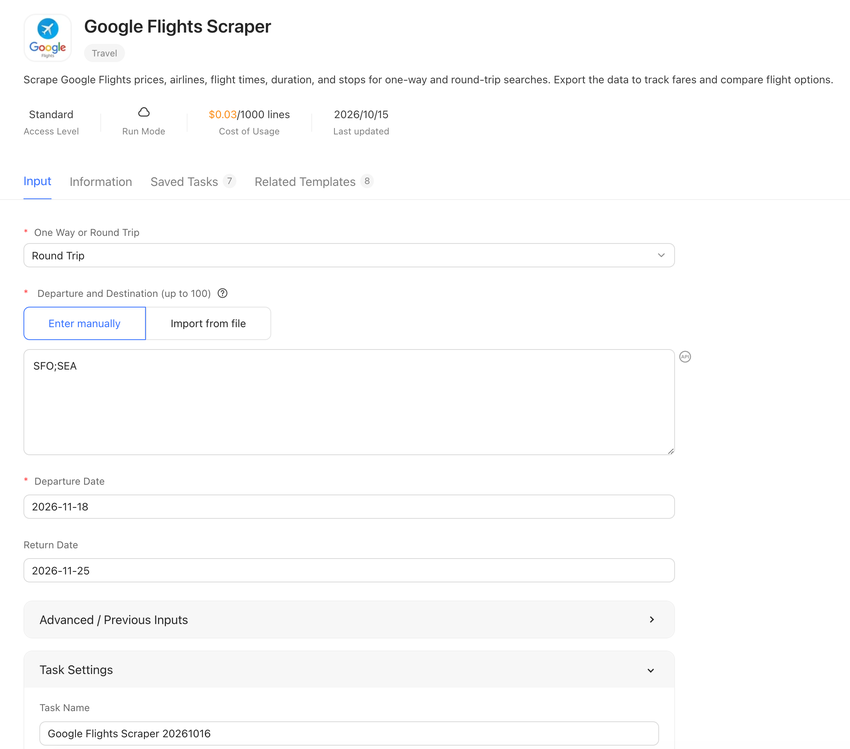
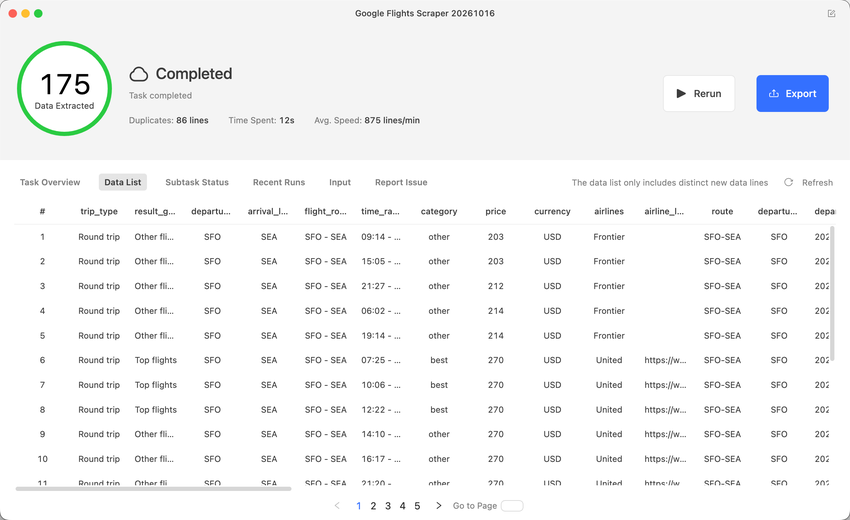
Change the route or dates and you get the same columns back. That makes it easy to compare runs, filter results or load them into a spreadsheet or database. With an agent, the shape of the table depends on how you phrased the request that day.
Because the Octoparse Google Flights Scraper runs in the Octoparse cloud, you can also schedule it, for example to check the same routes every morning and build up a fare history over time, with your own computer switched off. The same setup works for other price monitoring jobs, such as tracking competitors’ product prices.
Pre-Built Scraper Templates, Maintained by Octoparse
Agents can learn a routine too. You can save a prompt, a skill or a script so the agent repeats the same steps next time. The difference is how much work has gone into that routine.
Our template’s path was built and tested for this one site: request format, parsing, retries and input handling. We also monitor our templates continuously and fix them when a site changes, so a new page layout doesn’t leave you with a broken scraper.
Building that path takes work before the first run, and keeping it working takes more as sites change. That work is ours, not yours. Our job is to absorb it, so all you do is enter your routes and dates. (Our timing doesn’t include that development work.)
What’s New Since Our Test
Since the test, we’ve extended the scraper to support one-way and round-trip searches, many routes in one task, and city names as well as airport codes. It also returns the full result list rather than only the first page: in the October 16, 2026 run shown above, the same round-trip search returned 175 rows. (That is a bigger job than the first-page table we asked the agents for, so we don’t compare its timing with theirs.)
Try the Google Flights Scraper
The Octoparse Google Flights Scraper costs $0.03 per 1,000 rows and runs in the Octoparse cloud. You can try it on the Free plan with no credit card: run it through the MCP server or API, with 2,000 free records a month. Enter your routes and dates, pick one-way or round trip, and you get a table back. For a step-by-step walkthrough, see our guide to scraping Google Flights data.
https://www.octoparse.com/template/google-flights-scraper
Agentic Web Scraping: When a Browser Agent Is the Right Tool
Agentic web scraping means using AI agents for web scraping. It is a form of AI web scraping in which the agent decides how to collect the data rather than following a fixed sequence. It works best when you don’t know the next step in advance.
Say an analyst wants a quick comparison from a site they’ve never used. They don’t know which page has the data or which fields matter. An agent can explore and answer in minutes, and for a one-time question, a few minutes is fine.
It also helps when the data sits behind your own login. An agent working in your everyday browser can use the session you already have. Check that it really does: Antigravity’s separate, signed-out window shows that agents don’t always use the browser you expect.
That access cuts both ways. A web page can hide instructions aimed at the agent, an attack known as prompt injection, and an agent signed in as you may act on them. Anthropic calls prompt injection the biggest risk for browser-using AI tools and says the risk is not zero, so keep an eye on what an agent does on sites you don’t trust.
Scrapers handle logins too, with a bit of setup. Several Octoparse templates, such as the https://www.octoparse.com/template/amazon-reviews-scraper-lite-for-us and https://www.octoparse.com/template/xiaohongshu-search-result-scraper-by-keyword, let you log in before the run or paste your own cookies. When you build your own task, you can enter your credentials in the workflow or save cookies from a manual login.
From Traditional to Agentic: How Octoparse Covers Both
You also don’t have to pick one side. Octoparse started with traditional, rule-based scrapers and now reaches the agentic side too:
- Template Gallery: 680+ ready-made scrapers like the Google Flights Scraper, each with a fixed path that runs the same way every time.
- AI Assistant: describe the data you want in plain language, and it either matches you with a ready-made template or builds a reusable scraper. Its Browser Use mode runs in your own browser through the Octoparse in Chrome extension, and its Cloud Agent mode runs on a schedule in the cloud.
- MCP server: MCP, the Model Context Protocol, is the standard way AI agents connect to outside tools. Through Octoparse’s MCP server, an agent such as Claude or Codex can search the Template Gallery, run a ready-made scraper like the Google Flights Scraper and pull the results back into the conversation. MCP and API access comes with every plan, starting with 2,000 free records a month on the Free plan.
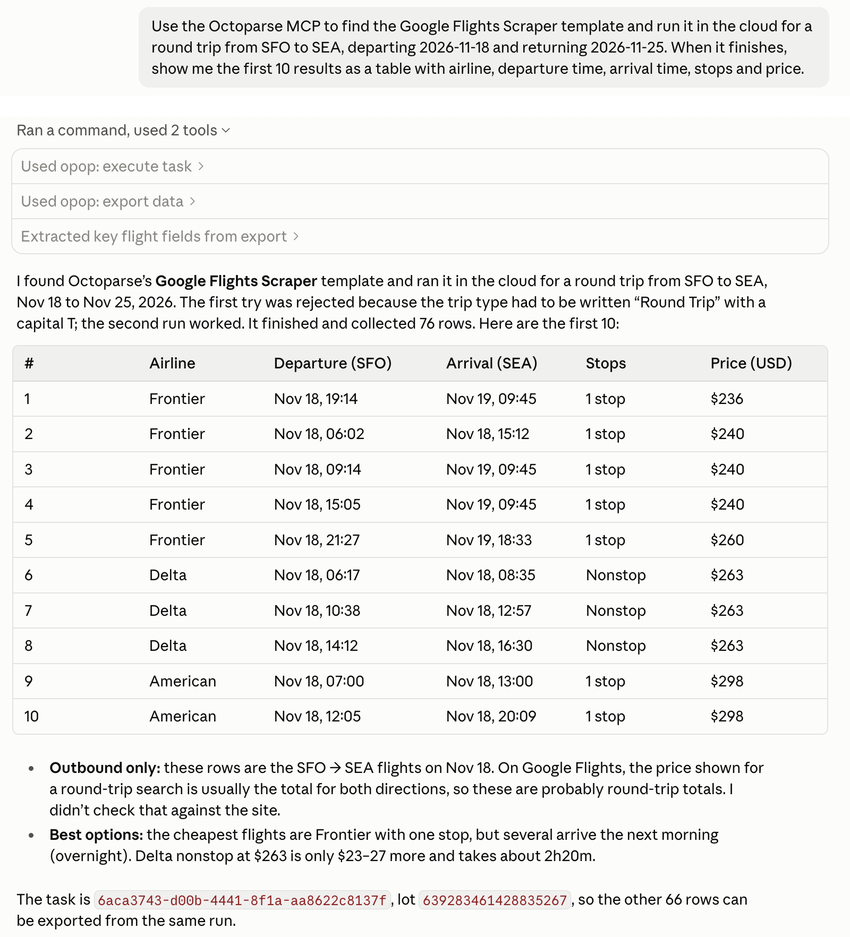
That last route keeps the agent’s easy, plain-language request and swaps its slow, step-by-step browsing for a scraper that already knows the way.
And when the same question turns into a weekly job, that’s usually the moment to turn what the agent learned into a scraper.
How We Measured
We wanted every number here to be checkable, so here is exactly what we did and where the limits are.
- Timing source. No stopwatch. For Claude and Codex, we read each product’s own conversation log: from our message to the agent’s final reply. For Antigravity, we took timestamps from its local step records, which are only precise to the second; treat its figures as approximate. For the scraper, the clock runs from the platform’s task start to script completion, as described above.
- Sample size. One public website, one task, three runs per method. That’s enough to show how these tools behaved on this task, but not to declare an overall winner. On a site where Claude can’t build a search URL, for example, its advantage over Codex could shrink, and the order could change.
- Real working setups. The agents ran on our everyday computer with our usual settings, extensions and skills. We didn’t control every background process or network condition.
- What we didn’t measure. Token cost, accuracy beyond completing the table, or large-scale collection. We didn’t require identical row counts. Both an agent’s tidy table and a scraper’s “success” status need a spot-check before you rely on the data.
- Scraper version. We timed the cloud Google Flights Scraper as it was on October 13, 2026. The public version has since gained more input options and returns more rows per search. The post-release check above was a single run with a wider scope, so it isn’t part of the comparison.
- How we wrote this. We used AI tools, including Claude and Codex, to help draft and edit this article. Every test, number and screenshot comes from our own runs, and our team checked each claim before publishing.
Run-by-run details
| Method | Run | Time (from logs) | Time shown in the app | Tool calls / steps | How it controlled the browser | Strategy |
| Claude | 1 | 31.8 s | — | 6 tool calls | Claude in Chrome extension | Built the search URL, read the page text |
| Claude | 2 | 25.6 s | — | 5 tool calls | Claude in Chrome extension | Same |
| Claude | 3 | 29.4 s | — | 7 tool calls | Claude in Chrome extension | Same |
| Codex | 1 | 134.3 s | 2 min 6 s | 18 tool calls | Computer use | Filled in the search form |
| Codex | 2 | 127.4 s | 1 min 52 s | 18 tool calls | ChatGPT Chrome extension | Filled in the search form |
| Codex | 3 | 100.3 s | 1 min 29 s | 19 tool calls | Computer use | Filled in the search form |
| Antigravity | 1 | ≈683 s | 10 min | 172 steps | Own Chrome window, CDP (Playwright) | Scripts, screenshots, scrolling in a loop |
| Antigravity | 2 | ≈293 s | 4 min | 126 steps | AppleScript attempt, then CDP (Node.js) | Built the search URL, extracted with JavaScript |
| Antigravity | 3 | ≈923 s | 15 min | 324 steps | Own Chrome window, CDP (Playwright) | Scripts, screenshots, scrolling in a loop |
Codex’s own “time used” label reads 8 to 15 seconds lower than our log-based figure, and Antigravity rounds its “worked for” label down to whole minutes. Claude’s app doesn’t show a time. To keep one rule for everyone, the tables use the log-based figures.
Each run’s final answer, as it appeared in the app, is shown in the strategy sections above.
FAQ
- How does an AI browser agent work?
You give it a goal in plain language. It looks at the page through screenshots, the page text or the accessibility tree, decides the next step, then clicks, types or runs a short script, and repeats until the task is done. In our test, Claude worked through a browser extension, Codex used computer use or its extension, and Antigravity connected over CDP.
- Can AI agents replace web scrapers?
For one-off tasks, often yes. All three AI browser agents in our test finished the job. For collecting the same data repeatedly, Octoparse’s Google Flights Scraper was roughly 4× to 80× faster than the agents in our test, and its output came back in the same columns every time. Most teams will use both.
- Can ChatGPT scrape websites?
Yes, through Codex, OpenAI’s agent that comes with ChatGPT plans. In our test, Codex filled in the Google Flights search form in Chrome and returned the full table in a median of 127.4 seconds. For collecting the same data repeatedly, a scraper is faster: Octoparse’s Google Flights Scraper took 8.2 seconds.
- Is Claude faster than Codex for web scraping?
On this task, yes: a 29.4-second median against 127.4 seconds. The main reason was strategy. Claude built a search URL directly, while Codex filled in the form step by step. On a site where that shortcut isn’t possible, the gap could be much smaller.
- Does CDP make a browser agent faster?
In theory, yes: CDP (the Chrome DevTools Protocol) keeps a two-way connection open straight into Chrome, while Selenium’s classic WebDriver protocol sends one HTTP request per command, which is why scraper engineers like us reach for it. In practice, the connection only sets the cost of each action; total time depends far more on how many steps the agent takes. Antigravity used CDP in all three runs and was still the slowest, because it needed hundreds of steps. Jev’s project shows the other side: it cut its time partly by reducing protocol calls per task from 1,092 to 101.
- Can I use the Google Flights Scraper today?
Yes. Octoparse’s Google Flights Scraper is public, runs in the Octoparse cloud and costs $0.03 per 1,000 rows. On the Free plan, you can run it through the MCP server or API with 2,000 free records a month. Enter your routes and dates, choose one-way or round trip, and you get a table of flight offers.
Try It Yourself
Want to see how your own agent handles it? Paste this prompt and note which browser it actually uses. Keep every run, not just the fastest.
For Claude, we added an instruction to use Claude in Chrome. For Antigravity, we added /browser.
If you need the same flight data on a schedule, the Google Flights Scraper above is the quickest place to start.