
Google Maps remains one of the most powerful platforms for local business data and geo-targeted market intelligence. With its extensive listings of businesses, restaurants, schools, and more, it’s a go-to resource for anyone who needs up-to-date local business data or contact details.
If you’ve ever wondered how to extract Google Maps search results, or if there’s a simple way to export Google Maps data to Excel or CSV for bulk analysis, lead generation, or business outreach, you’re in the right place.
This guide explains—step by step—how you can easily perform local business data extraction from Google Maps using proven, user-friendly methods. Let’s jump into the best ways to unlock and use valuable information hidden in Google Maps for your business or project.
Quick Answer: Which Method Should You Use?
| Your situation | Use this method | Why | Cost |
|---|---|---|---|
| Exporting your personally saved places (Lists you created in Google Maps) | Method 1: Google Takeout | Official Google export, exact match to your saved data | Free |
| Extracting all businesses matching a search (“dentists in Miami”) | Method 2: No-code scraper (Octoparse) | Search results aren’t included in Takeout; needs automation | Free tier available |
| Just 5 to 10 places, one time | Manual copy-paste | No setup, but breaks past 10 rows | Free |
| Building a recurring lead pipeline (daily or weekly refresh) | Method 2 + cloud scheduling | Automation, scheduling, and de-duplication | Paid tiers from ~$69/mo |
| Developer building a custom data product | Google Places API | Compliant and structured, but quota-limited and per-platform | Pay-per-request |
If you only want your personally saved places (lists you’ve created in Google Maps), use Method 1, which is Google’s official Takeout tool. If you want to extract all businesses matching a search (for example, every Italian restaurant in a city), Method 1 won’t help and you need Method 2. Most B2B and marketing use cases (lead lists, competitor research) need Method 2.
The Manual Method (and Why Most People Abandon It)
You can technically copy each business’s name, address, phone, and website from Google Maps and paste them into Excel row by row. For a list of 5 to 10 places, this works. For anything bigger, it takes hours and is error-prone, so you’ll typo phone numbers or skip rows. Most users abandon manual copy-paste once their list crosses around 10 businesses, which is why the two automated methods below exist.
There are various effective ways to export Google Maps search results, depending on your technical skills and project needs.
- For developers, creating a custom crawler using Python or leveraging open-source GitHub projects offers full control over Google Maps data extraction and business listing scraping.
- However, if you prefer a simpler, no-code solution, modern web scraping tools like Octoparse make it easy to automate Google Maps data export and generate structured Excel or CSV files without any programming.
Below, we’ll walk you through two proven methods to extract and export Google Maps business data seamlessly.
Method 1: Export Your Saved Google Maps List with Google Takeout
This is the method most “how do I export Google Maps to Excel” Reddit and Google Support threads are really asking about, and it only works for lists you saved yourself in your Google account (the bookmark feature inside Google Maps). If that’s what you have, here’s how to get it out in three steps.
Step 1: Open Google Takeout and select your Maps data
Go to takeout.google.com and sign in with the Google account that holds the lists. Click “Deselect all” at the top, then scroll down to “Maps (your places)” and tick the box. This isolates your Maps data so the export isn’t polluted with Gmail, Drive, and everything else attached to your account.
Step 2: Choose your export format
Click “Next step.” Pick .zip as the file type, set a size limit (2 GB is fine for most users), and choose “Send download link via email.” Hit “Create export.” Google will email you a download link within minutes for small exports, or up to a few hours for large accounts.
Step 3: Download and open the file
When the email arrives, download the .zip and extract it. Inside the Maps folder you’ll find a Saved.csv and one file per saved list. You can open Saved.csv directly in Excel.
Step 4 (often missed): Convert GeoJSON to CSV
Google Takeout exports your saved Maps data as .json or GeoJSON files alongside the CSVs. The richer location data (custom Maps you built in My Maps) usually comes out as GeoJSON, not Excel-readable CSV. To open it in Excel, use a free online “GeoJSON to CSV” converter, or in Excel go to Data > Get Data > From File > From JSON. Skipping this step is the number-one reason readers report “Takeout didn’t work for me” on Reddit and Google Maps support threads.
Limitation of Method 1: Google Takeout only exports lists you created. It does not export search results, places saved by other users, or businesses from a category search. If your goal is to extract a list of “all coffee shops in Brooklyn” rather than your personal saved places, skip to Method 2.
Method 2: Use a No-Code Google Maps Scraper (Recommended for Lead Lists)
This is the method to use when you want business listings that aren’t yours, including every dentist in Miami, every coffee shop in Brooklyn, or every solar installer in a postcode. Google Maps caps each visible search at roughly 120 results per area, so anything more than a one-off lookup needs a scraper that can split a city into multiple map viewports and stitch the results back together. This is the bottleneck most “I tried scraping Google Maps” tutorials don’t mention, and the reason free browser extensions usually return only a tiny slice of what’s actually in a city.
If you prefer to run Google Maps extraction from Claude, ChatGPT, Cursor, or another MCP-compatible client, use the Google Maps MCP Server to start the scrape from a plain-English prompt.
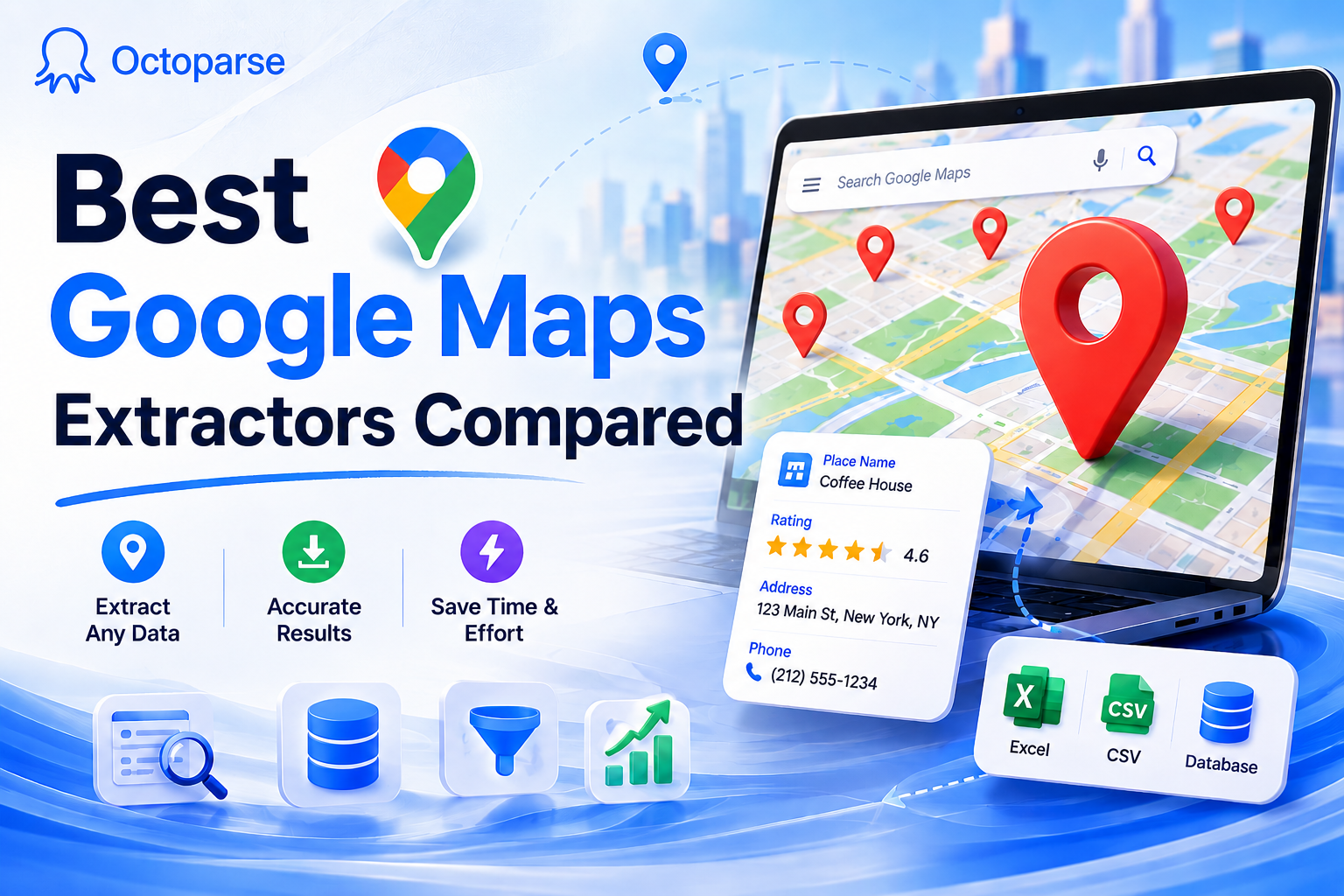
With Google Maps scrapers, you can export Google Maps search results and get all the business data in an Excel Sheet, a CSV file, or your database.
Octoparse and similar AI-powered scraping tools now offer preset Google Maps scraping templates that leverage auto-detection and pagination handling. These enable:
- Scraping full business leads, ratings, and reviews by keywords or location without programming.
- Continuous scraping with cloud scheduling, IP rotation, and anti-blocking features.
- Exporting clean, structured data directly to Excel, CSV, or databases.
Step 0: Check the Google Maps templates first
Octoparse maintains ready-made templates for the four most common Google Maps tasks: search results by keyword, contact details (phone, website, and email where public), reviews, and GPS coordinates. Click a template, type your search query (such as “dentists in Miami”), and the scraper runs with zero setup. Browse the Octoparse Google Maps templates before deciding to build a custom workflow.
You can choose to scrape store details by URL, listing pages, or keywords.
https://www.octoparse.com/template/google-maps-scraper-listing-page-by-keyword
You can also only scrape the reviews or the contact details with Octoparse’s Google Maps Contact Scraper templates.
https://www.octoparse.com/template/google-maps-contact-scraper
If a template fits, you can skip the rest of this section. If you need a custom search URL or non-standard fields, follow the three steps below.
Step 1: Paste your Google Maps search URL
Open Google Maps, run your search (for example, “Italian restaurants in Austin”), and copy the URL from the address bar. It’ll start with google.com/maps/search/ followed by your query and a coordinate string. Paste that into Octoparse’s main panel and click Start. Auto-detect will identify the listing cards on the page within a few seconds.
Step 2: Customize the workflow
After auto-detect runs, you’ll see a preview of every field it found: name, rating, review count, address, phone, category, and so on. Add a Loop Item to handle infinite scroll (Google Maps loads results as you scroll, not in pages), and set the AJAX timeout to 8 to 10 seconds so the page has time to load each batch. The Tips panel on the right will flag fields that need adjustment. For example, if you want to enter each listing’s detail page to grab the website and hours, add a Click to enter step.
Step 3: Run and export to Excel
Click Run, either locally for small jobs or on the cloud if you want IP rotation and scheduling. When the run finishes, click Export and choose Excel (.xlsx), CSV, JSON, or push directly to Google Sheets or a database.
Octoparse’s Google Maps scraper handles pagination, infinite scroll, and 60+ data fields including business name, full address, GPS coordinates, phone, email (where public), ratings, review counts, hours, website, and category, exporting directly to Excel, CSV, or Google Sheets.
For richer contact data, specifically email addresses and social media profiles that Google Maps itself doesn’t display, you can chain Method 2 with Octoparse’s Google Maps Email Finder. It takes the website URLs from your scrape and pulls publicly listed emails and social handles from those domains. This is the typical workflow for B2B teams who need outbound-ready contact data, not just business names and phone numbers.
How real businesses use Method 2
A digital marketing agency in Spain has used Octoparse to scrape Google Business Profiles daily for over five years. Their 30-person remote sales team uses the data, including whether a business lacks a website or has low ratings, to personalize outreach. The agency’s internal benchmark is to contact new entrepreneurs within 15 days of their Google Maps listing first appearing, well before most competitors notice them.
A Japanese B2B sales company has used Google Maps scraping to generate outbound sales lists every day for over four years. The automated workflow collects company names, categories, phone numbers, and addresses, currently at approximately 15 million records per month, then distributes structured lists to the sales team each morning. Since implementing this system, monthly sales closings increased by approximately 30 deals.
The pattern across these teams: success comes not from picking the “right tool” but from running the export on a recurring schedule (daily or weekly) and integrating the output into an existing sales workflow.
What Data Can You Scrape from Google Maps
Google Maps is one of the richest open business directories on the web. A full Google Maps export typically pulls these fields:
- Business name and category. Use: industry segmentation, vertical-specific outreach.
- Full address and GPS coordinates. Use: territory mapping, route planning.
- Phone numbers and emails (where public). Use: outbound contact lists.
- Website URLs and social media. Use: digital presence audit, enrichment input.
- Ratings and review counts. Use: competitor benchmarking, prioritization.
- Business hours and open status. Use: lead prioritization (open businesses first).
- Zip or postal codes and neighborhood. Use: hyperlocal targeting.
- Business images and logos. Use: visual market research.
In practice, the data fields you actually need depend on your end goal. For lead generation, business name plus phone plus email plus open status are typically enough. For competitive intelligence, ratings and review counts and hours often matter more. For market research at scale, the Spain agency mentioned above filters Google Business Profiles by missing-website plus low-ratings, businesses likely to need digital marketing services, and only contacts that subset. That use case needs four specific fields, not all eight.
One caveat: Google Maps itself only displays phone numbers and website URLs. Email addresses and social media profiles are not native Google Maps fields. They have to be enriched from the business’s website after the initial scrape. Most teams running serious lead-gen workflows pair a Google Maps scrape with a follow-up email or social finder step, so the output table includes contact channels sales can actually use.
Benefits of Scraping Google Maps Data
Rather than list generic upsides, here are four use cases where Google Maps data drives measurable outcomes.
Lead generation for B2B sales teams. The Japanese B2B sales company above generates roughly 15 million records per month from Google Maps and feeds them into their outbound workflow. After integrating the daily-refreshed list into their sales process, they reported approximately 30 additional monthly closings, a direct lift attributable to the scraped pipeline.
Local market research with timing windows. The Spain marketing agency contacts new business owners within 15 days of their Google Maps listing first appearing, well before competitors notice them. The window matters because new entrepreneurs are still choosing vendors. Once they’ve signed with a marketing firm, it takes months to win them back. Scraping enables the timing; manual prospecting doesn’t.
Competitive benchmarking by territory. Pulling all “Italian restaurants in Austin” with ratings and review counts produces a quick competitive map: which competitors have high ratings but low review volume (newer or under-marketed), which have the opposite (mature, hard to displace), and which neighborhoods are over- or under-served. The same approach works for any local category, including gyms, dentists, and contractors.
Real estate and property listings enrichment. Real estate teams use Google Maps data to enrich property listings with nearby business density (restaurants per square mile, school ratings, transit access), turning a static listing into a livability score. The Maps export feeds the enrichment; the enrichment feeds the listing page.
Is It Legal to Scrape Google Maps in 2026?
Google Maps discourages web scraping and does not allow scraping its content for use outside the Google Map Service, according to Google Maps terms and conditions.
However, scraping publicly available data from any site including Google Maps is completely legal as it does not violate any privacy rights of Google Maps.
Google Maps also provides an API for users to access the data about Google places details, routes, and maps. With Google Maps API, developers can get data from all the businesses listed in Google Maps using HTTP requests via API.
In general:
- Collecting publicly visible business data without breaching privacy laws is generally lawful.
- Using Google Places API is a compliant alternative for structured data access but may have usage/quotas limits.
- Always respect robots.txt, avoid excessive request rates, and stay within legal boundaries by consulting local laws on data scraping.
- For commercial purposes, prioritize transparent and ethical use of scraped data for marketing or analysis.
Scraping publicly available business data from Google Maps (such as names, addresses, and ratings) is generally legal in many regions, as long as you avoid collecting personal or restricted information and respect Google’s terms of service
Google’s policies and anti-scraping protections have become stricter in 2025, so always use responsible extraction practices, respect rate limits, and comply with local privacy and data laws (such as GDPR and CCPA updates), especially those seeking to achieve bulk Google Maps data export or local business data extraction via scraping should stay informed of evolving regulations around data privacy
For more detailed discussions about the legal landscape of web scraping and recent developments, check our in-depth article on the legacy problem about web scraping.
Troubleshooting Common Google Maps Scraping Issues in 2026
1. Anti-scraping triggers (CAPTCHA, IP detection)
Symptom. Runs fail at random, or you see a “verify you are human” page instead of search results.
Octoparse fix. The Standard plan and above include built-in residential proxy rotation and automatic CAPTCHA solving for cloud runs. Switch the task from local to cloud execution and the IP pool handles the rotation for you.
Fallback. If you’re on the free tier, lower concurrency to 1, add a 3 to 5 second random delay between requests, and run during off-peak hours (early morning, US time).
2. Only 5 to 10 reviews returned per business
Symptom. You see a business with 800 reviews on Google Maps but the scraper returns only 5 to 10.
Octoparse fix. The default Maps template grabs visible reviews only. Switch to the https://www.octoparse.com/template/google-maps-contact-scraper, which is review-aware, or add an explicit scroll-and-wait loop on the reviews panel so the page loads the full set before extraction.
3. Only the first 20 listings extracted (infinite scroll fails)
Symptom. Google Maps shows hundreds of businesses, but your export only has 20.
Octoparse fix. Enable auto-pagination, set the AJAX timeout to 8 to 10 seconds, and confirm the scroll action is targeting the results panel (left column), not the map itself.
Fallback. For a dense urban area, split the search into smaller geographic queries (per-neighborhood instead of per-city) to stay under Google’s per-search result cap and improve completeness.
Frequently Asked Questions
Can you export Google Maps to Excel?
Yes, there are 2 standard methods. For your personally saved Google Maps lists, use Google Takeout (the official export). For Google Maps search results (such as “dentists in a city”), use a no-code scraper like Octoparse. Google does not provide a direct “search results to Excel” button.
How do I export data from Google Maps?
For saved lists, go to takeout.google.com, select “Maps (your places)”, and download the .zip. For search results, paste the search URL into a Google Maps scraper, let it auto-detect business listings, then export as Excel or CSV. The first method is for your own data; the second is for any public business listings.
How do I extract data from a Google Maps list?
Use Google Takeout if it’s a list you saved in your Google account. It exports as CSV inside a .zip. Use a scraper if “list” means a category of businesses (like all coffee shops in a city). The terminology matters: Google Maps “Lists” are your saved bookmarks, not search results.
How do I copy and paste a Google Maps list?
You cannot copy-paste a Google Maps list directly into Excel. Google’s interface doesn’t allow text selection of list items. Use Google Takeout (for your saved lists) or a scraper (for search results) to get the data into a spreadsheet format.
How much does a Google Maps scraper cost?
Many tools have free tiers. Octoparse’s free plan includes 10 tasks and 50K records per month with local runs (no cloud). Paid plans start at around $69 per month for cloud scraping with IP rotation. Open-source Python scrapers are free but require coding and ongoing maintenance as Google’s HTML changes.
Is it legal to scrape Google Maps in 2026?
Public business data (name, address, phone, ratings) is generally legal to extract under most jurisdictions. Personal data (emails tied to individuals, user reviews tied to identifiable users) is gated by GDPR and CCPA. Google’s Terms of Service discourage scraping; using their official Places API is the formally compliant route.
Conclusion
Now you have learned two proven methods to easily scrape and export Google Maps search results into Excel or CSV formats. Whether you prefer a no-code approach by using ready-made scraping templates or want to customize your own workflow with Octoparse software, these solutions enable you to automate Google Maps data extraction without complex programming.
We hope this guide empowers you to harness the rich business information available in Google Maps and helps you level up your marketing, sales, or research efforts efficiently and effectively.