Quick Answer: Proxy not working? Don’t start flipping settings at random. First look at what actually happened: a 403 usually means the site blocked the visit, a 429 means too many requests arrived too quickly, a login wall needs a real account, and empty fields often point to loading or selector issues. Octoparse gives you the run evidence and controls to make the next move with confidence.
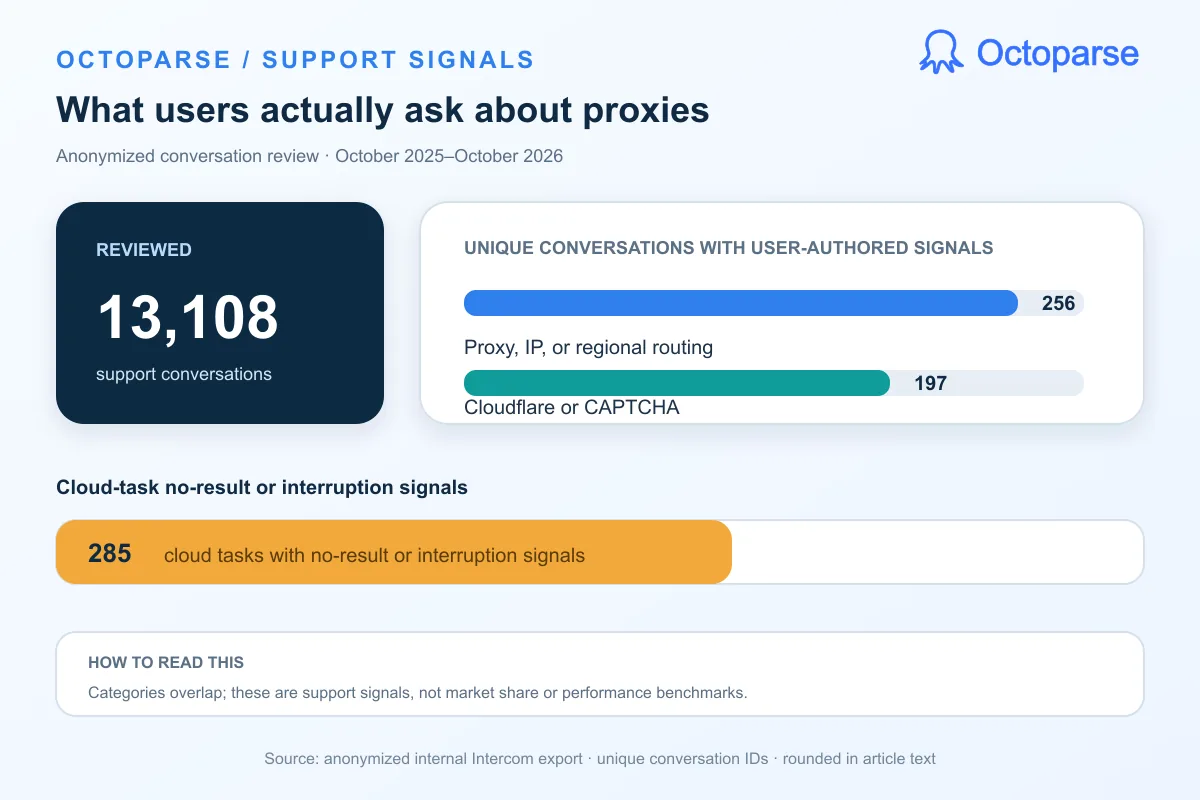
You press Run and get… a blank page, zero rows, a challenge screen, or prices in the wrong currency. Annoying, yes. Mysterious, usually not. The cause is normally hiding in one of five places: the target site, the exit IP, the login session, the cloud region, or the extraction step.
The fastest way forward is to check the evidence before changing three things at once. With Octoparse, you can watch the local browser flow or inspect cloud screenshots, run status, and subtask logs in one place. That makes it much easier to see where the job went off track.
The rule of thumb: find the layer that failed, change one thing, then test again before scaling up. Let’s walk through it together.
First, name the symptom
| What you see | What it usually means | First move |
|---|---|---|
| “Access denied”, a 403 error, or a “checking your browser” page | The site shut the door before extraction | Check the screenshot and step where it happened; then try the matching region or a steadier, higher-quality IP |
| A 429 error (“too many requests”) | Too many hits arrived too quickly | Slow the task down; use rotation only when the workflow can handle a changing IP |
| You hit a login wall or get logged out | The site wants an account, or the session changed | Use an authorized account and keep one steady IP where possible |
| Wrong country, store, currency or price | You landed in another storefront | Pick the target country or the matching Public IP Pool region |
| The task finishes with 0 rows | The page may be blocked, still loading, or your fields no longer match | Check the screenshot and the field step before touching the proxy |
| Results differ between your computer and the cloud | The two runs are coming from different environments | Compare local settings with the cloud proxy or Public IP Pool setting |
We’ll unpack each case below. And if a site is especially stubborn, you can move from hands-on proxy controls to a ready-made template or managed data, depending on how much setup you want to own.
So, what does a proxy actually do?
A proxy changes one thing: where the request appears to come from. It can help with location and IP reputation, but it cannot create an account, repair a selector, or magically keep every login alive.
Think of your IP as the return address on an envelope. A proxy sends it from another post office, so the website sees that address. See how proxy servers work in web scraping.
That can help with an IP block or show another country’s storefront. The site still sees a different visitor, so the login, cookies, and IP need to line up.
A few terms you’ll see in the settings, translated into normal human language:
- IP address: the return address every site can see.
- Proxy: a middleman that sends the request from another address.
- IP rotation: changing that address during a run. It can help with independent public pages, but it can also interrupt a login. See when IP rotation helps.
- Sticky session: keeping one address long enough for the site to see a consistent visitor.
- Login session: the site remembering that you signed in, usually through cookies.
- Public IP Pool: the cloud setting that chooses the region your run connects from.
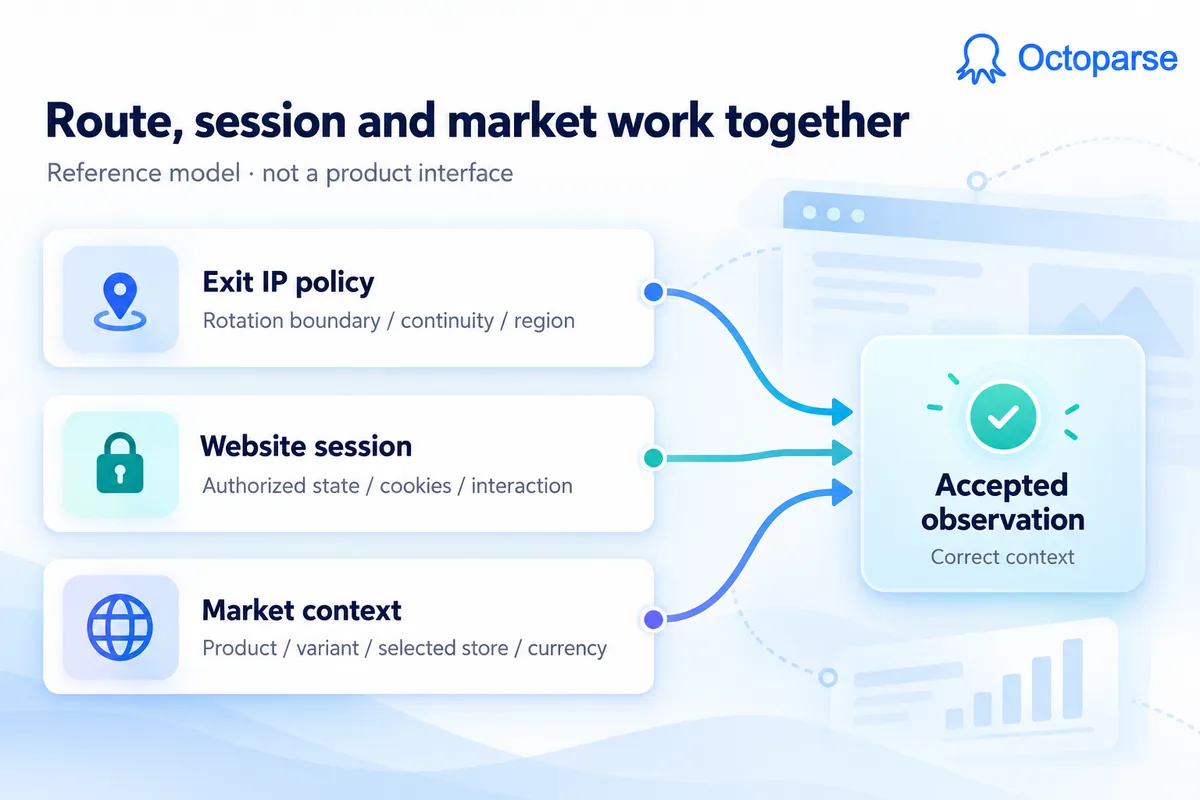
Keep these three things separate: where you connect from, whether you’re logged in, and which storefront you’re seeing. Octoparse gives you a control for each, so you can fix the likely cause instead of throwing every setting at the problem.
Which Octoparse proxy should I use for local or cloud scraping?
You have three practical routes in Octoparse. The right choice depends on where the task runs and what the target site expects.
| Proxy option | Best fit | What it changes | Keep in mind |
|---|---|---|---|
| Built-in residential proxies | You need country selection or a different IP reputation | The exit IP and, where supported, the country | A proxy still cannot replace a required login |
| Public IP Pool | A cloud run needs to connect from a matching region | The region used by the cloud run | It applies to cloud runs; cookies and store pickers may still override the market |
| Custom HTTP proxy | You run the task locally and already have a provider | The address used by the local browser | It does not automatically carry over to a cloud run |
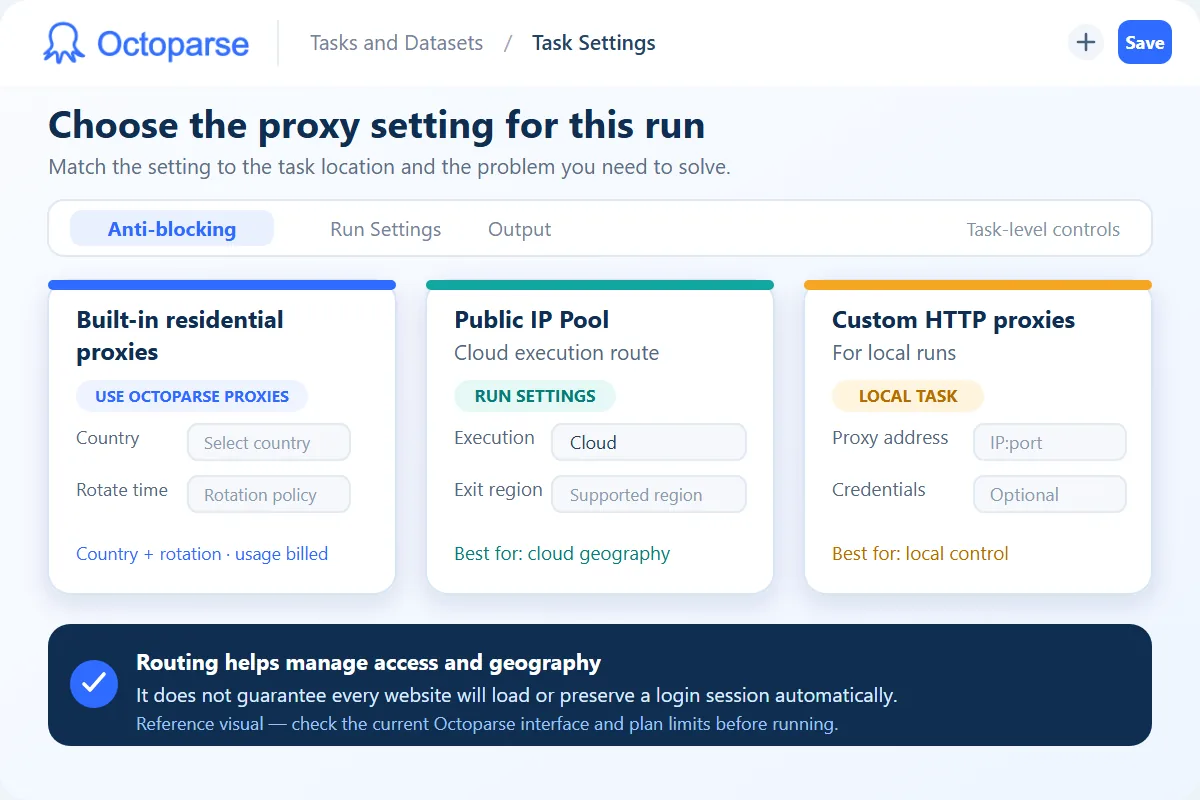
Pick based on the clue: login needs a steady session, a regional mismatch needs the right country or cloud region, and your own provider belongs in a local custom proxy. Before changing settings, inspect the screenshot or browser flow and find the step that failed.
How do I fix the six most common web scraping proxy problems?
Most proxy headaches fall into these six buckets. Start with the one that looks familiar.
1. You’re suddenly seeing another country
Many sites change language, currency, prices, and even product availability by location. With the built-in proxy left on Default, Octoparse’s documentation says the default exit is US.
The task may be doing exactly what you asked, it is just shopping in the wrong storefront.
Try this: choose the country that matches the market you want to collect.
2. You get kicked out halfway through a login
Some sites tie a login to the IP, cookies, device, or a mix of signals. If the account works without the proxy but fails after routing changes, the session is the first suspect.
Octoparse’s proxy guidance recommends keeping the IP stable on logged-in pages unless a small test proves the login survives a change.
Try this: use a static or otherwise steady IP where available. A longer rotation timer does not guarantee that the upstream IP will stay put.
3. Your login disappears when the IP changes
On public pages, a fresh browser identity can be useful. On a logged-in page, clearing cookies is like throwing away your wristband and asking to come back in.
Try this: for logged-in tasks, turn off clear cookies when the IP changes and keep the session steady.
4. You see a 403 or 429
These two codes look similar but ask for different responses. 403 usually means the site rejected the visit, often because of the IP, region, browser signals, or a challenge. 429 means the request pace was too high.
Try this: slow down for a 429 and follow any Retry-After instruction; 429 “Too Many Requests” is the formal response. Use rotation only when the task can tolerate a new IP. For a 403 on the first page, waits alone will not solve it.
On heavily protected sites such as Cloudflare, Imperva, or Akamai, the IP is only one piece of the puzzle. The site may also inspect speed, browser behavior, and challenge state. Match the response to the clue: routing for access and region, pacing for rate limits, a steady session for logins, or managed data when browser automation is not the right fit.
When should I use a template or managed data?
Use the browser controls when you need to tune the task yourself and inspect each step. Choose a ready-made template when the workflow is repeatable and you want less setup. Consider managed data when the site remains unreliable in a browser or your team needs a finished dataset rather than another round of proxy testing. Check the current scope and delivery terms before choosing.
5. Local works, but the cloud run doesn’t
Local and cloud runs do not leave from the same place. A custom HTTP proxy set in Octoparse Desktop applies to local runs; it does not automatically follow the task to the cloud.
Try this: set the cloud run’s supported proxy or Public IP Pool separately, then compare the page, market, and status in the run evidence.
6. The page loads, but your fields stay empty
If the screenshot shows the right page and product but the fields are blank, the proxy may be fine. The page could be loading slowly, the layout may have changed, or a selector may have wandered off.
Try this: add a wait before extraction, then re-point the field. AI-assisted XPath can help, and this guide covers scraping JavaScript and dynamic websites.
How do I set up an Octoparse proxy in five steps?
Now let’s turn that diagnosis into a clean setup.
Step 1: Answer two quick questions
Before you touch a setting, ask yourself:
- Does this task need me to be logged in? If yes, use an authorized account and a stable/static IP where available.
- Does the data change by country (prices, stock, language)? If yes, you’ll need to pick a country.
That’s enough to choose the right path. The rest is just setup.
Try built-in proxies on your own task
Test the workflow with Octoparse’s built-in residential proxies and cloud runs. Check the current plan details on the pricing page.
Step 2: Turn on the proxy you need
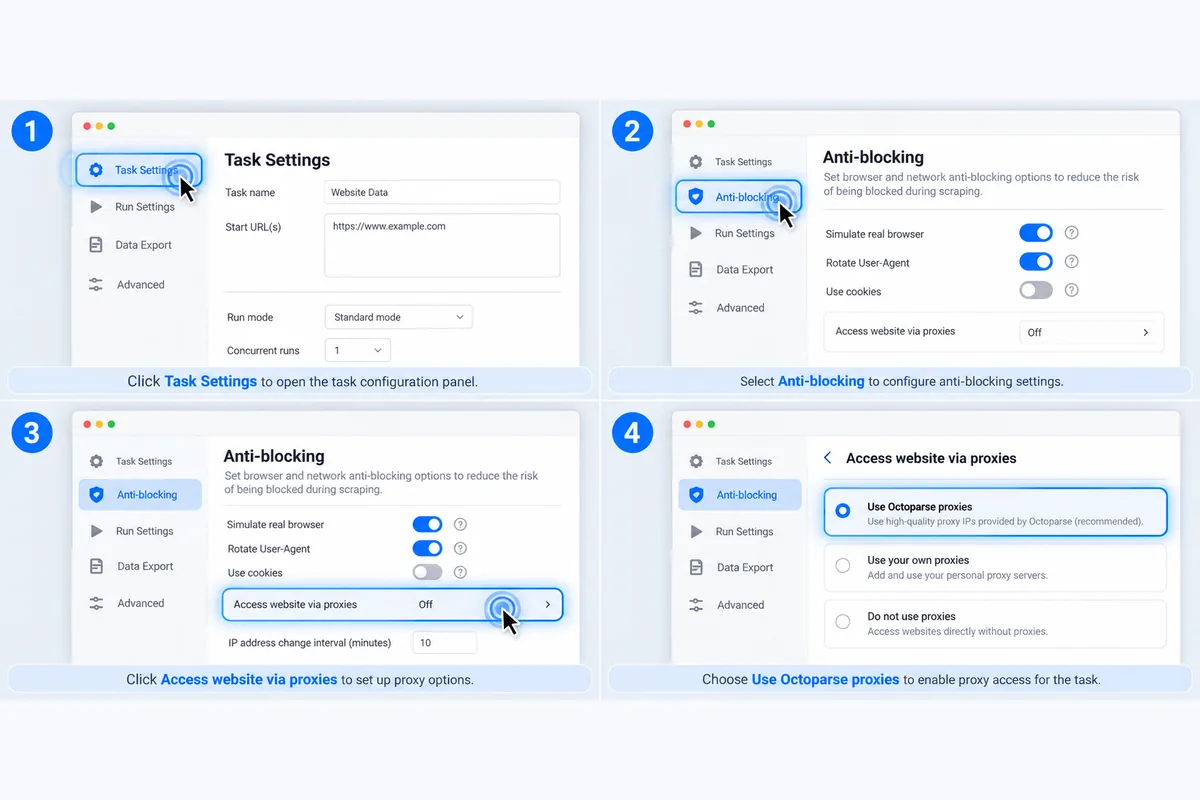
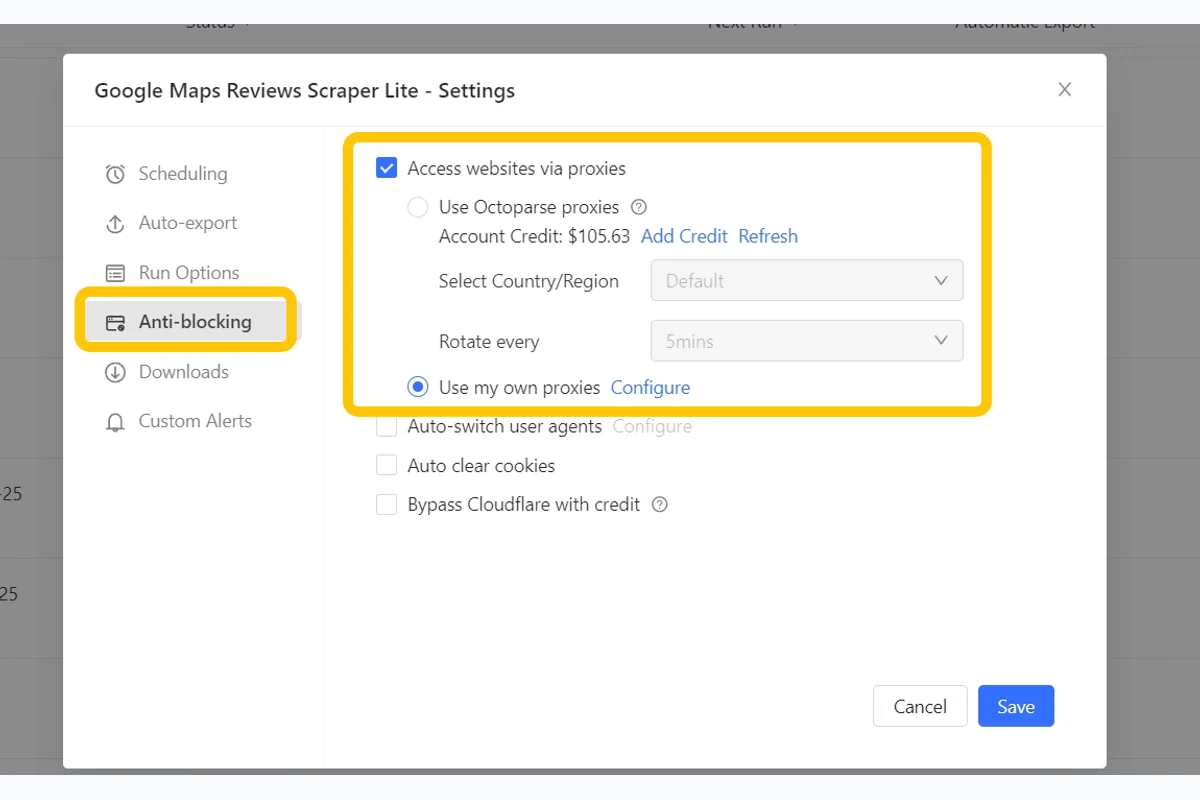
Open the task and follow this path:
Task Settings → Anti-blocking → Access website via proxies → Use Octoparse proxies
Choose the country or region first. Add rotation only when the task can handle a changing IP; for logged-in workflows, keep the address steady where possible.
Using a template? Open its actual configuration screen first. If it exposes Anti-blocking settings in Octoparse Desktop, configure them there. If it does not, check the documented behavior before assuming the template can be customized.
Step 3: Decide whether rotation helps
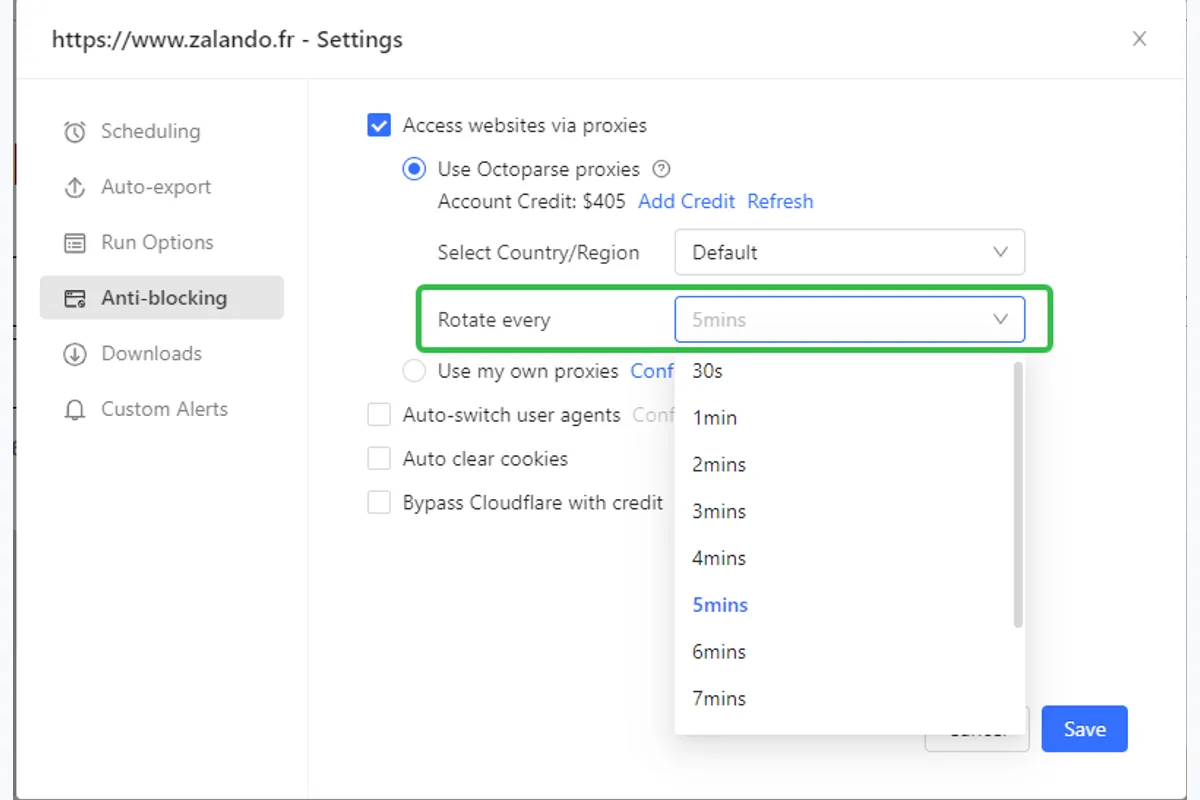
There is no magic rotation timer. Use the table as a starting point, then test a small run and check the page, session, and market:
| What your task does | How to rotate |
|---|---|
| Visits lots of separate public pages (products, listings) | Test rotation only when requests are independent |
| Logs in, or clicks through several pages in one go | Use a stable/static IP where available |
| Needs prices from one specific country | Pick that country, and only rotate within it |
| Throws lots of errors in one batch | Diagnose 403 versus 429 before changing rotation |
Step 4: Give cloud runs the right region
If the task works on your computer but the cloud run is blocked or lands in the wrong country, compare the two environments first. If the clue is regional, check the cloud run’s Public IP Pool setting:
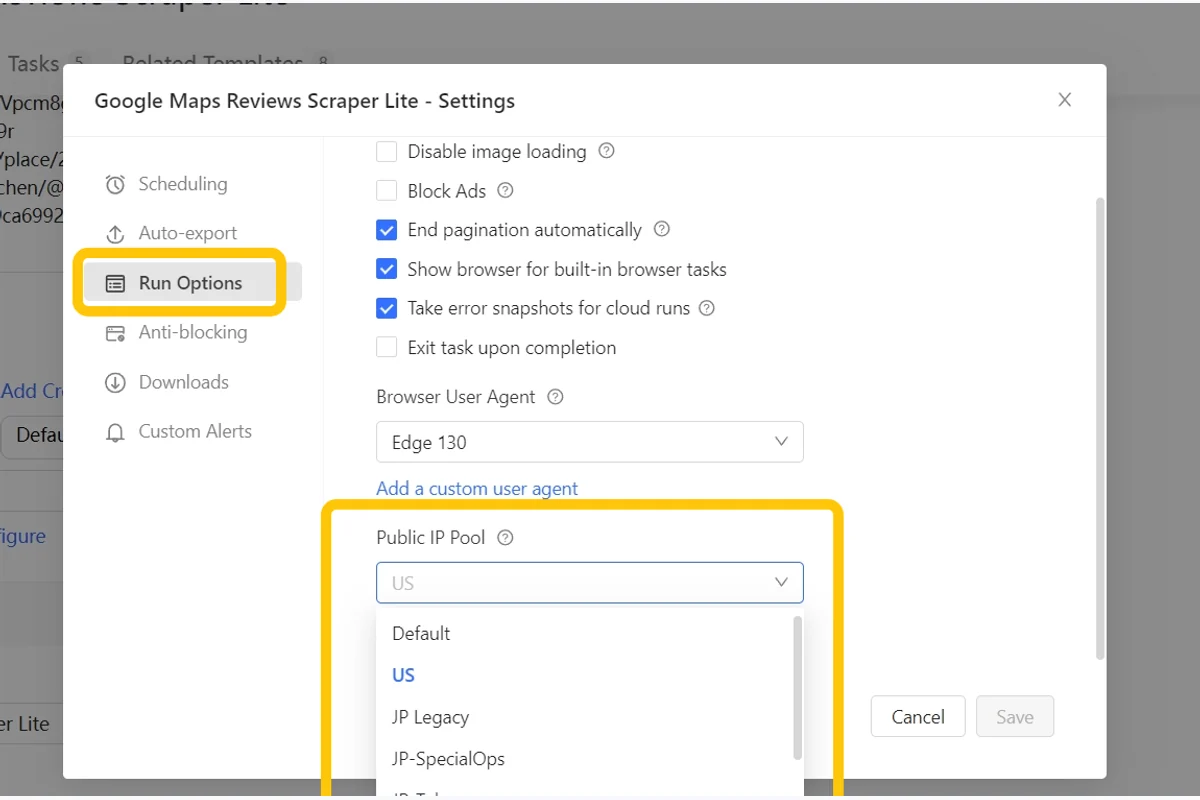
Task Settings → Run Options → Public IP Pool
Pick the region that matches the site and save. The Public IP Pool documentation lists the current exits. The right region can show the right market, but cookies, store pickers, or URL settings may still have the final say.
Public IP Pool is for cloud runs. If the block follows you across regions, check browser signals and account state too. Compare the product, store, currency, and price on a few rows before scaling.
Step 5: Test a small sample first
Do a small test before sending the full list. Keep the inputs and fields the same, then compare the page, market, status, and extracted values. Finding a problem in a handful of rows is much cheaper than finding it after a full batch.
How to know the fix worked
A green Completed badge tells you the run ended. It does not, by itself, tell you the data is right. Check these three places:
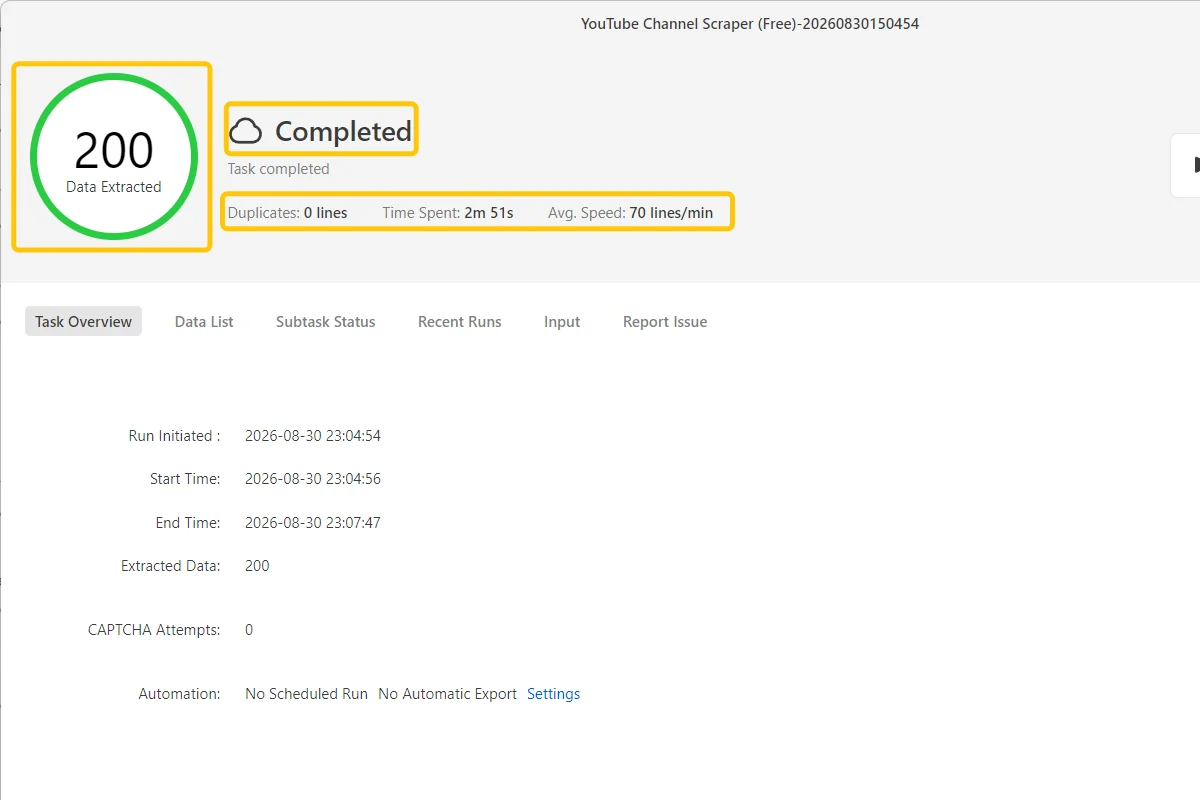
- Run screenshot: did the real page load, or did you get a challenge or login screen?
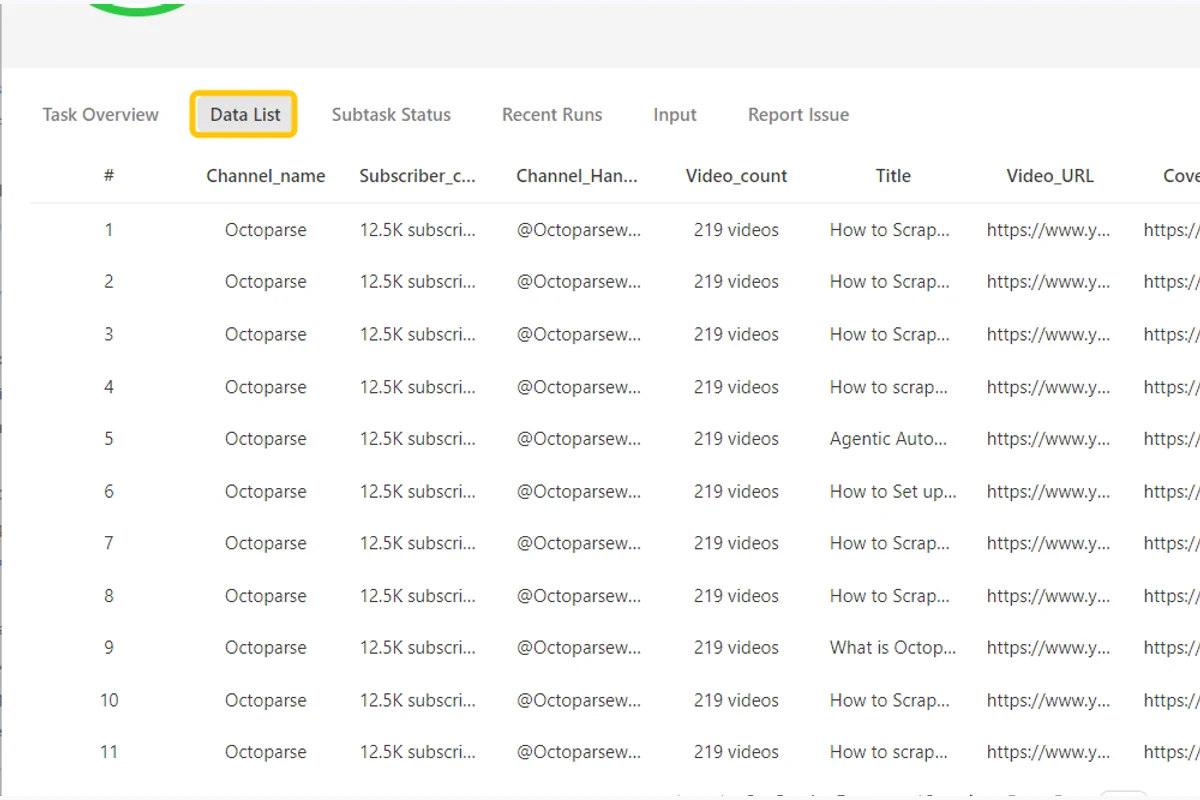
- Data List: do the product, variant, country, currency, and price match the job you intended to run?
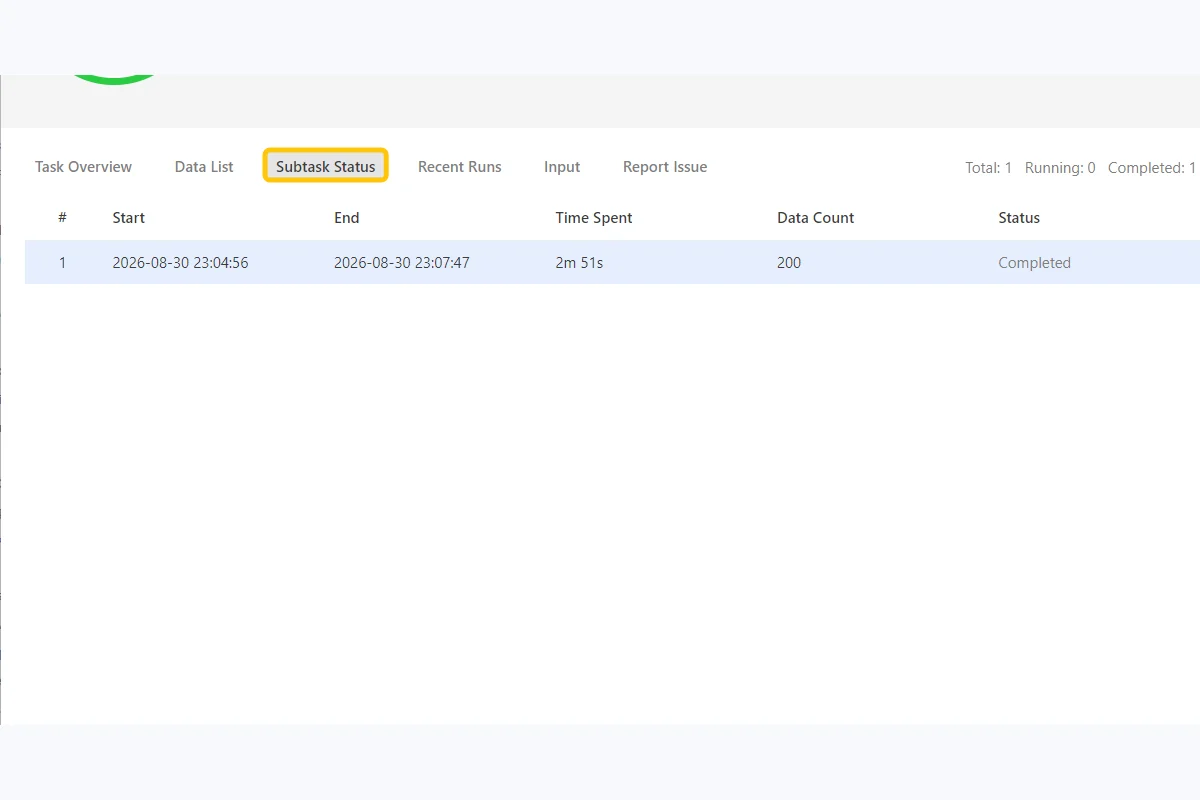
- Cloud Run Details and subtask logs: did every input finish, and where did any stop?
For a repeatable check, record the task ID, run time, proxy country or region, sample size, and exported result. That gives your team a clear before-and-after record instead of relying on memory.
When all three check out, scale up.
Octoparse proxy FAQ
Why is my web scraping proxy not working?
Open the run screenshot first. It tells you whether the failure happened on the first page, during login, or at the extraction step. Once you know the step, change one relevant setting and test a small sample.
Why does a site still block me with Octoparse proxies?
If the site still blocks the visit, check its challenge and account requirements. When the browser route is not reliable, use an authorized account or consider a managed-data workflow.
How much do Octoparse proxies cost?
Proxy usage follows page-loading traffic, not row count. Check the current proxy usage documentation, pricing page, and task event log for the estimate.
How do I see which tasks use proxy credits?
Open the task’s event log and compare traffic across runs. Page weight matters more than row count.
Does the Public IP Pool change which country’s prices I see?
Often, yes. It changes the region your cloud run connects from. Cookies, store pickers, and URL settings can override that choice, so check the actual store and currency on the page.
My cloud task returned 0 rows. How do I find out why?
Open Cloud Run Details and look for the first subtask that stopped. Compare its screenshot with the field you expected, correct that step, and rerun only a small sample.
Can I set a proxy for a template?
Only when the template exposes those controls. If it does, configure them in Octoparse Desktop. If it does not, check the template’s documented behavior or choose a workflow you can control yourself.
Which proxies can I use in the cloud?
For cloud runs, use Octoparse’s built-in residential proxies or a Public IP Pool region. Your own HTTP proxies (IP:port) are for local runs in Octoparse Desktop.
Product details in this article were checked against the linked Octoparse documentation on October 29, 2026. Recheck plan names, limits, and proxy behavior before publication.
Ready to test your own task? Start with a small sample in Octoparse, check the page, market, run status, and extracted values, then scale only after the sample looks right. Open Octoparse Desktop or check current plans and proxy usage.