

XPath is the language most scraping tools use to point at the exact thing you want on a page: a price, a “Next” button, a row in a table. If your scraper keeps breaking, the problem is almost always a fragile XPath, not the tool.
This tutorial assumes zero coding background. We’ll start with what a web page is actually made of, because XPath makes no sense without that picture. Then we’ll build up to writing your first expression, the text-matching tricks everyone searches for, and the habits that keep selectors working after a site update.
Before XPath: What a Web Page Is Actually Made Of
Every web page you see is built from a text file written in HTML. Behind the photos and buttons, it looks like this:
Four terms unlock everything that follows:
- Tag. The labels in angle brackets, like
<div>,<h2>,<a>. Each tag type has a job:h2is a heading,ais a link,spanis a small piece of text,divis a generic container, like a cardboard box that holds other things. - Element. A complete unit from opening tag to closing tag, including everything inside.
<h2>Wireless Mouse</h2>is one element. When this tutorial says “select an element”, it means “grab one of these units”. - Attribute. Extra labels written inside the opening tag, in
name="value"form. In the example, thedivhas aclassattribute with value “product”, and the link has anhrefattribute holding the destination URL. Attributes are how developers name and configure things, and they are XPath’s favorite handles to grab onto. - Nesting. Elements live inside other elements. The
h2, thespan, and theaall sit inside thediv. Browsers track these relationships like a family tree: thedivis the parent, the three elements inside it are its children, and those three are siblings of each other.
That family tree of elements is what programmers call the DOM (Document Object Model). You don’t need to remember the acronym. Just hold onto the picture: a web page is a tree of boxes inside boxes, and every box can carry name tags (attributes).
One more word you’ll see everywhere: node. A node is simply any single item in that tree, usually an element, sometimes a piece of text or an attribute. “Select the node” just means “point at that item in the tree”.
What Is XPath?
XPath (XML Path Language) is a way of writing directions through that tree. A file path like C:\Photos\2026\beach.jpg describes a route through folders to one file. An XPath describes a route through nested elements to the one element you want.
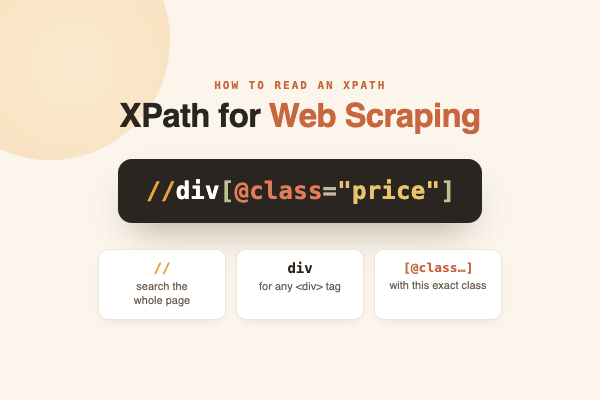
Take the expression //div[@class="product"]/h2 and read it piece by piece:
//divsays “find everydiv, anywhere on the page”[@class="product"]narrows it: “but only the ones whose class attribute equals product”/h2takes one more step: “then go inside and grab theh2“
Run that against our example HTML and it lands exactly on <h2>Wireless Mouse</h2>. Browsers, test frameworks like Selenium, and visual scraping tools such as Octoparse all use XPath this way: you hand over the directions, the tool fetches whatever lives at the destination.
Compared with CSS selectors (the other common way to point at elements, which we’ll compare later), XPath has two abilities that matter for scraping. It can travel in any direction through the tree: down to children, up to parents, sideways to siblings. And it can find elements by the words visible on screen, like “find the link that says Next”. Both come up constantly on real websites.
XPath Syntax Basics: The Building Blocks
Every XPath expression is assembled from a handful of symbols. Learn these six and you can read almost any selector you’ll ever encounter:
| Syntax | What it does | Example | Read it as |
| / | Move down exactly one level | /html/body/div | “From the top: into html, into body, into div” |
| // | Search everywhere, any depth | //h2 | “Every h2, wherever it is” |
| @ | Refers to an attribute | //a[@href] | “Every link that has an href attribute” |
| [ ] | Adds a filter condition | //div[@id=”main”] | “Only divs whose id is main” |
| * | Wildcard, any tag name | //div/* | “Everything directly inside any div” |
| . and .. | This element / its parent | //span/.. | “Each span’s parent, whatever it is” |
The condition inside square brackets has a formal name, predicate, but it’s just a filter. It can filter by attribute (//li[@class="active"] keeps only list items with that class) or by position (//li[3] keeps only the third list item). Think of it as the difference between “the houses on this street” and “the houses on this street with a red door”.
XPath also has axes, which are named directions of travel. Where / always means “down into”, an axis lets you say “up to the parent” (parent::) or “over to the next sibling” (following-sibling::). Here’s why that matters in practice. Product pages often label data like this:
The price itself has no name tag at all. But it sits right next to a label that does. So you anchor on the label and step sideways: //span[text()="Price"]/following-sibling::span reads as “find the span that says Price, then take the span next to it”. You navigated by relationship instead of by name, and that’s the move CSS selectors can’t make.
Absolute vs. Relative XPath: Why Absolute Paths Break
There are two styles of writing directions, and the difference decides whether your scraper survives the month.
An absolute XPath starts at the very top of the page and spells out every single step: /html/body/div[3]/div[2]/ul/li[1]/a. It’s like giving directions as “from the city gate, take the 3rd street, then the 2nd building, then the 1st door”. Hyper-precise, and it shatters the moment anything is built in between. If the site adds one banner above your target, “the 3rd div” becomes the 4th, and your path now points at the wrong thing, silently.
A relative XPath skips the route and anchors on a landmark: //ul[@id="results"]/li[1]/a, or “wherever the list named results is, take its first item’s link”. The site can rearrange the whole neighborhood; as long as that landmark keeps its name, your directions still work.
Always prefer relative XPath. This single habit is the biggest durability upgrade you can make to any scraper. (It’s also why you should be suspicious of the “Copy XPath” button in browsers, which usually hands you the fragile absolute kind.)
How to Write an XPath Expression: Step by Step
Time to write one against a real page. The only tool you need is already in your browser: DevTools, a built-in panel that shows you the HTML behind any page. It looks intimidating the first time, but you’ll only use two parts of it.
- Inspect the element. Right-click the thing you want on the page (the price, the button) and choose “Inspect”. DevTools opens with the matching line of HTML highlighted. That highlighted line is your target element; you’re now looking at the tree we described earlier.
- Find the nearest stable landmark. Look at your element and the elements wrapping it (the lines above it, indented less). You’re hunting for an attribute that looks like a deliberate name:
id="search-results",data-product-id="8831",role="navigation". Names like these exist for the site’s own functionality, so they rarely change. Ignore attributes that look like random gibberish (class="css-1x9k2p"), which are machine-generated and change constantly. - Anchor your expression there. Write the landmark as
//tag[@attribute="value"], for example//div[@data-product-id]. (Leaving out the="value"part means “has this attribute at all, whatever its value”, which is often all you need.) - Walk down to the target. Add the remaining steps to reach your element:
//div[@data-product-id]//span[@class="price"]. In plain English: “inside any product div, find the price span”. - Test it before you trust it. In DevTools, open the Console tab (it’s a command line for the page, but you’ll only ever type one thing). Type
$x('your-xpath-here')and press Enter. The page reports back a list of every element your expression matched. This isn’t programming; it’s a built-in checking trick. One match when you expected one: perfect. Fifty matches: your filter is too loose, tighten the predicate. Zero matches: see the troubleshooting notes below.
A faster visual check: press Ctrl+F (Cmd+F on Mac) inside the Elements panel and paste your XPath. The browser highlights every match right in the HTML tree.
XPath contains() and Text Matching Examples
So far we’ve matched attributes exactly: class equals “product”, full stop. Real pages are messier. Class names come with random suffixes, button labels have stray spaces, and sometimes the only reliable thing about an element is the words a human can read on it.
This is where contains() comes in. It’s a function: a small built-in helper that answers one question, in this case “does this text include that fragment?” You place it inside the square-bracket filter, and the filter keeps only elements where the answer is yes.
One decoded example, then the table. //a[contains(text(), "Next")] reads as: “find every link (a), look at its visible text (text()), and keep it if that text contains the word Next”. A button labeled “Next”, “Next Page”, or “Next →” all pass. That tolerance for variation is the whole point.
The patterns people actually use:
| Goal | Expression |
| Link by its visible text | //a[contains(text(), “Next Page”)] |
| Element by partial class | //div[contains(@class, “product-card”)] |
| Button containing a word (even in nested tags) | //button[contains(., “Add to Cart”)] |
| Exact text match | //span[text()=”In Stock”] |
| Exclude a match | //li[not(contains(@class, “ad”))] |
| Two conditions at once | //div[contains(@class, “row”) and @data-id] |
| Case-insensitive match | //a[contains(translate(text(), “ABCDEFGHIJKLMNOPQRSTUVWXYZ”, “abcdefghijklmnopqrstuvwxyz”), “next”)] |
Two notes on the table. The not(...) wrapper flips a condition, so “exclude a match” reads as “list items whose class does NOT contain ad”, which is how you filter sponsored junk out of results. And the partial-class match is greedy: contains(@class, "card") also matches “card-footer” and “discard”, so when precision matters, use the stricter form contains(concat(" ", normalize-space(@class), " "), " card ").
Text matching is also the standard fix for pagination. A “Next” button often has no stable class, but its label rarely changes, so //a[contains(text(), "Next")] keeps working when the styling doesn’t.
This section covers the patterns you need most often. For every variation, including not(), and/or chaining, attribute matching, and case-insensitive tricks, see our complete guide to XPath contains().
The 10 XPath Expressions You’ll Use Most
These ten patterns cover the bulk of real scraping work. For each one: what it says in plain English, when you’d reach for it, and the trap to watch for.
- Element by ID
Read it as: “anything, anywhere, whose id is main”. The * wildcard means you don’t even need to know the tag name. An id is supposed to be unique on a page, which makes this the most reliable selector that exists. When your target (or a container around it) has an id, start here and look no further. The trap: some frameworks generate ids that look random (id="ember-422"); those change between visits, so only trust ids that look like deliberate names.
- Element by partial class
Read it as: “every div whose class attribute includes the word price”. You need the partial match because real elements usually carry several classes at once (class="price price-large text-bold"), and an exact match against just “price” would fail. This is probably the expression you’ll type most often in your life. The trap: it also matches “price-old” and “compare-price”, so check what comes back with $x() before trusting it.
- Last item in a list
Read it as: “in the list, take the final item”. last() is a helper that always points at the end, no matter how many items the list has today: ten products or two hundred. Classic use: the last link in a pagination bar, which is often the highest page number. The companion trick li[1] grabs the first item, and li[position()>1] means “everything except the first”, handy for skipping a header row.
- First match only
Read it as: “collect every result div on the page, then keep just the first one”. Note the parentheses: they make XPath gather all matches first, then pick from that combined list. Without them, //div[@class="result"][1] means something subtly different (“each div that is the first result within its own parent“), which can return several elements. When you want exactly one thing and the page has many, wrap in parentheses and add [1].
- Element with a
data-*anchor
Read it as: “every div that has a data-product-id attribute, whatever its value”. No ="..." part needed; just having the attribute is the condition. Attributes starting with data- are hooks the site’s own JavaScript depends on, so developers keep them stable, which makes them gold-standard anchors. On e-commerce sites, this one expression often selects exactly the product cards and nothing else.
- Parent of an element
Read it as: “find the price span, then step up to the div that contains it”. This is the upward move CSS can’t do. Why you need it: often the thing you can find easily (a labeled price) is inside the thing you actually want to select (the whole product card, so you can grab its title, price, and link together). Find the child, climb to the parent, done. The shorthand /.. does the same job: //span[@class="price"]/...
- Next sibling
Read it as: “find the label that says SKU, then take the first value element right after it”. This is the pattern for label-value pairs, which are everywhere: spec tables, product details, contact info. The value usually has no name of its own, but the label next to it never moves. (dt and dd are HTML’s label and value tags for definition lists; the same pattern works with spans or table cells.) The [1] at the end keeps only the nearest sibling, since the axis would otherwise grab all of them.
- Link URL (the address, not the link text)
Read it as: “find the title links, then extract their href attribute”. The crucial difference: ending an expression with /@attribute pulls out the attribute’s value instead of the element. Without /@href you’d collect what the link says (“Wireless Mouse”); with it, you collect where the link goes (“/buy/mouse-123”). This is how you harvest URLs for a scraper to visit next.
- Image source (the image file’s URL)
Read it as: “every image’s file address”. Same /@attribute trick as above, applied to images. Collect these and you have downloadable URLs for every picture matched. The trap: lazy-loading sites park the real URL in a different attribute (data-src, data-original) and leave a placeholder in src until you scroll. If your scraped image URLs all look like the same tiny placeholder, switch to //img/@data-src.
- Element with non-empty text
Read it as: “every paragraph that actually contains visible text”. normalize-space() trims away spaces and line breaks; used alone inside a filter, it asks “is there anything left after trimming?” Empty and whitespace-only elements fail the test and get skipped. Use it to clean junk rows out of your results before they ever reach your spreadsheet.
For the exhaustive reference, including all axes, functions, and operator syntax, bookmark our full XPath cheat sheet.
XPath vs. CSS Selectors: Which Should You Use?
CSS selectors are the other common language for pointing at elements. (CSS itself is the language that styles web pages, and its targeting syntax got borrowed for scraping.) For simple jobs the two are interchangeable; the differences show up at the edges:
| CSS selectors | XPath | |
| Syntax | Shorter, familiar to front-end devs | More verbose |
| Direction | Downward only (parent to child) | Any direction, including upward |
| Match by text | No | Yes (contains(text(), …)) |
| Conditions and functions | Limited | Rich (not(), last(), normalize-space()) |
| Best for | Clean, well-structured pages | Awkward structures, text anchors, sibling logic |
The honest verdict: CSS is the cleaner default when the page is well built. XPath is what you reach for when the element can only be identified by its text, by a sibling, or by an ancestor. Scraping involves a lot of pages in that second category, which is why most scraping tools, Octoparse included, standardize on XPath.
How to Write Durable XPath That Survives Site Updates
A selector that works today and breaks next week costs more time than it saved. To understand why selectors rot, know one thing about modern websites: many are assembled by frameworks (React, Vue, and friends) that generate class names automatically, fresh gibberish on every site update. Anything anchored to that gibberish dies on the next deploy. Durability comes down to five principles:
- Avoid auto-generated class names. If it looks like
.css-1a2b3corsc-bdVaJa, a machine wrote it and a machine will overwrite it. Landmine. - Prefer semantic attributes.
id,data-*,role, andaria-labelexist because the site’s own features depend on them (accessibility tools readaria-label, the site’s own scripts readdata-*). Developers can’t churn these casually, which is exactly why your selector should hold onto them. - Keep the chain short. Every extra parent-child step is another place a layout change can snap the selector.
- Avoid positional indices.
li[4]assumes the page never reorders its list. Pages reorder. - Anchor to the nearest stable landmark. Select relative to the closest meaningful element, not from the document root.
When you audit a broken scraper, check the selectors against this list first. In most cases the fix is replacing one fragile anchor with a semantic one.
The Shadow DOM Problem
Occasionally you’ll write a correct XPath, test it, and still get nothing, because the content lives inside a Shadow DOM. Think of it as a sealed compartment: a self-contained widget (a chat bubble, a video player, a date picker) whose internal HTML is walled off from the rest of the page. Standard XPath and CSS selectors stop at the wall; your scraper sees the widget’s outer shell and none of the content inside.
This is becoming a practical issue as more sites adopt the technique. The fix requires a tool that explicitly reaches through the wall. Playwright does it with its >> selector syntax. Octoparse extends XPath with a custom Shadow DOM syntax, so elements inside a sealed widget are addressed the same way as regular elements, per its selector documentation.
If your tested XPath returns nothing in a scraping tool but the element is clearly on the page, Shadow DOM is one of the first things to rule out. (The other usual suspect: the content is loaded by JavaScript after the page opens, so it didn’t exist yet when the tool looked.)
Using XPath Without Writing Code: How Octoparse Handles It
Everything above applies whether you write selectors by hand or use a visual tool. Octoparse is a no-code scraper used by over 3 million people, and XPath sits at the center of how it works. Knowing the fundamentals makes you faster with it, not redundant. If you find it hard to write an XPath in a custom task, choose a template.
When you’d rather click an element than write its selector
In Octoparse, you click the element you want and the tool generates the XPath. The difference from a browser’s “Copy XPath” is what gets generated. Where the browser hands you a fragile absolute path, Octoparse applies an attribute prioritization algorithm that prefers stable identifiers like id, data-*, and role over volatile class names and positional indices: exactly the durability rules from the previous section, applied automatically.
The generator was rebuilt in version 10.1.0, and it now produces a correct, durable XPath on the first click for the large majority of pages. The built-in XPath editor stays open for the cases where you want to inspect or hand-tune the result, which is exactly where this tutorial pays off.
When the site changes overnight and your task breaks
Selector rot is the chronic disease of scraping.
Octoparse ships AI-powered self-repair that detects a broken selector and rebuilds it from the changed page structure. It covers the two failure modes that stall most tasks: a pagination control that moved or was renamed, and a data field that shifted within the layout. Paired with AI-assisted XPath generation that weighs broader page context, the goal is selectors you fix rarely instead of weekly.
If you’d rather skip selector writing entirely, pre-built templates for major sites come with maintained selectors out of the box. The free plan includes 50,000 rows per month, enough to test all of this on your own targets. Sign up free or download the desktop app and try clicking an element to see what XPath comes back.
FAQ
What is XPath used for in web scraping?
XPath tells a scraper exactly which elements to extract from a page. It defines a path through the page’s HTML tree to a target like a price, title, or link. Most scraping tools, including Selenium-based scripts and visual tools like Octoparse, use XPath as their primary element-targeting language.
Do I need to know how to code to learn XPath?
No. XPath is a way of writing directions, not a programming language. There are no programs to install or scripts to run; an expression like //div[@class="price"] is closer to a search query than to code. If you can read a file path, you can learn XPath.
Is XPath better than CSS selectors?
Neither is strictly better. CSS selectors are shorter and faster for simple, well-structured pages. XPath can match elements by visible text, navigate upward to parents, and apply functions like not() and last(), which CSS cannot. For scraping irregular real-world pages, XPath’s flexibility usually wins.
How do I test an XPath expression?
Open Chrome DevTools (right-click the page, choose Inspect), go to the Console tab, and run $x('//your/xpath'). It returns a list of matching elements you can inspect. You can also press Ctrl+F in the Elements panel and paste the XPath to highlight matches directly in the HTML tree.
What is the difference between absolute and relative XPath?
An absolute XPath starts at the document root and lists every step, like /html/body/div[2]/p. A relative XPath starts with // and anchors on a meaningful attribute, like //div[@id="content"]/p. Relative XPath is strongly preferred because absolute paths break whenever the page layout shifts.
How does XPath contains() work?
contains() returns true when an attribute or text includes a given substring. //a[contains(text(), "Next")] finds links whose visible text includes “Next”, and //div[contains(@class, "card")] finds elements whose class attribute includes “card”. It is the standard tool for matching messy or partially dynamic values.
Do I need to learn XPath to use a no-code scraper?
No, but it helps. Tools like Octoparse auto-generate XPath when you click an element, so you can build scrapers without writing selectors. Understanding the basics lets you evaluate the generated selector, fix edge cases in the XPath editor, and diagnose why a task broke after a site update.