
If you’ve ever spent hours developing a web scraper only to have it break the day after because a website changed its layout, then you understand the ultimate frustration of a web developer.
That’s exactly what happened to me while building an Instagram post scraper. The elements won’t select, the nodes won’t remain consistent, and those auto-generated browser selectors will fail you when you need them the most. The fact of the matter is, when it comes to reliable web scraping, those selectors are a recipe for disaster. The secret is learning your XPath cheatsheet.
CSS selectors are amazing for basic styling and selecting elements, but when you need to traverse through a complex DOM tree and choose elements based on their actual content, they just don’t cut it. That’s when XPath becomes indispensable and why most production scrapers are built around it.
New to XPath entirely? Start with our XPath tutorial for the fundamentals, then come back here for the full reference.
Quick Answer
| Expression | What it does |
| //tag | Selects matching nodes anywhere in the document (relative path; preferred over absolute /) |
| contains(@attr, ‘val’) | Matches a partial attribute value. Safe for dynamic class names and hashed IDs |
| contains(text(), ‘val’) | Selects elements whose visible text includes a given substring |
| //tag/parent::* | Navigates up to the immediate parent element (upward traversal CSS cannot do) |
| //tag/following-sibling::tag[1] | Selects the immediately following sibling. Key for scraping label-value pairs |
XPath Basics: Syntax You Need to Know First
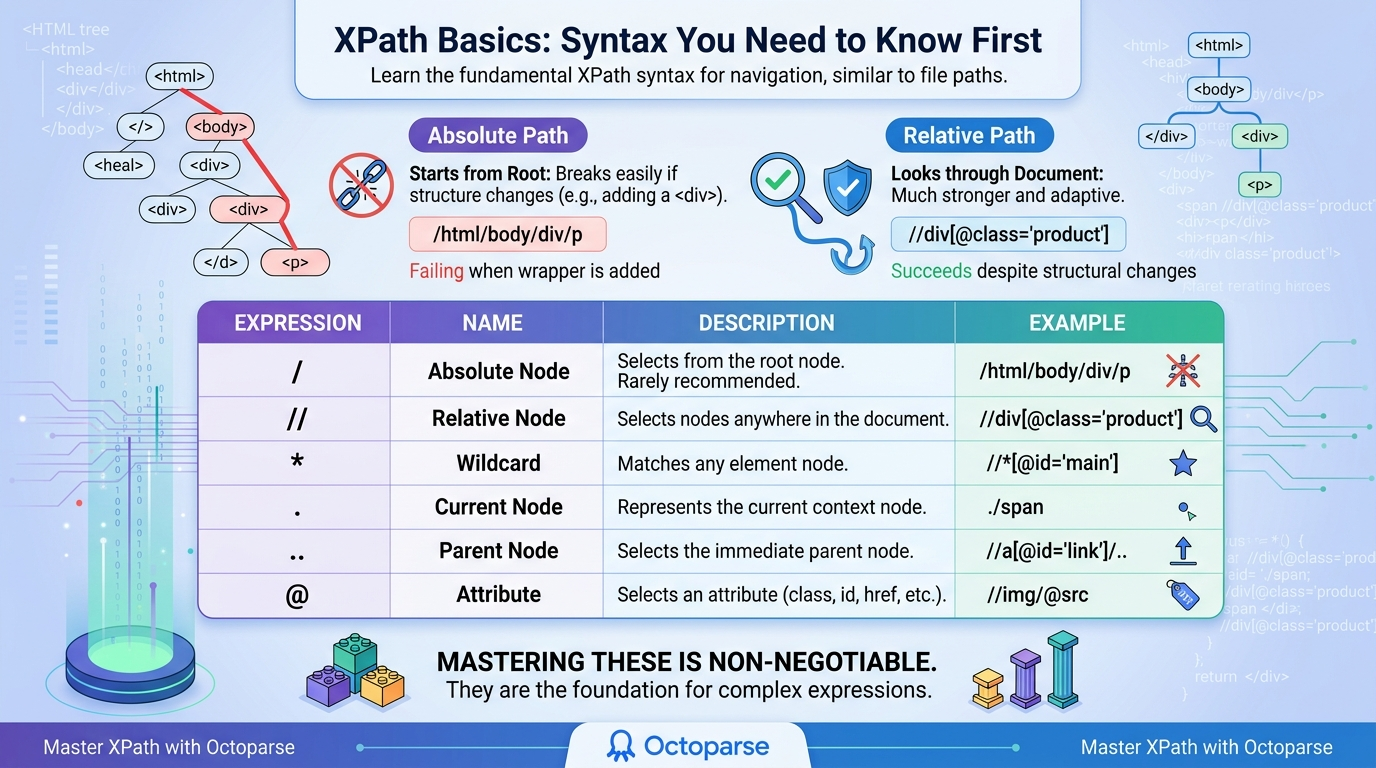
You need to know the basics of XPath syntax before you can use advanced functions and navigate complex documents. XPath uses a path-like syntax to navigate the HTML or XML tree structure, just as you move through files and folders on your computer. For a ground-up walkthrough with worked examples, see the XPath tutorial.
The first thing you need to do is learn the difference between absolute and relative paths. Absolute paths start at the root of the document, so they break very easily if you add a single wrapper div to the page. Relative paths, on the other hand, look through the entire document, which makes your scrapers much stronger.
Here is a quick reference table of the basic syntax you need to learn by heart:
| Expression | Name | Description & Use Case | Example |
| / | Absolute node | Selects from the root node. Rarely recommended for web scraping as it breaks easily. | /html/body/div/p |
| // | Relative node | Selects nodes anywhere in the document that match the selection. | //div[@class=’product’] |
| * | Wildcard | Matches any element node. Useful when the tag name is unknown or variable. | //*[@id=’main’] |
| . | Current node | Represents the current context node. Useful in nested loops during scraping. | ./span |
| .. | Parent node | Selects the immediate parent of the current node. Great for moving up the tree. | //a[@id=’link’]/.. |
| @ | Attribute | Selects an attribute (like class, id, href, or src). | //img/@src |
Mastering these building blocks is non-negotiable. They are the foundation upon which every complex XPath expression is built.
XPath Axes Cheatsheet
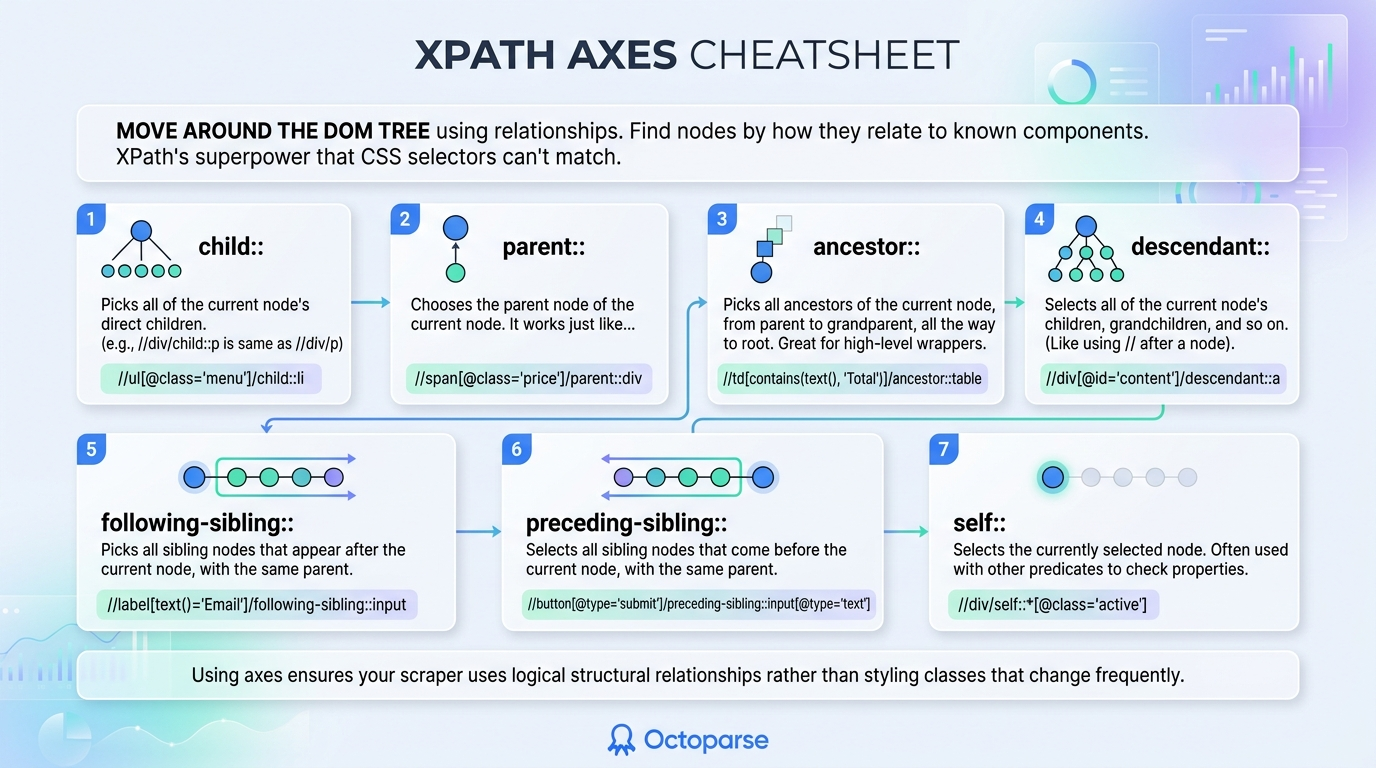
XPath axes are keywords that select nodes by their relationship to the current node: parents, children, siblings, ancestors, and descendants. Basic syntax tells you how to choose an element, and axes tell you how to move around it. This is XPath’s superpower that CSS selectors just can’t match. If an element doesn’t have a unique ID or class, you can find it by looking at how it relates to a component that does.
This is a complete list of the most common XPath axes used in web scraping:
child::
Explanation: This picks all of the current node’s direct children. Note: //div/child::p and //div/p are the same thing.
For example: //ul[@class='menu']/child::li
parent::
Explanation: Chooses the parent node of the current node. .. is its shorthand.
For example: //span[@class='price']/parent::div
ancestor::
Explanation: This picks out all the ancestors of the current node, from the parent to the grandparent and so on, all the way to the root. Great for locating high-level wrapper containers.
For example: //td[contains(text(), 'Total')]/ancestor::table
descendant::
Explanation: This selects all of the current node’s children, grandchildren, and so on. (Like using // after a node.)
For example: //div[@id='content']/descendant::a
following-sibling::
Explanation: This picks out all sibling nodes that appear after the current node in the HTML document, provided they share the same parent. This is a huge help when scraping definition lists or form labels next to inputs.
For example: //label[text()='Email']/following-sibling::input
preceding-sibling::
Explanation: This selects all sibling nodes that come before the current node in the HTML document.
For example: //button[@type='submit']/preceding-sibling::input[@type='text']
self::
Explanation: This selects the currently selected node. Often used with other predicates to check the properties of a node.
For example: //div/self::*[@class='active']
The Remaining Axes (Rare but Real)
The seven axes above cover daily scraping work. XPath defines six more, and two of them are genuinely useful:
| Axis | What it selects | Example |
| following:: | Everything after the current node in the document, not just siblings | //h2[contains(., ‘Specs’)]/following::table[1] |
| preceding:: | Everything before the current node in the document | //footer/preceding::h1 |
| ancestor-or-self:: | The node itself plus all its ancestors | //span/ancestor-or-self::*[@data-id] |
| descendant-or-self:: | The node itself plus everything inside it. // is shorthand for this | //div/descendant-or-self::a |
| attribute:: | The node’s attributes. @ is shorthand for this | //img/attribute::src |
| namespace:: | Namespace nodes. XML only; never needed for HTML scraping | n/a |
following:: and preceding:: are the two worth remembering. They cross out of the current branch entirely, which rescues you when the element you want is not a sibling: the first data table after a heading, for example.
When you use axes, your scraper relies on logical structural relationships rather than on styling classes that change often.
XPath Functions Cheatsheet
XPath is more than just a way to point to a path. It also includes many built-in functions that can process strings, evaluate Boolean expressions, and count nodes. You won’t have to write complicated post-processing code in your scraping script if you know these functions.
Here is a table of the most essential XPath functions that every web scraper should know:
| Function | Syntax & Usage | Plain-English Use Case | XPath Example |
| contains() | contains(string1, string2) | The absolute most important function. Checks if a string or attribute contains a specific substring. | //div[contains(@class, ‘button’)] |
| text() | text() | Selects the text node of an element. Often paired with contains() or exact match operators. | //a[text()=’Click Here’] |
| starts-with() | starts-with(string1, string2) | Checks if a string or attribute begins with a specific value. Perfect for dynamic IDs that append random numbers. | //div[starts-with(@id, ‘post-‘)] |
| normalize-space() | normalize-space(string) | Strips leading and trailing whitespace, and replaces multiple spaces with a single space. Highly recommended for messy HTML. | //p[normalize-space(text())=’Clean Text’] |
| not() | not(boolean) | Inverts a condition. Useful for excluding elements, such as hidden fields or specific classes. | //input[not(@type=’hidden’)] |
| last() | last() | Selects the last element in a node-set. Great for grabbing the last page in a pagination sequence. | //ul[@class=’pagination’]/li[last()] |
| position() | position() | Targets an element based on its index position in the node-set. | //tr[position() < 4] |
| count() | count(node-set) | Returns the number of nodes in a given set. Useful for data validation during scraping. | count(//div[@class=’item’]) |
| string-length() | string-length(string) | Returns the character count of a string. Useful to filter out empty tags or find descriptive paragraphs. | //p[string-length(text()) > 100] |
These functions empower you to write intelligent selectors that understand the page’s content and context, rather than just the raw tag structure.
contains() at a Glance
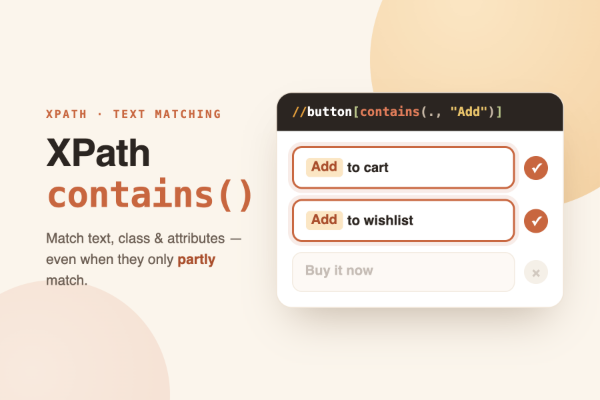
contains(string1, string2) returns true when the first string includes the second. It is the workhorse for dynamic class names and partial text matching:
| Goal | Expression |
| Partial text (incl. nested tags) | //button[contains(., ‘Add to Cart’)] |
| Direct text only | //a[contains(text(), ‘Next’)] |
| Partial class | //div[contains(@class, ‘product-card’)] |
| Partial URL | //a[contains(@href, ‘/category/’)] |
| Exclude a match | //li[not(contains(@class, ‘sponsored’))] |
The classic gotcha: text() only sees an element’s own text nodes, so it misses words nested in child tags; the dot form checks everything inside. For every variation, including and/or chaining, case-insensitive matching with translate(), and the strict single-class token pattern, see the complete guide to XPath contains().
XPath for Web Scraping: Real-World Patterns
It’s one thing to know the syntax, it’s another to put it together into scraping patterns. These are the exact XPath patterns that web scrapers use to navigate complex, modern websites.
Choosing parts with dynamic or partial class names
Modern web frameworks make classes like styles__ProductCard-sc-12345. You can skip the gibberish hash by going straight to the semantic part of the class name: //div[contains(@class, 'ProductCard')]
Choosing a link for pagination
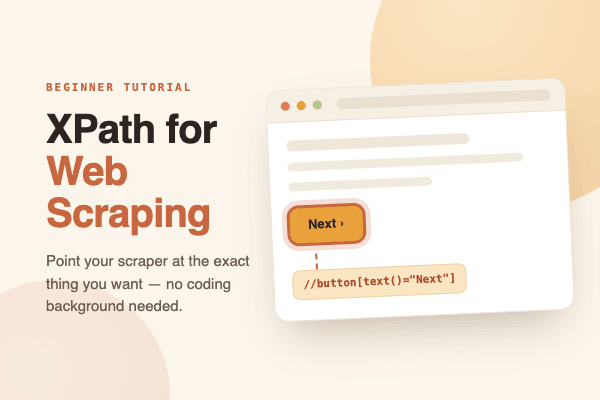
Going to the “Next” page is a standard part of web scraping. Instead of using structural paths that change depending on how many pages there are, find the button by its text or aria-labels: //a[contains(text(), 'Next') or contains(@aria-label, 'Next Page')]
Targeting elements using sibling text
One of the most common scraping challenges is extracting data from a table or list of details when the class names are the same. You need the name next to the label “Author:”. You use the label to lock on and the sibling axis to step over: //span[text()='Author:']/following-sibling::span[1]
Getting attributes (href, src, data-*)
Scraping isn’t just about text, it’s also about links and media. If you want to get all the high-resolution images from a product page that loads slowly, you could use the custom data attribute instead of the standard source: //img[@class='product-image']/@data-hires-src
Handling tables and repeated structures
You usually only want specific columns when scraping data grids. For example, you can get the third column (Price) of every row in a table by combining axes and positions: //table[@id='pricing']/tbody/tr/td[3]
A lot of the time, when you use Chrome DevTools to automatically create selectors (Right-click → Copy → Copy XPath), you’ll get something terrible like /html/body/div[2]/div/div[3]/ul/li[4]/a. This stops working as soon as the page changes. Using the methods above to write your own logical patterns will make them last.
If XPath finds the right element but the data isn’t there yet, the page is probably dynamic. If you’re getting data from pages that load content on their own, check out our guide on how to scrape Ajax and JS websites.
Upward navigation: from text label to its container
One of the most powerful patterns in production scrapers is combining a text-based predicate with the parent:: axis. This lets you locate an element by its readable label and then step up to its containing block. For example, to find the div that wraps any span whose text includes “Price”:
//span[contains(text(), 'Price')]/parent::div
This is more stable than targeting the div directly, because you’re anchoring the path to visible text that is unlikely to change, rather than a structural class that may be regenerated.
Multiple conditions in one predicate
You can combine multiple checks inside a single predicate using the XPath boolean operators and and or. This is essential when you need to match elements that satisfy two conditions at once, for example a button that has both a specific class fragment and specific text:
//div[contains(@class, 'btn') and contains(text(), 'Submit')]
Using or works the same way and is useful for pagination, where the clickable element might say either “Next” or carry an aria-label: //a[contains(text(), 'Next') or contains(@aria-label, 'Next page')]
XPath in Web Scraping Tools: Code vs. No-Code
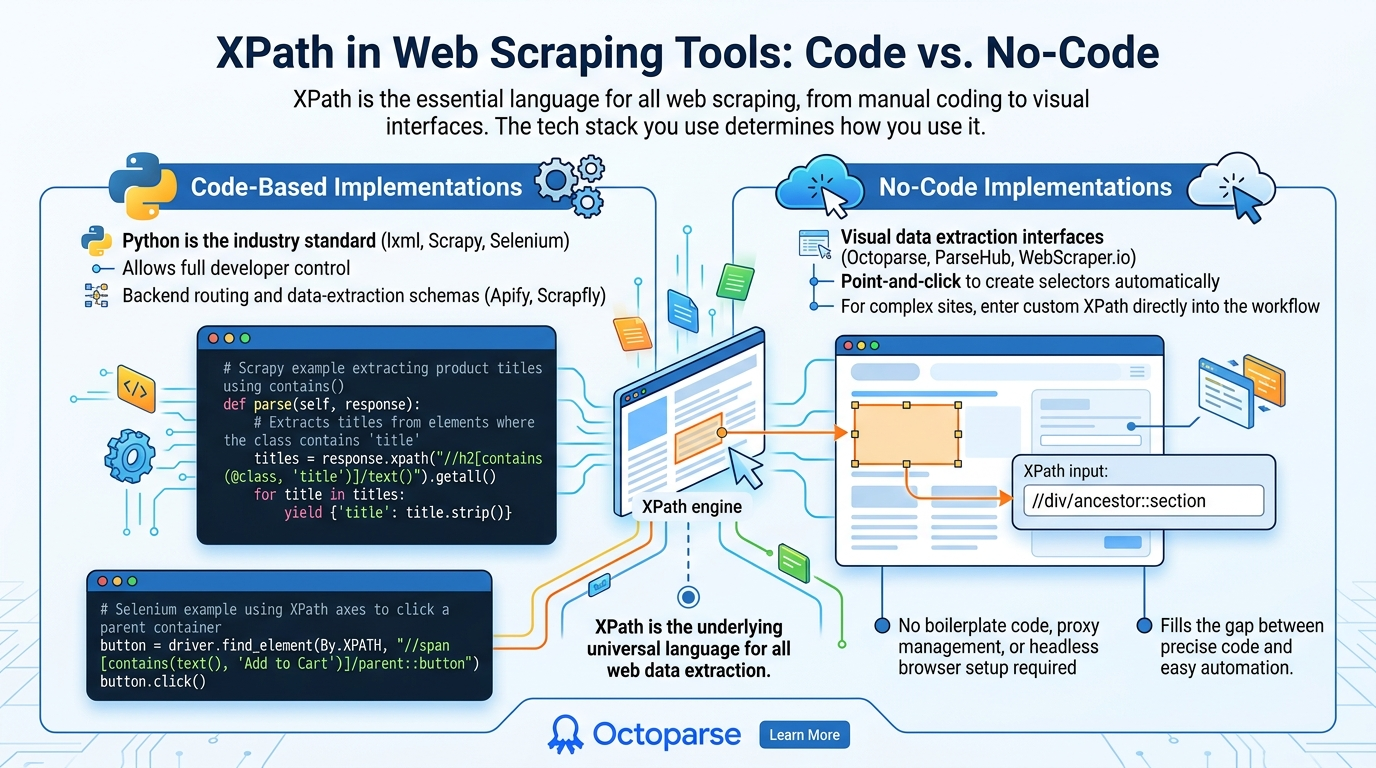
The tech stack you use will determine how you use XPath. XPath is the language that everyone uses for web scraping, whether they are writing Python code or using a visual data extraction tool.
Code-Based Implementations
Python is the industry standard for developers and supports libraries such as lxml, Scrapy, and Selenium. XPath is a key part of the data-extraction layer in all three.
This is how you could use partial-match patterns in Python with Scrapy:
And a quick example using Selenium to click a dynamic button:
No-Code Implementations with Octoparse
Not all scraping projects require a Python script tailored to them. Octoparse, ParseHub, and WebScraper.io are examples of no-code and low-code tools with powerful visual interfaces for data extraction.
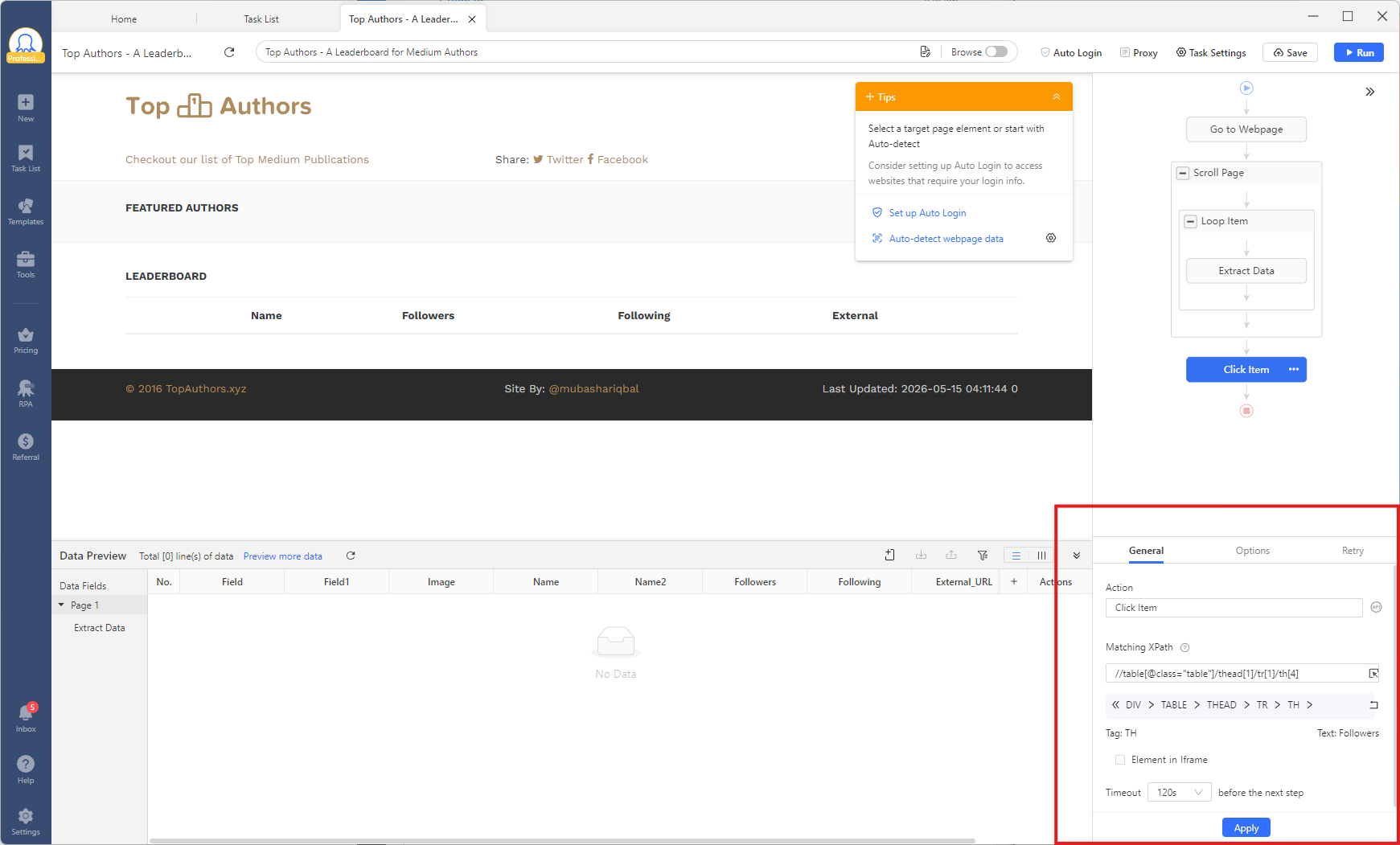
For instance, you can use Octoparse’s point-and-click interface to automatically create selectors. But if you come across a website that is very complex or poorly organized, Octoparse lets you enter custom XPath expressions directly into the workflow. In other words, you can use the advanced functions and axes we talked about without having to write boilerplate code, deal with proxies, or set up headless browsers.
Octoparse handles the infrastructure (proxies, rendering, scheduling) so you can focus on writing the right XPath, not maintaining the stack around it.
Octoparse’s built-in XPath generator automatically strips volatile class hashes and tracking attributes, then synthesizes a stable relative path. If you want to override or fine-tune, paste your own expression directly into the selector field. No headless browser setup, no proxy configuration, no boilerplate.
Try building your first XPath-powered scraper in Octoparse, no Python setup required. Start free →
How Octoparse Generates Robust XPath Selectors Behind the Scenes
The generator prioritizes semantic attributes over volatile class hashes, which is what keeps selectors stable across reloads on framework-heavy sites built with Tailwind CSS or styled-components.
The moment you select an element, Octoparse initiates a specialized pipeline to architect a concise and stable XPath:
- DOM feature extraction. The engine collects tags, ID values, class names, and the structural DOM hierarchy to use as main locator candidates.
- Semantic noise reduction. Volatile class hashes, tracking attributes, and irrelevant text are aggressively purged, leaving behind only the most reliable semantic signals.
- Uniqueness search. A rigorous combinatorial search evaluates feature sets to identify the most streamlined combination that guarantees unique element targeting.
- Optimal XPath synthesis. The system produces a refined, change-resistant selector, preferring stable semantic attributes and text over brittle positional paths.
The generator was rebuilt in Octoparse 10.1.0 and favors elegant relative expressions over brittle absolute paths. Normalizing international text and numbers ensures that your scraping logic works across the whole web.
XPath vs. CSS Selectors: Quick Reference
The debate between XPath and CSS selectors has been ongoing since the advent of web scraping. CSS selectors are easier to read and type for simple tasks, but XPath is the best way to move around. This is a quick decision matrix to help you pick the right tool for the job.
| Feature | XPath | CSS Selector |
| Syntax style | Path-based (//div/p) | Styling-based (div > p) |
| Select by text content | Yes (contains(text(), ‘val’)) | No (requires external JS/regex) |
| Upward traversal | Yes (parent::, ancestor::) | No (CSS4 has :has(), but support varies) |
| Sibling traversal | Both directions (following, preceding) | Forward only (+, ~) |
| Attribute matching | Extensive (starts-with, contains) | Yes ([attr^=val], [attr*=val]) |
| Browser support | Universal | Universal |
| Scraping tool support | Excellent (Scrapy, Selenium, Octoparse) | Excellent (BeautifulSoup, Puppeteer) |
The bottom line: CSS selectors work well with simple, well-structured HTML where IDs and classes don’t change. When you need to target text content, navigate a complex DOM hierarchy, or go up in the DOM, XPath always wins. For a deeper comparison with worked examples, the XPath tutorial has a full section on choosing between the two.
Quick-Reference XPath Cheatsheet Table
Use this master table when you’re in the middle of a scraping project and need to get the syntax just right. Save this page as a bookmark, then copy and paste these templates directly into your scraper.
| Goal | XPath Template | Example |
| Select by exact class | //tag[@class=’exact-name’] | //div[@class=’product-grid’] |
| Select by partial class | //tag[contains(@class, ‘partial’)] | //button[contains(@class, ‘btn-primary’)] |
| Select by exact text | //tag[text()=’Exact Text’] | //a[text()=’Read More’] |
| Select by partial text | //tag[contains(text(), ‘Partial Text’)] | //h1[contains(text(), ‘Review’)] |
| Select text in nested tags | //tag[contains(., ‘Nested Text’)] | //div[contains(., ‘In Stock’)] |
| Select parent node | //tag/parent::tag or //tag/.. | //span[@id=’price’]/.. |
| Select a specific sibling | //tag/following-sibling::tag[1] | //dt[text()=’Weight’]/following-sibling::dd[1] |
| Select by multiple attributes | //tag[@attr1=’val1′ and @attr2=’val2′] | //input[@type=’text’ and @name=’search’] |
| Select the nth child | //tag[position()=n] | //ul[@id=’menu’]/li[3] |
| Select the element lacking an attribute | //tag[not(@attribute)] | //img[not(@alt)] |
Conclusion
Using auto-generated selectors is the fastest way to break web scrapers and lose data. If you take the time to learn how to write XPath by hand, you can go from being someone who just points and clicks to a data extraction expert who can work in the most hostile DOM environments.
The real strength of XPath is its logical flexibility. You can make scrapers that can handle site updates, dynamic class changes, and layout changes by using structural axes like following-sibling:: and mastering text-based functions like contains().
For your next project, make sure to save this XPath cheatsheet. If you want the accuracy of advanced XPath but don’t want to keep up with backend Python infrastructure, you should try Octoparse. It provides the best environment for running complex XPath expressions within a robust, visual framework. Learn these formulas, use them correctly, and this will be the last XPath cheatsheet you ever need.
FAQs about XPath
- What is the main difference between XPath and CSS selectors?
The main difference is their traversal capabilities. CSS selectors can only move forward (down the tree) and select based on styling attributes (classes, IDs, tags). XPath is more powerful as it allows both forward and backward (upward/ancestor) traversal using axes like parent:: and ancestor::, and it can select elements based on their text content using functions like contains(text(), 'value').
- Why should I use relative XPath (//) instead of absolute XPath (/) for web scraping?
Absolute XPath starts from the document root (e.g., /html/body/div...) and is extremely brittle. If a single element is added or removed near the top of the page (like a wrapper div), the path breaks. Relative XPath (//) searches the entire document for matching nodes, making the selector much more resilient to minor layout changes.
- What are XPath axes and when do I need them?
XPath axes are keywords that select nodes by their relationship to the current node: parent::, ancestor::, following-sibling::, and so on. You need them when the element you want has no stable ID or class of its own, but sits in a predictable position relative to an element that does, like a value next to its label.
- What is the purpose of the dot (.) in an XPath expression like //div[contains(., ‘Text’)]?
The dot (.) represents the string value of the current node and all its descendants. It is crucial when the text you are trying to match spans the current tag and its nested child tags (e.g., <p>Price: <span>$10</span></p>). Using text() would only return the p tag’s direct text, which might not include the whole string.
- How do I select an element based on its position, like the last item in a list?
You use the position() or last() function. To select the last element in a node-set, use [last()]. For example: //ul[@class='items']/li[last()]. To select an element by its index (e.g., the third one), use [position()=3] or simply [3].
- How do I test XPath expressions directly in the browser?
Open Chrome or Edge DevTools (F12), switch to the Console tab, and type $x('//your-expression-here'). The browser evaluates the XPath against the live DOM and returns a list of matching nodes you can inspect inline. For example, $x('//div[contains(@class, "product-card")]') returns every matching element immediately. Firefox supports the same $x() shorthand in its console.