

Google AI Overviews are reshaping how informational queries get answered, and the data inside them, including the AI-generated summary, the cited sources, and the source URLs, has become some of the most valuable SEO data on the web. To track citations, monitor competitor visibility, or build datasets of AI-generated answers, you need a reliable way to extract that data.
This guide walks through four working methods on how to scrape from Google AI Overview, ordered from easiest to most technical. You will see exact steps, sample prompts, and current pricing for each.
AI Overviews are just one field on the results page. For the bigger picture see our SERP API guide, and if you want a dedicated API, compare the best SERP APIs
What’s Inside a Google AI Overview (and What You Can Scrape)
A Google AI Overview is a generated answer box that appears at the top of Google search results, summarizing information from multiple cited web sources. Before picking a tool, know exactly what you are extracting. An AI Overview block contains four core text fields:
- AI-generated summary text: the answer paragraph at the top of the box
- Cited source titles: the page titles Google quotes inside the answer
- Cited source URLs: the links to those source pages
- Source domain: useful for tracking which sites Google trusts on a topic
In 2026, AI Overviews have become increasingly multimodal. Newer blocks may also include comparison tables, product carousels, embedded videos, and an expandable “people also ask” block. Most scraping methods focus on the four text fields above because they are the most stable across query types and the most useful for SEO tracking. Multimodal element extraction is possible but requires custom parsers and breaks more often when Google updates its layout.
One thing to plan for: AI Overviews are not deterministic. Google can return a different summary or different sources for the same query within hours. To track changes over time, you need to scrape on a schedule, not once.
How to Scrape Google AI Overviews
There are four ways to scrape Google AI Overviews: pre-built templates, AI Chrome extensions, commercial SERP APIs, and general scraping APIs with custom parsing. Each fits a different combination of volume, skill, and budget. The table below summarizes the trade-offs; the sections after it walk through each method step by step.
| Method | Best for | Cost | Skill required |
|---|---|---|---|
| 1. Octoparse no-code template | SEO teams tracking recurring keyword sets | Free tier available | None |
| 2. AI Chrome extensions (Chat4Data) | One-off research, small batches, no schedule needed | Free 100 credits, then $1/100 | None |
| 3. Commercial SERP APIs (SerpApi, Bright Data, Serper) | Engineering teams, large pipelines | $0.30–$25 per 1,000 queries | Python or any HTTP client |
| 4. General scraping APIs + custom parser (ScrapingBee, ScraperAPI) | Custom pipelines with non-standard field needs | $1–$3 per 1,000 queries | Intermediate Python + HTML parsing |
Two things to flag before diving in. First, all four methods are subject to Google’s anti-bot measures — managed services (Methods 1 and 3) handle this for you, while DIY methods (4) need ongoing maintenance. Second, AI Overview detection rates vary widely across providers, from 0% to 68% in recent benchmarks, so always test your target queries before committing to a paid plan.
Method 1: Octoparse Google AIO Scraper Template (no code)
The Octoparse is the simplest path if you do not want to write code. It pulls AI Overview content, cited source titles, and source URLs directly from Google search results using Google’s advanced search feature.
What you need
- A free Octoparse account
- A list of target search queries (1 to several thousand)
Step-by-step on how to scrape Google AI Overview:
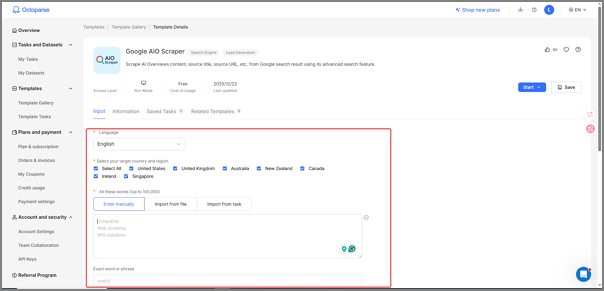
Step 1: Open the template.
Go to the template page (link above) and click “Try It”. The template loads in the Octoparse cloud, so nothing installs on your machine.
https://www.octoparse.com/template/google-aio-scraper
Step 2: Enter your queries.
Log in and paste a single query, or upload a CSV with one query per row. For SEO use cases, this is usually a tracked-keyword list exported from Google Search Console or your rank tracker.
Step 3: Set region and language.
AI Overviews differ by country and language. Match the region your audience searches from. US English is the default; other regions add geo-specific Google domains (google.co.uk, google.de, etc.).
Step 4: Configure fields.
The default field set is AI Overview text, cited source title, cited source URL, and source domain. Add or remove fields based on what your dashboard needs. Each query produces one row per cited source.
Step 5: Run the task.
The task runs in the cloud, so your laptop does not need to stay on. Typical run time is a few seconds per query.
Step 6: Export or schedule.
Download as CSV, Excel, or JSON. For ongoing tracking, set a schedule (hourly, daily, or weekly) and connect the output to Google Sheets via API. This is how SEO teams build self-service AIO tracking dashboards without writing code.
How to know it worked: You should see one row per cited source per query. If the AI Overview field is blank for a query, that query did not trigger an AI Overview at scrape time. Re-run on a different day or from a different region to confirm.
What users say: Octoparse template users in the recurring-workflow group typically schedule daily or weekly runs and pipe results into Looker Studio or Google Sheets dashboards for trend tracking. Across the Octoparse platform, Google Search has been one of the top two most-used templates over the past year, with power users running it 100+ times per active period. If you’re picking a method for AIO tracking, that usage pattern tells you the same template will hold up under recurring production use.
Limitations: The template uses Octoparse’s standard Google SERP scraping engine, which means it is subject to the same anti-bot mechanisms as any browser-based scraper. For very high volumes (100,000+ queries per day), a commercial SERP API will be more cost-efficient. For typical SEO use cases (a few hundred to a few thousand tracked keywords), the template handles the workload comfortably.
Other Related Templates:
https://www.octoparse.com/template/google-search-scraper
Method 2: AI Chrome extensions (lightest setup)
For one-off research or small batches where you do not need a schedule, an AI-powered Chrome extension is the lightest-weight option. The extension runs inside your browser and extracts data from whatever Google search results page you have open.
Chat4Data is a Chrome extension that scrapes webpages based on a plain-English description. You type what you want. For example: “get the AI Overview answer text, every cited source title, and every cited URL from this Google search results page”. The agent shows you exactly what it will do before running, then delivers the data as Excel, CSV, or JSON. It is built for people who need clean data fast without writing code or wrestling with selectors.
What you need:
- Chrome browser
- A free Chat4Data account (100 starting credits)
Step-by-step:
Step 1: Install the extension.
Grab Chat4Data from the Chrome Web Store and sign in. New users get 100 credits to start, refreshed to 300 on each of the first three login days as a limited-time bonus.
Step 2: Run your Google search.
Open google.com and search a query that triggers an AI Overview. Informational queries like “how does X work” or “what is Y” trigger AI Overviews most reliably. If you do not see an AI Overview, the query did not qualify.
Step 3: Open the extension and describe the task.
Click the Chat4Data icon, then type the task in plain English. A working prompt for AIO extraction:
“get the AI Overview answer text, every cited source title, and every cited URL from this Google search results page.”
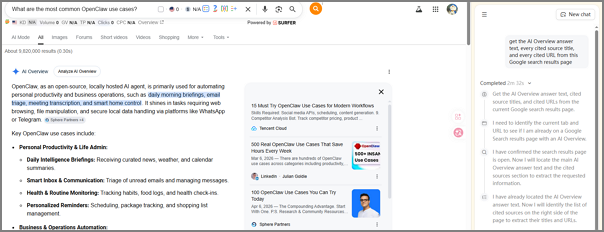
Step 4: Review the plan.
Chat4Data shows the exact steps it will take before running anything. Verify it identified the AI Overview block correctly. Adjust by saying so in plain English (“also grab the position of each citation”).
Step 5: Run and export.
Approve the plan. The extension extracts the data and offers a one-click CSV, Excel, or JSON download. Everything runs in your browser, so the data never leaves your machine.
Step 6: Reuse for similar queries.
Saved tasks can be re-run on different queries with one click. For weekly competitor checks across 10–20 queries, this is much faster than configuring a new scrape each time.
How to know it worked:
The exported file should have rows for each cited source with non-empty title and URL fields. If the AI Overview was collapsed behind a “Show more” button, Chat4Data clicks through automatically. If it missed citations, click “Show all” before running the extension.
Limitations:
This method needs Chrome open and you signed in, so it does not run unattended at 3 AM. For batch sizes above a few hundred queries or for daily scheduled runs, Method 1 or Method 3 is more efficient. Credit usage scales with page complexity (a few credits per scrape on average), so heavy users may move to paid plans: Pro is $10/month for 2,000 credits, Max is $35/month for 8,000 credits.
A few specialized AIO Chrome extensions also exist (such as Google AI Overview Link Scraper), but they typically only extract URLs and do not handle structured exports. General-purpose AI extensions like Chat4Data give cleaner output for SEO use cases.
Method 3: Commercial SERP APIs (most reliable at scale)
For engineering teams running tracking platforms or large pipelines, a commercial SERP API is the most reliable option. These services scrape Google on your behalf and return parsed JSON, including the AI Overview block.
What you need
- Python 3 (or any HTTP client)
- An API key from one of the providers below
Google AI Overview Scraper Comparison
| Provider | Price per 1,000 requests | AIO coverage | Notes |
|---|---|---|---|
| Serper | $0.30 | Thinner field coverage | Cheapest. 2,500 free queries/month |
| Bright Data SERP API | $1.50 | Strong | No rate limit, failed requests not billed |
| Oxylabs | ~$1–$2 | Strong | Good if you already use Oxylabs proxies |
| SerpApi | $9–$25 | 68% detection (highest tested) | Richest structured output, but credits expire monthly |
Per scrape.do’s February 2026 benchmark of 8 SERP APIs, SerpApi has the highest AI Overview detection coverage at 68% and the richest structured output of any provider tested. Coverage across providers ranges from 0% to 68%, so test your target queries on a free tier before subscribing.
Step-by-step (using SerpApi as example)
Step 1: Sign up and get an API key.
Create an account at the provider you picked. Most offer a free tier so you can test queries before subscribing.
Step 2: Test a single query in the playground.
All four providers have a web-based query playground. Paste a query that you know triggers an AI Overview, run it, and confirm the response includes an ai_overview (or equivalent) field.
Step 3: Make your first API call.
A minimal SerpApi request in Python:
python
Step 4: Handle the lazy-load case.
For complex queries, SerpApi (and most providers) lazy-load the AIO and return a short-lived page_token instead of the full overview. Pass the token to the AI Overview endpoint within 60 seconds to retrieve the full data. This counts as a second billable call. Bright Data and Oxylabs have similar deferred patterns.
Step 5: Loop through your query list and store results.
Write the response to a database, CSV, or warehouse. Store the timestamp with every row. AIOs change daily, so you need versioned data to track drift.
Step 6: Schedule recurring runs.
Use cron (Linux), Task Scheduler (Windows), or a workflow tool like Airflow or n8n to run the script on whatever cadence fits your tracking needs (daily for competitive queries, weekly for stable ones).
How to know it worked:
Each response should include a non-empty ai_overview object with summary text and a references array. If the field is empty, either your query did not trigger an AIO, or the AIO was lazy-loaded and you need to follow the page_token flow.
Limitations:
Cost grows linearly with volume. At 100,000 queries per month, SerpApi can hit $2,500 while Serper stays around $30. The spread is real and worth modeling before you commit. SerpApi’s unused credits do not roll over, which can inflate effective costs for variable workloads.
Method 4: General scraping APIs with custom parsing (most flexible)
This route uses a generic web scraping API (ScrapingBee, ScraperAPI, Zyte) to fetch raw Google SERP HTML, then parses the AI Overview block yourself with BeautifulSoup or Cheerio. Pick this method when you need fields the SERP APIs do not parse, like the visual order of cited sources, specific markup attributes, or non-standard SERP elements.
What you need
- Python 3 + BeautifulSoup (or Cheerio for Node.js)
- An API key from ScrapingBee, ScraperAPI, or Zyte
- Tolerance for breaking parsers when Google ships layout changes
Step-by-step
Step 1: Sign up for a general scraping API.
ScrapingBee starts around $1.50 per 1,000 requests with JavaScript rendering enabled, similar to ScraperAPI. JS rendering is non-negotiable, since AIOs are JavaScript-loaded.
Step 2: Fetch the SERP HTML.
Make a request through the scraping API with render_js=true and a premium proxy. Sample with ScrapingBee:
python
Step 3: Locate the AI Overview block in the DOM.
As of May 2026, the AI Overview block is typically rendered inside a container with data-attrid="ai_overview" or similar markers. Google changes these selectors regularly, so confirm the current selector by inspecting a live SERP first.
python
Step 4: Extract citations.
Inside the AIO block, citations live in anchor tags with specific data attributes. Extract titles, URLs, and source domains:
python
Step 5: Handle layout variants.
AIOs come in at least three layouts (inline summary, expanded “Show more”, and lazy-loaded asynchronous). Your parser needs to detect which variant the response contains and branch accordingly. Webshare’s open-source AIO scraper code is a good reference for layout-variant handling.
Step 6: Build maintenance alerts.
Set up an automated test that runs against 5–10 known AIO-triggering queries daily and alerts you when parser output is empty for >50% of them. This is how you catch Google layout changes before they wreck your dashboard for weeks.
How to know it worked
Run the parser against 20 queries you have manually verified trigger AIOs. The success rate should be above 90%. Any lower means the selector is off or AIOs are lazy-loading. Fix before scaling up.
Limitations
This method requires ongoing maintenance. Google updates AIO markup several times a year, and each update breaks parsers built against the previous DOM. Unless your team already maintains other scrapers, the engineering cost typically exceeds the API cost savings versus Method 3.
Decision Matrix: Pick A Google AIO Scraper by Your Situation
| Your situation | Recommended | Setup time | Ongoing maintenance | Data completeness | Schedulable |
|---|---|---|---|---|---|
| Research 10–50 queries, one-off | Method 2 Chat4Data | 5 min | None | Full text + citations | No |
| SEO team, 100–5,000 keywords tracked weekly | Method 1 Octoparse template | 20 min | Minimal | Full text + citations | Yes (cloud) |
| Engineering team, 10K–100K queries/month | Method 3 Serper or Bright Data | 1–2 hours | Low (provider maintains parsers) | Full structured JSON | Yes (your code) |
| Need fields the SERP APIs don’t parse | Method 4 general API + parser | 1–2 days | High (you maintain parser) | Whatever you build for | Yes (your code) |
| Enterprise scale, 1M+ queries/month | Method 3 Bright Data SERP API | 2–4 hours | Low | Full structured JSON | Yes |
| Mixed: regular tracking + ad-hoc research | Method 1 + Method 2 | 25 min total | Minimal | Both | Method 1 only |
How to read this matrix:
- Setup time is the realistic time from sign-up to first usable data, not “follow the docs perfectly” time.
- Ongoing maintenance estimates the engineering hours per month to keep the pipeline running.
- Data completeness is what fields you can extract with the default configuration. Anything custom takes more work in every method except 4.
- Schedulable is whether the method can run without you sitting in front of it.
If your AIO tracking is mission-critical (you make content or budget decisions from it), pick a method with Low maintenance and Yes schedulable. That eliminates Method 4 for most teams. Between Methods 1 and 3, the choice usually comes down to whether anyone on your team writes Python comfortably.
Turn website data into structured Excel, CSV, Google Sheets, and your database directly.
Scrape data easily with auto-detecting functions, no coding skills are required.
Preset scraping templates for hot websites to get data in clicks.
Never get blocked with IP proxies and advanced API.
Cloud service to schedule data scraping at any time you want.
FAQ
What triggers a Google AI Overview to appear?
AI Overviews appear on informational queries where Google’s models believe a generated summary helps the user. Common triggers include questions (“how to”, “what is”, “why does”), comparison queries, and broad informational topics. Transactional and navigational queries (like “buy iPhone” or “Facebook login”) rarely trigger them. There is no public list of triggering queries, so testing your target keywords directly is the only reliable way to know.
Is it legal to scrape Google AI Overviews?
Scraping publicly visible search results is a contested legal area. Google’s Terms of Service prohibit automated scraping, but courts have generally held that scraping publicly available data is not illegal in itself (see the hiQ Labs v. LinkedIn ruling). Most commercial SERP API providers operate under the assumption that scraping public SERP data is permissible. Consult a lawyer before building a commercial product on scraped data.
Does Google offer an official AI Overview API?
No, Google does not offer an official API for AI Overview content as of May 2026. Google’s Custom Search JSON API returns standard organic results, not AI Overviews. The only way to get this data programmatically is to scrape it, either yourself or through a third-party SERP API. Searches for “google ai overview api” mostly return third-party providers that scrape Google on your behalf.
How do I track if my site appears in AI Overviews?
Two approaches. Use a dedicated AI Overview rank tracker like SE Ranking or Semrush, which scrape on your behalf and report which queries cite your domain. Or build your own using Method 1 or Method 3 from this guide: scrape target queries on a schedule, store cited URLs, and filter for your domain. DIY gives full control over the query list.
How often do AI Overviews change for the same query?
Frequently. The same query can return a different AI Overview within hours, especially for topics where new content is being published often. For stable tracking, scrape each query at least weekly. For competitive or trending topics, daily scraping is more useful.
What’s the cheapest way to scrape Google AI Overviews?
For occasional use, Chat4Data’s free 100 credits (Method 2) cover a few dozen queries with no payment. For ongoing tracking under a few thousand queries per month, the Octoparse template (Method 1) has a free tier. For developer pipelines, Serper at $0.30 per 1,000 queries is the cheapest commercial SERP API, though with thinner field coverage than SerpApi or Bright Data.
Next steps
Once you have AIO data flowing, the obvious next move is building a tracking dashboard. Most teams pipe Method 1 or Method 3 output into Google Sheets or Looker Studio and track three things weekly: which of their target queries trigger an AIO, which sources Google cites for each, and whether their own domain appears. For teams already running SEO crawler tools for organic position tracking, AIO citation tracking fits in the same dashboard.
If you want to see the underlying Google SERP scraping in action, the related Google search results scraping guide covers the same engine the AIO template is built on, with more detail on field selection and scheduling.