

Let me be brutally honest.
Most people think they understand APIs, web data, and “how the internet works” until they see a cURL command.
Suddenly:
- Everything looks scary
- Docs feel unreadable
- And people either copy-paste commands blindly or give up entirely
This post exists to fix that in the simplest way possible and help you understand everything you need to know about cURL with practical clarity.
And by the end of this, you’ll know:
- What cURL really is
- Why developers rely on it daily
- How to use it step by step
- Where it shines
- And when you should stop using cURL and switch to smarter tools
With that said, let’s start from the ground up.
What Is cURL?
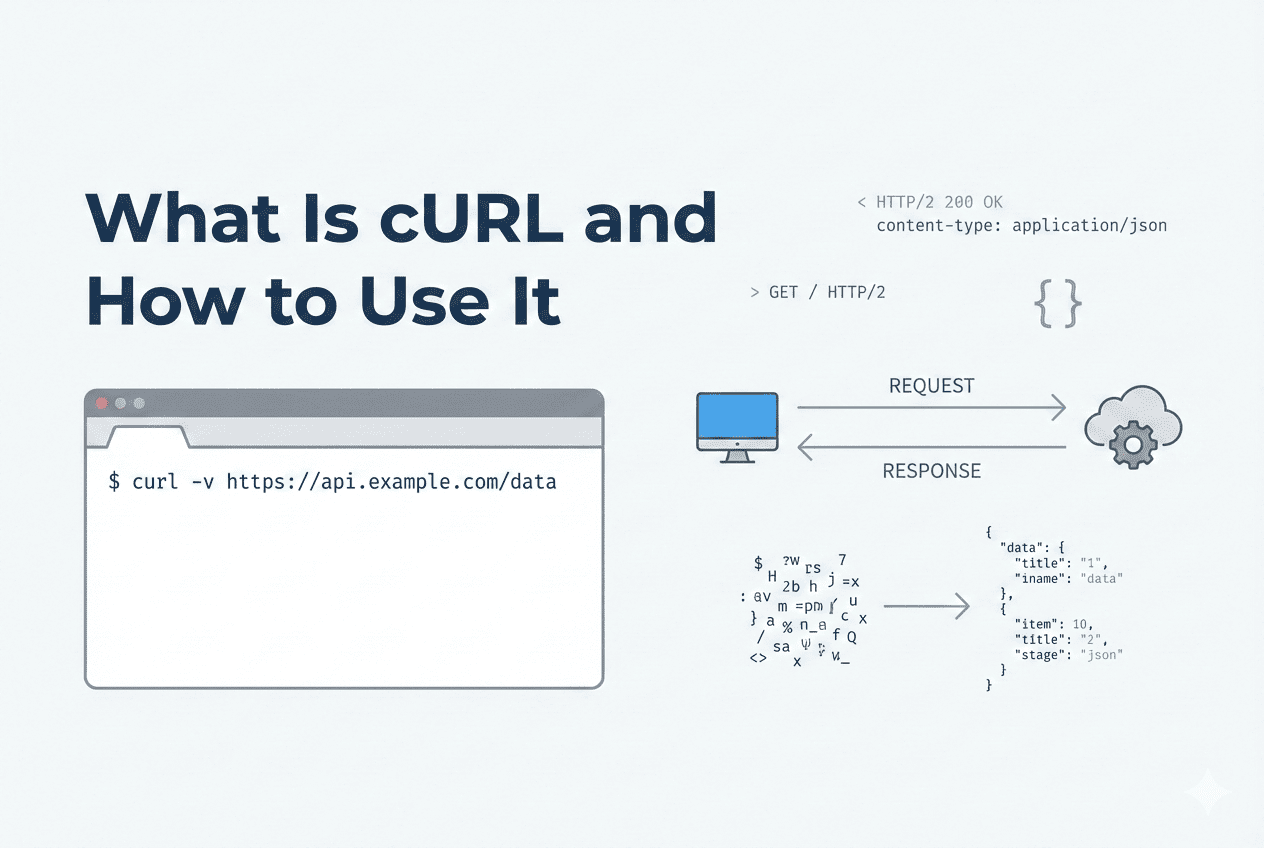
At its core, cURL is a command-line tool that lets your computer talk to the internet.
According to their official docs, cURL is a command-line tool for transferring data to or from a server using URLs, and it supports a wide range of protocols like HTTP, HTTPS, FTP, IMAP, and more.
cURL stands for Client URL, and that name describes exactly what it does:
- It sends a request from a client to a specific URL
- It receives a response from the server
- It shows you exactly what comes back in that response
In simple terms, when you run a cURL command inside your terminal, you are telling the server, “Here is my request. Please send me a response.”
Those long-looking cURL commands you see online are not doing anything fancy. They are making the same HTTP requests your browser or apps make, just without any abstraction.
If it helps, think of cURL as Postman without a user interface, without buttons, and without distractions.
Why cURL Is Still Everywhere (even in 2026)
Before going deeper, you need to understand why cURL still survives in a world full of AI website builders, AI app builders, and shiny abstractions.
Once you start doing real work, cURL quietly makes things simpler and becomes unavoidable.
You type a command, hit enter, and the server responds.
When something breaks, cURL doesn’t hide behind friendly messages. It shows you the status code, headers, and raw output exactly as the server sent it.
If you work with APIs, backend services, automation scripts, web scraping, or data pipelines, cURL is usually the first thing you reach for. When something fails, developers don’t want dashboards, UIs, or “smart” layers guessing on their behalf. They want the exact request and the exact response.
That’s what cURL gives you.
The other reason cURL refuses to die is simple practicality.
cURL is installed by default on almost every system (yes, it is present on your Mac or Windows), easy to automate and script, fully transparent about what is being sent and received, and independent of any programming language or framework.
Yes, you don’t need to set anything up, install dependencies, or open a GUI.
That level of clarity is why, even in 2026, cURL is still everywhere in API docs, CI/CD pipelines, server scripts, debugging sessions, and production issue investigations.
In fact, in recent user surveys run by the cURL project, the vast majority of respondents report using cURL primarily for HTTPS requests on Linux systems, which matches how it shows up in real-world CI pipelines and server environments.
Your First cURL Command (Simple GET Request)
Now you understand what cURL is and why it’s so popular.
But you may still be hesitant to get started and try it out practically. So, let’s do it the simplest way possible and learn by actually using cURL.
Simply open your terminal (on Mac or Windows) and run:
That’s it.
And you will get data like this:
But Nitin, what just happened? As I mentioned earlier:
- cURL sent a GET request to the URL
- The server responded with HTML
- cURL printed that response in your terminal
You see, you didn’t download any app, didn’t follow a complex process, and simply used cURL to get the work done.
Thanks to this simple process, developers love using cURL to request servers, download files, and check that APIs are working.
Understanding cURL Syntax Without Memorizing Anything
You know, most people get stuck with just two things, i.e., what cURL is, and the syntax.
Yes, most people can’t even clearly define what cURL is.
And so, in the above sections, I have tried my best to explain what cURL is. Now, let me explain the syntax of cURL in the simplest way possible.
First of all, the syntax of cURL looks like this:
Here’s how to think about it in simple terms:
- URL → Where you’re sending the request
- OPTIONS → How you want to send it
Here’s a practical example you can try it out right now:
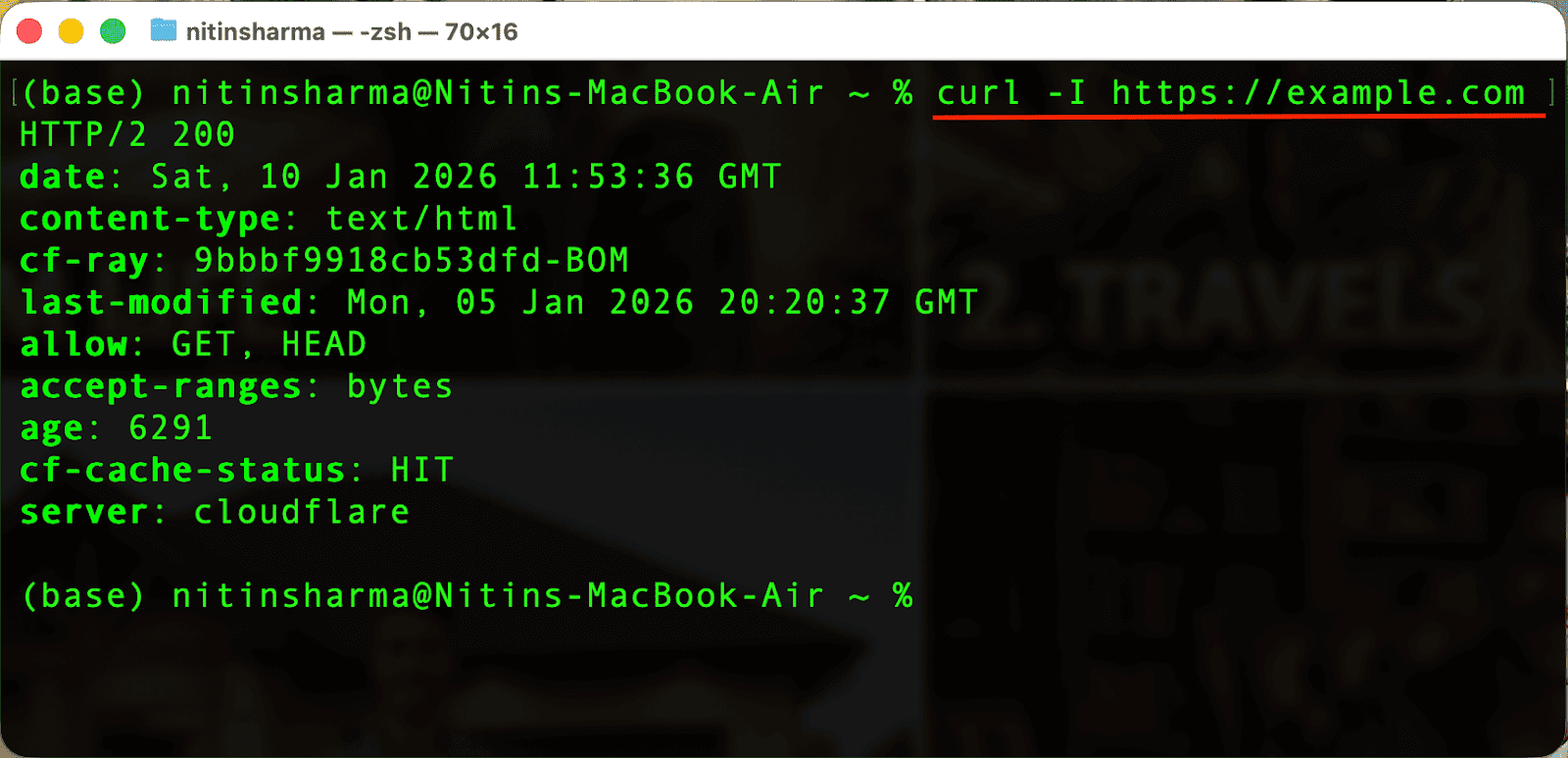
In this line of code, https://example.com is the URL (where the request goes), and -I is an option that tells cURL to fetch only the response headers.
So instead of downloading the full webpage, cURL just asks: “Hey server, tell me how you would respond, don’t send the actual content.”
And this command is extremely useful when you want to:
- Check if a site is reachable
- See the status code (200, 301, 404, etc.)
- Inspect headers like Content-Type, Server, or Cache-Control
How to Make Real Requests (That You’ll Actually Use)
Now, it’s time to go more deep inside cURL and make real requests that you will use or see on the internet.
Well, while testing APIs or working with them, we usually have to send requests to servers, and the requests are of different types like GET, POST, PATCH, and DELETE.
If you are a developer, you may know about these requests and may have even seen them in multiple documentation sources or practically used them inside Postman.
And here, I will be using DummyJSON for GET requests, httpbin for inspecting POST requests and headers, and example.com as a simple placeholder endpoint for demonstrating file uploads. All of these are commonly used by developers to test and understand API behavior without touching real production systems.
With that said, let’s make some real requests inside cURL.
1. GET Requests (Fetching Data)
Now, open your terminal once again, and write the below command.
It’s basically helping you get all the product data present on the DummyJSON product page.
Note: If an API exists, this is usually step one followed by developers to check is it working or not.
For sure, you can be more specific, and add more parameters like this:
The output is as follow:
Here’s what happening:
- -G tells cURL this is still a GET request
- -d adds query parameters
- cURL builds the final URL for you
Use this when:
- You want data from a specific URL
- You’re testing an endpoint
- You’re checking if something works
2. POST Requests (Sending Data)
Now, let’s move from “reading” to “sending” data using cURL.
This sends a POST request without a body, but most real POST requests send data.
Here’s how:
Here, -H simply means instructions given along with your URLs, and they tell the server who you are, what you want, and how to respond.
Common example includes:
And thanks to POST requests like this, APIs receive structured data, forms get submitted, and backends get updates.
How to Upload Files With cURL & Saving Responses to Files
As a developer, you may be working with files and don’t simply want terminal output.
That’s where cURL commands also exist to upload files with cURL and save responses to files.
Here’s a simple example of uploading a file with cURL:
Here the @ symbol matters. Without it, cURL treats the file as plain text.
This command is mainly useful while you are dealing with internal tools, admin panels or backend services.
And now, here’s how you can save responses to a file:
Thanks to the above cURL command, you have:
- Raw API data
- Stored locally
- Ready for parsing, analysis, or automation
This is how scripts turn into pipelines.
How to Use cURL With Proxies (Real-World Scraping Scenario)
In web scraping, proxies are used to avoid getting blocked when you make many requests, because each request can appear to come from a different user.
You can think of it as a middle server that sends requests to a website on your behalf, so the site doesn’t see your real IP address.
And if you scrape data or test geo-based behavior, this matters.
Now the request:
- Looks like it’s coming from another location
- Uses a different IP
- Mimics real traffic paths
This is foundational knowledge for web scraping, anti-bot testing, and data extraction systems.
Where cURL Fits in Modern Data Workflows & When You Should Stop Using It
Now, you know what cURL is, and I’ve shown you the practical process to get started with different cURL commands.
And for a developer, this simple process using cURL can be excellent for testing APIs, debugging requests, learning how endpoints behave, and building quick scripts.
But here’s the part no one tells beginners: cURL is powerful, but it doesn’t scale comfortably.
When things get complex, like auth flows, pagination, JavaScript-rendered pages, anti-bot logic, large datasets, or scheduling and automation.
What next? You start writing long commands, bash scripts, or error-prone glue code.
That’s not all, but if your goal is:
- Extracting data from many pages
- Running jobs on a schedule
- Handling pagination automatically
- Avoiding constant command-line work
cURL becomes not so useful because it’s low-level, and that’s where you can use tools like Octoparse.
Where Tools Like Octoparse Make Sense & How to Get Started
Let me be honest, cURL is simple and fast enough to request servers, work with files, and talk with the backend.
But it doesn’t scale beyond that when you’re extracting data from multiple pages, automating the process, handling pagination, and so on, as I mentioned in the above section.
And that’s where you can use tools like Octoparse that let you extract and automate web data without writing commands every day.
But Nitin, what is Octoparse? Well, it is a no-code, visual alternative for users like you who need to move beyond simple command-line requests, especially for web data extraction, automation, and recurring workflows.
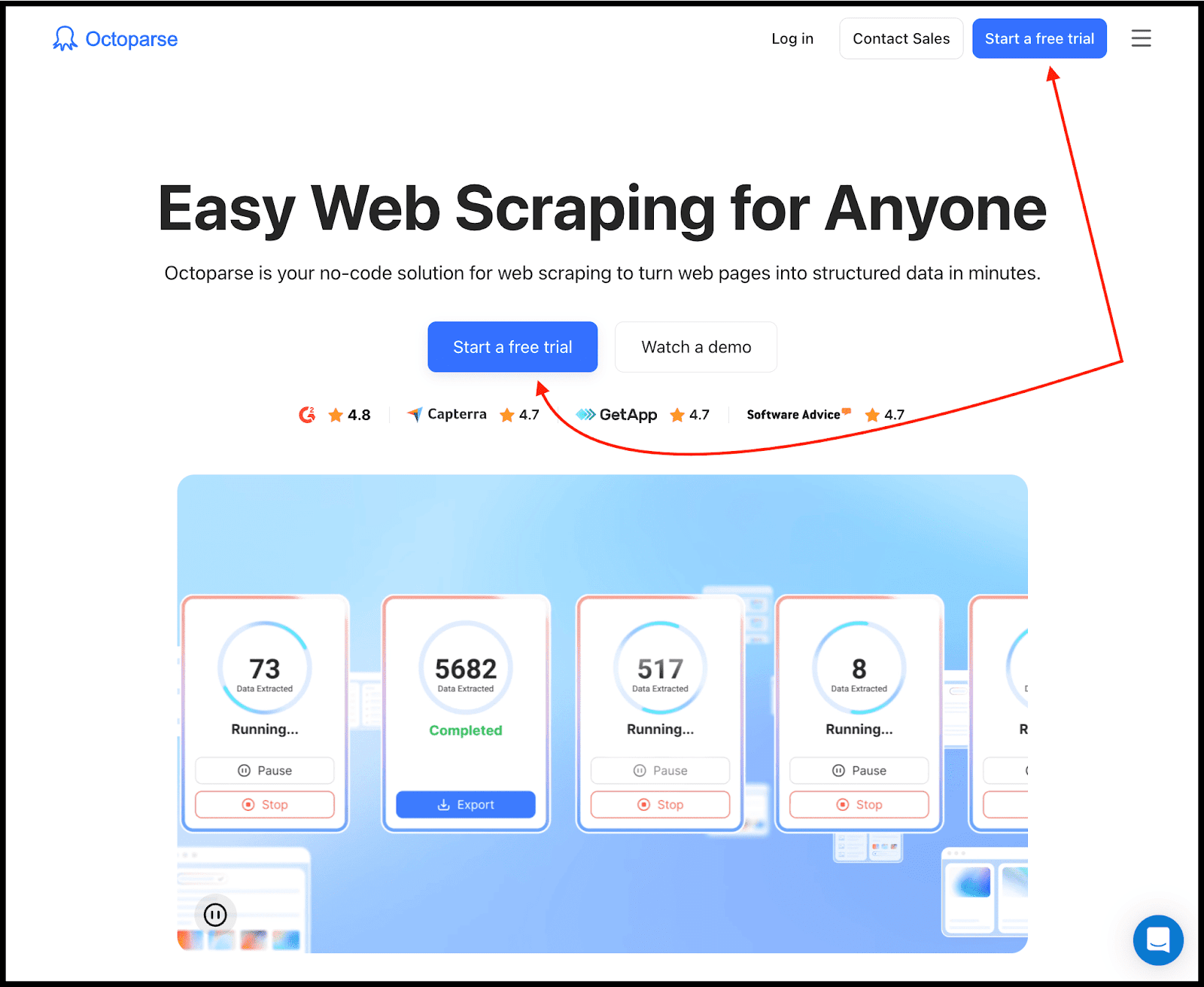
To get started, simply visit the Octoparse website and click on the button “Start a free trial”.
And then you just need to Click → Select → Define logic visually → Run tasks now/Schedule extraction → Export clean data.
That’s not all.
With Octoparse, you can:
- Browse hundreds of ready-to-use templates for popular websites
- Set up custom crawlers hassle-free with webpage auto-detection
- Build no-code workflows with point & click actions
- Customize crawlers to deal with 99% of websites
- Rotate IP addresses and solve CAPTCHAs to never get blocked
- Export data as CSV/Excel, via API, or into databases/Google Sheets
Insanely useful, right?
The best part? For beginners or even for developers, this can become your unfair advantage and can give you insane leverage in your daily workflow.
Conclusion
So far, we have learned almost everything one needs to know about cURL, and even suggested a tool like Octoparse to go beyond that.
To keep it short, cURL simply sends a request from a client to a specific URL to get a response back from the server from your terminal.
Now, you may be asking where cURL is actually used in practice. Well, when you need to:
- Quickly verify whether an API is actually responding
- Inspect headers, status codes, and raw responses
- Debug a failing request without guessing what a tool is hiding
- Test endpoints before writing any real code
- Automate small network tasks inside scripts or CI pipelines
… cURL is often the fastest way to get answers.
That’s its real strength.
It strips everything down to just the request and the response. There are no UI abstractions or magic, only how the server actually behaves.
But cURL is not meant to be a long-term workflow tool.
The moment you’re dealing with large-scale automation, complex scraping, browser-based logic, or recurring jobs, cURL stops being efficient and starts becoming friction.
And that’s where you can use tools like Octoparse that are specifically made for that purpose.
FAQs about cURL
1. Do I really need to learn cURL if tools like Postman already exist?
Short answer: yes, if you want real clarity and to get the work done.
Talking about me as a developer, when I want to see the exact requests being sent, the headers involved, or the raw response from the server, I prefer cURL.
Tools like Postman often hide what’s actually happening under the hood. Buttons, tabs, and collections make things feel easy, but they also abstract away the raw request–response cycle.
2. Why do developers still use cURL instead of writing a small script?
Because cURL is often the fastest way to answer: is the API endpoint working, and to verify headers, status codes, and responses.
That’s why cURL shows up everywhere: terminals, CI pipelines, server logs, documentation, and debugging sessions.
3. When does cURL stop being a good idea?
This is the part I’ve seen most tutorials on the internet completely skip.
cURL stops being practical when you’re chaining dozens of requests, dealing with pagination, authentication flows get complex, or you need retries, scheduling, or monitoring.
At that point, you’re no longer “testing” things. You’re building a workflow. And that’s exactly why I recommended tools like Octoparse.
4. Is cURL only useful for developers?
Not really.
cURL is useful for anyone who needs to fetch data from an API, download files programmatically, inspect how a server behaves, or understand what a tool is actually sending.
And you don’t need to be a backend engineer to benefit from it.
In short, if you work with APIs, web data, automation, scraping, or internal tools… cURL can become helpful.
5. What’s the best way to actually get comfortable with cURL?
If you have read this post, you have already learned a lot about cURL.
And now, instead of memorizing commands, use it practically to test APIs before using any GUI tool, inspect headers, save responses to files and look at real data, break commands and see how servers react, and more.
That’s the only best way to actually get comfortable with cURL.