Quick answer: Use a cloud web scraping API when another application needs to trigger supported cloud workflows, retrieve collected data, or send results into a database or dashboard. For occasional collection, a ready-made template, Cloud Extraction, and scheduling may be enough. This guide focuses on the integration decision and the path from Amazon product data to your own system.
Amazon sellers often monitor competitor prices, stock, and listing changes. Manual checks become difficult as a watchlist grows, while a spreadsheet can go stale. A cloud workflow helps collect comparable product data on a schedule and deliver it to the systems that use it.
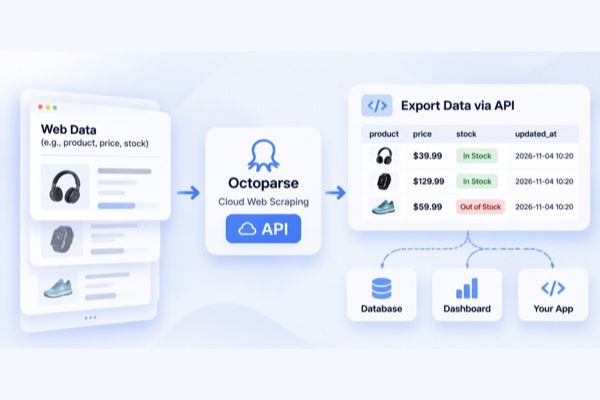
Octoparse combines ready-made templates, Cloud Extraction, and supported API or MCP integrations. This guide explains when an API is worth using, which integration fits the workflow, and how to connect the results to your own system.
When Do You Need a Cloud Web Scraping API?
A cloud web scraping API is useful when you want another application to interact with your scraping workflow or retrieve collected data automatically. However, not every scraping task requires an API.
The right approach depends on how often you collect data, where the results need to go, and how much control your software needs.
Unless a caption says otherwise, the tables in this guide are illustrative workflow examples. They explain how to choose an integration or map fields; they are not live API responses or recorded prices.
Choose an approach based on your workflow
| Your needs | Recommended approach |
|---|---|
| Collect data occasionally and review it manually | Ready-made templates and file exports |
| Run scraping tasks on a recurring schedule | Octoparse Cloud Scheduling |
| Let another application trigger supported tasks and retrieve results | Octoparse API |
| Let an AI assistant interact with scraping tools | Octoparse MCP |
For example, if you only need to check competitor prices once a week and download a spreadsheet, a ready-made template and cloud scheduling may be enough.
But if you want your pricing dashboard to automatically request new data, retrieve the results, and update its records, an API integration makes more sense.
Scheduling automates when a task runs; an API lets another application interact with supported scraping operations and data.
How Octoparse Helps Automate Amazon Price Monitoring
Octoparse combines ready-made scraping templates, cloud extraction, and integration options to help you move from manual data collection to an automated workflow.
Browse Octoparse Templates
Here’s how you can use it for Amazon competitor price monitoring.
The process has four main steps:
Choose a template → Configure inputs → Run a cloud task → Retrieve the results
Step 1. Choose an Amazon Product Scraping Template
Start by finding a scraper that supports the Amazon marketplace and product information you want to collect.
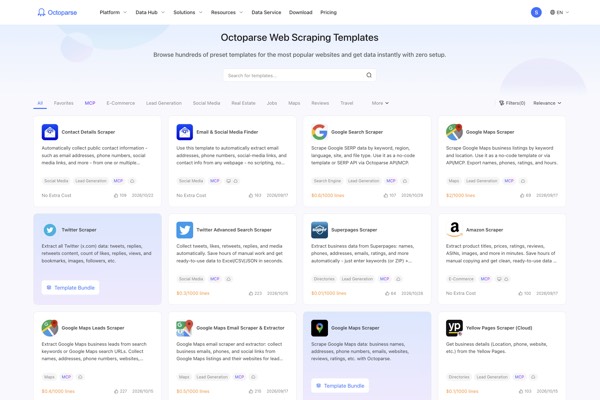
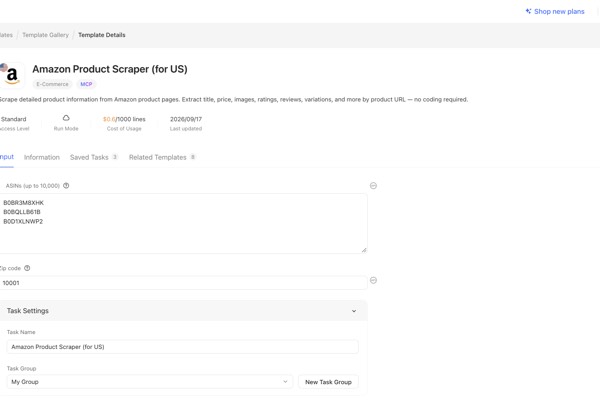
Octoparse’s Template Gallery offers ready-made templates for popular websites. For this example, we’ll use Amazon Product Scraper (for US).
Before running the template, check its input parameters and output fields. Depending on the template, you may be able to collect product titles, ASINs, prices, ratings, review counts, and other available product details.
Browse the Amazon scraping templates
Step 2. Configure Your Inputs
The inputs depend on the selected template. For an ASIN-based Amazon product scraper, you may need to provide product identifiers and a US ZIP code.
Here is an actual test configuration used with Octoparse’s Amazon Product Scraper (for US):
Template ID: 97
ASINs:
US ZIP Code:
Each ASIN was entered on a separate line.
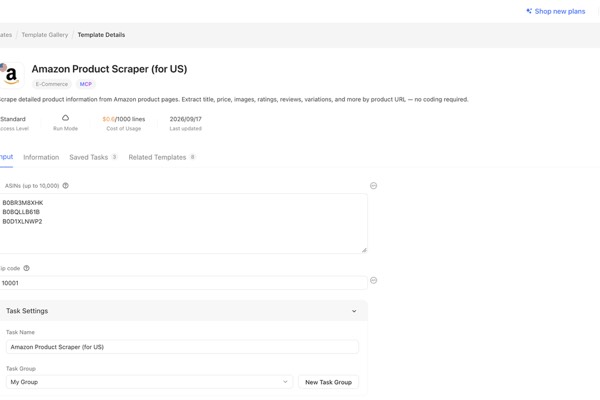
The actual input fields and accepted values depend on the selected template. If you’re using AgentTools API, check the template’s inputSchema rather than assuming that the visual field labels are also the API parameter names.
Step 3. Run the Task in Octoparse Cloud
Recorded test evidence: In the November 3 test shown below, Amazon Product Scraper (for US) reported a completed run in 35 seconds with 3 non-duplicate rows. This is a sample run for the listed inputs, not a guaranteed runtime or output size for every account, marketplace, or task.
After configuring your scraper, run it using a supported cloud execution option.
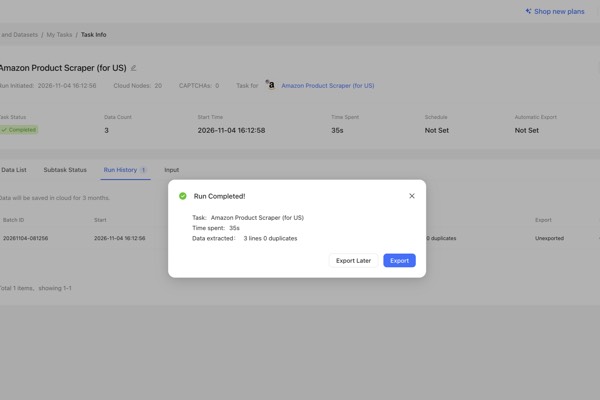
With Octoparse Cloud Extraction, the task runs on Octoparse’s cloud infrastructure instead of relying on your local computer to remain on.
If you need recurring price updates, you can also configure Cloud Scheduling for eligible tasks and plans.
For example, your team might schedule a collection every morning to check competitor prices and availability. The resulting data can then be retrieved for further processing.
Step 4. Retrieve the Results and Connect Your Data
Once the collection is complete, retrieve the results through the interface supported by your workflow.
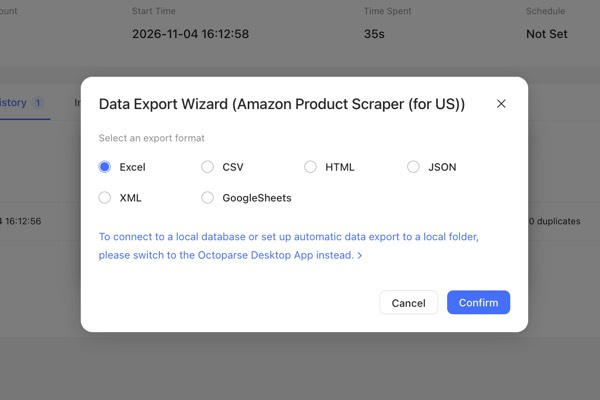
Octoparse supports standard export formats such as Excel, CSV, JSON, and XML. Supported cloud data can also be accessed programmatically through the relevant API operations.
Your application can then compare the latest results with previously stored records.
For example, a pricing dashboard could display:
Illustrative pricing fields
| Product | Current Price | Previous Price | Change |
|---|---|---|---|
| Product A | $24.99 | $29.99 | -16.70% |
| Product B | $39.99 | $39.99 | 0% |
| Product C | $19.99 | $17.99 | 0.111 |
Illustrative pricing data, not the recorded prices from the November 3 test.
Your application can use these comparisons to identify price drops, monitor availability, and generate alerts.
The overall workflow looks like this:
Amazon → Octoparse Cloud → API / Data Export → Your Database → Pricing Dashboard
Octoparse handles data collection and supported data retrieval. Your application handles price comparisons, business rules, and notifications.
For details, see the Octoparse AgentTools API workflow tutorial.
How to Get Scraped Data into Your Own System
Collecting data is only the first step. To make that data useful, you need to move it from Octoparse into the systems your team already uses, whether that’s a database, internal dashboard, CRM, or custom application.
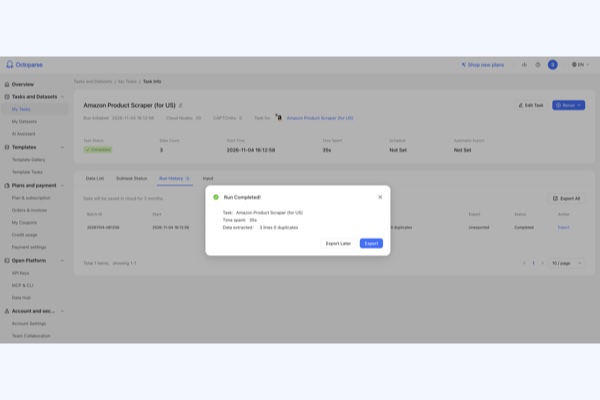
With Octoparse, you can retrieve cloud extraction results through supported API operations and use your own application to process and store them. Here’s how the process works.
Step 1. Retrieve Your Scraping Results Through the API
Once your cloud scraping task has finished, your application can request the exported data using the AgentTools API.
For a new template-based workflow, the process is:
Search Templates → Execute Task → Export Data
If you’re working with an existing Octoparse task, you can find and start that task before requesting its results.
For example, you can call the exportData endpoint to check the status of an export and retrieve its results in JSON format:
Replace YOUR_TASK_ID with the task ID returned when the task was created, and use your own API key for authentication.
The API returns different statuses depending on the task’s progress:
Export status values
| Status | What it means | What to do |
|---|---|---|
| collecting | Data collection is still running | Wait and check again |
| exporting | The export file is being generated | Wait and check again |
| exported | The export file is ready | Retrieve the exported data |
| no_data | No data was returned | Review your task and inputs |
| failed | The task or export failed | Check the error details |
Don’t treat an accepted response from task creation as proof that the data is ready. Follow the API’s retry guidance and continue checking until the export is complete.
Step 2. Get the Exported Data
When the export is ready, the API response includes information such as:
taskId: Identifies the scraping task.exportFileType: The format of the exported file.dataTotal: The total number of collected records.exportFileUrl: The URL of the exported file.sampleData: A preview of the returned records, when available.
For example, a successful response may look like this:
Your application can use exportFileUrl to retrieve the exported file and sampleData to preview its contents.
This is an important distinction: the API makes the exported data available, but it doesn’t automatically insert the records into your database. Your application needs to retrieve the file and handle the next steps.
Step 3. Send the Data to Your Application or Database
Once you’ve retrieved the exported file, your application can parse the records and map them to the fields used by your destination system.
For example, an Amazon price-monitoring workflow might use the following data mapping:
Example field mapping
| Octoparse output | Your database field |
|---|---|
| ASIN | product_id |
| Product Title | product_name |
| Price | current_price |
| Availability | stock_status |
| Collection Timestamp | collected_at |
Your application can then insert new records or update existing ones based on a unique product identifier.
For a price-monitoring system, you might use the ASIN and marketplace together to identify each product. This helps prevent duplicate records and makes it easier to compare prices across collection runs.
The integration logic is handled by your application. For example, it can:
- Match incoming records to existing products.
- Update prices and availability.
- Store historical price changes.
- Flag products with missing or unexpected values.
- Trigger notifications when a price drops below a defined threshold.
You can then use the updated records in your internal dashboard, pricing tools, or reporting system.
Step 4. Automate the Data Transfer
You don’t want someone manually retrieving and importing data every time a scraping task finishes.
To automate the workflow, your application can schedule API requests or trigger them based on the status of a collection task.
For example, a recurring Amazon price-monitoring workflow could look like this:
Scheduled Cloud Task → Data Collection → API Export → Data Processing → Database Update → Price Monitoring Dashboard
Your application can check the export status, retrieve the results when they’re ready, and update the destination system.
For recurring workflows, it’s also important to handle failed requests, incomplete exports, and duplicate records. Keep track of successfully imported batches so that a retry doesn’t accidentally insert the same records twice.
If your team doesn’t need a custom integration, Octoparse also supports direct database and Google Sheets export for eligible cloud data. This can be a simpler option when your destination is one of the supported platforms.
What Happens After the Data Leaves Octoparse?
The key is understanding where Octoparse’s responsibility ends and your application’s responsibility begins.
Octoparse handles:
- Running supported cloud scraping tasks.
- Collecting and structuring website data.
- Making cloud extraction results available through supported export options and API operations.
Your application handles:
- Retrieving exported data.
- Mapping fields to your database or application.
- Updating existing records and managing duplicates.
- Comparing historical data and applying business rules.
- Generating alerts, reports, or other business outputs.
For more details, see the API documentation.
Which Octoparse Integration Should You Use?
These integrations expose supported templates, tasks, and data operations. They do not author arbitrary scraping tasks from scratch, so you still need to choose or configure a supported workflow before connecting it to your application.
Octoparse provides different integration options for different workflows. The best choice depends on whether you want to execute scraping templates, access existing cloud tasks, or let an AI assistant interact with scraping tools.
Compare Octoparse integration options
| Option | Best for | Typical use case |
|---|---|---|
| AgentTools API | Executing supported template workflows | Search for templates, start tasks, and retrieve results |
| OpenAPI | Accessing and managing supported cloud tasks | Connect existing scraping tasks to another application |
| MCP | Connecting AI assistants to Octoparse | Let an AI assistant interact with available scraping tools |
| Cloud Scheduling | Running recurring tasks | Automatically collect competitor prices every day or week |
Here’s how to choose:
AgentTools API: Choose this when your application needs to discover available templates and execute supported scraping workflows programmatically. Its main operations include searchTemplates, executeTask, and exportData.
OpenAPI: Choose this when you already have scraping tasks in Octoparse and want to access supported cloud data or task management operations from another application.
MCP: Choose this when you want an AI assistant to discover and use available Octoparse tools through a compatible MCP connection.
Cloud Scheduling: Choose this when your main requirement is simply to run an existing cloud task automatically at regular intervals. You don’t necessarily need to build an API integration for this.
These options serve different purposes and are not interchangeable. Check the supported operations and account requirements before choosing an integration route.
Explore the Octoparse Open Platform for more information.
What Should You Know Before Getting Started?
Before connecting Octoparse to your business systems, consider three practical requirements.
Cloud Extraction vs. Local Extraction
The execution environment affects how you access your collected data.
Local and cloud execution
| Local Extraction | Cloud Extraction | |
|---|---|---|
| Where tasks run | Your computer | Octoparse Cloud |
| Computer needs to stay on | Yes, during execution | No |
| Cloud scheduling | Not supported for local-only execution | Available for eligible tasks |
| API access to cloud results | Local data must first be backed up to the cloud, where supported | Supported through relevant API operations |
If you plan to retrieve data programmatically from Octoparse Cloud, make sure your task is configured for cloud execution.
Also check the execution mode of your scraper. For example, Browser Use runs locally through Octoparse in Chrome, while cloud-capable options such as Cloud Agent have separate cloud execution requirements.
Check Your API Access and Account Requirements
Before making API requests:
- Create an API key in your Octoparse account under Account and security → API Keys.
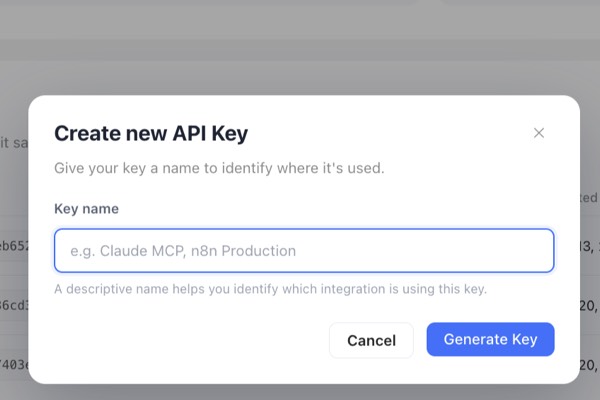
- Check that your account has access to the specific API operations you plan to use.
- Review your available usage quota, task permissions, and any required external user ID.
- Store your API key securely instead of exposing it in public code or repositories.
API availability and usage limits depend on the relevant product features and account rules. Don’t assume every API operation has the same requirements.
See How to Create and Use an API Key.
Consider Maintenance and Data Quality
An API connection doesn’t eliminate the need to maintain your scraping workflow. Source websites can change their layouts, product availability can fluctuate, and some fields may be missing from individual records. Therefore, starting small makes it easier to identify problems before they affect your recurring workflow.
FAQs about Cloud Web Scraping API
- Do I need a cloud web scraping API to collect website data?
No. If you only need occasional data collection and manual exports, a ready-made scraper and Octoparse’s export options may be sufficient.
An API becomes useful when another application needs to trigger supported scraping tasks or retrieve results automatically.
- What’s the difference between AgentTools API, OpenAPI, and MCP?
AgentTools API supports template-based scraping workflows, including template discovery, task execution, and result export. OpenAPI provides access to supported cloud task and data operations. MCP connects Octoparse tools to compatible AI assistants.
Choose based on which system needs to control the workflow.
- Can I use Octoparse to automate Amazon price monitoring?
Yes. You can use a suitable Amazon scraping template, run supported tasks in the cloud, and retrieve the collected product information through the available export or integration options.
Your application can then compare prices and monitor product availability.
- Can I schedule scraping tasks without using an API?
Yes. Octoparse Cloud Scheduling lets you configure recurring runs for eligible tasks. If you only need regular data collection, scheduling may be simpler than building an API integration.
- Can I use API export with Local Extraction?
Not directly. API export is designed for supported cloud data. Local results need to be backed up to the cloud first, where the relevant feature supports it.
- Can an API or MCP create any scraper from scratch?
No. AgentTools API, OpenAPI, and MCP expose supported Octoparse workflows and data operations. They do not replace template selection or author arbitrary tasks. Build or configure the workflow in the supported Octoparse environment first, then use the integration that matches your delivery needs.
- Does the API write records directly into my database?
No. The API makes supported exported data available. Your application must download or read the returned data, map the fields, handle duplicates, and write the records to your database or dashboard.
Start with the Right Octoparse Workflow
You don’t need an API for every scraping task. Start with a template, check whether Cloud Extraction and scheduling meet your needs, and introduce an API when another application needs programmatic access to your scraping workflow or results.
Ready to get started?
Browse Octoparse Templates | Explore API Documentation | Get Started with Octoparse