

“Can you pull data from websites to Excel?”
You may have similar questions above when you want to download data from a website, as Excel is an easy and common tool for data collection and analysis. With Excel, you can easily accomplish simple tasks like sorting, filtering, and outlining data and making charts based on them. When the data are highly structured, we can even perform advanced data analysis using pivot and regression models in Excel.
However, it is an extremely tedious task if you collect data manually by repetitive typing, searching, copying, and pasting. To solve this problem, we list 4 different solutions to scrape websites to Excel easily and quickly.
The fastest way to scrape data from a website into Excel depends on the site’s complexity:
| Method | Best for | Coding | Handles JavaScript / login |
| Excel Power Query (Get & Transform) | Static HTML tables on public pages | No | Limited |
| Browser extension (e.g., Chat4Data) | Plain-English scrapes, login-gated pages | No | Yes |
| No-code scraper (Octoparse) | Bulk, scheduled, or anti-bot sites | No | Yes |
| Excel VBA macro | Custom logic, internal Excel-only workflows | Yes | Limited |
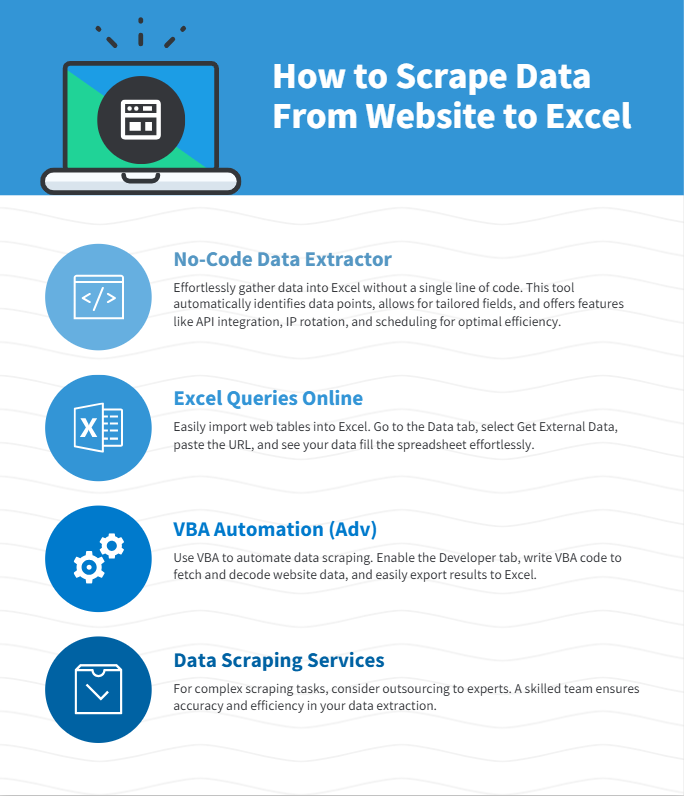
(Feel free to use this infographic on your site, but please provide credit and a link back to our blog URL using the embed code below.)

Method 1: No-Coding Crawler to Scrape Website to Excel
A no-code web scraper is the most flexible way to extract data from a website to Excel, especially when the page uses JavaScript, infinite scroll, or anti-bot defenses that break Excel’s built-in tools. Octoparse is a desktop scraper that detects data fields automatically and exports directly to Excel, CSV, Google Sheets, or your database.
Unlike Power Query, a dedicated scraper handles login flows, paginated lists, AJAX-loaded results, and scheduled re-runs, the cases where Excel’s “From Web” returns an empty preview.

Turn website data into structured Excel, CSV, Google Sheets, and your database directly.
Scrape data easily with auto-detecting functions, no coding skills are required.
Preset scraping templates for hot websites to get data in clicks.
Never get blocked with IP proxies and advanced API.
Cloud service to schedule data scraping at any time you want.
Online data scraping templates
You can also use the preset data scraping templates for popular sites like Amazon, eBay, LinkedIn, Google Maps, etc., to get the webpage data with several clicks. Try the online scraping template below without downloading any software to your devices.
https://www.octoparse.com/template/contact-details-scraper
Across our user base over the past year, Google Search and Google Maps templates have consistently been the two most-run workflows on the platform: power users run the Google Search template 100+ times per active period for ongoing SEO monitoring, not one-off research. If you’re evaluating scrapers for repeat data pulls into Excel, that’s the workload pattern engineering effort actually targets.
3 steps to scrape data from website to Excel
Step 1: Paste target website URL to begin auto-detecting.
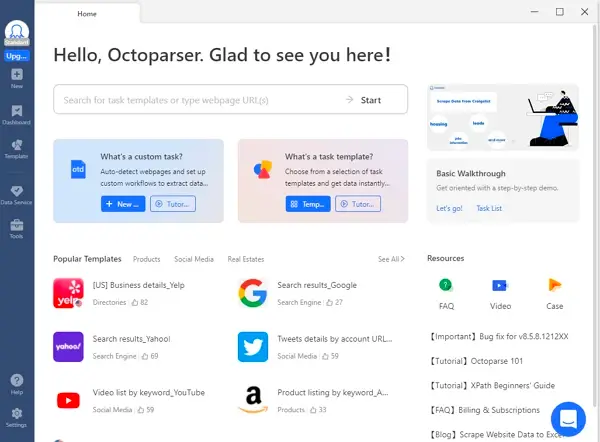
After downloading Octoparse and installing on your device quickly, you can paste the site link you want to scrape and Octoparse will start auto-detecting.
Step 2: Customize the data field you want to extract.
A workflow will be created after auto-detection. You can easily change the data field according to your needs. There will be a Tips panel and you can follow the hints it gives.
Step 3: Download scraped website data into Excel
Run the task after you have checked all data fields. You can download the scraped data quickly in Excel/CSV formats to your local device, or save them to a database.
When to use a no-code scraper instead of Excel’s built-in tools
If time is your most valuable asset, and you want to focus on your core businesses, outsourcing such complicated work to a proficient web scraping team that has experience and expertise might be the best option.
Choose a no-code scraper over Power Query or VBA when:
- The page loads content with JavaScript (Power Query and VBA’s basic XMLHTTP can’t see it)
- You need to scrape behind a login or fill out a search form first
- You need to schedule re-runs (daily price tracking, weekly lead lists)
- The site uses anti-bot protection: IP rotation handles this; Excel doesn’t
- You need 1,000+ rows from paginated results (Power Query’s UI gets unwieldy past a few pages)
Here are some customer stories that how Octoparse web scraping service helps businesses of all sizes.
Method 2: Excel Power Query (Get & Transform): Best for Static HTML Tables
Note: Microsoft replaced the legacy “Web Queries” feature with Power Query (Get & Transform Data) starting in Excel 2016. The two names refer to the same modern feature: older tutorials still call it “Web Queries”, but the menu path in Excel 365 / 2019 / 2021 is Data → Get Data → From Other Sources → From Web.
Power Query is Excel’s built-in tool for pulling tables directly from web pages into a spreadsheet, with no add-ons or scripts required. It can automatically detect tables embedded in the web page’s HTML.
If you’ve ever copied data from a website, pasted it into Excel, and spent ten minutes fixing the layout — this is the part you’ll love. Excel has a built-in feature called Web Queries (or From Web in newer versions) that does all that work for you.
Web Queries can also be used in situations where a standard ODBC (Open Database Connectivity) connection gets hard to create or maintain. You can directly scrape a table from any website using Excel Web Queries.
Overall it’s great for extracting simple, static tables without extra software.
Best for: simple, static tables on public pages. Don’t use Power Query for sites that require login, infinite scroll, JavaScript-rendered tables, or anti-bot protection — it will return an empty preview.
How to Use Power Query to Scrape a Website into Excel (4 steps)
1. Open Excel:
Go to the Data tab on the ribbon → click Get Data → From Other Sources → From Web.
(In older versions, you’ll find it under Data → Get External Data → From Web.)
2. Enter the web page URL.
Paste the link of the page that contains the table you want to extract. Excel will analyze the HTML structure and show a list of all the tables it detects.
3. Pick your target table.
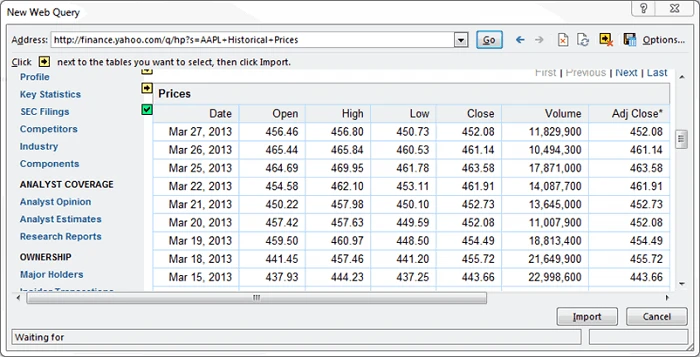
You’ll see small previews — simply click the one that looks right. If the site is properly structured, you’ll notice neat rows and columns ready to go.
4. Load it into Excel.
Once you hit Load, Excel imports the table straight into your worksheet — formatted, sortable, and ready for formulas.
And that’s it — no VBA, no add-ons, no scraping script.
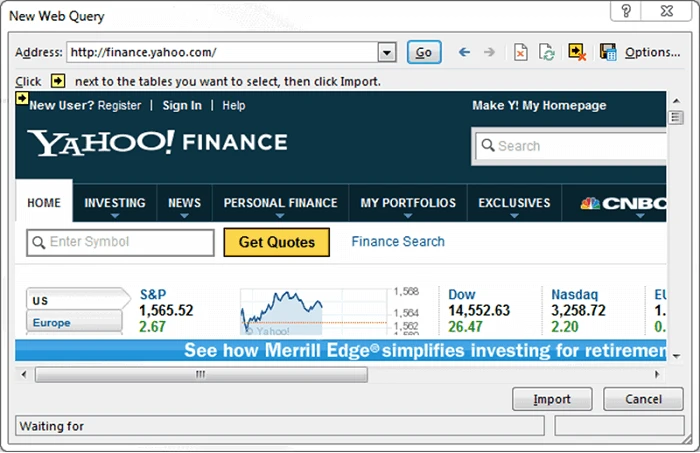
Now you have the web data scraped into the Excel Worksheet – perfectly arranged in rows and columns as you like. Or you can check out from this link.
Auto-refresh on a schedule: Right-click any cell in the imported table → Data Range Properties → check Enable background refresh and Refresh every N minutes. Excel will pull the page in the background and overwrite the table with the latest data — no manual reload needed.
When Power Query Falls Short
Power Query reads the raw HTML the server initially sends. If the table is built by JavaScript after the page loads (most modern e-commerce, social, and dashboard sites), Power Query sees an empty placeholder and returns nothing. For those pages, jump to Method 1 (Octoparse) or Method 3 (browser extension).
When to use Web Queries
- When data is in clean HTML tables
- When you want a quick way to grab data from simple sites
- When you prefer to stay inside Excel without extra tools
Keep in mind, Web Queries don’t handle websites that require logins, scrolling, or have complex layouts.
Method 3: Chrome Extension (Chat4Data): Best for Plain-English, On-Demand Scrapes
If you don’t want to install a desktop tool but Power Query keeps coming back empty on the page you’re trying to scrape, a Chrome extension is the middle ground. You stay in your browser, the page renders normally (so JavaScript-loaded data is visible), and the extension turns whatever’s on screen into an Excel file.
Chat4Data is a Chrome extension that scrapes a webpage based on a plain-English description. You type what you want and say, “get product name, brand, rating, review count, and price for the top 50 Lego results on Amazon”, and the agent shows you exactly what it plans to do before running, then exports the result as Excel, CSV, or JSON. It’s built for people who need clean data fast without writing code or fiddling with CSS selectors.
How to scrape a website into Excel with Chat4Data
- Install the extension. Grab Chat4Data from the Chrome Web Store and pin it to your toolbar.
- Open the page you want to scrape. Navigate to the target page in Chrome the same way you normally would: search results, a product listing, a directory, whatever has the data you need.
- Describe the task in plain English. Click the extension and type the task as if you’re briefing a colleague. Be specific: “Open this Amazon search results page, scrape product title, brand, rating, review count, and price for the first 3 pages of results, then sort by best sellers.”
- Review the execution plan. Before anything runs, the agent shows every step it intends to take, which fields it found, how it’ll paginate, where it’ll click. Tweak it if needed (e.g., “also grab the seller name”) or hit approve.
- Run it. The agent works through pagination, infinite scroll, and detail-page click-throughs automatically. If it hits a login wall or CAPTCHA, it pauses and waits for you to handle it, then resumes from where it stopped.
- Export to Excel. Download as XLSX, CSV, or JSON. Columns are clean and structured — ready for filters, pivots, and formulas.
Chat4Data runs in an active browser tab, so you’ll want to leave Chrome open while a scrape runs. For very large jobs (tens of thousands of records, scheduled overnight runs, or anti-bot protected sites that need rotating proxies), Method 1 (Octoparse) is the better fit, it runs in the cloud and handles IP rotation natively. Use the right tool for the size of the job.
Method 4: Scrape Website with Excel VBA:Best for Custom Logic & Automated Reports
If you have programming experience and want everything to live inside an Excel file, VBA macros let you fetch web pages and parse HTML directly into cells.
Most Excel users live in formulas like SUM, AVERAGE, and IF, but rarely touch VBA(Visual Basic for Application): Excel’s underlying programming language. Files containing macros save with the .xlsm extension instead of .xlsx.
Before using VBA: enable the Developer tab via File → Options → Customize Ribbon → check Developer. Then enable the two libraries below via Tools → References → check “Microsoft XML, v6.0” and “Microsoft HTML Object Library”.
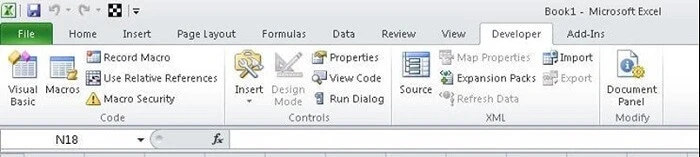
Using Excel VBA is going to be a bit technical – this is not very friendly for non-programmers among us. VBA works by running macros, step-by-step procedures written in Excel Visual Basic.
What VBA scraping can do:
- Send HTTP requests to download web pages
- Parse HTML to find and extract specific data
- Automate data imports for multiple pages or sites
- Export results immediately into Excel cells
How to Use Excel VBA to Scrape Website
Step 1: Open Excel
Press Alt + F11 to open the Visual Basic Editor.
In the left panel, right-click VBAProject → Insert → Module.
This is where your scraping script will live.
Step 2: Import the web libraries.
This allows you to interact with websites:
Step 3: Initialize your request objects.
Add this snippet to your module to declare variables for the XMLHTTP object and HTML document:
Step 4: Make a request to the target website.
Use XMLHTTP to make a GET request to the target URL and parse the response into an HTML document:
Step 5: Extract what you need.
Extract the needed data using DOM navigation/selectors, and export the scraped data to Excel.
Step 6: Clean up and repeat.
Clean up variables for memory management. Repeat the steps to scrape multiple pages if needed.
VBA takes a little setup, but once it’s running, you’re effectively turning Excel into a lightweight web scraper — ideal for pulling data from structured sites that don’t rely heavily on JavaScript.
Which Method Should You Choose?
| Method | Ease of Use | Best For | Requires Coding | Handles Complex Sites? |
|---|---|---|---|---|
| Octoparse (No Code) | Very Easy | Beginners, bulk scraping, complex | No | Yes |
| Excel Web Queries | Easy | Simple tables on public websites | No | Limited |
| Browser extension | Easy | One-off lists, search results | No | ✅ |
| Excel VBA Scripts | Moderate to Hard | Programmers, complex custom tasks | Yes | Yes |
Conclusion
Now, you have learned 4 different ways to pull data from any website to Excel. Choose the most suitable one according to your situation.
- If you don’t have any coding skills, or you want to save time and energy on data collection work, a no-code web crawler like Octoparse is the fastest way to scrape any website without programming.
- For plain-English scrapes from inside the browser, Chat4Data (our Chrome extension) handles JavaScript-heavy pages, logins, and pagination automatically.
- If you want to work fully inside Excel, web queries and VBA macros offer additional ways to import data.
Combining these methods with Excel’s powerful data tools, you can turn website data into insights that grow your business.
Common Questions About Scraping Website into Excel
1. Can I scrape any website data into Excel?
Mostly yes — as long as the data is publicly available. Excel can pull data from open web pages, APIs, and structured HTML tables.
However, always check the website’s robots.txt file and terms of use before scraping. Some sites restrict automated access, and ignoring that can lead to blocked requests or legal issues.
If you’re unsure, resources like Harvard’s “Ethical Web Scraping Guide” and DataCamp’s scraping ethics overview can help clarify what’s acceptable.
2. Which method is best for beginners?
If you’re just starting out, Octoparse is the easiest way to go. It’s a visual, no-code scraper — you simply click the elements you want, and it builds the workflow for you. No HTML, no VBA, no formulas.
Octoparse also exports directly to Excel or CSV, so it fits perfectly into an Excel-based workflow.
3. How can I extract data from a website to Excel automatically (on a schedule)?
For static tables, use Power Query’s auto-refresh: right-click the imported table → Data Range Properties → check Refresh every N minutes. For dynamic sites or large jobs, use Octoparse’s cloud schedule — it runs in the cloud while your computer is off and writes results straight to Excel, CSV, or Google Sheets.
4. Can Excel Power Query handle JavaScript-heavy websites?
Power Query reads the HTML the server initially sends, so it can’t see content rendered by JavaScript after the page loads. For React, Vue, Angular dashboards, or any infinite-scroll listing, switch to a no-code scraper like Octoparse, which renders the page in a real browser before extracting data.
5. Do I need to know programming for VBA scraping?
Yes, VBA requires basic knowledge of Excel macros and Visual Basic.
If you’re new, start small. Microsoft’s official VBA documentation explains every object and method clearly, and websites like AnalystCave’s VBA tutorials or Automate Excel offer easy, hands-on examples.
Once you’ve run a few scripts, you’ll realize VBA scraping is less about “coding” and more about telling Excel where to look, what to grab, and where to place it.
6. What’s the best free way to scrape data from a website to Excel?
For one-time small jobs, Excel Power Query is built into every modern Office license, costs nothing, and handles static tables in 4 clicks. For dynamic pages, free Chrome extensions like Instant Data Scraper or the free tier of Octoparse (10 tasks, unlimited rows on local runs) cover most personal and small-business needs without a paid plan.