

Keepa has been the go-to Amazon price history tracker — but is it actually the best? We tested four tools head-to-head: Keepa, CamelCamelCamel, Prisync, and Octoparse. Each has a different strength: instant history, free access, competitor monitoring, or bulk tracking at scale.
This guide will compare three primary ways for tracking Amazon price history, each with its own distinct competitive advantage:
Browser extensions for quick price trend checks, dedicated trackers for deeper analytics, and web scraping for bulk data and complete ownership.
How to Track Amazon Price History (3 Methods)
In the first method, known as “ready-made” extensions, we have tools like Keepa and CamelCamelCamel. They provide a lot more insight, but do not give you the whole picture. Octoparse belongs in the second method, where web scraping is used to access valuable, customized data that is not available in other tools.
Method 1: Browser Extensions (Keepa & CamelCamelCamel)
This method of Amazon price history tracking is primarily designed for consumers or casual sellers who need instant, on-page price history for individual products.
How to Use Keepa (Quick Start)
- Install the extension from Chrome Web Store or Firefox Add-ons
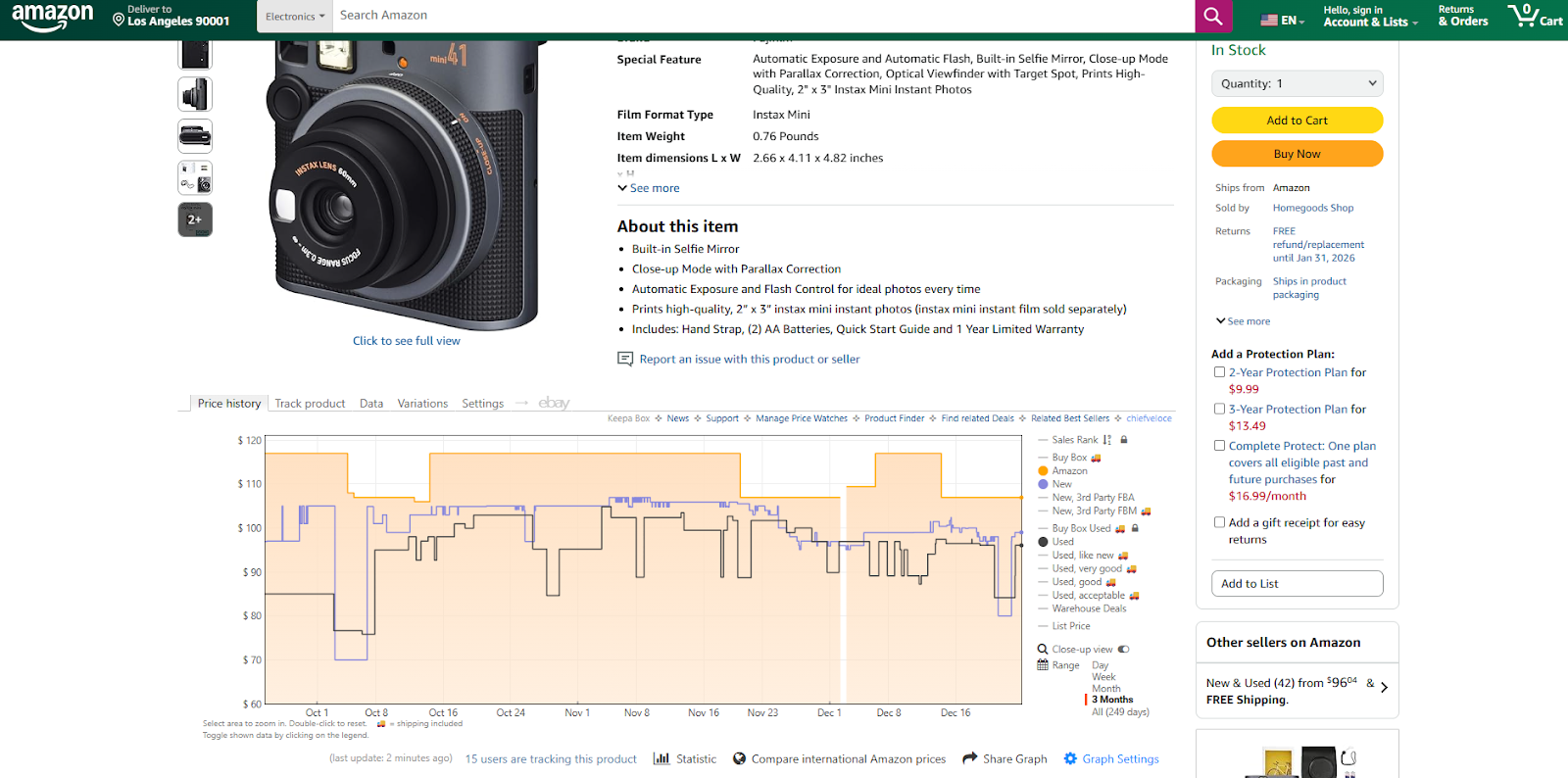
- Navigate to any Amazon product page — the price history chart appears automatically below the product images
- Select your timeline (1 month, 3 months, 1 year, or all-time) to view historical trends
- Toggle data sources including ‘New’, ‘Amazon’, and ‘Used’ to see prices from different sellers
- Set a price alert (optional) — enter your target price and email to get notified when it drops
No account required for basic price history viewing.
Keepa (Review)
With over four million users and monitoring nearly six billion products, Keepa is a pillar in Amazon price tracking tools. Keepa can be installed directly in most browsers. They also have a website that allows you to manage multiple products you have previously marked for tracking or add new ones. For easier use, it is more practical to track products while browsing Amazon. If you are a casual shopper, there is no need to create an account, as Keepa will still show you the same price history chart.
When the extension is installed, it provides a graph with historical data directly on the same page as the product you are looking at. You can select different timelines to observe history and view various sources, including ‘New’, ‘Amazon`, and ‘Used’. These categories originate from different sellers for multiple tracking possibilities.
Their website has an outdated look, but it works reliably.
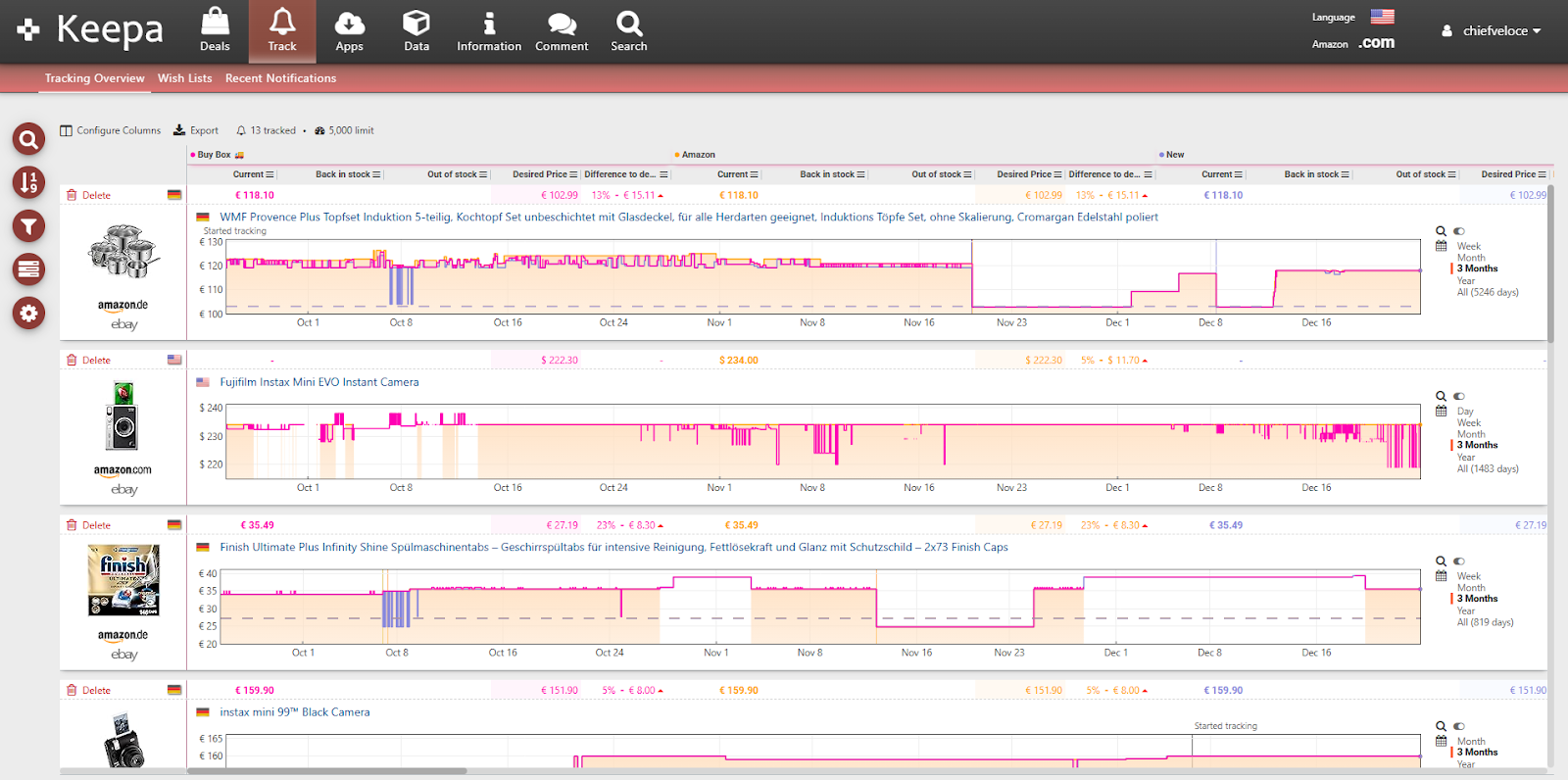
When starting with price history tracking, it is not very intuitive, and it is hard to understand all the data Keepa serves to its users. It can track multiple regions simultaneously, which is very convenient when researching a global market. When tracking items, you set a wished price at which it should drop to, and you will receive an email notification when the price reaches this amount.
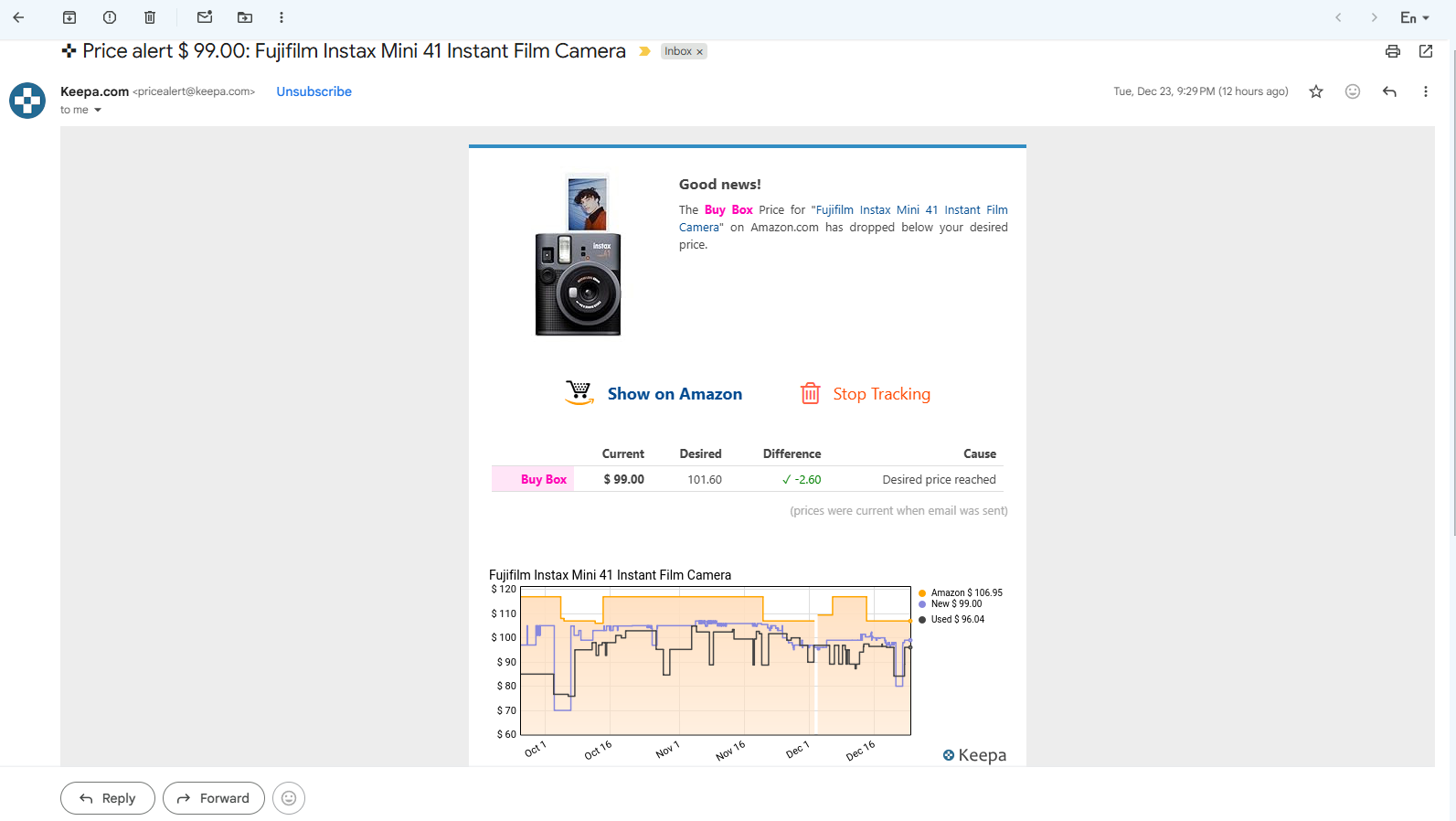
Although the product is satisfactory and free to use for most users, it features a subscription model that allows advanced users, such as professional sellers, to access more data.
For $19 per month, you gain access to Sales Rank history graphs and the Product Finder feature, which are invaluable for tracking market trends. Sellers who use this feature mostly agree that it is still worth paying for to get a competitive advantage. The best use case is for simpler tracking and researching the markets you are trying to penetrate.
Keepa Rating: ⭐⭐⭐⭐ (4/5)
| Pros | Cons |
|---|---|
| Free for basic use | Cluttered, unintuitive interface |
| Massive product database (6B+) | Learning curve for new users |
| Multi-region tracking | Premium features require $19/mo |
| Price drop alerts | Product-by-product only |
CamelCamelCamel (Review)
The “Camelizer” by CamelCamelCamel is the extension they provide, along with their website, for tracking Amazon price history. Unlike Keepa, CamelCamelCamel is an entirely free tool. However, it lacks the premium features that Keepa offers to sellers.
The User Interface (UI) is more modern and clearer to understand, with simpler graphs compared to Keepa.
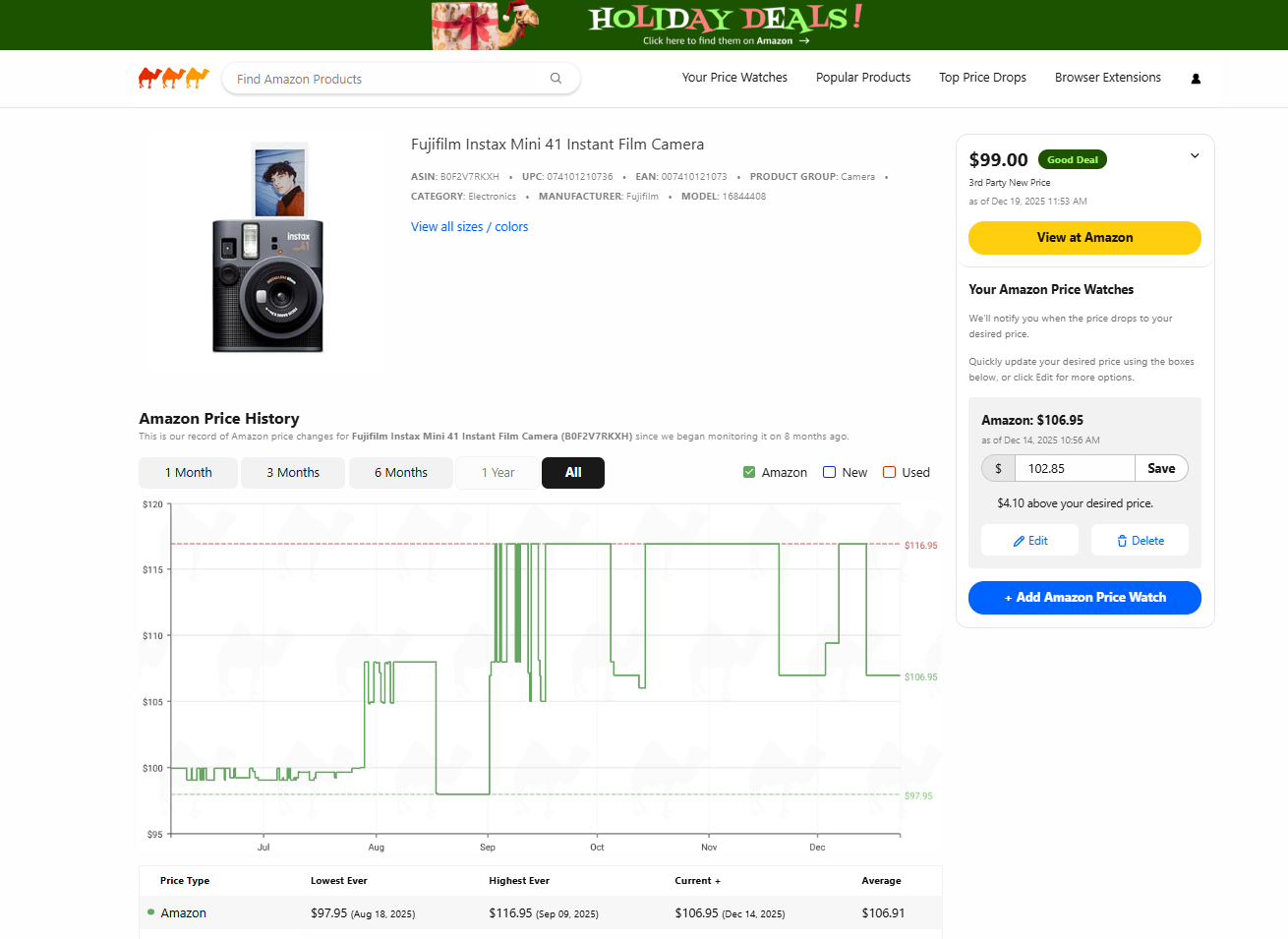
The extension displays the relevant data when clicked on while viewing the product on Amazon.
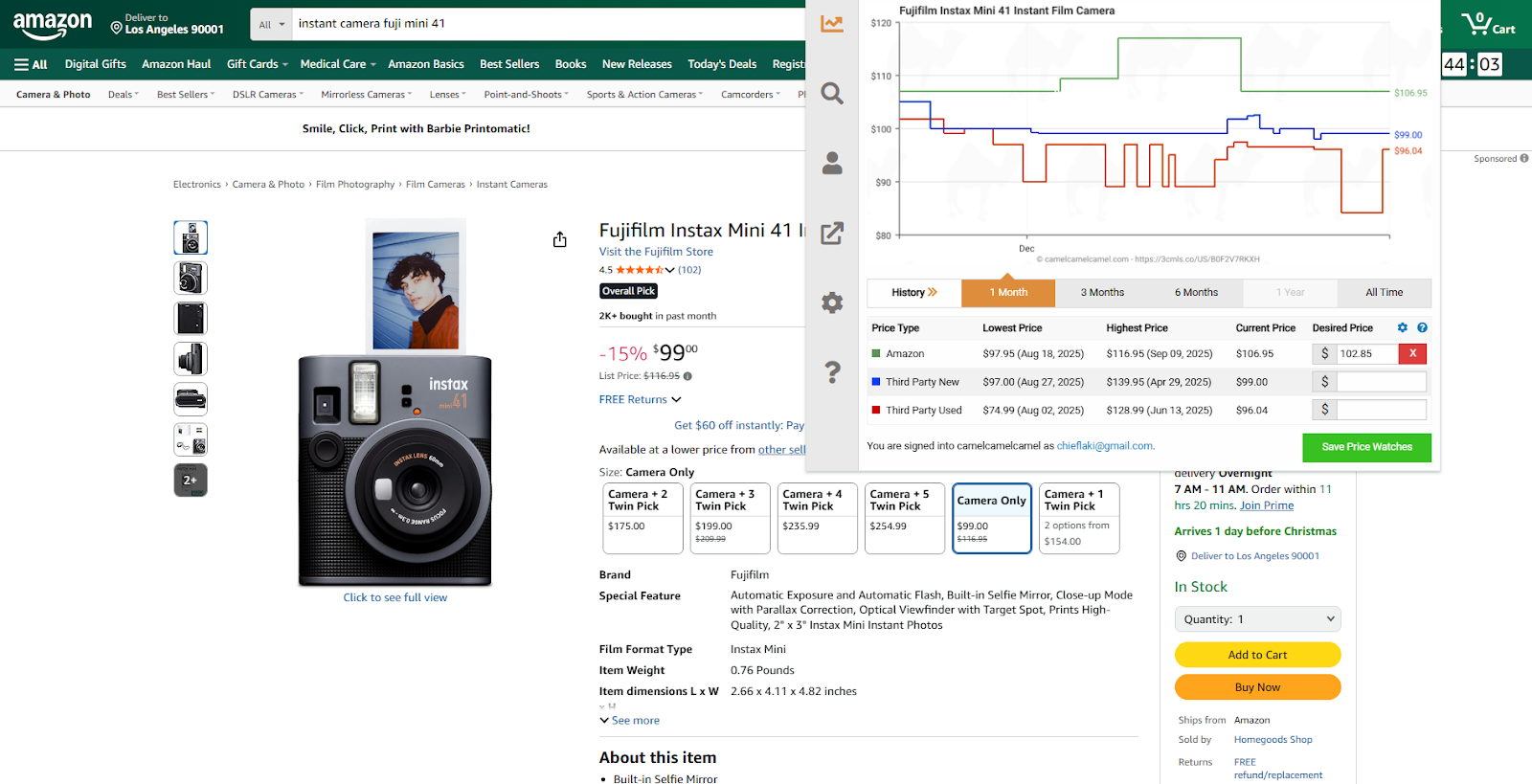
One more thing I also noticed while using the CamelCamelCamel extension is that it is difficult and inaccurate to use in regions other than the US. The price does not match the current price Amazon shows, and no multiple categories are extracted.
Similar to Keepa, you receive email notifications when a product goes on sale at the set price, but you get the emails less frequently, meaning there is a chance to miss the flash sale.
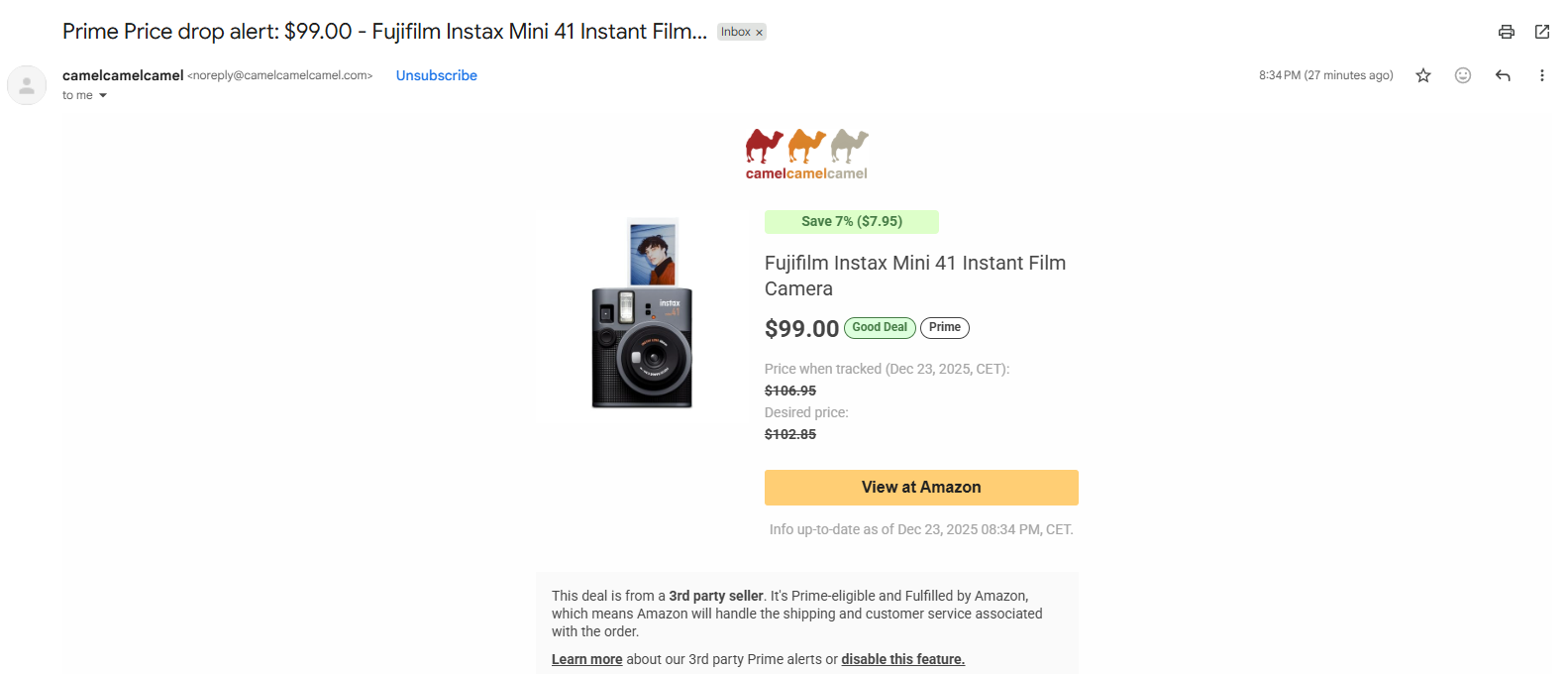
Since CamelCamelCamel does not require a subscription, it is an overall great tool for providing more insight into price trends. However, it does not provide additional information that sellers typically require.
CamelCamelCamel Rating: ⭐⭐⭐½ (3.5/5)
| Pros | Cons |
|---|---|
| 100% free | Limited to US market primarily |
| Clean, modern UI | Less frequent alert emails |
| Simple to understand | No seller-focused features |
| No account required for viewing | Missing Sales Rank data |
Method 2: Dedicated Price Tracking Platforms (Prisync)
Dedicated price tracking platforms are equipped with advanced features for competitor observation and price tracking even across multiple platforms. Such a platform is Prisync, and I will showcase today how they approach Amazon price history tracking.
How to Use Prisync (Quick Start)
- Sign up for a Prisync account and complete onboarding
- Add products manually with name, category, brand, and optional barcode/cost fields
- Set monitoring mode — choose hybrid mode to track both Amazon and Google Shopping simultaneously
- Configure competitor URLs for each product you want to monitor
- View dashboard to compare your prices against competitors across platforms
Note: Product setup may take time before results populate. Contact support if delays occur.
Prisync Review
Prisync is optimized for competitor price monitoring, meaning it can track prices across different platforms and notify you how your website compares to others.
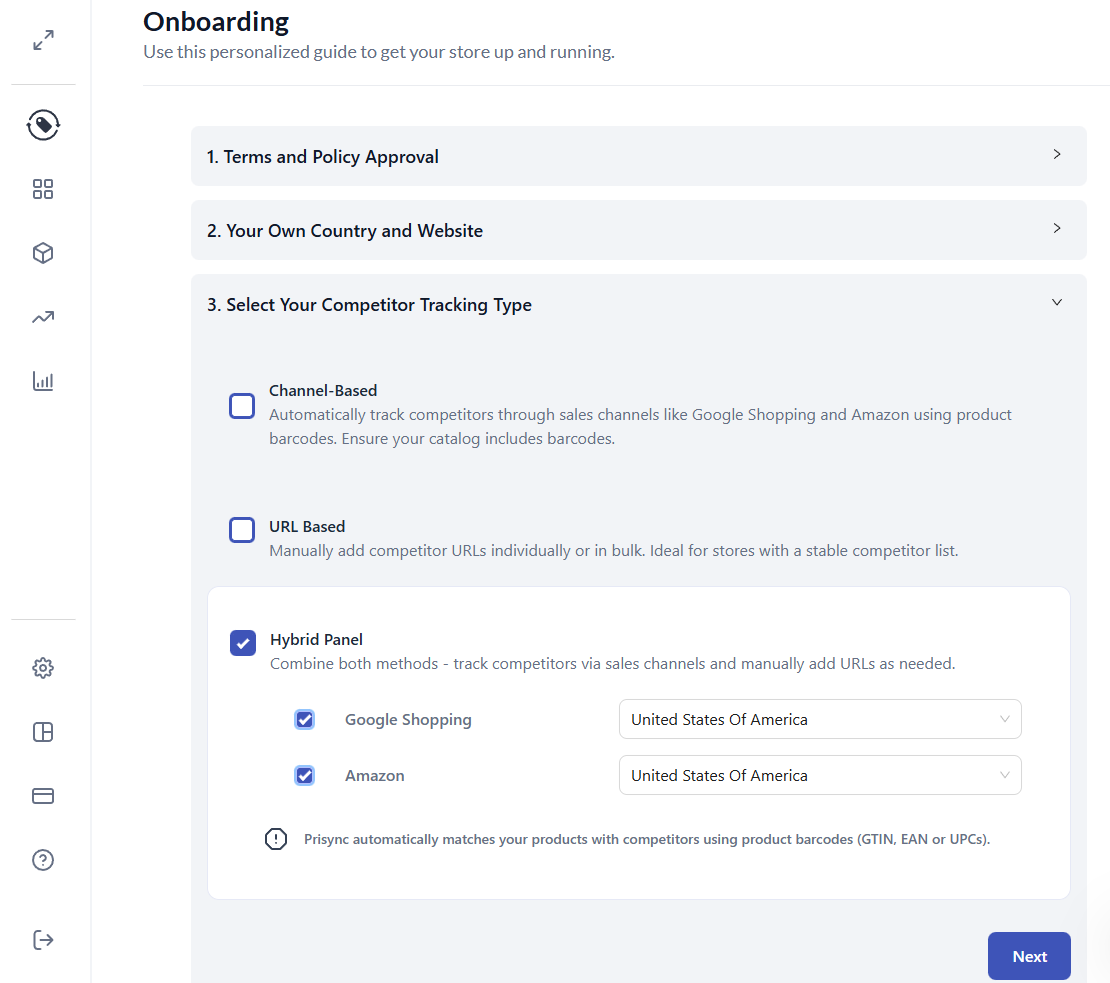
In this case, I put monitoring in hybrid mode to observe both Amazon and Google Shopping.
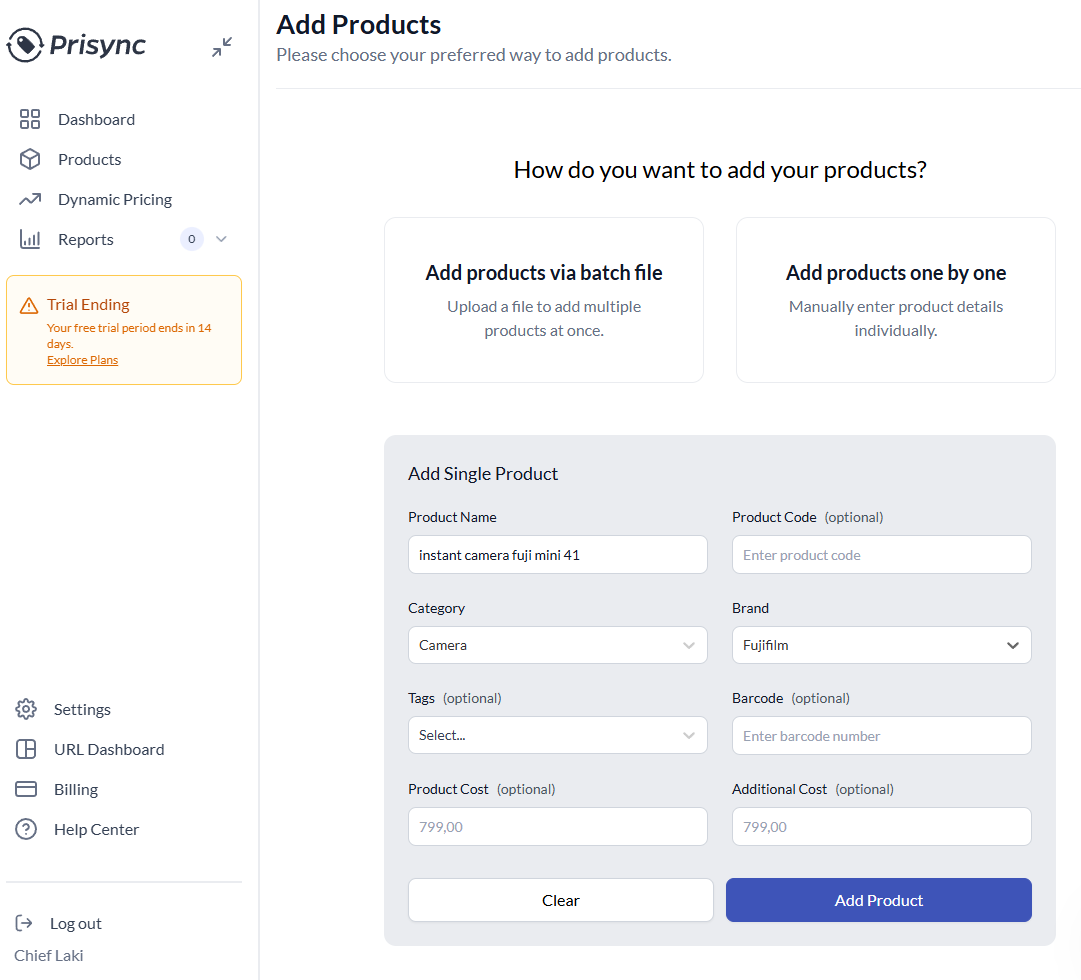
Adding products is simple, with a name, category, and brand as mandatory fields. Adding advanced search filters, such as barcode and cost, is also possible. This can help sellers navigate the market in specific categories where they are competing. The problem that arises is the same one as with browser extensions: they track only product-by-product and not the entire market.
Adding products is simple, with a name, category, and brand as mandatory fields. Adding advanced search filters, such as barcode and cost, is also possible. This can help sellers navigate the market in specific categories where they are competing. The problem that arises is the same one as with browser extensions: they track only product-by-product and not the entire market.
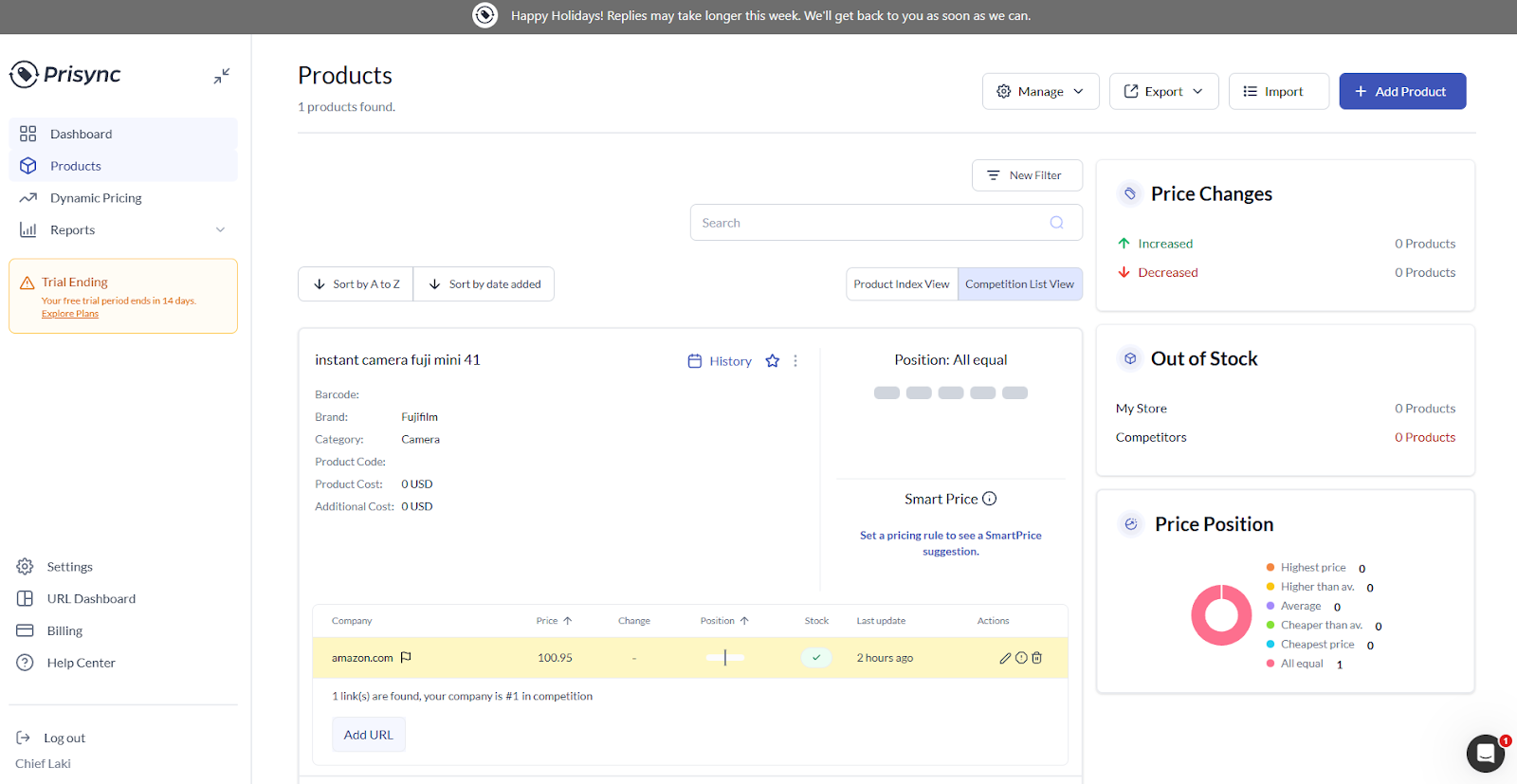
What I found difficult was adding products, along with some other users. It took quite a while before I could get the first results. However, their support is quite responsive and helpful in addressing these issues.
Another problem is vendor lock-in, as all your collected data is stored on their website.
The product itself is pricey but powerful. The first plan starts at $199 per month, and it can track up to 100 products. Although they offer some great features for sellers, the price history feature is only unlocked in the most expensive Platinum plan, which costs $718.80/month if you also want API access. That is quite a hefty fee, even for big sellers on the platform.
Prisync Rating: ⭐⭐⭐ (3/5)
| Pros | Cons |
|---|---|
| Cross-platform monitoring | Expensive ($199-$718/mo) |
| Competitor price comparison | Slow initial setup |
| Professional dashboard | Vendor lock-in (data not portable) |
| Responsive support | Price history only on Platinum plan |
Method 3: The “Bulk” Solution (Octoparse)
Amazon price history tracking tools, in the form of browser extensions and dedicated trackers, are excellent for product-by-product research and minimal tracking. However, monitoring the entire market is impossible.
If you want to monitor at scale 100, 1,000, or even 10,000 products, the previous methods are just not capable of such. Imagine having to check prices and charts for multiple thousands of products in the market. It’s simply impossible, even if you hire a team for that purpose only. Amazon price history tracking at scale is only possible with web scraping and Octoparse.
The only problem you can face with this approach is not having the immediate history that Keepa and CamelCamelCamel can show. Overall, for market research, this is not relevant, as you will want to assess the data from the point at which you start tracking and have full ownership of the data. Along with data ownership, you can customize what data you want to see, such as “Subscribe and Save” discounts, stock levels, and delivery times. This data is not available in other methods.
Reviews of products are one of the most important sources of information that sellers can utilize to their advantage, allowing them to see how products perform. Such an analysis is also possible after scraping the data with Octoparse.
Before I show you how Octoparse collects all this valuable data, let’s compare the approaches in their respective categories.
Price History Tracker Comparison: Dedicated Trackers vs. Web Scraping with Octoparse
Each of the previously mentioned methods has its advantages and disadvantages. Professionals across different industries may opt for various solutions, so the main differences lie in the scale you are looking for.
The following table will show differences in the main categories of these tools:
| Feature/Aspect | Dedicated Trackers | Web Scraping with Octoparse |
| Setup | Initial quick setup and easy one-click access. | Set up once and track customized data without additional effort. |
| Maintenance | All maintenance efforts are the responsibility of the tool developers. | Template tasks require no maintenance, but custom tasks may require maintenance if the website changes. |
| Flexibility and Customization | Limited features include price, sales rank, and stock. Not possible to customize fetching seller data, reviews, and ‘Subscribe and Save’ prices. | Get any visible data on the page regularly from any e-commerce website, and not just Amazon. |
| Data Ownership and Portability | Either vendor’s dashboard or limited export options (usually Excel). | Complete data ownership with full customization and tracking of history. Any platform is available with Octoparse. |
| Scale and Cost | You have to track each product individually, and paid plans limit the maximum number of possible tracks. It can become quite costly. | Octoparse bases pricing around cloud execution time and volume. Very scalable for different markets, vendors, and platforms at an affordable price. |
| Best use case | Casual sellers and businesses that want hands-off monitoring, with data only displayed through these tools. | Companies and analysts that research the market need custom data and monitor products at scale. |
How to Build Your Own Amazon Price History Tracker with Octoparse
Octoparse is a no-code platform that has pre-made templates for different websites. Even for the websites that do not have templates, you can build customized scrapers.
I start the custom task in the Price Tracking folder to create the Amazon price history tracker in Octoparse and track the competition.
By defining the rules of the task and other metadata, such as the group and the number of pages I want.

Octoparse features a robust auto-detect function that can automatically identify all relevant data fields, eliminating the need for extra user input.
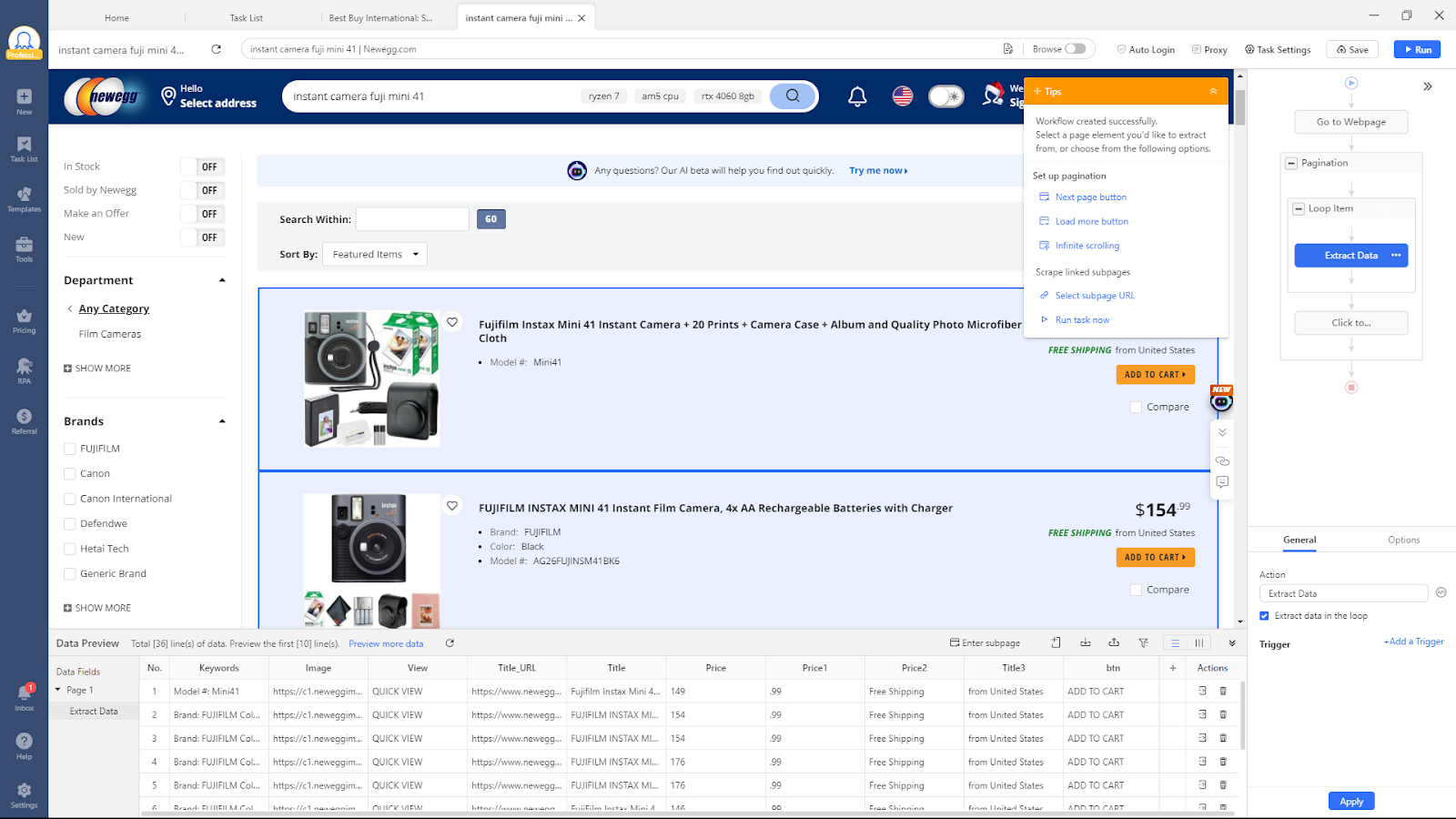
Here comes the magic and actual history tracking, as I can either perform this in the Octoparse cloud or on my local machine. The cloud has a significant advantage in that it does not require any additional resources from your machine.

Before starting the first task, I set the schedule for data collection every 6 hours. However, for more advanced cases, you should run this more frequently, which is also possible with Octoparse. It gives you complete control over the schedule. In this step, we actually build a price history tracking tool for any platform. Now I can access data from any competitor in the same data sheet.
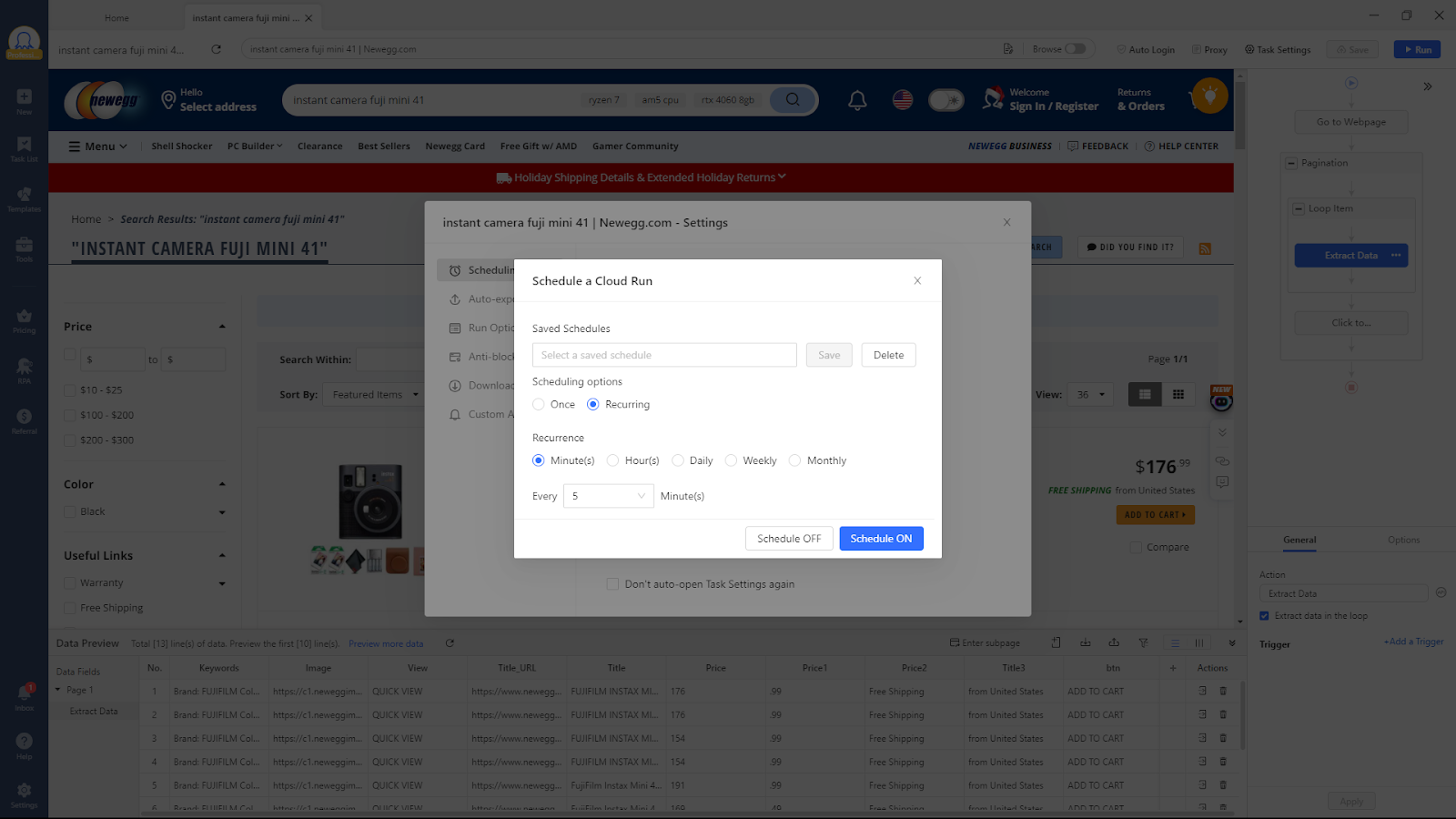
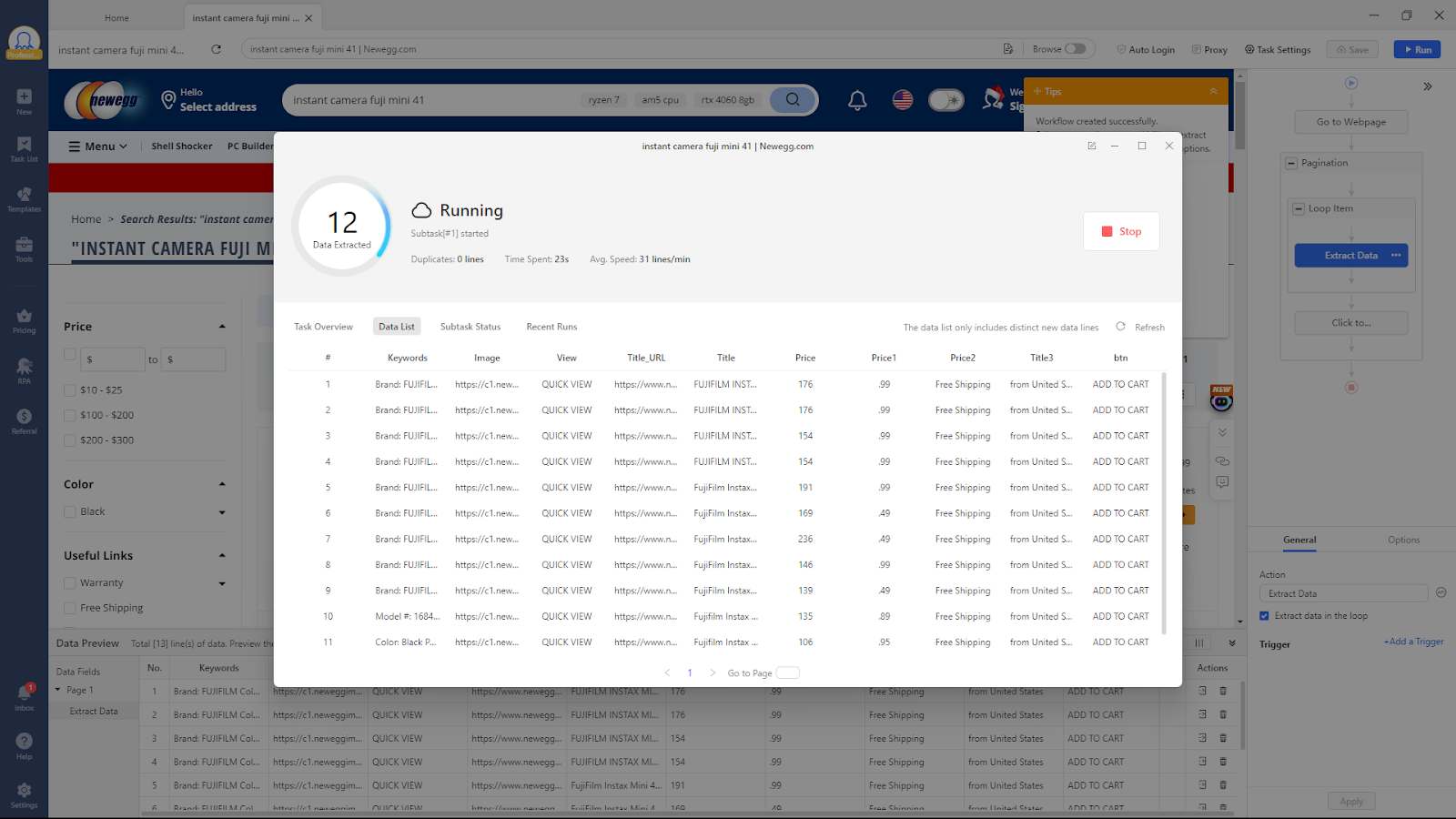
While scraping, Octoparse provides a current table of scraped data, allowing me to verify whether the desired data is present.
After the run, the data is entirely yours to export either locally (Excel, CSV, HTML, and JSON), to a database (Google Sheets, SQL Server, MySQL, Oracle, and PostgreSQL), or to a cloud (Google Drive, Dropbox, or Amazon S3).
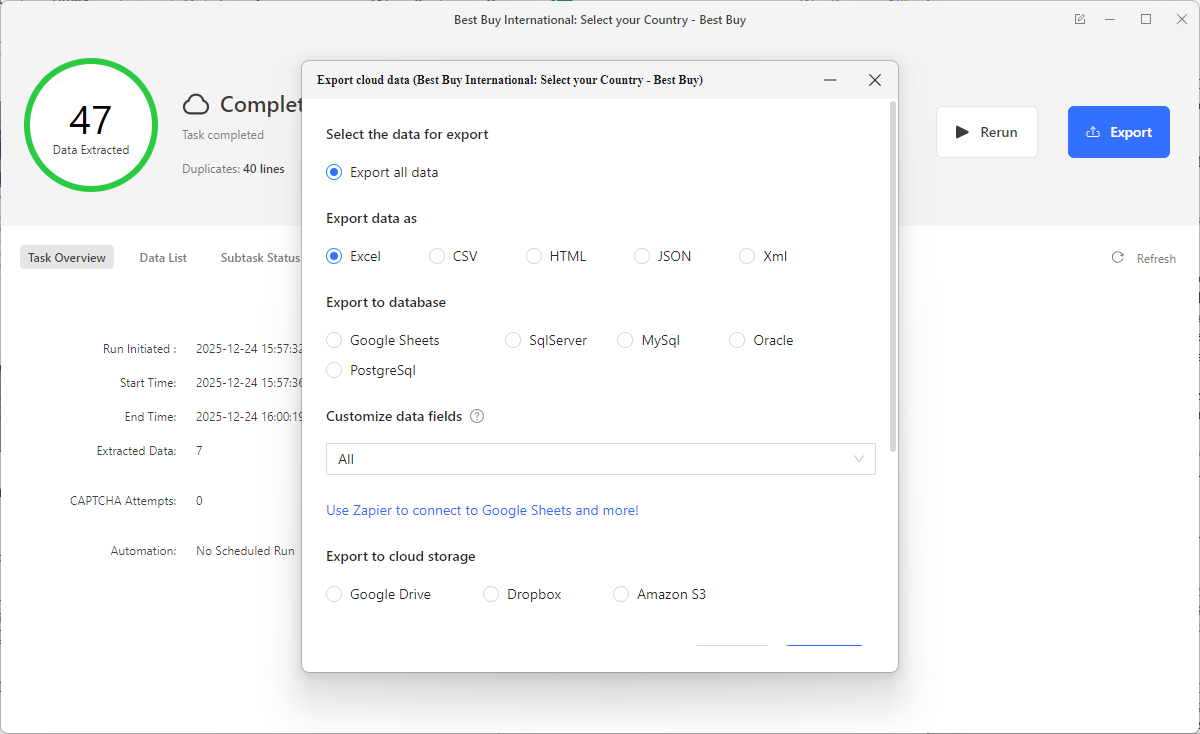
For the cloud runs, it is also convenient to connect the auto-export feature to append new data automatically.

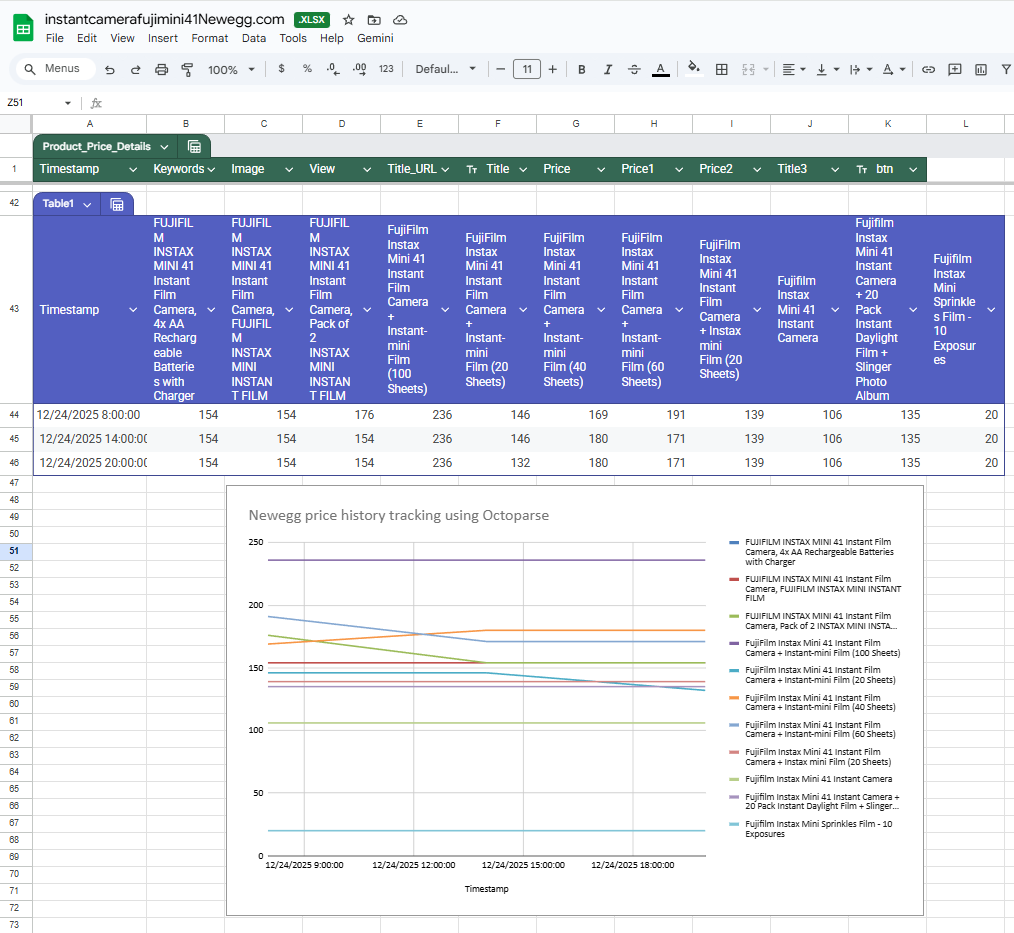
After collecting data for a few data points, I can group all unique products and show connected price points for each timestamp. I can clearly see which products I need, and since everything is done in Google Sheets, I can filter for any specific product I want.
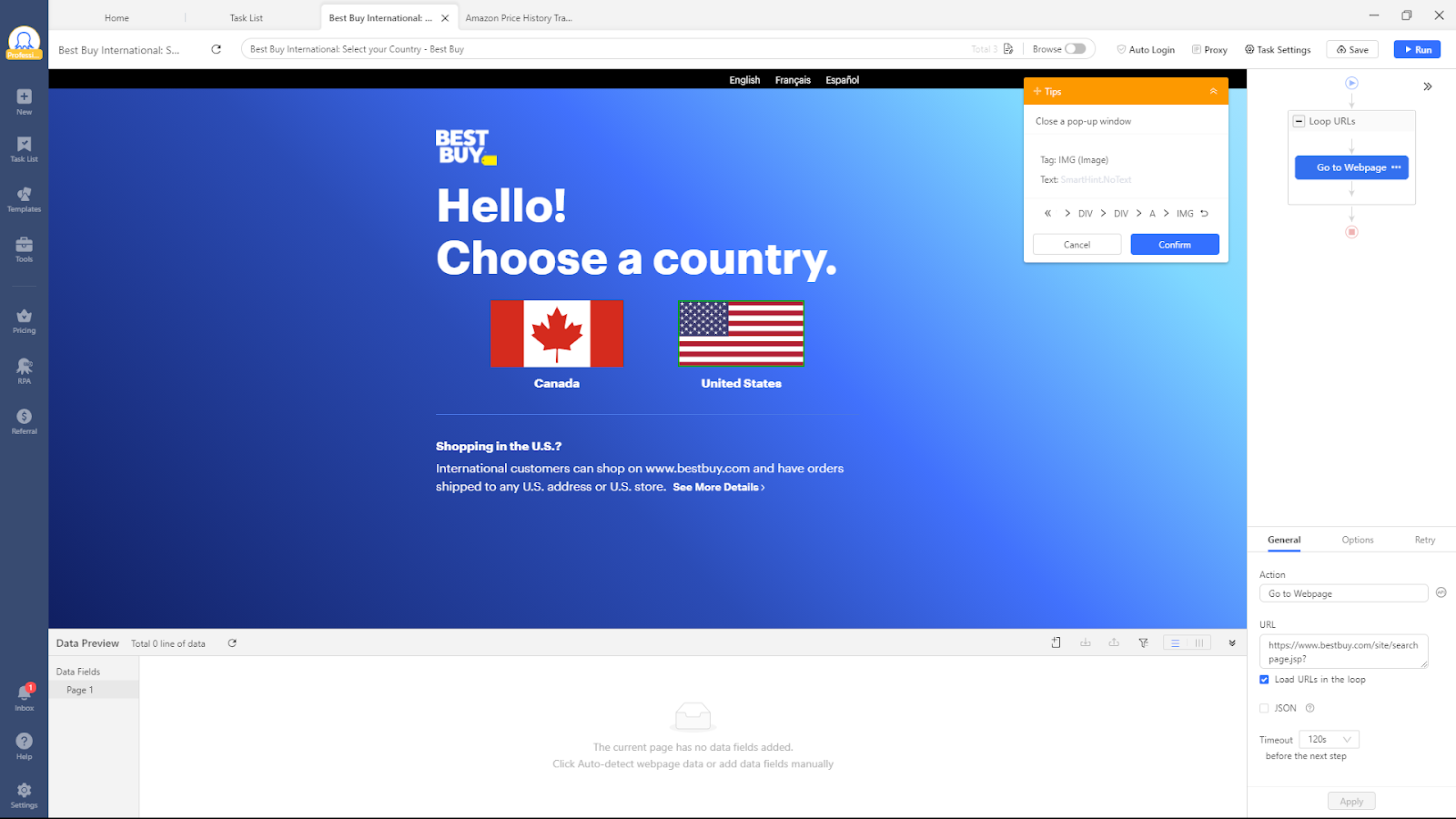
Efficiently deal with custom CAPTCHA, pop-ups, and other custom messages by defining the rule for Octoparse on where it should click. This is just an example from Best Buy’s website, one more competitor.
| Pros | Cons |
| Scale to 10,000+ products | Learning curve for custom tasks |
| Full data ownership & portability | Requires initial setup time |
| Custom data fields (stock, reviews, etc.) | |
| Works on any e-commerce site | |
| Scheduled automation | |
| Multiple export formats |
When to Use Which Amazon Price Tracking Tool
Choose Keepa if:
- You’re a casual shopper looking for deals
- You need instant historical data without setup
- You’re an FBA seller who needs Sales Rank tracking
- Budget: Free or $19/mo
Choose CamelCamelCamel if:
- You want a completely free solution
- You only shop on Amazon US
- You prefer a cleaner, simpler interface
- You don’t need seller-specific data
Choose Prisync if:
- You’re a retailer competing across multiple platforms
- You need competitor price intelligence
- You have budget for $199-$718/mo
- You want a managed, hands-off solution
Choose Octoparse if:
- You need to monitor 100+ products at scale
- You want full ownership and portability of your data
- You need custom data fields (reviews, stock, delivery times)
- You want to track competitors beyond Amazon (Walmart, eBay, etc.)
- You’re building market research or analytics workflows
Turn website data into structured Excel, CSV, Google Sheets, and your database directly.
Scrape data easily with auto-detecting functions, no coding skills are required.
Preset scraping templates for hot websites to get data in clicks.
Never get blocked with IP proxies and advanced API.
Cloud service to schedule data scraping at any time you want.
Conclusion
Researching competitors and following price trends is a vital strategy for many sellers and shoppers. Depending on the scale of your business or operation, we have explored three possible solutions tailored to your specific needs.
Browser extensions like Keepa and CamelCamelCamel offer excellent entry points for individual product tracking — they’re free or low-cost and require zero setup. However, they quickly reach their limitations due to product-by-product tracking and lack of data ownership.
For businesses that need data as a strategic advantage, building a custom solution with Octoparse is a viable option. Not only can you choose which data to scrape, but creating such automation is easy and fast. Utilizing such an advanced tool, which gives you ownership of the data, is a cost-effective and long-term solution for your business.
Want a deeper dive? Check out these articles:
- Top 4 eBay Price Tracker
- Top 7 Amazon Scraping Tool
- How to Bypass Amazon CAPTCHA While Scraping
- 6 Ways to Scrape Images Easily from Web Pages or Websites
- 3 Easy Methods to Build a Web Crawler for Beginners
Frequently Asked Questions
1. Is it legal to scrape Amazon prices?
Yes, it is legal to scrape Amazon prices as they are publicly available. However, when scraping data, one must always respect robots.txt rules, adhere to the Terms of Service (ToS), and refrain from overloading their servers.
2. How often should I schedule my Amazon price history scraper?
Depending on the vendor being monitored and the number of products, this can vary from a few minutes to once a day. On average, every 6 hours is a safe option for a price history tracking tool.
3. Does Octoparse handle Amazon’s anti-bot protections?
Yes, Octoparse operates discreetly, mimicking human behavior. By clicking in random patterns and introducing random delays, it remains undetected by anti-bot detection algorithms. Octoparse also handles CAPTCHA and any pop-ups that may appear while scraping.
4. Can I use Octoparse to track prices on other e-commerce sites, such as Walmart or eBay?
Yes, Octoparse can scrape data from Walmart, eBay, Temu, Aliexpress, and any other e-commerce websites. Either by using the predefined templates directly available in Octoparse or by customizing your task to fetch any possible data.
5. Which tool has the best price history data?
For historical data depth, Keepa wins — it has years of price history already built. For future tracking with full data ownership and customization, Octoparse is the better long-term solution.
6. Can I export my price tracking data?
- Keepa: Limited export on free tier; better on premium
- CamelCamelCamel: Basic export available
- Prisync: Data stays on their platform (vendor lock-in)
- Octoparse: Full export to Excel, CSV, JSON, databases, and cloud storage