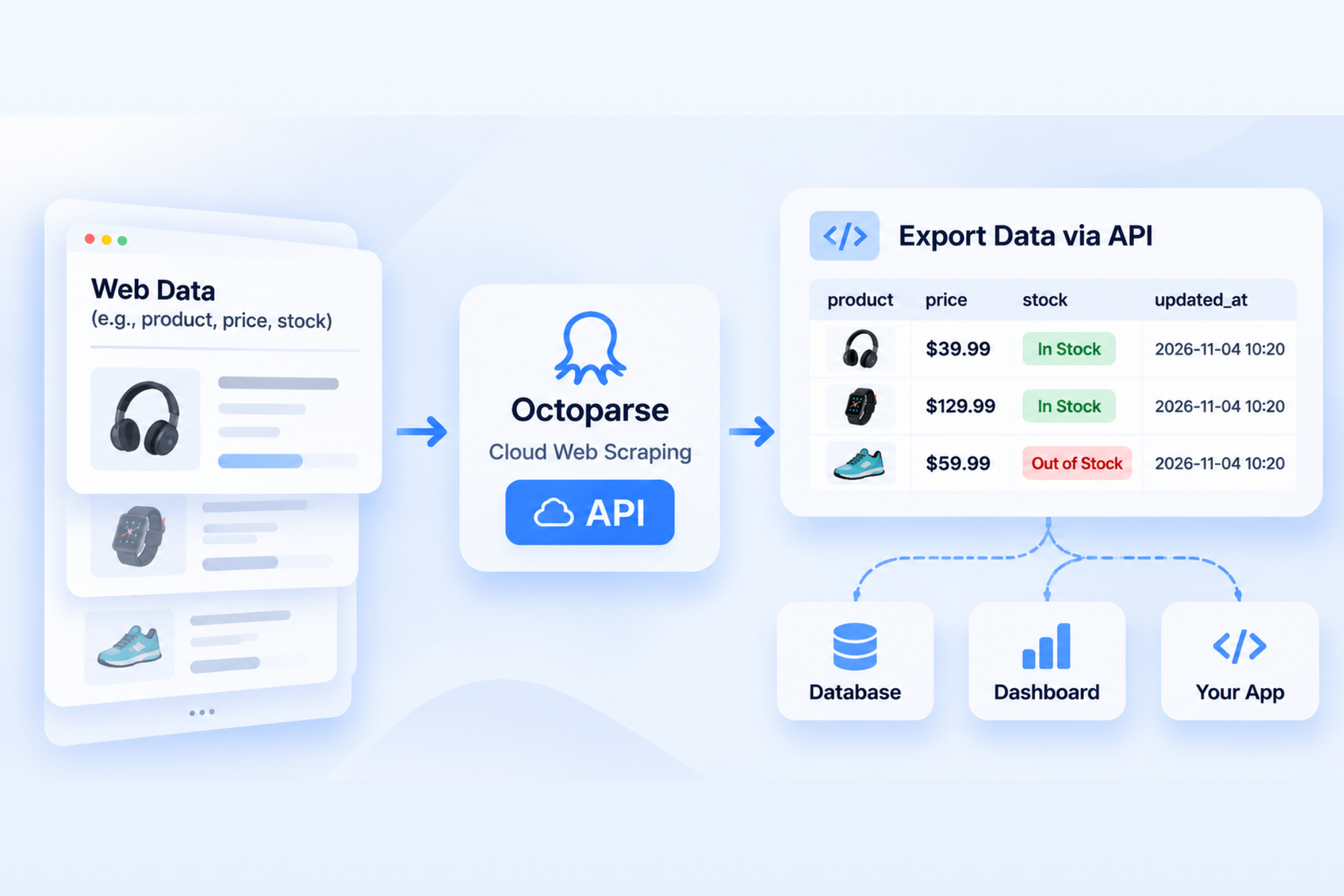
Quick Answer. Cloud web scraping runs data extraction on remote servers instead of your computer. With Octoparse Cloud, supported tasks can keep running while your computer is off, with scheduling and parallel execution available within plan limits. Start with a template or a tested custom task, run a small sample, and verify the records and export destination before scaling up.
Cloud web scraping is a way to collect website data on remote servers so your crawlers keep running even when your computer is offline, asleep, or suddenly shuts down. This can make large, long-running, or fragile extraction tasks easier to manage and scale, while actual speed and reliability still depend on the target website and task setup.
The scale becomes clearer in customer-reported workloads. Officecab runs 24/7 cloud extraction with more than 6 million data lines per crawl. Purdue University’s CFDAS tracked 2.3 million grocery products daily across 20 grocery chains, while Marketing Synergy scaled weekly updates from 60,000 to more than 250,000 records. These are customer-reported workloads tied to their own sources and workflows.
If you are still running a scraper directly on your local machine using a Python script or browser extension, the first question is not “Can cloud scraping handle everything?” It is “What needs to keep running when my laptop is closed?” For a one-off task or a workflow you are still debugging, local extraction may be easier. For a tested task that needs a schedule, shared delivery, or unattended execution, cloud extraction is usually the more practical next step.
Why Cloud Web Scraping Is Better Than Local Scraping
Cloud web scraping runs your data extraction tasks on remote servers instead of your own computer. Once a task is submitted to the cloud, it can continue running even when your laptop is off, disconnected, or restarted.
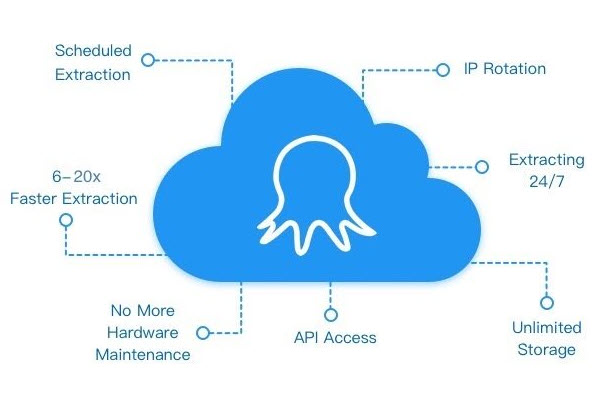
- Unattended execution. Run cloud scraping jobs without keeping your computer on. Cloud data extraction is especially useful for long tasks, scheduled updates, and recurring monitoring.
- Scheduled cloud runs. Set cloud web scraper tasks to run automatically at fixed intervals. This makes cloud-hosted web scraping practical for daily or weekly data refreshes.
- Parallel and distributed work. Independent workloads can be split across multiple cloud nodes. For eligible tasks, cloud data extraction may reduce total runtime compared with a single local machine.
- Cloud IP routing. Cloud environments can use different IP routes during execution. This may reduce problems tied to a single home IP, but it does not guarantee access to every website.
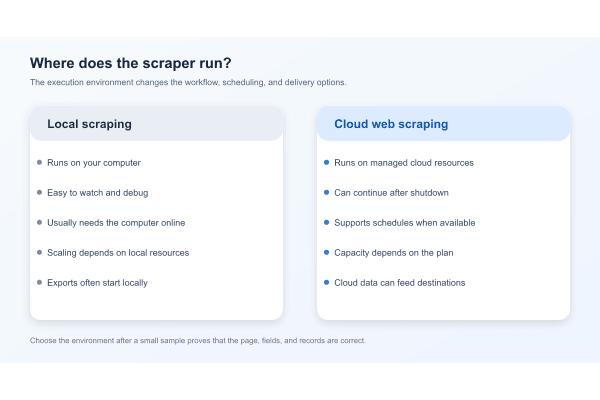
Local scraping is fine for testing small samples. Once you need reliable scheduling, unattended runs, team access, or scalable data delivery, cloud web scraping becomes the more practical choice.
Cloud Web Scrapers vs. Local Web Scrapers
Cloud-based scrapers and local scrapers represent two distinct approaches to web scraping. Companies usually compare speed, scalability, reliability, maintenance, cost, and control before choosing an approach.
| Feature | Cloud-based | Local-based |
|---|---|---|
| Speed | Can be faster for large or independent workloads when plan capacity and the task support parallel execution. | May be slower for extensive scraping operations, especially when a single machine handles high volumes. |
| Scalability | Can scale with the workload within plan, task, queue, and website limits. | Limited by the computing power, network, and uptime of the local machine. |
| Reliability | Runs on provider-managed infrastructure, with cloud run history and supported recovery options. | May face interruptions from network issues, machine failures, sleep mode, or local maintenance. |
| Maintenance | Requires less infrastructure maintenance because the provider manages the cloud runtime. | Requires hands-on maintenance for scripts, packages, browsers, schedulers, and local resources. |
| Cost | May charge by plan or usage, while reducing the need to keep dedicated hardware running. | Can be cost-effective for smaller jobs, with more time spent maintaining the setup. |
| Control | Offers less control over the underlying infrastructure and runtime dependencies. | Provides more control over the operating system, packages, network, and scraping process. |
Is Cloud Web Scraping Right for This Job?
The first decision is not “Which scraper is best?” It is “What should still happen when my laptop is closed?” Use the questions below before moving a task to a cloud runtime.
| Your situation | Start with | Why |
|---|---|---|
| You are choosing fields, fixing selectors, or checking a new page. | Octoparse Desktop or another local setup | You can watch the browser, adjust the workflow, and inspect a small sample quickly. |
| A tested task must run while the computer is off. | Octoparse Cloud | The task runs on Octoparse-managed cloud resources instead of your device. |
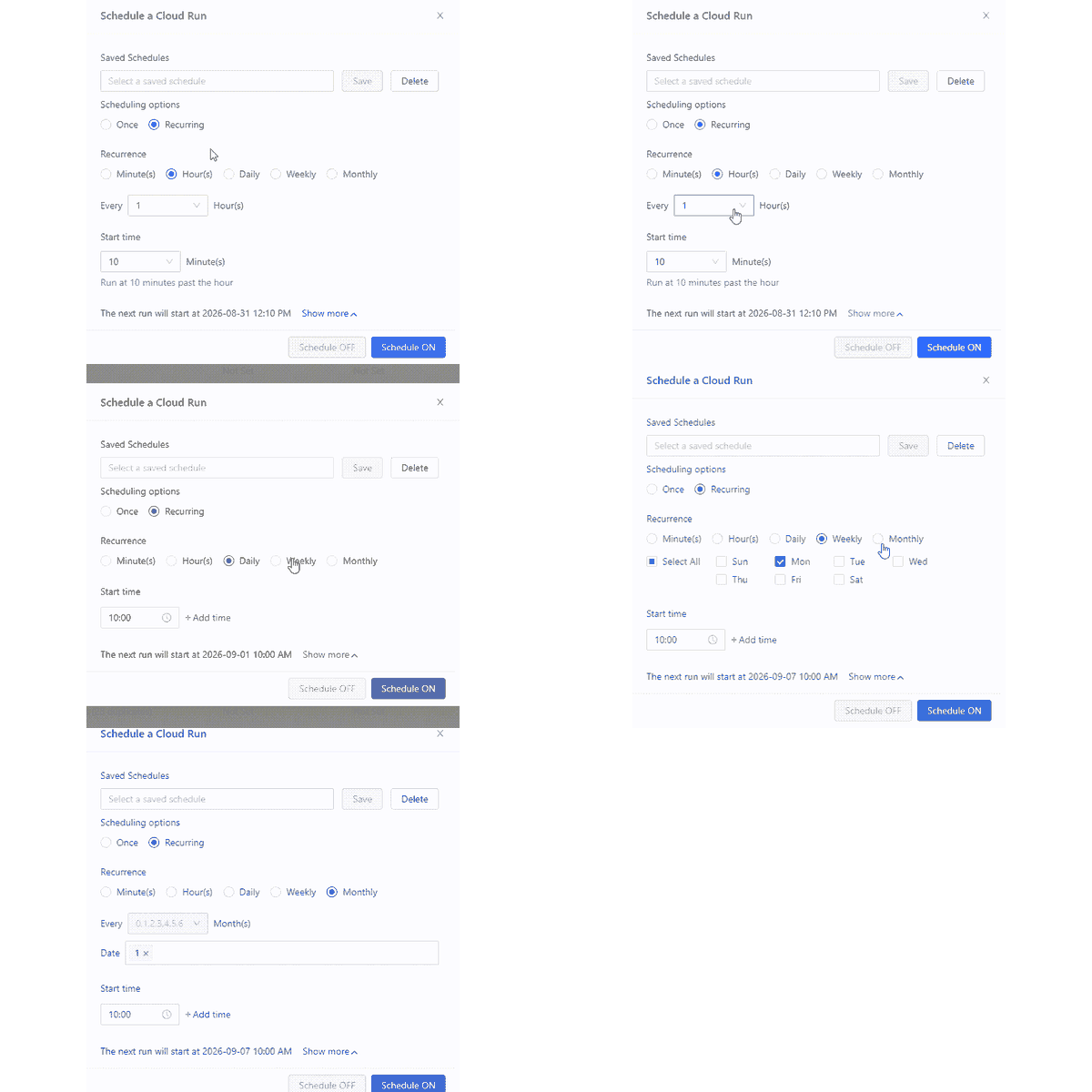
| The task repeats on a schedule. | Octoparse Cloud plus a schedule | The scheduler can request recurring runs. Capacity and an active previous run still affect when work starts. |
| Several people need the same output. | Cloud Data plus a defined export route | Collection and delivery can be separated from one person’s laptop, but the destination still needs its own check. |
| You need to control the operating system, packages, or network. | A self-managed cloud server | Your team owns the runtime, scheduler, recovery, secrets, and monitoring. |
| A maintained workflow already exposes the fields you need. | An Octoparse cloud template | You can start with a documented input form instead of designing every step. |
A simple rule of thumb is to keep the task local while you are figuring it out. Move it to the cloud once a small sample works.
What Changes When You Move a Task to the Cloud?
Moving a task to Cloud changes where it runs. The runtime can continue while your computer is off, queue work, split eligible subtasks, and retain Cloud Data. Actual speed depends on task structure, available resources, and the target site.
The task definition still matters. Selectors, waits, login state, cookies, field mapping, and acceptance rules must be tested. A remote run does not make them correct. Start with a small sample before adding inputs.
Keep the layers separate:
- How the task reaches the source. Browser actions, HTTP requests, or a source API.
- Where the task runs. Local Desktop, a self-managed server, or Octoparse Cloud.
- Where accepted records go. Cloud Data and an export destination.
That distinction prevents a common mistake, treating “cloud” as a magic performance or data-quality switch.
How One Octoparse Cloud Run Works
A cloud run is easier to debug if you treat it as six checkpoints:
- Build or choose a task. Start with a maintained template or create a custom workflow. For custom work, test a representative sample locally first.
- Submit the run. A manual start, schedule, or documented AgentTools API operation requests execution. If capacity is busy, the task can wait in a queue.
- Execute on cloud resources. The task opens pages, follows the configured steps, and reports progress, records, stopped subtasks, and errors. Splittable work may run in parallel. Dependent browser steps usually still need their sequence.
- Review Cloud Run Details. Open the Cloud Run Details documentation and check the page the run actually saw, the data count, subtask status, logs, and available error screenshots. “Completed” means execution ended. It is not a data-quality certificate.
- Check Cloud Data. Confirm that records and required fields are present before exporting.
- Confirm the destination. Octoparse documents the delivery chain as Cloud Run → Cloud Data → export destination. A successful run does not prove that a file, database, Google Sheet, or other system received the records.
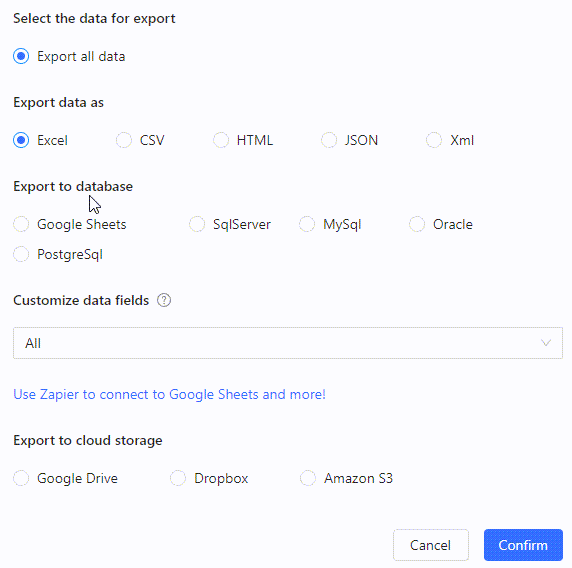
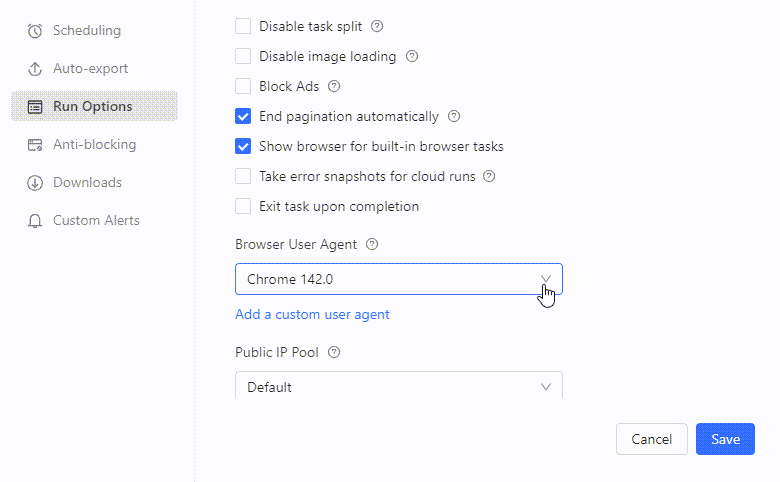
Export requirements depend on the destination. Database exports to MySQL, SQL Server, or PostgreSQL require the Auto-Export Tool to remain open. Supported automatic exports to Google Sheets from version 8.6.8 do not require the local scheduler tool. Test the exact collection-and-delivery path before calling the workflow unattended.
This update keeps the older article content on 24/7 execution, concurrency, IP rotation, API connections, and the three-step setup. Speed, node, and blocking claims are historical examples, not universal promises.
How to Use Octoparse Cloud Data Extraction Step-by-Step
When another application needs to trigger a supported task or retrieve results programmatically, use the cloud web scraping API integration guide.
Google Maps makes the workflow easy to picture. You can find coffee shops in Austin, dentists in Chicago, or restaurants in a new delivery area. The Google Maps Scraper template can turn each keyword and location into structured listing data such as names, addresses, ratings, phone numbers, websites, opening hours, and place URLs, within the scope shown for the current template.
1. Enter the task inputs
Open the Google Maps Scraper template. Enter one or two representative search terms, choose the Google Maps language, set a location, and choose a small number of places for the first check. The actual form may change, so use the labels and limits shown in the current console.
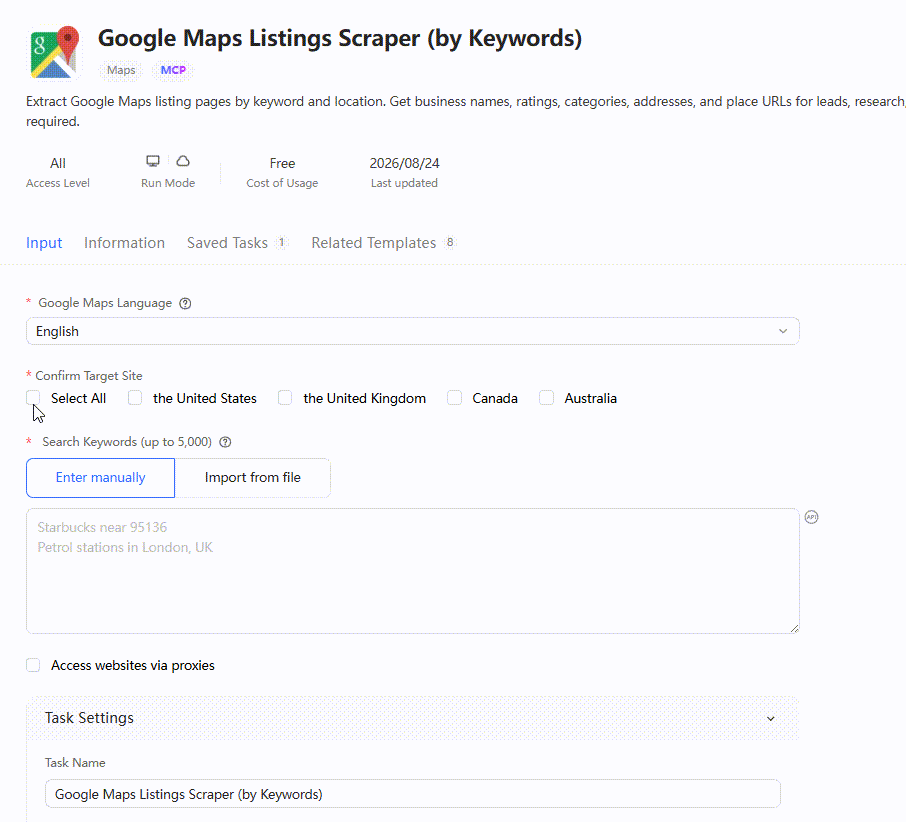
The screenshot shows the current template input form. Use it as a configuration reference, not as proof of a new run. For more context, see the Google Maps scraping guide.
2. Decide what counts as a usable listing
Decide what a good row looks like before you run the task. For a local-lead list, that might mean a place name, category, address, rating, review count, phone, website, and place URL. For market research, you may also need latitude, longitude, opening hours, or review text.
3. Start a small cloud run
Keep the first run small. Start the cloud-capable template, save the task or run reference, and check the page context. Google Maps output can vary by language, location, account state, and site behavior.
4. Inspect the page and the records
Open Cloud Run Details and make sure the run saw Google Maps results, rather than a consent page, an error page, or an empty response. Then check the data list. Do the place names, categories, cities, ratings, phone numbers, and URLs match the location and query you chose?
If a field is empty, fix the selector or loading condition. If the market is wrong, check the location, language, and regional settings. If a subtask stopped, inspect its first error.
5. Export the accepted data and schedule only after the check passes
Export a small accepted sample to the destination your team uses. Open the file, sheet, database, or API response and verify that the identity fields survived delivery. Once the first run is correct end to end, configure a schedule for the next refresh. You can also review the Google Maps business information tutorial.
The Five-Minute Acceptance Check
Before you scale, run through these checks:
- Right page. Did the run see the intended product, listing, or company page rather than a block, login, consent, or error page?
- Right identity. Do the product ID, company domain, country, currency, or other identity fields match the requested source?
- Required fields. Are the fields non-empty and in the expected format? Do empty values mean “not published” or “the task missed the page”?
- Run completeness. Did every input finish, or did a subtask stop? Do the logs explain a partial result?
- Delivery. Do Cloud Data and the destination contain the accepted records? Is the export cursor or duplicate rule understood for the next run?
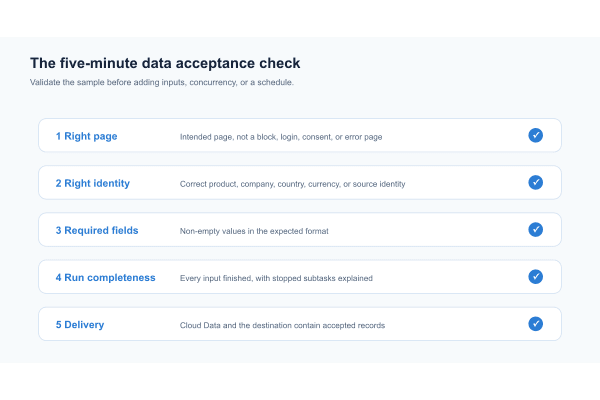
If any answer is unclear, keep the sample small and fix the relevant layer. More retries, proxies, or concurrency will not hide a wrong page or a wrong selector.
What Cloud Web Scraping Does and Does Not Promise
Cloud execution removes one device from the schedule and gives the team a repeatable place to inspect runs and data. It can support unattended runs, schedules, eligible parallel work, regional routing, and documented exports.
It does not promise fixed nodes, universal speed, zero blocks, valid logins, complete fields, or successful delivery. Check current plan limits, template access, export options, and quotas before committing to a workload.
Cloud Web Scraping FAQ
Which Octoparse entry point should you use for a cloud run?
Three Octoparse entry points lead to the same workflow. Create or configure a task, run it in the cloud when supported, check the status, and validate the data. AI Assistant helps you build. One Platform helps you connect and automate through MCP, API, or the CLI. Desktop App helps you customize and debug.
| Entry point | Use it when you want to… |
|---|---|
| AI Assistant | Describe what you need and get help building a task. |
| One Platform | Connect scraping to AI tools, software, or automation through MCP, API, or CLI. |
| Desktop App | Build and debug custom workflows visually. |
Can I turn off my computer during a cloud run?
Yes, if the task is running on Octoparse-managed cloud resources, your computer can be off. Check the full delivery path, though. A local-folder export may still need the computer and app.
Is Cloud Extraction the same as an API?
No. Cloud Extraction is where the run happens. An API is how another system controls a task or retrieves its data. For a detailed comparison, read Cloud Web Scraping API Integration.
What if a run says Completed but my report is empty?
If a run says Completed but the report is empty, check Cloud Run Details, Cloud Data, stopped subtasks, logs, and the destination mapping, in that order. Completed only describes execution status. It does not confirm accepted records or downstream delivery.
Does Octoparse support IP rotation for cloud scraping?
Cloud tasks can use available cloud routes, public IP options, or proxy settings depending on the task and plan. IP rotation can help with request distribution or regional access, but it cannot guarantee that a target site will allow every request. For troubleshooting, see web scraping proxy errors.
Can cloud scraping solve CAPTCHA automatically?
Do not treat cloud scraping as a blanket CAPTCHA solution. CAPTCHA behavior depends on the target site, access state, browser flow, and account setup. If a CAPTCHA appears, review whether you have permission to continue, use an approved access method, and mark the run incomplete until the data passes your checks.
A Practical First-Run Plan
For a first run, use one permitted source and one acceptance rule. Test locally or through a maintained template, submit a small cloud run, verify the page, records, subtasks, logs, and destination, then add a schedule or more inputs.
That sequence is the difference between “the task ran” and “the data is dependable.”